1. Produk Lebihview
The TP-Link UH700 is a 7-port USB 3.0 hub designed to expand the USB connectivity of your computer. It features seven USB 3.0 data ports for high-speed data transfer and three dedicated BC 1.2 charging ports for faster device charging. This hub is compatible with various operating systems including Windows, macOS, Chrome OS, and Linux.
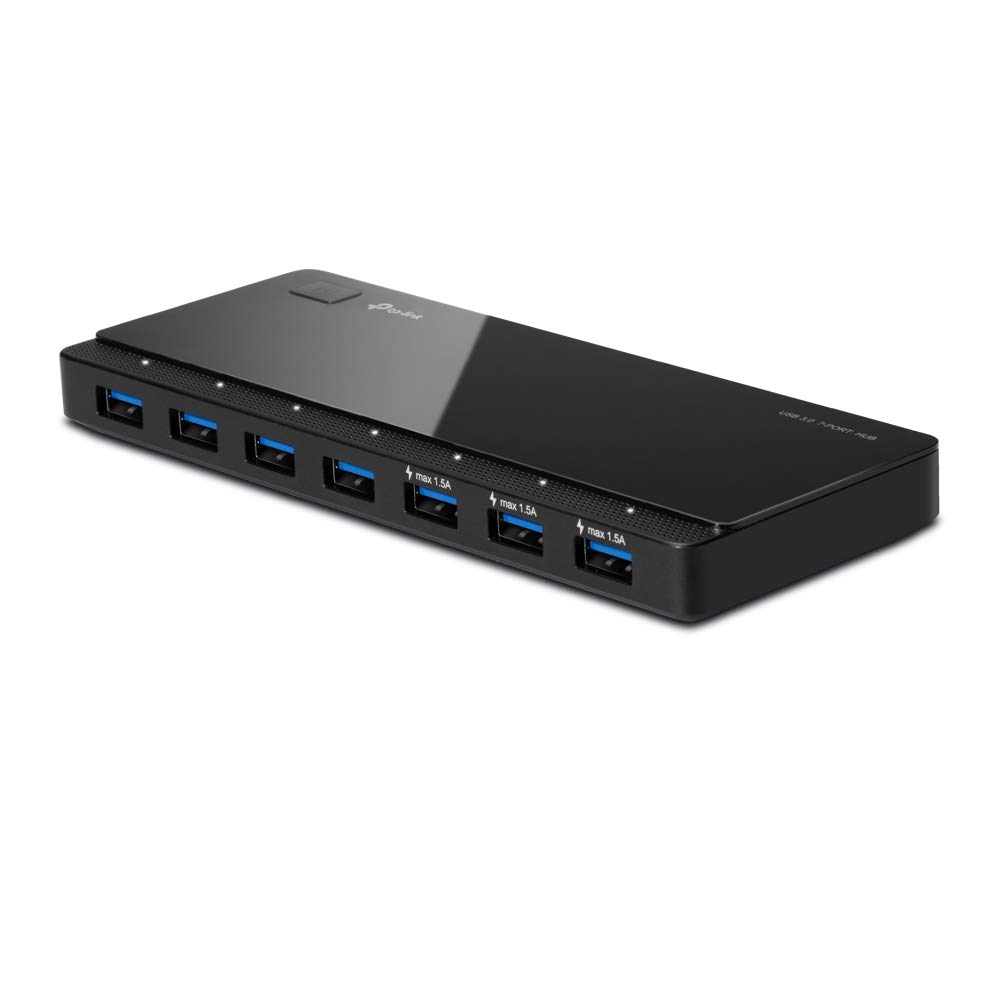
Image 1: TP-Link UH700 USB 3.0 7-Port Hub, showcasing its sleek design and multiple ports.
2. Kandungan Pakej
Sahkan bahawa pakej anda mengandungi item berikut:
- TP-Link UH700 USB 3.0 7-Port Hub
- Penyesuai Kuasa
- USB 3.0 Data Cable (USB-A to Micro-B)
- Panduan Pemasangan Ringkas (tidak disertakan dalam manual digital ini)

Image 2: Contents of the TP-Link UH700 package, including the hub, power adapter, and USB data cable.
3. Arahan Persediaan
- Sambungkan Penyesuai Kuasa: Plug the provided power adapter into the power input port on the back of the UH700 hub, then connect the adapter to a power outlet. The hub requires external power for full functionality, especially when connecting multiple devices or using charging ports.
- Sambungkan ke Komputer anda: Use the supplied USB 3.0 data cable (USB-A to Micro-B) to connect the Micro-B end to the corresponding port on the back of the UH700 hub. Connect the USB-A end to an available USB 3.0 port on your computer.
- Hidupkan kuasa: Press the power button located on the top of the hub. A dim white LED indicator will illuminate, indicating the hub is powered on and ready for use.
The hub is plug-and-play, meaning no additional drivers are typically required for most supported operating systems.
4. Arahan Operasi
4.1. Menyambung Peranti USB
Once the hub is powered on and connected to your computer, you can connect your USB devices to any of the seven blue USB 3.0 data ports. Each port has a dim white LED indicator that will light up when a device is connected and active.

Imej 3: Jarak dekat view of the USB 3.0 data ports on the TP-Link UH700, highlighting their high-speed data transfer capability.
4.2. Using Charging Ports
The UH700 includes three dedicated BC 1.2 charging ports (marked with a lightning bolt icon and "max 1.5A"). These ports are designed to deliver up to 5V/1.5A, providing faster charging for compatible devices compared to standard USB 2.0 ports. These charging ports are primarily for power delivery and may not support data transfer for all devices.
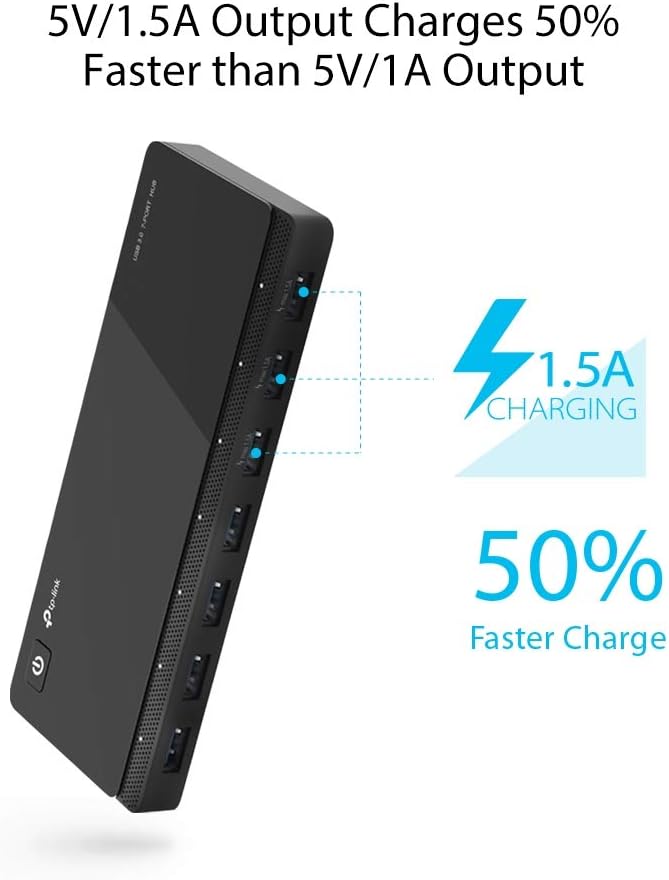
Image 4: Illustration of the dedicated charging ports on the TP-Link UH700, indicating their faster charging output.
4.3. Butang Hidup / Mati
The power button on the hub allows you to easily turn the hub on or off. This can be useful for disconnecting all connected devices simultaneously without unplugging them individually. Note that some users have reported that the hub may not automatically power back on after a computer enters sleep mode or shuts down, requiring a manual press of the power button.
5. Ciri-ciri
- Enhanced Compatibility (2nd Generation): Firmware updates improve functionality when the computer is in sleep mode or shut down, and optimize compatibility with a wider range of devices.
- 10x Data Transfer Speed: Seven USB 3.0 ports support transfer speeds of up to 5Gbps, which is 10 times faster than USB 2.0. It is also backward compatible with USB 2.0/1.1.
- 3 BC 1.2 Charging Ports: Three dedicated charging ports deliver up to 5V/1.5A per port, enabling 1.5x faster charging for compatible devices compared to standard 5V/1A chargers.
- Pasang dan Main: Compatible with and supports plug-and-play functionality in most Windows (10/8.1/8/7/Vista/XP), macOS, Chrome OS, and Linux systems.
- Reka bentuk yang bertimbang rasa: Features a dim white LED indicator on the power button and individual dim white LED indicators for each USB port to visualize connection status without being overly bright.
- Perlindungan Terbina dalam: Designed with multiple protections against overheating, over-current, over-voltage, and short-circuits to safeguard connected devices and data.

Image 5: Visual representation of the built-in protection features of the TP-Link UH700, including safeguards against short circuits, over-voltage, over-current, and overheating.
6. Spesifikasi
| Model | UH700 |
| Dimensi (L x W x H) | 6.5 x 0.7 x 2.6 inci (165 x 18 x 66 mm) |
| Antaramuka Output | 7 USB 3.0 Standard A Ports, 3 BC 1.2 Charging Ports |
| Antara muka input | 1 USB 3.0 Micro B Port |
| Chipset | VIA VL812 Chipset with Latest Firmware |
| Sistem yang Disokong | Windows (10/8.1/8/7/Vista/XP), macOS, Chrome OS, Linux |
| Kadar Pemindahan Data | Sehingga 5Gbps (USB 3.0) |
| Pengecasan Output | Up to 5V/1.5A per BC 1.2 port |
| Penyesuai Kuasa | 12V/4A |
| Berat Barang | 1.06 paun (lebih kurang 480g) |
7. Compatibility Notes
- Some USB 3.0 devices may require a direct connection to host ports for optimal performance.
- 2.4GHz wireless devices (such as keyboards and mice) may experience interference when used in close proximity to USB 3.0 ports. If issues occur, try using a USB 2.0 connection for these devices or relocating them.
- BC 1.2 charging is compatible with devices like Apple iPhone 5/5S/6/6 Plus/6S/6S Plus, iPad Air, iPad Mini/Mini 2. Compatibility may vary with other devices.
8. Penyelesaian masalah
- Peranti Tidak Dikenali:
- Ensure the hub's power adapter is securely connected to a power outlet and the hub.
- Verify the USB 3.0 data cable is firmly connected to both the hub and your computer's USB 3.0 port.
- Try connecting the device directly to your computer's USB port to confirm it functions independently.
- Mulakan semula komputer anda.
- Pemindahan Data Lambat:
- Ensure both the hub and the connected device support USB 3.0.
- Confirm the hub is connected to a USB 3.0 port on your computer (often blue-colored).
- Avoid connecting high-bandwidth devices simultaneously if performance is critical.
- Isu Pengecasan:
- Ensure you are using one of the dedicated BC 1.2 charging ports (marked with "max 1.5A").
- Verify your device is compatible with BC 1.2 charging.
- Check if the device charges correctly when connected directly to its original charger.
- Hub Does Not Power On After Sleep/Shutdown:
- Manually press the power button on the hub to reactivate it. This is a known characteristic for some hub revisions.
9. Penyelenggaraan
- Keep the hub in a dry environment, away from moisture and extreme temperatures.
- Clean the hub with a soft, dry cloth. Do not use liquid cleaners or aerosols.
- Avoid placing heavy objects on the hub or subjecting it to physical shock.
- Pastikan pengudaraan yang betul di sekitar hab untuk mengelakkan terlalu panas.
10. Waranti dan Sokongan
The TP-Link UH700 USB 3.0 7-Port Hub typically comes with a Waranti 2 tahun from the date of purchase. For detailed warranty information, technical support, or service inquiries, please visit the official TP-Link webtapak atau hubungi sokongan pelanggan mereka.
Sokongan Rasmi TP-Link: https://www.tp-link.com/us/support/


