1. Pengenalan
This manual provides detailed instructions for the installation, operation, and maintenance of your Azurewave AW-NB041 WiFi and Bluetooth PCIe Mini-Card. This highly integrated wireless local area network (WLAN) solution allows users to enjoy digital content through the latest wireless technology without the need for extra cables. It combines Bluetooth 3.0 HS class II and provides a complete 2.4GHz Bluetooth system, fully compliant with Bluetooth 3.0 HS and v2.1, supporting EDR of 2Mbps and 3Mbps for data and audio communications.
The AW-NB041H module is designed for high performance, cost-effectiveness, and low power consumption, fitting easily into a PCI Express and USB Combo Half Mini Card slot.
2. Ciri-ciri Produk
- Compliant with IEEE 802.11n standard for reliable wireless connectivity.
- Supports 1 (Transmit) x 1 (Receive) technology for WiFi.
- Antenna configuration: Main antenna for WiFi 1T x 1R and Bluetooth TX/RX; Auxiliary antenna for Bluetooth TX/RX and WiFi TX/RX.
- High-speed wireless connection up to 150Mbps.
- Penggunaan kuasa yang rendah dan reka bentuk berprestasi tinggi.
- Ciri keselamatan tanpa wayar yang dipertingkatkan.
- Fully qualified Bluetooth v3.0+HS.
- Operasi berkelajuan penuh dengan sokongan Piconet dan Scatternet.
- Electrical compliance to USB1.1 & 2.0 through a proprietary 10-Pin Connector.
- Utilizes Direct Sequence Spread Spectrum (DSSS), Orthogonal Frequency Division Multiplexing (OFDM), BPSK, QPSK, CCK, and QAM baseband modulation technologies.
- Integrated Ralink RT3090 with CSR BC04 solution.
3. Maklumat Keselamatan
- Penting: The Vcc (supply voltage) for this module is 3.3V. Applying 5V is not allowed and will damage the device.
- Always handle electronic components with care to avoid electrostatic discharge (ESD). Use an anti-static wrist strap if available.
- Pastikan komputer anda dimatikan dan dicabut dari soket dinding sebelum pemasangan.
- Refer to your computer's manufacturer manual for specific instructions on opening the chassis and accessing internal components.
- Keep the module away from moisture and extreme temperatures.
4. Kandungan Pakej
Pakej tersebut hendaklah mengandungi item berikut:
- 1 x Azurewave AW-NB041 WiFi and Bluetooth PCIe Mini-Card
Note: Drivers and installation software are typically provided by your operating system or can be downloaded from the manufacturer's webtapak.
5. Persediaan dan Pemasangan
Follow these steps to install the AW-NB041 PCIe Mini-Card into your compatible device:
- Sediakan Sistem Anda: Power off your computer completely and disconnect the power cord. If it's a laptop, remove the battery.
- Casis terbuka: Carefully open your computer's chassis or access panel to expose the internal components. Refer to your computer's manual for specific instructions.
- Locate PCIe Mini-Card Slot: Identify an available half-size PCIe Mini-Card slot on your motherboard.
- Pasang Kad: Gently insert the AW-NB041 card into the PCIe Mini-Card slot at an angle. Once seated, push down the card until it clicks into place or secure it with the retaining screw (if applicable).
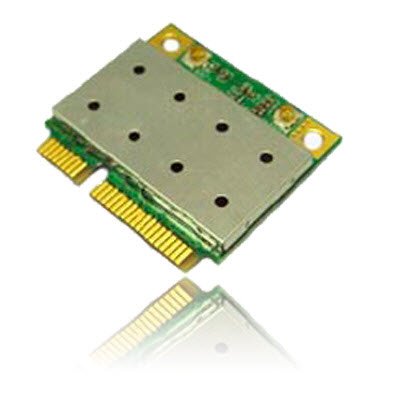
Image of the Azurewave AW-NB041 PCIe Mini-Card, showing its compact form factor and connectors.
- Sambungkan Antena: If your system has internal antennas, carefully connect them to the appropriate connectors on the AW-NB041 card (Main for WiFi/BT, Aux for BT/WiFi).
- Tutup Casis: Reassemble your computer's chassis and reconnect the power cord/battery.
- Pasang Pemacu: Power on your computer. Your operating system may automatically detect and install the necessary drivers. If not, download the latest drivers for the Ralink RT3090 (for WiFi) and CSR BC04 (for Bluetooth) chipsets from the Azurewave support website or your computer manufacturer's webtapak.
6. Arahan Operasi
6.1. Connecting to a WiFi Network
- Ensure the WiFi function is enabled in your operating system settings.
- Click on the WiFi icon in your system tray (Windows) or menu bar (macOS/Linux).
- Pilih rangkaian WiFi yang anda inginkan daripada senarai rangkaian yang tersedia.
- Masukkan kunci keselamatan rangkaian (kata laluan) jika digesa.
- Click 'Connect'. Your device should now be connected to the WiFi network.
6.2. Memadankan Peranti Bluetooth
- Ensure Bluetooth is enabled in your operating system settings.
- Letakkan peranti Bluetooth anda (cth., fon kepala, tetikus, papan kekunci) ke dalam mod berpasangan. Rujuk manual peranti anda untuk arahan khusus.
- On your computer, go to Bluetooth settings (e.g., 'Bluetooth & other devices' in Windows, 'Bluetooth' in macOS).
- Click 'Add Bluetooth or other device' or similar option.
- Select your Bluetooth device from the list and follow the on-screen prompts to complete the pairing process.
7. Penyelenggaraan
The AW-NB041 module is designed for long-term reliability with minimal maintenance. However, consider the following general guidelines:
- Jaga kebersihan: Periodically clean the interior of your computer to prevent dust buildup, which can affect performance and cooling.
- Kemas Kini Pemandu: Ensure your WiFi and Bluetooth drivers are kept up-to-date. Check the Azurewave support website or your computer manufacturer's webtapak untuk versi terkini.
- Keadaan Persekitaran: Operate the device within recommended temperature and humidity ranges to ensure optimal performance and longevity.
8. Penyelesaian masalah
8.1. No WiFi or Bluetooth Connection
- Semak Pemasangan Fizikal: Ensure the card is properly seated in its slot and any antennas are securely connected.
- Sahkan Pemacu: Confirm that the correct WiFi (Ralink RT3090) and Bluetooth (CSR BC04) drivers are installed and up-to-date in your operating system's Device Manager.
- Dayakan Tanpa Wayar: Make sure WiFi and Bluetooth are enabled in your operating system settings and any physical switches on your computer.
- Mulakan semula: But semula komputer anda.
8.2. Slow WiFi Speed
- Kekuatan Isyarat: Ensure you are within good range of your WiFi router.
- Gangguan: Kurangkan gangguan daripada peranti elektronik lain (cth., ketuhar gelombang mikro, telefon tanpa wayar).
- Tetapan Penghala: Check your router's settings for optimal channel selection and 802.11n mode.
- Kemas Kini Pemandu: Update your WiFi drivers to the latest version.
8.3. Isu Berpasangan Bluetooth
- Peranti dalam Mod Berpasangan: Confirm your Bluetooth device is in discoverable/pairing mode.
- Julat: Ensure the Bluetooth device is close to your computer.
- Alih Keluar Pasangan Sedia Ada: If the device was previously paired, remove it from your computer's Bluetooth settings and try pairing again.
- Kemas Kini Pemandu: Update your Bluetooth drivers to the latest version.
9. Spesifikasi
| Ciri | Spesifikasi |
|---|---|
| Nombor Model | AW-NB041 |
| Pengeluar | Gelombang Biru |
| Faktor Bentuk | PCIe MiniCard (HalfSize) |
| Antara Muka Perkakasan | PCI-Express, USB (via 10-Pin Connector) |
| Peranti Serasi | Desktop (with compatible PCIe Mini-Card slot) |
| Standard WiFi | IEEE 802.11b/g/n |
| Piawaian Bluetooth | Bluetooth v3.0+HS, v2.1+EDR |
| Data Transfer Rate (WiFi) | Sehingga 150 Mbps |
| Kadar Pemindahan Data (Bluetooth) | 2Mbps (EDR), 3Mbps (EDR) |
| Chipset | Ralink RT3090 (WiFi), CSR BC04 (Bluetooth) |
| Sokongan Antena | 1T1R (WiFi), TX/RX (Bluetooth) |
| Bekalan Voltage (Vcc) | 3.3V (Do not use 5V) |
10. Waranti dan Sokongan
For warranty information and technical support, please refer to the documentation provided with your purchase or visit the official Azurewave webtapak. Anda juga boleh menghubungi penjual secara terus untuk mendapatkan bantuan.
Please have your product model number (AW-NB041) and purchase details ready when contacting support.


