1. Persediaan
This section guides you through the initial setup of your NEC VY24G/D-9 laptop.
1.1 Membongkar dan Pemeriksaan Awal
Keluarkan semua komponen dari pembungkusan dengan berhati-hati. Sahkan bahawa item berikut ada:
- NEC VY24G/D-9 Laptop
- Penyesuai AC dan Kord Kuasa
- Recovery CD
- Any additional software CDs (e.g., WinDVD, Roxio Creator)
Inspect the laptop and accessories for any visible damage. Note that the exterior casing and LCD screen may have minor cosmetic scratches from previous use, which do not affect functionality.
1.2 Menyambungkan Penyesuai AC
Before first use, connect the AC adapter to the laptop and a power outlet to charge the battery and provide power.
- Plug the DC output connector of the AC adapter into the power input port on the side of the laptop.
- Sambungkan kabel kuasa ke penyesuai AC.
- Palamkan hujung kord kuasa yang lain ke dalam salur keluar elektrik yang dibumikan.
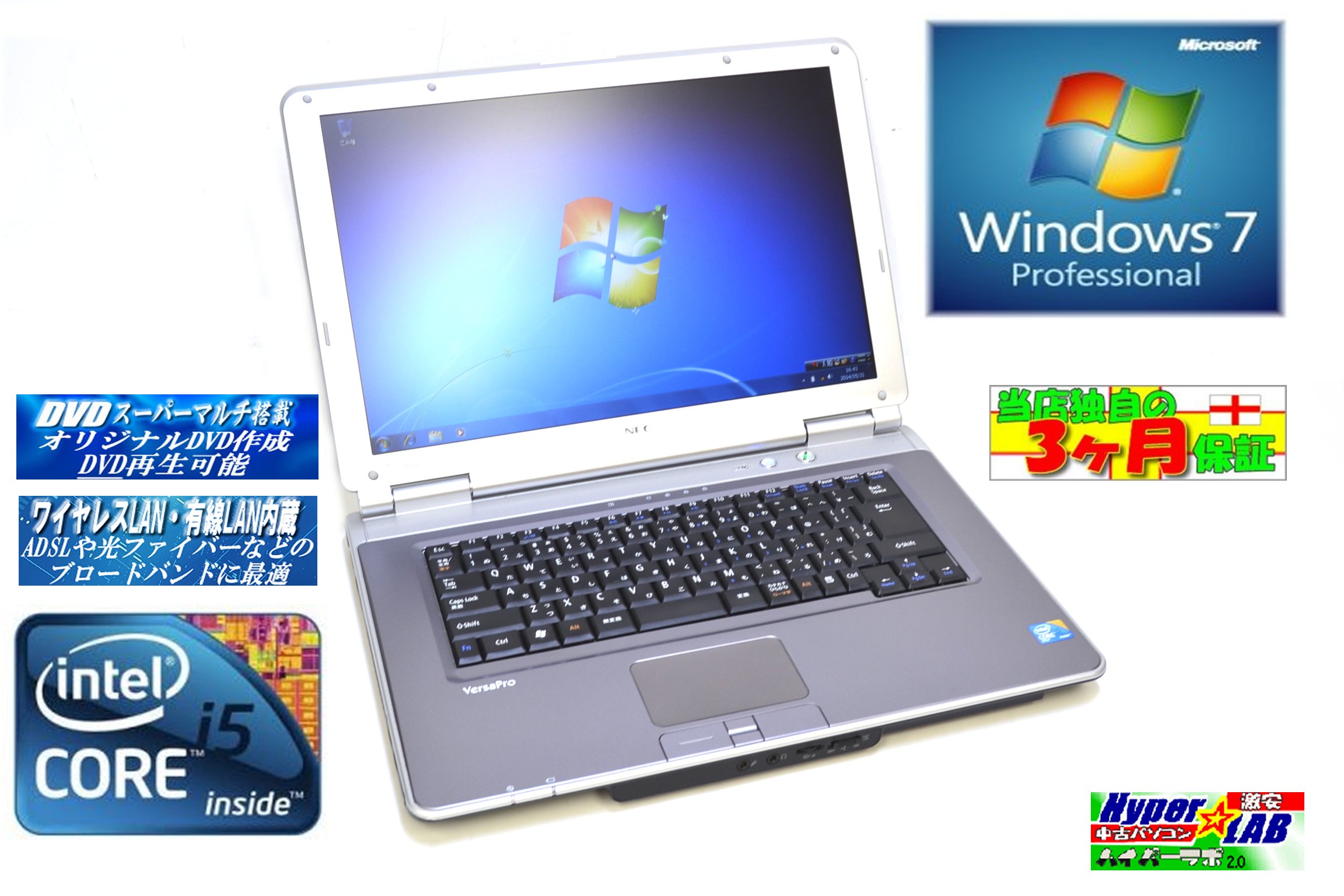
Image 1.1: The NEC VY24G/D-9 laptop shown with its AC adapter and included software/recovery CDs. The laptop is silver with a black base, and the AC adapter is a black rectangular unit with a power cord.
1.3 Penghidupan Awal dan Persediaan Sistem Pengendalian
Press the power button to turn on the laptop. The system comes with Windows 7 Professional 32-bit pre-installed. Follow the on-screen prompts to complete the initial operating system setup, which may include setting up user accounts, time zone, and network connections.
2. Arahan Operasi
This section covers the basic operation of your NEC VY24G/D-9 laptop.
2.1 Hidupkan/Mati Kuasa
- Untuk Menghidupkan: Tekan butang kuasa yang terdapat pada komputer riba.
- Untuk Mematikan: Click the Start button in Windows, then select "Shut Down."
- Untuk Mulakan Semula: Click the Start button, then select "Restart."
- Untuk Tidur: Click the Start button, then select "Sleep."
2.2 Using the DVD Multi Drive
The laptop is equipped with a DVD Multi optical drive for reading and writing CDs and DVDs.
- Tekan butang eject pada pemacu optik untuk membuka dulang.
- Letakkan CD atau DVD di atas dulang dengan bahagian label menghadap ke atas.
- Gently push the tray back into the laptop until it clicks shut.
- The operating system will typically detect the disc automatically.
2.3 Menyambung ke Rangkaian
The laptop supports both wired and wireless network connections.
- LAN berwayar: Connect an Ethernet cable to the LAN port on the side of the laptop.
- Wireless LAN (802.11bgn): Use the Windows network settings to connect to available Wi-Fi networks. Ensure the wireless adapter is enabled (check for a physical switch or function key combination if Wi-Fi is not detected).
2.4 Using USB Ports and PC Card Slot
The laptop features multiple USB 2.0 ports and a PC Card slot for connecting external devices.
- Port USB 2.0 (x5): Sambungkan peranti USB seperti tetikus, papan kekunci, pemacu keras luaran atau pemacu kilat.
- PC Card Slot (x1): Insert compatible PC Cards for expanded functionality, such as additional network adapters or storage.

Imej 2.1: Sebelah view of the NEC VY24G/D-9 laptop, illustrating the arrangement of its various ports, including USB, LAN, and potentially VGA or serial ports.
3. Penyelenggaraan
Penyelenggaraan yang betul memastikan jangka hayat dan prestasi optimum komputer riba anda.
3.1 Membersihkan Komputer Riba
- Luaran: Gunakan kain lembut dan tidak berbulu sedikit dampdicairkan dengan air atau larutan pembersih yang lembut. Elakkan bahan kimia yang keras.
- Skrin: Use a microfiber cloth specifically designed for electronics screens. Do not spray liquid directly onto the screen.
- papan kekunci: Gunakan udara termampat untuk mengeluarkan habuk dan serpihan dari antara kekunci.
3.2 Kemas Kini Perisian
Regularly check for and install updates for Windows 7 Professional and any installed applications to ensure security and performance.
3.3 Penjagaan Bateri
To maximize battery life, avoid extreme temperatures and allow the battery to discharge partially before recharging. If storing the laptop for an extended period, ensure the battery is charged to about 50%.
4. Penyelesaian masalah
Bahagian ini menyediakan penyelesaian kepada isu biasa yang mungkin anda hadapi.
4.1 Komputer Riba Tidak Dihidupkan
- Pastikan penyesuai AC disambungkan dengan selamat pada kedua-dua komputer riba dan salur keluar kuasa yang berfungsi.
- Sahkan bahawa alur keluar kuasa berfungsi dengan memasang peranti lain.
- If using battery power, ensure the battery is charged.
4.2 Tiada Paparan pada Skrin
- Periksa sama ada komputer riba telah dihidupkan.
- Adjust the screen brightness using the function keys (Fn + brightness keys).
- Connect an external monitor to determine if the issue is with the laptop's internal display.
4.3 Isu Ketersambungan Rangkaian
- Berwayar: Ensure the Ethernet cable is properly connected and the network router/modem is working.
- wayarles: Verify that Wi-Fi is enabled and you are connecting to the correct network with the correct password. Restart your router/modem.
4.4 System Recovery
If the operating system becomes unstable or corrupted, you can use the provided Recovery CD to restore the system to its factory settings. Refer to the instructions included with the Recovery CD for detailed steps.
5. Spesifikasi
Detailed technical specifications for the NEC VY24G/D-9 laptop.
| Ciri | Spesifikasi |
|---|---|
| Jenama | NEC |
| Nama Model | VY24G/D-9 (VersaPro VY24G/D-9) |
| Saiz Skrin | 15.4 inci |
| Resolusi | 1280 x 800 |
| Jenama CPU | Intel |
| Jenis CPU | Core i5 (520M) |
| Kelajuan CPU | 2.4 GHz |
| Kiraan Pemproses | 1 |
| Saiz RAM | 2 GB |
| Kapasiti HDD | 160 GB |
| Antara Muka HDD | ATA bersiri |
| Pemacu Optik | DVD Multi |
| Jenis Wayarles | 802.11bgn |
| LAN berwayar | ya |
| Port USB | USB 2.0 x 5 |
| Slot Kad PC | x 1 |
| Sistem Operasi | Windows 7 Professional (32-bit) |
| Platform Perkakasan | PC |
6. Waranti & Sokongan
This section provides information regarding the product warranty and how to obtain support.
6.1 Waranti Produk
This NEC VY24G/D-9 laptop comes with a Waranti 3 bulan from the date of purchase. This warranty covers manufacturing defects and hardware malfunctions under normal use. It does not cover damage caused by misuse, accidents, unauthorized modifications, or normal wear and tear.
6.2 Sokongan Teknikal
For technical assistance or warranty claims, please contact your retailer or the authorized NEC service center. Have your purchase receipt and the laptop's serial number ready when contacting support.


