1. Pengenalan
The Logitech C920 HD Pro Webcam is designed to deliver high-definition video and clear audio for video calls, streaming, and recording. Featuring Full HD 1080p video capture and a 78-degree field of view, ini webcam connects via USB for easy integration with your computer system. This manual provides instructions for setting up, operating, maintaining, and troubleshooting your C920 webcam.

Rajah 1: Depan view of the Logitech C920 HD Pro Webcam. The camera lens is centered, flanked by stereo microphones, with the Logitech logo on the right.
2. Kandungan Pakej
Sahkan bahawa semua item terdapat dalam pakej anda:
- Logitech C920 HDPro Webcam
- Kabel USB Bersepadu
- Manual Pengguna (dokumen ini)
3. Arahan Persediaan
Follow these steps to set up your Logitech C920 HD Pro Webcam:
- Buka bungkusan Webcam: Buang dengan berhati-hati webcam and its integrated USB cable from the packaging.
- Kedudukan yang Webcam:
The C920 features a versatile clip/stand that allows it to be mounted on various surfaces:
- On a Monitor/Laptop Screen: Buka klip dan letakkan webcam on top of your monitor or laptop screen. Adjust the clip to securely grip the back of the screen.
- Pada Tripod: The webcam includes a standard tripod thread on the bottom of its stand. Screw the webcam onto a compatible tripod for more flexible positioning.
- On a Desk: Fold the clip into a flat stand and place the webcam on a stable, flat surface.

Figure 2: Logitech C920 Webcam with its multi-position clip/stand unfolded, ready for mounting on a monitor or tripod.
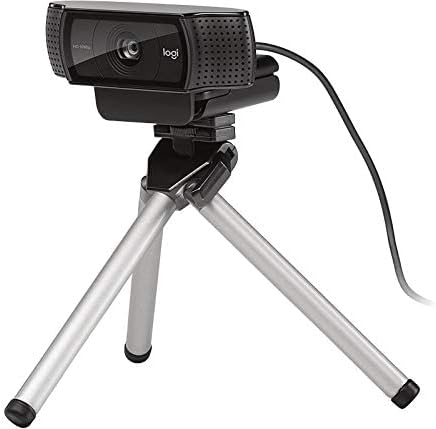
Figure 3: Logitech C920 Webcam securely mounted on a small tripod, demonstrating its versatility.
- Sambung ke Komputer: Plug the integrated USB cable into an available USB port on your computer. The webcam is a plug-and-play device and typically does not require additional driver installation on most modern operating systems (Windows, macOS, Chrome OS).
- Pemasangan Perisian (Pilihan): For advanced features and settings, you may download the Logitech Capture software from the official Logitech webtapak (www.logitech.com/support/c920).
- Uji Webcam: Open a video conferencing application (e.g., Zoom, Skype, Google Meet) or your computer's camera application to verify that the webkamera dikenali dan berfungsi dengan betul.
4. Arahan Operasi
The Logitech C920 HD Pro Webcam is designed for ease of use. Once connected, it functions as a standard video input device for most applications.
4.1. Video Calls and Conferencing
- Launch your preferred video conferencing application (e.g., Zoom, Microsoft Teams, Google Meet, Skype).
- Navigate to the application's settings or preferences.
- Select "Logitech C920" as your video input device and, if applicable, as your microphone input device. The C920 features dual stereo microphones for clear audio.
- Adjust your position and lighting for optimal video quality. The C920 includes automatic light correction.
4.2. Rakaman Video
- Open a video recording application (e.g., Windows Camera app, QuickTime Player on macOS, or Logitech Capture software).
- Ensure the C920 is selected as the video source.
- Start recording. The C920 supports Full HD 1080p video recording at 30 frames per second.
4.3. Advanced Settings (with Logitech Capture)
If you have installed Logitech Capture software, you can access additional features:
- Custom Resolution and Frame Rate: Adjust video resolution (up to 1080p) and frame rate.
- Kawalan Kamera: Pan, tilt, and zoom digitally.
- Pelarasan Imej: Fine-tune brightness, contrast, saturation, and white balance.
- Pertukaran Sumber: Easily switch between multiple cameras or screen sharing.
5. Penyelenggaraan
To ensure the longevity and optimal performance of your Logitech C920 HD Pro Webkamera, ikuti garis panduan penyelenggaraan mudah ini:
- Membersihkan Lensa: Lap perlahan-lahan lensa kamera dengan kain lembut yang tidak berbulu. Untuk calitan degil, sedikit dampen the cloth with water or a lens cleaning solution. Avoid abrasive materials or harsh chemicals.
- Membersihkan Badan: Gunakan kain lembut dan kering untuk membersihkannya webcam's body. Do not use liquid cleaners directly on the device.
- Storan: Apabila tidak digunakan, simpan websimpan di tempat yang bersih dan kering, jauh daripada suhu ekstrem dan cahaya matahari langsung.
- Penjagaan Kabel: Avoid bending or twisting the USB cable excessively. Do not pull the cable to disconnect the webcam; sentiasa genggam penyambung USB.
6. Penyelesaian masalah
If you encounter issues with your Logitech C920 HD Pro Webcam, rujuk masalah dan penyelesaian biasa berikut:
| Masalah | Kemungkinan Punca | Penyelesaian |
|---|---|---|
| Webcam tidak dikesan oleh komputer. | Sambungan USB longgar, port USB rosak, isu pemandu. |
|
| No video or black screen in applications. | tak betul webcam selection, privacy settings, application conflict. |
|
| Kualiti video yang lemah (kabur, gelap, berbutir). | Insufficient lighting, dirty lens, incorrect settings. |
|
| Tiada audio atau kualiti audio yang lemah. | Incorrect microphone selection, microphone muted, environmental noise. |
|
7. Spesifikasi
Key technical specifications for the Logitech C920 HD Pro Webcam:
| Ciri | Perincian |
|---|---|
| Nombor Model | 960-000764 |
| Resolusi Tangkapan Video | Full HD 1080p at 30fps (H.264 video compression) |
| Resolusi Video Maks | FHD |
| Teknologi Penderia Foto | BSI CMOS |
| Bidang View | pepenjuru 78 darjah |
| Autofokus | ya |
| Mikrofon | Dual stereo microphones with automatic noise reduction |
| Teknologi Ketersambungan | USB 2.0 (USB 3.0 ready) |
| Platform Perkakasan | Laptop, Desktop |
| Berat Barang | 5.6 auns (lebih kurang 158.7 gram) |
| Dimensi Pakej | 3.98 x 3.31 x 2.24 inci |
| warna | Hitam |
| OS yang disokong | Windows 7 or later, macOS 10.10 or later, Chrome OS, Android v 5.0 or above |
8. Waranti dan Sokongan
Logitech products are manufactured to high quality standards and are designed to provide superior performance. For detailed warranty information, please refer to the warranty card included with your product or visit the official Logitech webtapak.
Maklumat Waranti:
- Typically, Logitech offers a limited hardware warranty for its webcams. The duration and terms may vary by region.
- Simpan bukti pembelian anda untuk tuntutan waranti.
Sokongan Pelanggan:
For technical assistance, driver downloads, FAQs, and further support, please visit the Logitech support webtapak:
You can also find contact information for Logitech customer service in your region on their webtapak.


