1. Produk Lebihview
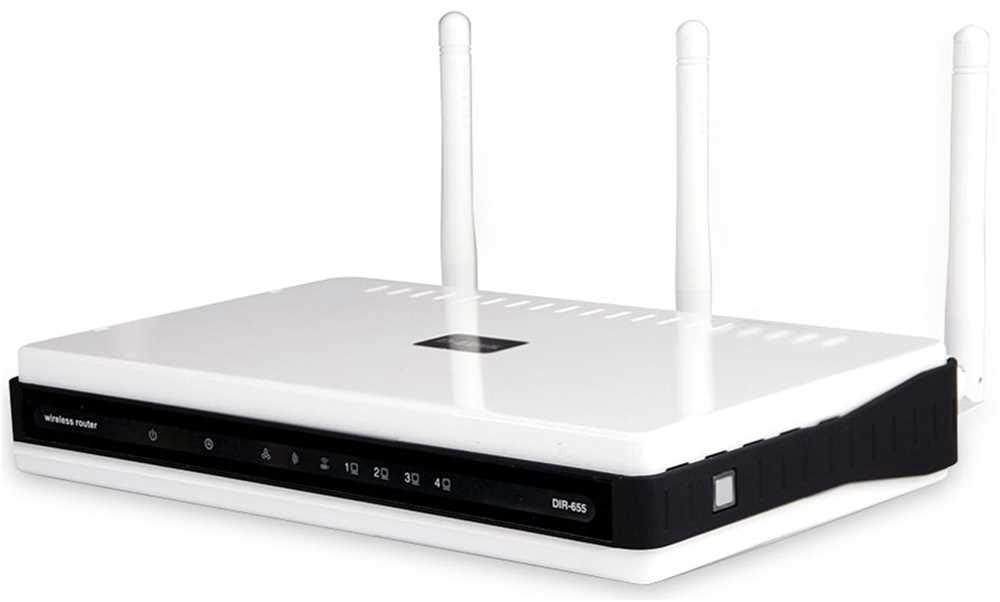
The D-Link DIR-655 Xtreme N Gigabit Router is an IEEE 802.11n (draft) compliant device designed to deliver faster speeds and extended range compared to IEEE 802.11g, while maintaining backward compatibility with IEEE 802.11g and IEEE 802.11b devices. This router enables high-speed internet access for multiple computers, game consoles, and media players when connected to a cable or DSL modem. It facilitates the creation of a secure wireless network for sharing photos, files, music, videos, printers, and network storage.
2. Panduan Persediaan
Follow these steps to set up your D-Link DIR-655 Xtreme N Wireless Router:
2.1. Membongkar dan Meletakkan
- Keluarkan semua item dari bungkusan dengan berhati-hati.
- Place the router in a central location in your home or office for optimal wireless coverage. Avoid placing it near large metal objects, concrete walls, or devices that emit radio frequency interference (e.g., microwave ovens, cordless phones).
- Ensure proper ventilation around the router.
2.2. Sambungan Perkakasan
- Sambungkan Antena: Attach the three external antennas to the connectors on the back of the router. Ensure they are securely tightened.
- Sambungkan ke Modem:
- Power off your cable or DSL modem.
- Connect one end of an Ethernet cable to the Internet (WAN) port on the back of the DIR-655 router.
- Connect the other end of this Ethernet cable to the Ethernet port on your cable or DSL modem.
- Power on your modem and wait for its indicator lights to stabilize (usually indicating an active internet connection).
- Sambungkan Kuasa: Plug the power adapter into the power port (12V===2A) on the back of the router, then plug the other end into a wall outlet or power strip. The power LED on the front of the router should illuminate.
- Connect Devices (Optional Wired): For wired connections, connect Ethernet cables from your computers or other network devices to any of the four LAN ports (1-4) on the back of the router.
Rajah 1: Belakang view of the D-Link DIR-655 router, highlighting the LAN, Internet, USB, Reset, and Power ports, along with the three external antennas.

Rajah 2: Depan view of the D-Link DIR-655 router, displaying the D-Link logo and various status indicator lights.
2.3. Initial Configuration (Wireless)
To connect wirelessly and configure your router:
- Find Network Name (SSID): Look for the Wi-Fi network name (SSID) printed on a label on the bottom or back of your router.
- Sambung ke Wi-Fi: On your computer or mobile device, search for available Wi-Fi networks and select the SSID of your D-Link DIR-655.
- Masukkan Kata Laluan: Enter the Wi-Fi password (also known as the network key or passphrase) found on the same label as the SSID.
- Akses Antara Muka Penghala: Buka a web pelayar dan taip
http://dlinkrouter.localor192.168.0.1(default IP address) into the address bar. - log masuk: Masukkan nama pengguna lalai (biasanya
admin) and password (often blank oradmin). Refer to your router's label for default login credentials. - Jalankan Wizard Persediaan: Follow the on-screen instructions of the D-Link setup wizard to configure your internet connection and personalize your Wi-Fi network name and password.
3. Arahan Operasi
The D-Link DIR-655 is designed for high-performance wireless networking:
- Wireless N Technology: Utilizes IEEE 802.11n (draft) for enhanced speed and range, ideal for streaming HD video, online gaming, and large file pemindahan.
- Port Ethernet Gigabit: Four LAN ports provide 10x faster wired connections than standard Ethernet, ensuring high-speed data transfer for connected devices.
- Sokongan Dwi-Jalur: The router supports dual-band operation, allowing for flexible network configurations and reduced interference.
- Pelbagai Antena: Three external antennas help to optimize wireless signal strength and coverage throughout your home or office.
- USB SharePort: The USB port allows you to connect a USB storage device or printer and share it across your network.
4. Penyelenggaraan
Untuk memastikan prestasi optimum dan jangka hayat penghala anda:
- Kemas kini Firmware: Periksa sokongan D-Link secara berkala weblaman web untuk kemas kini perisian tegar. Mengemas kini perisian tegar boleh meningkatkan prestasi, menambah ciri baharu dan membetulkan kelemahan keselamatan.
- Pembersihan Fizikal: Keep the router clean and free from dust. Use a soft, dry cloth to wipe the exterior. Ensure ventilation holes are not blocked.
- Mulakan semula secara berkala: Restarting your router every few weeks can help clear its memory and resolve minor network issues, improving overall performance.
- Penempatan Selamat: Ensure the router is placed in a secure location where it won't be easily knocked over or exposed to extreme temperatures or moisture.
5. Penyelesaian masalah
If you encounter issues with your D-Link DIR-655 router, try these common troubleshooting steps:
- Tiada sambungan internet:
- Check all cable connections (power, Ethernet to modem, Ethernet to devices).
- Restart your modem, then your router, and then your connected devices.
- Sahkan bahawa sambungan pembekal khidmat internet (ISP) anda aktif.
- Kelajuan Wayarles Perlahan:
- Pastikan peranti anda berada dalam julat optimum penghala.
- Kurangkan gangguan daripada peranti elektronik lain.
- Consider changing your Wi-Fi channel in the router settings to avoid congestion.
- Kemas kini pemacu wayarles peranti anda.
- Tidak Dapat Mengakses Tetapan Penghala:
- Pastikan peranti anda disambungkan ke rangkaian penghala (berwayar atau wayarles).
- Try using the default IP address
192.168.0.1orhttp://dlinkrouter.local. - Kosongkan cache dan kuki penyemak imbas anda atau cuba penyemak imbas lain.
- If you forgot your password, perform a factory reset (see below).
- Tetapan semula kilang: To restore the router to its factory default settings, locate the "Reset" button on the back of the router. With the router powered on, use a paperclip or similar pointed object to press and hold the reset button for about 10 seconds. Release the button and wait for the router to restart. Nota: Ini akan memadamkan semua tetapan tersuai, termasuk nama dan kata laluan Wi-Fi anda.
6. Spesifikasi
| Ciri | Perincian |
|---|---|
| Nama Model | DIR 655 |
| Jenis Wayarles | 802.11n |
| Jenama | D-Link |
| Nombor Model Item | DIR-655/E |
| Sistem Operasi | ZyNOS |
| Berat Barang | 2.65 auns (75 Gram) |
| Dimensi Produk | 47.44 x 77.95 x 12.6 inci |
| Voltage | 110 Volt |
| Ciri Khas | WPS |
| Kelas Band Kekerapan | Dwi-Jalur |
| Standard Komunikasi Tanpa Wayar | 802.11n |
| Peranti Serasi | Gaming Console, Printer |
| Penggunaan yang Disyorkan | Perniagaan, Permainan, Rumah |
| Teknologi Ketersambungan | Ethernet |
| Jenis Antena | tetap |
7. Waranti dan Sokongan
For detailed warranty information and technical support, please refer to the official D-Link website or the documentation included with your product. You can also visit the D-Link support portal for FAQs, firmware downloads, and contact options.
Sokongan dalam talian: www.dlink.com/support


