1. Pengenalan
This manual provides comprehensive instructions for the setup, operation, maintenance, and troubleshooting of your Xerox DocuMate 3125 Duplex Document Scanner. Please read this manual thoroughly before using the device to ensure proper functionality and to maximize its performance.
The Xerox DocuMate 3125 is designed for efficient document management, offering fast duplex scanning, a 50-page Automatic Document Feeder (ADF), and compatibility with both PC and Mac operating systems. It features Visioneer Acuity technology for enhanced image clarity and One Touch scanning for simplified workflows.
2. Kandungan Pakej
Sahkan bahawa semua item terdapat dalam pakej:
- Xerox DocuMate 3125 Scanner Unit
- Kabel USB
- Penyesuai Kuasa
- Software Installation Disc (or download instructions)
- Panduan Mula Pantas
3. Panduan Persediaan
3.1 Membongkar dan Persediaan Fizikal
Carefully remove the scanner from its packaging. Place the scanner on a stable, flat surface with adequate space for document feeding and output.
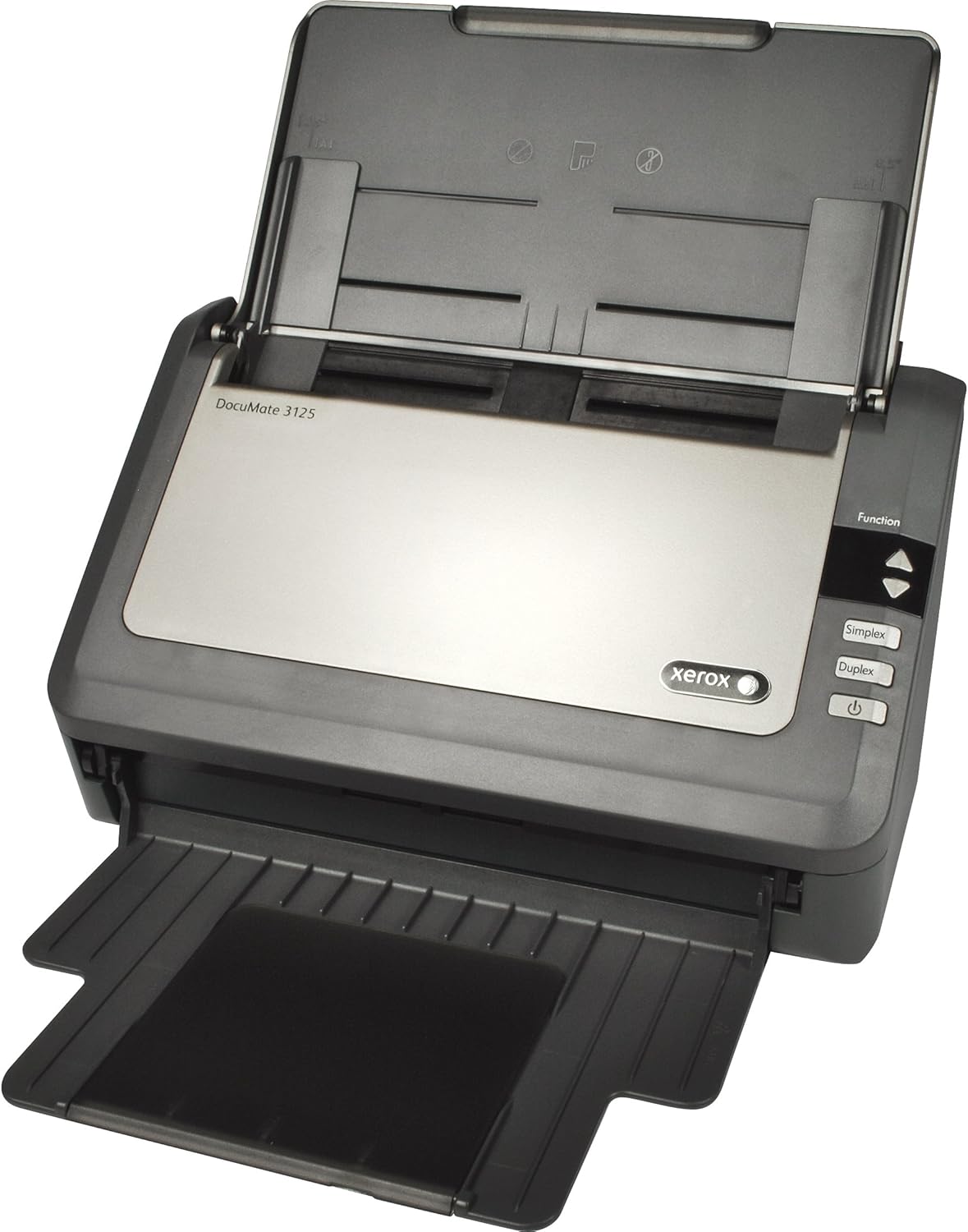
Figure 1: Xerox DocuMate 3125 Scanner with open lid and extended trays.
Extend the input and output trays as shown in Figure 1 to prepare the scanner for operation.
3.2 Menyambung Pengimbas
- Connect the power adapter to the scanner's power input and then to an electrical outlet.
- Connect the USB cable to the scanner's USB port and then to an available USB port on your computer (PC or Mac).
3.3 Pemasangan Perisian
Before using the scanner, install the necessary drivers and software. This typically includes the scanner driver, Visioneer OneTouch software, and other utility applications.
- Insert the provided installation disc into your computer's optical drive, or download the latest software package from the official Xerox support webtapak.
- Ikut arahan pada skrin untuk menyelesaikan pemasangan. Mulakan semula komputer anda jika digesa.

Figure 2: The scanner is compatible with both PC (Windows) and Mac operating systems.
4. Mengendalikan Pengimbas
4.1 Memuatkan Dokumen
Open the Automatic Document Feeder (ADF) cover and extend the input tray. Fan the edges of your documents to prevent misfeeds. Place the documents face down in the ADF, ensuring they are aligned with the document guides. The ADF can hold up to 50 pages.
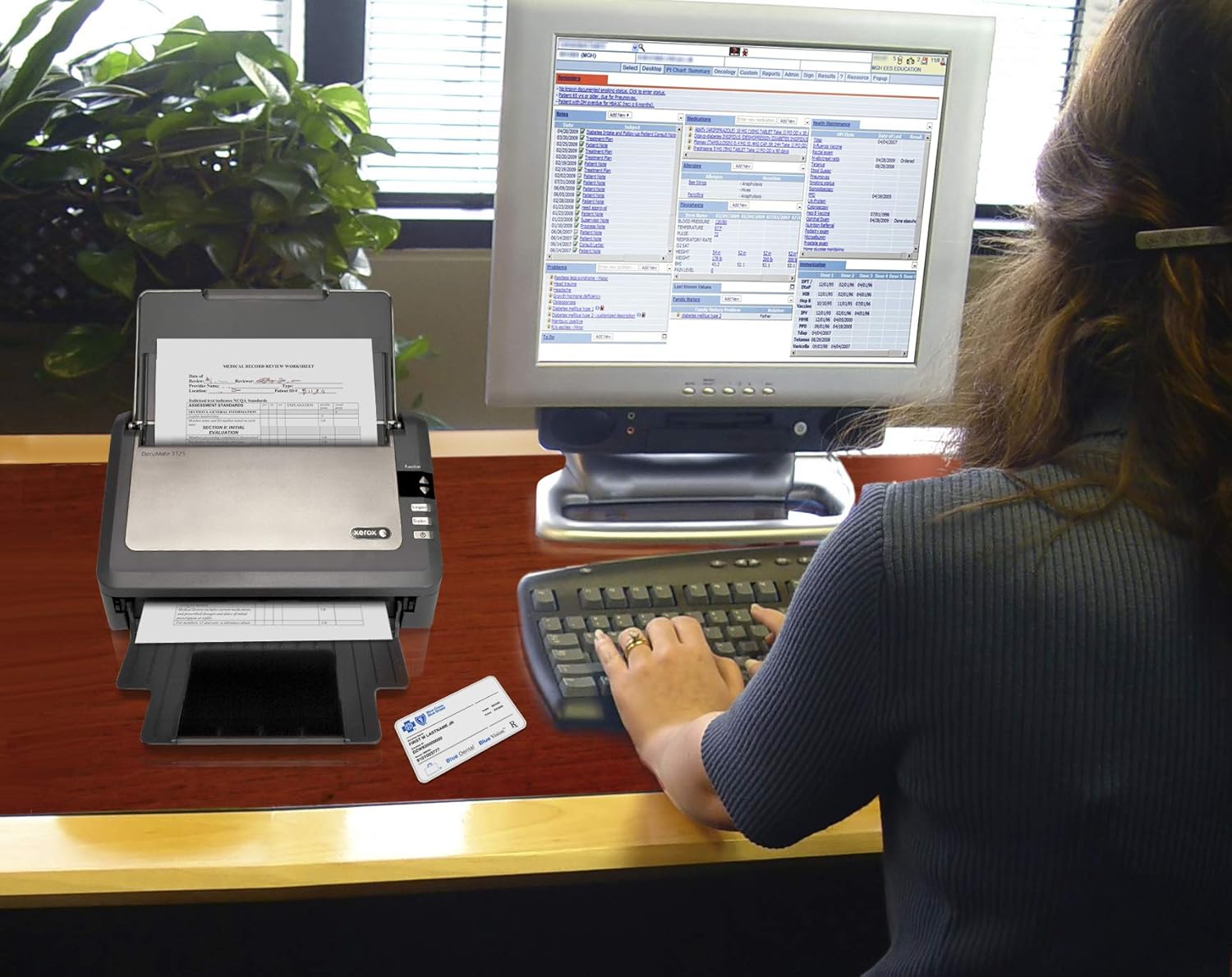
Figure 3: Document scanning in progress with the Xerox DocuMate 3125.
The scanner supports various media types, including standard documents, photos, receipts, and embossed plastic cards.
4.2 One Touch Scanning
The DocuMate 3125 features One Touch scanning, allowing you to initiate scans and send them to predefined destinations with a single button press. These destinations can include searchable PDF files, email attachments, or cloud storage services.
Figure 4: Control panel with Simplex and Duplex scan options.
- Simplex Scanning: Press the "Simplex" button to scan one side of a document.
- Pengimbasan Dupleks: Press the "Duplex" button to scan both sides of a document simultaneously.
- Pro tersuaifiles can be configured via the Visioneer OneTouch software to specify scan settings (color, resolution, file format) and destinations.

Figure 5: Scanned documents can be saved to various cloud services.
5. Penyelenggaraan
Regular maintenance ensures optimal performance and extends the lifespan of your scanner.
5.1 Membersihkan Pengimbas
- Luaran: Lap permukaan luar dengan lembut, damp kain. Elakkan pembersih yang kasar.
- ADF Rollers: Periodically clean the ADF rollers with a lint-free cloth lightly dampened with isopropyl alcohol to prevent paper jams and improve feeding accuracy.
- Glass Strip: Clean the glass strip inside the scanner with a soft, lint-free cloth and a non-abrasive glass cleaner. Dust or smudges on the glass can appear as lines on scanned images.
Always power off and unplug the scanner before performing any cleaning procedures.
6. Penyelesaian masalah
This section addresses common issues you might encounter with your scanner.
| Masalah | Kemungkinan Punca | Penyelesaian |
|---|---|---|
| Pengimbas tidak dikenali oleh komputer | Loose USB cable, driver not installed, power off | Periksa sambungan USB, pastikan pengimbas dihidupkan, pasang semula pemacu. |
| Paper jams in ADF | Misaligned documents, worn rollers, too many pages | Remove jammed paper, fan documents, clean rollers, reduce page count. |
| Scanned images have lines or streaks | Dust or smudges on glass strip or rollers | Clean the glass strip and ADF rollers. |
| Slow scanning speed | High resolution settings, computer performance | Reduce scan resolution, close other applications on your computer. |
If you encounter issues not covered here, refer to the comprehensive troubleshooting guide available on the Xerox support webtapak atau hubungi sokongan pelanggan.
7. Spesifikasi
| Ciri | Perincian |
|---|---|
| Nama Model | Xerox DocuMate 3125 |
| Jenis Pengimbas | Document, Sheetfed, Duplex |
| Ketersambungan | USB |
| Kelajuan Mengimbas | Up to 40 ppm / 70 ipm (at 200 dpi) |
| Kapasiti Pengumpan Dokumen Automatik (ADF) | 50 helai |
| Daily Duty Cycle | 3,000 pages/day |
| Resolusi Optik | 600 dpi |
| Kedalaman Bit Output | 24-bit Color, 8-bit Grayscale, 1-bit Black & White |
| Dimensi Produk | 6.5 x 11.2 x 6.7 inci |
| Berat Barang | 5.41 paun |
| Penggunaan Kuasa | 30 watts (operating) |
| Keperluan Sistem Minimum | Windows 7 (or newer), Mac OS X (specific version may vary with driver updates) |
8. Waranti dan Sokongan
The Xerox DocuMate 3125 scanner typically comes with a manufacturer's warranty. Please refer to the warranty card included with your product or visit the official Xerox support webtapak untuk terma dan syarat jaminan terperinci.
For technical assistance, driver downloads, or further support, please visit the official Xerox support portal. Contact information for customer service is usually available on the support webtapak.


