1. Pengenalan
The M-AUDIO Avid KeyStudio is a 49-key, velocity-sensitive, synth-action USB MIDI keyboard controller designed for music creation and performance. It provides essential controls for interacting with digital audio workstations (DAWs) and virtual instruments.
Ciri-ciri utama termasuk:
- 49 velocity-sensitive keys for expressive playing.
- Assignable modulation wheel for vibrato and filter effects.
- Pitch bend wheel for expressive performances.
- Volume slider for output level control.
- Octave and transpose buttons to adjust the keyboard's range.

Rajah 1: Bersudut view of the M-AUDIO Avid KeyStudio 49-Key USB MIDI Keyboard Controller.
2. Maklumat Keselamatan
Please read and understand the following safety precautions before operating the Avid KeyStudio:
- Sumber Kuasa: Connect the device only to a USB port that meets the specified power requirements.
- Kelembapan: Jangan dedahkan unit kepada hujan, lembapan atau kelembapan berlebihan.
- haba: Jauhkan unit ini daripada sumber haba seperti radiator, daftar haba, dapur atau peralatan penghasil haba yang lain.
- Pembersihan: Bersihkan hanya dengan kain kering. Jangan gunakan pembersih cecair atau aerosol.
- Servis: Jangan cuba servis produk ini sendiri. Rujuk semua perkhidmatan kepada pegawai perkhidmatan yang berkelayakan.
- penempatan: Letakkan unit di atas permukaan yang stabil dan rata untuk mengelakkan terjatuh secara tidak sengaja.
3. Kandungan Pakej
Sahkan bahawa semua item terdapat dalam pakej:
- Avid KeyStudio 49-Key USB MIDI Keyboard Controller
- Kabel USB
- M-Audio Micro USB Audio Interface (may be included with some bundles)
- Software Installation Disc (e.g., Pro Tools SE)
- Manual Pengguna (dokumen ini)

Figure 2: Avid KeyStudio product packaging, indicating included components.

Figure 3: The M-Audio Micro USB Audio Interface, often bundled with the KeyStudio.
4. Persediaan
4.1 Sambungan Perkakasan
- Connect one end of the supplied USB cable to the USB port on the back of the Avid KeyStudio.
- Connect the other end of the USB cable to an available USB port on your computer. The KeyStudio is USB bus-powered and does not require an external power adapter.
- If using the M-Audio Micro USB Audio Interface, connect it to another available USB port on your computer.

Figure 4: Rear panel of the Avid KeyStudio with the USB port for computer connection.
4.2 Pemasangan Perisian
The Avid KeyStudio typically includes a software bundle, such as Pro Tools SE, and requires drivers for full functionality. Follow these steps:
- Insert the software installation disc into your computer's optical drive. If no disc is provided or your computer lacks an optical drive, download the latest drivers and software from the official M-Audio webtapak.
- Follow the on-screen instructions to install the necessary drivers for the Avid KeyStudio. It is recommended to install drivers before connecting the keyboard for the first time.
- Install the bundled software (e.g., Pro Tools SE) as per its specific instructions.
- Selepas pemasangan, mulakan semula komputer anda jika digesa.
- Once your computer has restarted, connect the Avid KeyStudio via USB. The operating system should recognize the device.

Figure 5: The Avid KeyStudio connected to a computer, ready for use with music production software.
5. Arahan Operasi
5.1 Kawalan Ke Atasview
The Avid KeyStudio features a straightforward layout for intuitive control:

Rajah 6: Atas view of the Avid KeyStudio, highlighting its main controls.
- 49 Velocity-Sensitive Keys: These keys respond to how hard you press them, allowing for dynamic musical expression.
- Roda Pend Bend: Located on the left, this wheel allows you to momentarily raise or lower the pitch of notes for expressive effects.
- Roda Modulasi: Also on the left, this wheel is typically assigned to control vibrato, filter cutoff, or other continuous parameters within your software.
- Peluncur Kelantangan: Adjusts the MIDI output volume. This controls the volume within your software, not the physical output of the keyboard itself.
- Butang oktaf: Use these buttons to shift the entire keyboard's range up or down in octaves. This allows access to a wider range of notes than the 49 physical keys provide.
- Transpose Buttons: These buttons allow you to shift the pitch of the keyboard up or down in semitone increments.
- Edit Mode Button: This button is used to access advanced configuration options. Refer to the software documentation for specific functions.
5.2 Using with Software
The Avid KeyStudio functions as a MIDI controller, sending MIDI data to your computer. It is compatible with most Digital Audio Workstations (DAWs) and music software, including the bundled Pro Tools SE, GarageBand, FL Studio, and REAPER.
- Launch your DAW: Open your preferred music software (e.g., Pro Tools SE).
- Select MIDI Input: In your DAW's preferences or settings, ensure that the Avid KeyStudio is selected as a MIDI input device.
- Load an Instrument: Create a new track and load a virtual instrument (e.g., piano, synth, drums).
- Play and Record: You can now play the virtual instrument using the KeyStudio's keys and controls. Use the DAW's recording functions to capture your performance.
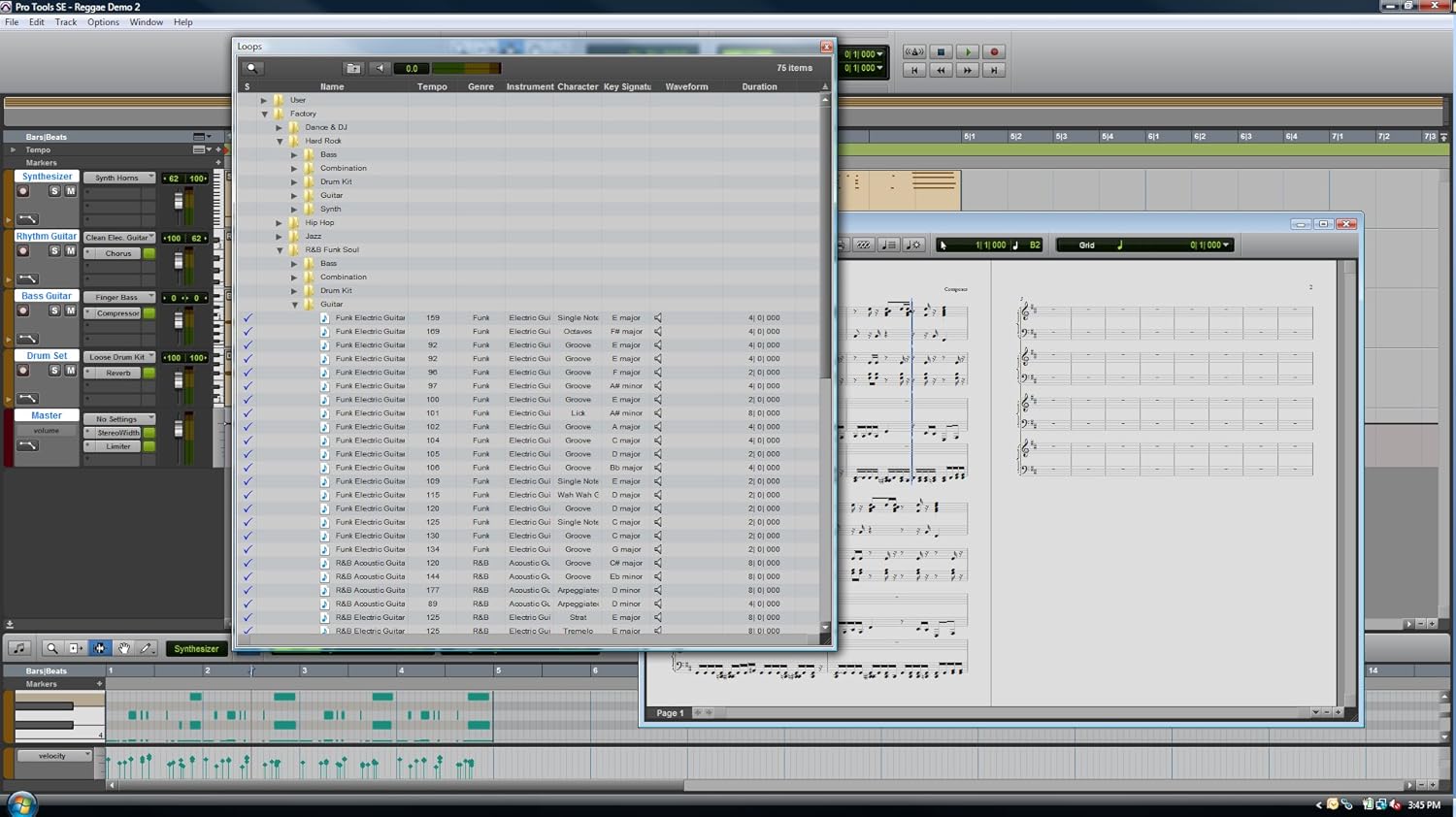
Gambar 7: Cthample of the Pro Tools SE software interface, where the KeyStudio can control virtual instruments.

Figure 8: Pro Tools SE 'New Session' screen, allowing selection of various project templates.

Figure 9: Selecting a virtual instrument (Guitars) within Pro Tools SE.
6. Penyelenggaraan
Proper maintenance ensures the longevity and optimal performance of your Avid KeyStudio.
- Pembersihan: Use a soft, dry, lint-free cloth to wipe the surface of the keyboard. Avoid abrasive cleaners, solvents, or waxes.
- Storan: When not in use, store the keyboard in a clean, dry environment, away from direct sunlight and extreme temperatures. Consider using a dust cover.
- Pengendalian: Elakkan daripada menjatuhkan papan kekunci atau terkena impak yang kuat. Jangan letakkan objek berat di atasnya.
7. Penyelesaian masalah
If you encounter issues with your Avid KeyStudio, refer to the following common problems and solutions:
| Masalah | Kemungkinan Punca / Penyelesaian |
|---|---|
| Keyboard not recognized by computer/software. |
|
| No sound when playing keys. |
|
| Keys feel unresponsive or inconsistent velocity. |
|
| Software crashes during installation or use. |
|
8. Spesifikasi
| Ciri | Perincian |
|---|---|
| kunci | 49, velocity-sensitive, synth-action |
| Ketersambungan | USB |
| Kawalan | Pitch Bend Wheel, Modulation Wheel, Volume Slider, Octave Up/Down Buttons, Transpose Buttons, Edit Mode Button |
| kuasa | USB Dikuasakan Bas |
| Berat Barang | 6.5 paun (2.95 kg) |
| Dimensi Produk | 34 x 4 x 9.5 inci (86.36 x 10.16 x 24.13 cm) |
| Nombor Model | Avid KeyStudio |
| UPC | 763615778978, 777785735495, 613570227335 |
| Pertama Tersedia | 16 September 2010 |
9. Waranti dan Sokongan
M-AUDIO products are covered by a limited warranty. For specific warranty terms and conditions, please refer to the warranty card included with your product or visit the official M-AUDIO webtapak.
For technical support, driver downloads, and additional resources, please visit the M-AUDIO support page:
https://www.m-audio.com/support
When contacting support, please have your product model (Avid KeyStudio) and serial number ready.


