1. Pengenalan
This manual provides comprehensive instructions for the installation, operation, maintenance, and troubleshooting of your Matrox G450 DualHead PCI 32MB Graphics Card. The Matrox G450 is designed to enhance your computing experience by providing reliable graphics performance and advanced multi-monitor capabilities, specifically supporting two displays simultaneously.
Please read this manual thoroughly before installing and operating the graphics card to ensure proper functionality and to prevent potential issues.
2. Persediaan dan Pemasangan
2.1. Keperluan Sistem
- Available PCI slot.
- Compatible operating system (e.g., Windows 98/ME/2000/XP, Linux).
- Minimum 64MB system RAM (recommended 128MB or higher).
- CD-ROM drive for driver installation (if not downloading).
2.2. Pemasangan Fizikal
- Matikan: Matikan komputer anda sepenuhnya dan cabut kord kuasa dari soket dinding.
- Kes Terbuka: Open your computer's case according to its manufacturer's instructions.
- Cari Slot PCI: Kenal pasti slot pengembangan PCI yang tersedia pada papan induk anda.
- Tanggalkan Penutup Slot: Carefully remove the metal slot cover corresponding to the chosen PCI slot.
- Masukkan Kad: Align the Matrox G450 graphics card with the PCI slot and press firmly but gently until it is securely seated. Ensure the card's connectors are fully engaged.
- Kad Selamat: Secure the graphics card with the screw or retention clip provided by your computer case.
- Tutup Kes: Replace the computer case cover and reconnect the power cord.
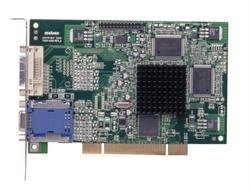
Figure 1: Matrox G450 DualHead PCI Graphics Card securely installed in a PCI slot.
2.3. Pemasangan Pemandu
- Hidupkan kuasa: Connect your monitor(s) to the DVI ports on the Matrox G450 card and power on your computer.
- But Permulaan: The operating system may detect new hardware and attempt to install generic drivers. Allow this process to complete.
- Install Matrox Drivers:
- Daripada CD: Insert the Matrox driver CD into your CD-ROM drive and follow the on-screen instructions.
- daripada Web: Download the latest drivers from the official Matrox webtapak (www.matrox.com/graphics/en/support/drivers/). Run the downloaded installer and follow the prompts.
- Mulakan semula: Restart your computer when prompted to finalize the driver installation.
Figure 2: DVI output ports on the Matrox G450 graphics card for monitor connection.
3. Mengendalikan Kad Grafik
3.1. Konfigurasi Paparan
After successful driver installation, you can configure your display settings through your operating system's display properties or the Matrox PowerDesk software (if installed).
- Resolusi: Adjust the screen resolution to match your monitor's native resolution for optimal clarity.
- Kadar Segar Semula: Set the refresh rate to a comfortable level, typically 60Hz or 75Hz, to reduce flicker.
- Kedalaman Warna: Configure the color depth (e.g., 16-bit, 24-bit, 32-bit) based on your requirements.
3.2. DualHead Functionality
The Matrox G450's DualHead feature allows you to use two monitors simultaneously. This can be configured in two primary modes:
- Extended Desktop: This mode treats both monitors as a single, larger desktop area, allowing you to drag windows and applications between them. This is ideal for multitasking and increasing workspace.
- Cloned Display: This mode duplicates the content of your primary monitor onto the secondary monitor. This is useful for presentations or sharing your screen with an audience.
Access these settings through your operating system's display settings (e.g., right-click on desktop > Screen Resolution in Windows) or the Matrox display utility.
Gambar 3: Cthample of a DualHead extended desktop configuration.
4. Penyelenggaraan
Proper maintenance ensures the longevity and optimal performance of your Matrox G450 graphics card.
- Kemas Kini Pemandu: Regularly check the official Matrox website for updated drivers. Installing the latest drivers can improve performance, add features, and resolve compatibility issues.
- Penyingkiran habuk: Periodically open your computer case (after powering off and disconnecting power) and gently clean any dust accumulation on the graphics card's heatsink and fan (if present) using compressed air. Excessive dust can lead to overheating.
- Keadaan Persekitaran: Ensure your computer operates in a well-ventilated area with stable temperature and humidity to prevent damage to internal components, including the graphics card.
5. Penyelesaian masalah
This section addresses common issues you might encounter with your Matrox G450 graphics card.
5.1. Tiada Output Paparan
- Semak Kabel: Ensure monitor cables are securely connected to both the graphics card and the monitor.
- Kuasa Monitor: Sahkan bahawa monitor anda dihidupkan dan ditetapkan kepada sumber input yang betul.
- Tempat Duduk Kad: Power off the computer, open the case, and re-seat the graphics card firmly in its PCI slot.
- Test with One Monitor: If using DualHead, try connecting only one monitor to isolate the issue.
- Tetapan BIOS/UEFI: Check your computer's BIOS/UEFI settings to ensure the PCI graphics card is selected as the primary display adapter, if applicable.
5.2. Driver Issues or Instability
- Pasang semula Pemacu: Uninstall existing Matrox drivers, restart the computer, and then perform a clean installation of the latest drivers from the Matrox webtapak.
- Keserasian: Ensure the installed drivers are compatible with your operating system version.
- Pemulihan Sistem: If issues began after a recent change, consider using a system restore point.
5.3. Multi-Monitor Detection Problems
- Semak Sambungan: Verify both monitors are correctly connected to the DVI ports on the graphics card.
- Operating System Settings: Access your operating system's display settings and ensure both monitors are detected and configured for "Extend these displays" or "Duplicate these displays" is configured as desired.
- Matrox PowerDesk: Utilize the Matrox PowerDesk utility for advanced multi-monitor configuration and troubleshooting.
6. Spesifikasi
| Ciri | Perincian |
|---|---|
| Jenama | Matrox |
| Model | G450 DualHead PCI |
| Saiz RAM Grafik | 32 MB |
| Jenis RAM Grafik | DDR SDRAM |
| Antara Muka Keluaran Video | DVI |
| Jenis Bas | PCI |
| Sokongan Berbilang Monitor | DualHead (2 displays) |
7. Maklumat Waranti
This Matrox G450 DualHead PCI 32MB Graphics Card is covered by a limited manufacturer's warranty. Please refer to the warranty card included with your product or visit the official Matrox website for detailed terms and conditions, including warranty period and claim procedures.
Keep your proof of purchase for warranty service.
8. Sokongan Teknikal
For technical assistance, driver downloads, or further information regarding your Matrox G450 graphics card, please visit the Matrox support webtapak:
www.matrox.com/graphics/en/support/
Anda juga boleh mencari sumber yang berguna, Soalan Lazim dan forum komuniti pada mereka webtapak.