pengenalan
The Microsoft Pharos iGPS-500 convertible receiver is a compact, slim, and highly sensitive GPS receiver designed to connect to your PC or Mac via the included USB cable. This device enables real-time position viewing on your laptop, tablet, or ultra-mobile PC when used with compatible third-party mapping software. For Mac users, the GPS receiver functions within Parallels Desktop, allowing integration with applications like Front Row for a driver-friendly iTunes interface without requiring a Windows reboot.
Kandungan Pakej
Sahkan bahawa semua item terdapat dalam pakej produk anda:
- Microsoft Pharos GPS-500 III GPS Receiver
- Kabel USB
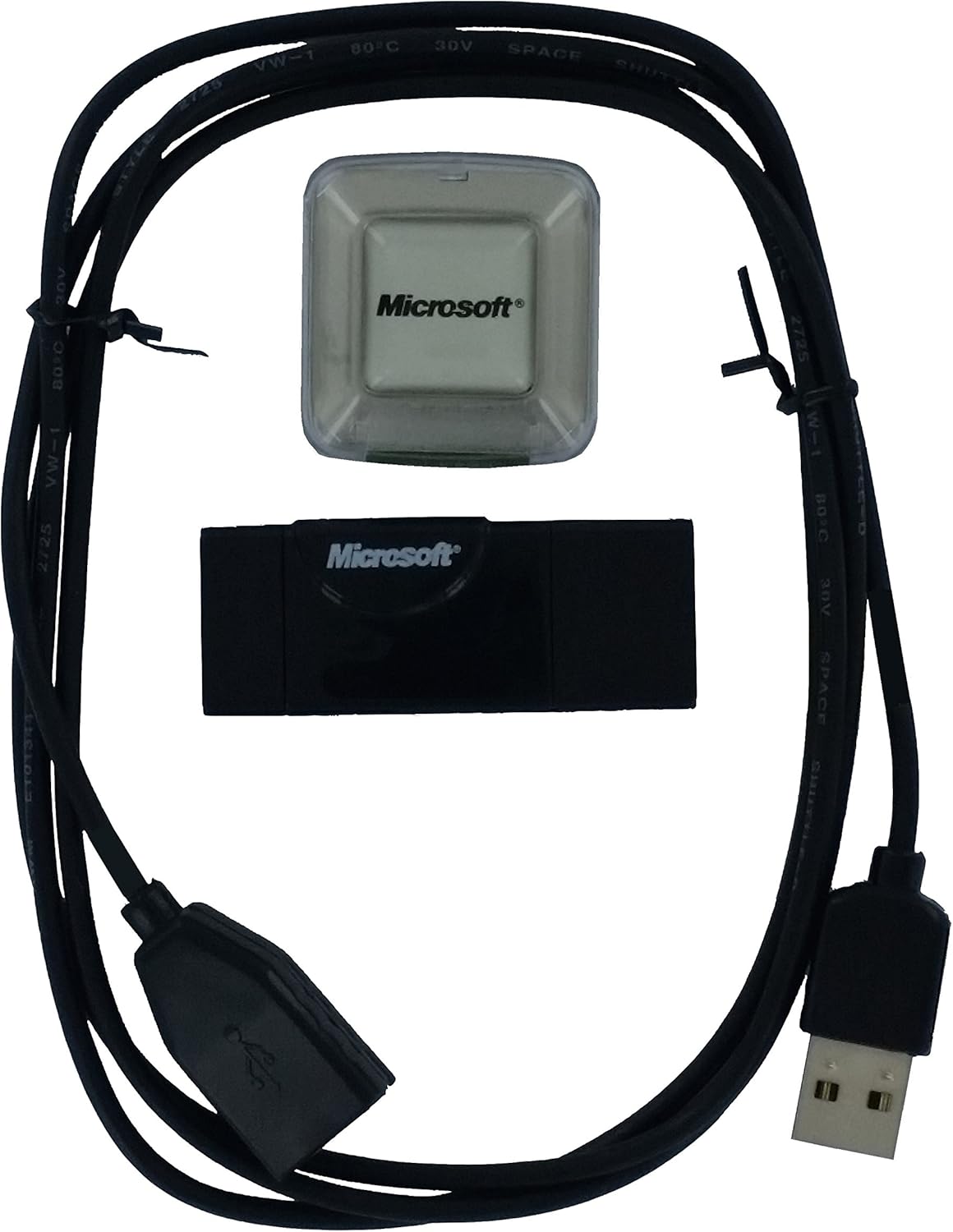
Image: The package contents include the GPS receiver unit, a clear protective cover, and a USB connection cable.
Arahan Persediaan
- Connect the GPS Receiver: Plug the USB cable into the Microsoft Pharos GPS-500 III receiver and then connect the other end of the USB cable to an available USB port on your computer (laptop, tablet, or ultra-mobile PC).
- Pemasangan Pemandu:
- For Windows 7 and newer operating systems, the device is typically plug-and-play, and drivers should install automatically.
- For Windows Vista, the system may automatically download and install a driver that emulates a serial port for the USB connection. You may need to identify the assigned serial port number in your device manager.
- For Mac users, ensure Parallels Desktop is configured correctly if using Windows-based mapping software.
- Install Mapping Software: The GPS-500 III requires third-party mapping software to function. Examples termasuk:
- Microsoft Streets & Trips
- Google Earth (ensure "Realtime" GPS option is enabled with NMEA Protocol)
- Microsoft MapPoint
- CANape
Nota: No software is included with the GPS receiver. You must acquire compatible mapping software separately.
- Positioning the Receiver: For optimal signal reception, place the GPS receiver in a location with a clear view of the sky. This often means near a window, on the dashboard of a vehicle, or on the roof of a car (if using an appropriate weather-resistant enclosure).

Image: The GPS receiver unit shown connected to its USB cable, ready for connection to a computer. A small suction cup is attached to the cable for securing it.
Arahan Operasi
- Launch Mapping Software: Once the GPS receiver is connected and drivers are installed, open your preferred mapping or navigation software on your computer.
- Configure Software (if necessary):
- If your software requires a specific serial port, ensure it is configured to match the port assigned to the GPS receiver by your operating system (check Device Manager on Windows).
- For Google Earth, navigate to the "Tools" menu, select "GPS," then open the "Realtime" folder option. Choose "NMEA Protocol" and mark "Automatically follow the path" before clicking the start button.
- Acquire Satellite Lock: The receiver will begin searching for GPS satellites. This process typically takes a few seconds to a few minutes, depending on your location and signal strength. A clear view of the sky is crucial for quick and accurate satellite acquisition.
- Kedudukan Masa Nyata: Once a satellite lock is established, your position will appear on the map within your software, updating in real-time.
The update rate for position information is typically 1Hz, providing consistent tracking for navigation and data logging.
Penjagaan dan Penyelenggaraan
- Keringkan: The GPS-500 III is not weather-resistant. Avoid exposure to water, rain, or high humidity to prevent damage.
- Suhu: Operate and store the device within normal room temperatures. Avoid extreme heat or cold.
- Pembersihan: Use a soft, dry cloth to clean the exterior of the receiver. Do not use liquid cleaners or solvents.
- Penjagaan Kabel: Handle the USB cable gently. Avoid sharp bends or excessive pulling that could damage the internal wiring.
- Storan: When not in use, store the receiver in a clean, dry place, away from direct sunlight and dust.
Menyelesaikan masalah
- Problem: GPS receiver not detected or signal lost frequently.
- Penyelesaian:
- Semak Sambungan USB: Ensure the USB cable is securely plugged into both the GPS receiver and your computer. Try wiggling the connection gently to see if it resolves intermittent issues.
- Cuba Port USB yang Berbeza: Connect the receiver to another USB port on your computer.
- Sahkan Pemacu: Check your computer's Device Manager (Windows) to ensure the GPS receiver drivers are installed correctly and there are no error indicators. Reinstall drivers if necessary.
- Garis Penglihatan yang Jelas: Ensure the GPS receiver has an unobstructed view of the sky. Obstacles like buildings, dense foliage, or being indoors can block satellite signals. Move the receiver to a more open location.
- Konfigurasi Perisian: Confirm that your mapping software is correctly configured to recognize the GPS receiver and is set to the correct communication protocol (e.g., NMEA).
- Problem: Position is inaccurate or not updating.
- Penyelesaian:
- Allow Time for Satellite Lock: It can take a few minutes for the receiver to acquire enough satellites for an accurate fix, especially after being moved a long distance or first powered on.
- Faktor Persekitaran: Heavy cloud cover, urban canyons, or being near large metal structures can interfere with GPS signals.
- Software Refresh: Try restarting your mapping software.
- Problem: Device not working with specific mapping software.
- Penyelesaian:
- Keserasian Perisian: Ensure your mapping software is compatible with external NMEA-compliant GPS receivers.
- Tetapan Perisian: Review the GPS input settings within your mapping software. Verify the correct COM port (if applicable) and baud rate are selected.
Spesifikasi Teknikal
| Nama Model | GPS-500 III |
| Jenama | Microsoft (Pharos) |
| Teknologi Ketersambungan | USB |
| Keserasian Sistem Pengendalian | Windows (and Mac via Parallels Desktop) |
| Ciri Khas | Keserasian Merentas Platform |
| Berat Barang | 3.2 auns (lebih kurang 90.7 gram) |
| Dimensi Pakej | 6.1 x 4.1 x 0.6 inci (lebih kurang 15.5 x 10.4 x 1.5 cm) |
| Komponen yang Disertakan | Kabel USB |
| Pengeluar | Pharos |

Imej: A terperinci view of the product label on the GPS-500 III receiver, displaying regulatory information and model identification.
Waranti dan Sokongan
Specific warranty information for the Microsoft Pharos GPS-500 III GPS Receiver may vary based on your region and point of purchase. Please refer to the documentation provided at the time of purchase for detailed warranty terms.
For technical support or further assistance, please visit the official Microsoft support website or contact their customer service channels. You may also find resources and community forums related to Pharos products online.
Sokongan Microsoft: support.microsoft.com


