1. Produk Lebihview
The HP JetDirect 630n Gigabit Ethernet Print Server is designed to enhance printing capabilities by providing high-performance network connectivity to compatible HP printers. This device enables network printing at Gigabit speeds, supports both IPv4 and IPv6 network protocols, and connects to HP printers equipped with an Enhanced Input/Output (EIO) slot.
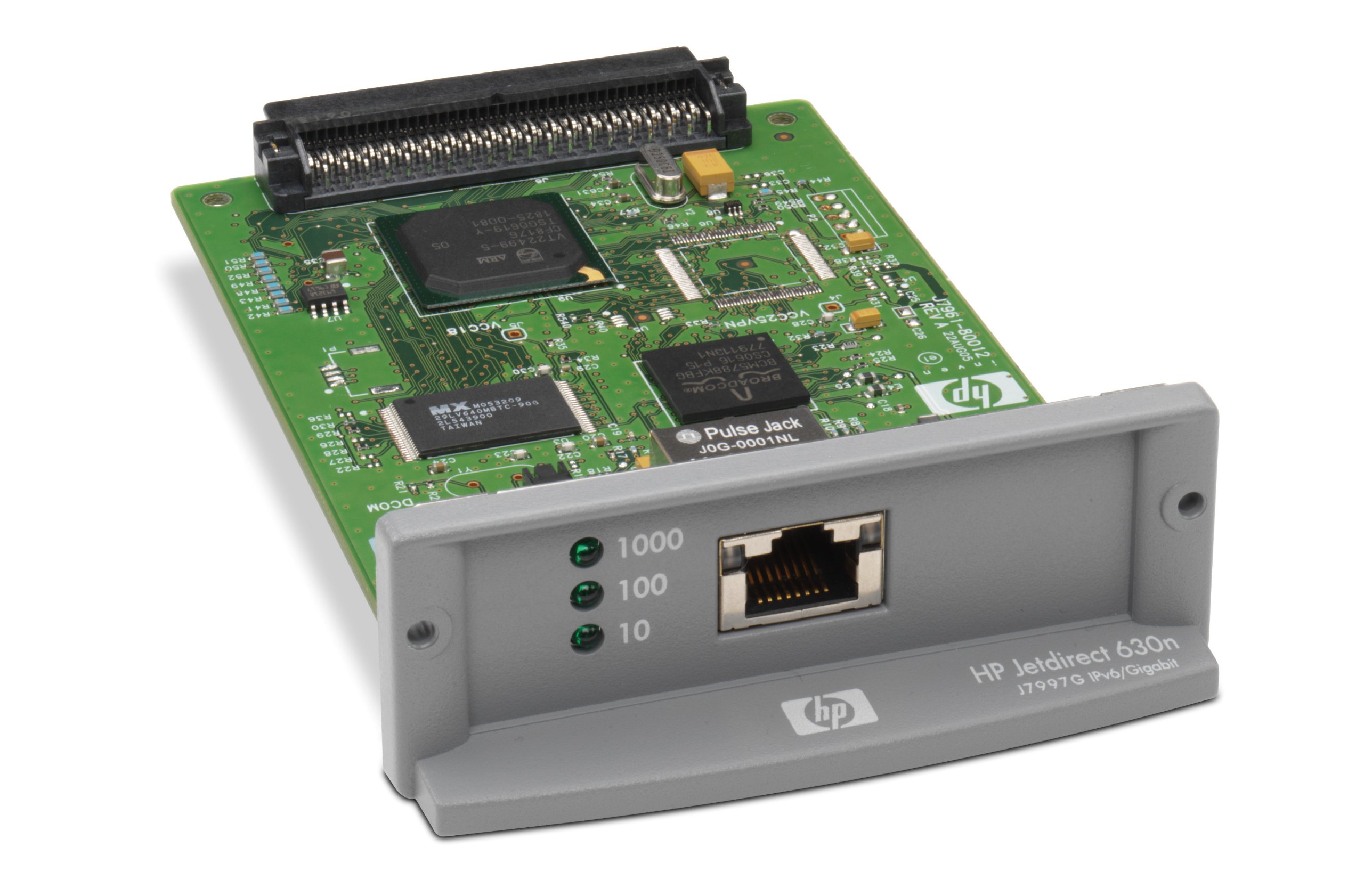
Image of the HP JetDirect 630n Gigabit Ethernet Print Server, a compact network device designed to enable network printing for compatible HP printers.
2. Apa yang ada di dalam Kotak
Sahkan bahawa semua komponen terdapat dalam pembungkusan:
- HP JetDirect 630n Gigabit Ethernet Print Server
- 1000 Kabel Ethernet
- Dokumentasi (Panduan Mula Pantas, Maklumat Waranti)
3. Arahan Persediaan
- Matikan Pencetak: Before installation, ensure the HP printer is powered off and unplugged from the electrical outlet.
- Locate EIO Slot: Identify the Enhanced Input/Output (EIO) slot on your HP printer. Refer to your printer's user manual for the exact location.
- Insert Print Server: Carefully insert the HP JetDirect 630n into the EIO slot. Ensure it is seated firmly.
- Sambungkan Kabel Ethernet: Connect one end of the provided Ethernet cable to the print server's network port and the other end to an available port on your network router or switch.
- Hidupkan Pencetak: Plug the printer back into the electrical outlet and power it on. The print server will initialize with the printer.
- Install Drivers and Configure Network: On your computer, install the appropriate printer drivers. The print server will typically obtain an IP address automatically via DHCP. For advanced network configurations (e.g., static IP), access the print server's embedded web server (EWS) using its assigned IP address.
4. Arahan Operasi
Once the HP JetDirect 630n is installed and configured, it enables network printing for your compatible HP printer.
- Kesambungan Rangkaian: The print server provides a direct network connection for your printer, allowing multiple users on the network to send print jobs.
- Printer Driver Installation: Ensure that the correct printer drivers for your specific HP printer model are installed on all client computers that will use the network printer. These drivers are typically available from the HP support webtapak.
- Mengakses Terbenam Web Pelayan (EWS): To manage print server settings, such as network configuration, security, and firmware updates, open a web browser and enter the IP address of the print server. The IP address can usually be found by printing a configuration page from your printer's control panel.
- Basic Printing: After driver installation and network configuration, the printer will appear as a network printer on client computers. Users can then print documents as they would to any local printer, selecting the network-connected HP printer.
5. Penyelenggaraan
Proper maintenance ensures the longevity and optimal performance of your HP JetDirect 630n Gigabit Ethernet Print Server.
- Pembersihan: Periodically clean the exterior of the print server and the printer's EIO slot area with a soft, dry cloth. Avoid using liquid cleaners directly on the device.
- Pengudaraan: Ensure that the printer and print server have adequate ventilation to prevent overheating. Do not block any vents on the printer.
- Kemas kini Firmware: Check the official HP support website regularly for firmware updates for the JetDirect 630n. Firmware updates can improve performance, add features, and address security vulnerabilities. Follow HP's instructions carefully when performing updates.
- Pengurusan Kabel: Ensure that the Ethernet cable is securely connected and not subjected to excessive bending or strain.
6. Penyelesaian masalah
If you encounter issues with your HP JetDirect 630n, refer to the following common troubleshooting steps:
- Tiada Sambungan Rangkaian:
- Verify that the Ethernet cable is securely connected to both the print server and the network device (router/switch).
- Check the network status lights on the print server and the network port. They should indicate activity.
- Ensure your network router/switch is powered on and functioning correctly.
- Printer Not Found on Network:
- Print a configuration page from your HP printer to obtain the print server's IP address.
- Try to ping the print server's IP address from a computer on the same network.
- Ensure that the printer drivers are correctly installed and configured to use the network port.
- Temporarily disable any firewalls on your computer to see if they are blocking communication.
- Pencetakan Lambat:
- Verify that your network infrastructure (cables, switches) supports Gigabit Ethernet speeds.
- Semak kesesakan rangkaian.
- Ensure the print server's firmware is up to date.
- Print Server Not Responding:
- Power cycle the printer (turn off, wait 30 seconds, turn on).
- If issues persist, consider performing a factory reset on the print server (refer to HP documentation for specific steps, as this will erase custom settings).
For more complex issues or persistent problems, refer to the comprehensive troubleshooting guides available on the official HP support website or contact HP technical support.
7. Spesifikasi
| Nombor Model | J7997G#UUS |
| Jenama | HEWLETT PACKARD (HP) |
| Antara muka | EIO (Enhanced Input/Output) |
| Ketersambungan | 10Base-T, 100Base-TX, 1000Base-TX (Gigabit Ethernet) |
| Protokol yang Disokong | IPv4, IPv6 |
| Saiz Memori Denyar | 8 MB |
| Berat Barang | 2.47 auns |
| Dimensi Produk (LxWxH) | 5.35 x 3.5 x 1.22 inci |
| Tarikh Mula-mula Tersedia | 28 Oktober 2009 |
8. Waranti dan Sokongan
For detailed warranty information regarding your HP JetDirect 630n Gigabit Ethernet Print Server, please refer to the warranty documentation included with your product or visit the official HP webtapak.
If you require technical assistance, have questions about product functionality, or need to report a defect, please contact HP Customer Support. You can find contact information and support resources on the official HP support webtapak:
Please have your product model number (J7997G#UUS) and serial number ready when contacting support.


