1. Pengenalan
Terima kasih kerana membeliasing the NANAO FlexScan L767-R 19-inch Color LCD Display. This manual provides essential information for setting up, operating, and maintaining your monitor. Please read this manual thoroughly before use to ensure proper and safe operation.
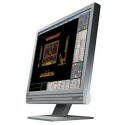
Figure 1: NANAO FlexScan L767-R LCD Monitor. This image shows the monitor from a slight angle, highlighting its slim bezel and adjustable stand.
2. Ciri-ciri
The FlexScan L767-R is designed for optimal visual performance and user convenience. Key features include:
- Paparan Warna Cerah: Supports approximately 16.77 million full colors for impressive color vibrancy.
- FineContrast Function: Easily adjust brightness and gamma settings to match content (text, images) for optimal viewing.
- Dual Input Support: Equipped with both analog and digital input terminals for versatile connectivity.
- Audio Bersepadu: Features built-in speakers for audio output.
- Pendirian Ergonomik: The stand allows for a 50mm vertical height adjustment, enhancing user comfort.
- Permukaan Tidak Silau: The screen surface is non-glare, reducing reflections and eye strain.
3. Persediaan
Follow these steps to set up your FlexScan L767-R monitor:
- Buka bungkusan Monitor: Tanggalkan monitor dan semua aksesori daripada pembungkusan dengan berhati-hati.
- Letakkan Monitor: Place the monitor on a stable, flat surface. Ensure adequate ventilation around the monitor.
- Sambungkan Kabel Video:
- Untuk Sambungan Analog: Connect the D-Sub (VGA) cable from your computer's video output to the analog input port on the monitor.
- Untuk Sambungan Digital: Connect the DVI cable from your computer's video output to the digital input port on the monitor.
- Sambungkan Kabel Audio (Pilihan): If you wish to use the built-in speakers, connect an audio cable from your computer's audio output to the audio input port on the monitor.
- Sambungkan Kabel Kuasa: Palamkan kabel kuasa ke dalam input kuasa monitor, kemudian palamkan hujung yang satu lagi ke soket elektrik yang dibumikan.
- Hidupkan kuasa: Press the power button on the monitor. Power on your computer. The monitor should display your computer's screen.
4. Beroperasi
This section describes the basic operation of your FlexScan L767-R monitor.
4.1. FineContrast Function
The FineContrast function allows you to quickly switch between different display modes optimized for various content types. Use the dedicated buttons on the monitor's front panel to cycle through modes such as Text, Picture, Movie, and Custom. Each mode adjusts brightness, gamma, and color temperature for the best viewpengalaman dalam.
4.2. Stand Adjustment
The monitor stand offers vertical height adjustment. Gently push or pull the monitor panel up or down to adjust its height within the 50mm range. Ensure the monitor is stable after adjustment.
4.3. Menu Paparan Pada Skrin (OSD).
Access the OSD menu using the control buttons on the front panel to fine-tune settings such as brightness, contrast, color balance, input selection, and more. Refer to the detailed OSD menu guide in the full manual for comprehensive options.
5. Penyelenggaraan
Penyelenggaraan yang betul memastikan jangka hayat dan prestasi monitor anda.
- Membersihkan Skrin: Gunakan kain lembut dan tidak berbulu sedikit dampened with water or a non-abrasive, monitor-specific cleaning solution. Do not spray liquid directly onto the screen.
- Membersihkan Casing: Lap monitor casindengan kain lembut dan kering. Elakkan menggunakan detergen atau pelarut yang kuat.
- Pengudaraan: Pastikan bukaan pengudaraan pada monitor tidak disekat untuk mengelakkan terlalu panas.
- Matikan: Sentiasa matikan monitor dan cabut plagnya daripada soket kuasa sebelum membersihkan atau jika ia tidak akan digunakan untuk tempoh yang lama.
6. Penyelesaian masalah
Jika anda menghadapi masalah dengan monitor anda, rujuk kepada masalah dan penyelesaian biasa berikut:
- Tiada Imej pada Skrin:
- Periksa sama ada monitor dihidupkan.
- Verify that the video cable is securely connected to both the monitor and the computer.
- Ensure the correct input source is selected on the monitor (Analog/Digital).
- Image is Distorted or Blurry:
- For analog connections, perform an auto-adjustment via the OSD menu.
- Check the display resolution settings on your computer. Ensure it matches the monitor's native resolution (1280x1024).
- Tiada Bunyi dari Pembesar Suara:
- Verify the audio cable is properly connected.
- Semak tetapan kelantangan pada kedua-dua monitor dan komputer anda.
If the problem persists after trying these solutions, please contact EIZO customer support or refer to the comprehensive troubleshooting guide in the full product manual.
7. Spesifikasi
| Ciri | Spesifikasi |
|---|---|
| Jenama | EIZO |
| Model | L767-R |
| Saiz Skrin | 19 Inci |
| Resolusi | 1280 x 1024 |
| Penerangan Permukaan Skrin | Tidak silau |
| Kecerahan | 250 cd/m² |
| Kadar Segar Semula | 60 Hz |
| Teknologi Lampu Latar | CCFL |
| Port Input HDMI | 0 |
| Fungsi USB | tiada |
| Pembesar Suara Terbina dalam | ya |
| Fungsi TV | Tidak |
| 3D Display Support | Tidak disokong |
| Panel Sentuh | Tidak disokong |
| Berat Barang | 10 Kilogram |
| Dimensi Pakej | 56 x 53.5 x 22.5 cm |
8. Waranti dan Sokongan
For detailed warranty information, please refer to the warranty card included with your product or visit the official EIZO webtapak. Terma dan syarat waranti mungkin berbeza mengikut wilayah.
For technical support, product inquiries, or service requests, please contact EIZO customer support through their official channels. Keep your product model number (L767-R) and serial number ready when contacting support.
EIZO Official Webtapak: www.eizo.com


