1. Pengenalan
The D-Link DWL-500 is an 11 Mbps Wireless LAN PCI Network Card designed to provide wireless network connectivity for desktop personal computers. This card enables your desktop PC to connect to a wireless network, allowing you to share hard drives, printers, and access the internet without the need for physical network cables. It operates at a high-speed 11 Mbps Ethernet wireless standard and is compliant with PCI local bus 2.2 specifications.
This manual provides essential information for the proper installation, operation, and maintenance of your DWL-500 network card.
2. Kandungan Pakej
- D-Link DWL-500 11Mb Wireless LAN PCI Network Card
- Panduan Pemasangan Pantas (jika disertakan)
- Driver CD (if included)
Please verify that all items are present. If any items are missing or damaged, contact your retailer.
3. Keperluan Sistem
- Desktop PC with an available PCI slot
- Compatible operating system (e.g., Windows 98SE/ME/2000/XP)
- CD-ROM drive for driver installation (if using driver CD)
4. Persediaan dan Pemasangan
4.1 Pemasangan Perkakasan
- Power Off Your Computer: Before beginning, ensure your computer is completely powered off and unplugged from the wall outlet.
- Buka Sarung Komputer: Remove the side panel of your computer case to access the motherboard and PCI slots.
- Cari Slot PCI yang Tersedia: Identify an empty PCI slot on your motherboard. These are typically white or cream-colored slots.
- Remove the Slot Cover: Tanggalkan penutup slot logam yang sepadan dengan slot PCI yang dipilih dari bahagian belakang casing komputer anda dengan berhati-hati.
- Insert the DWL-500 Card: Align the DWL-500 card with the PCI slot and firmly press it down until it is securely seated. Ensure the gold connectors are fully inserted into the slot.
- Selamatkan Kad: Use a screw to fasten the metal bracket of the DWL-500 card to the computer case.
- Tutup Sarung Komputer: Gantikan panel sisi casing komputer anda.
- Sambung semula Kuasa: Plug your computer back into the wall outlet and power it on.
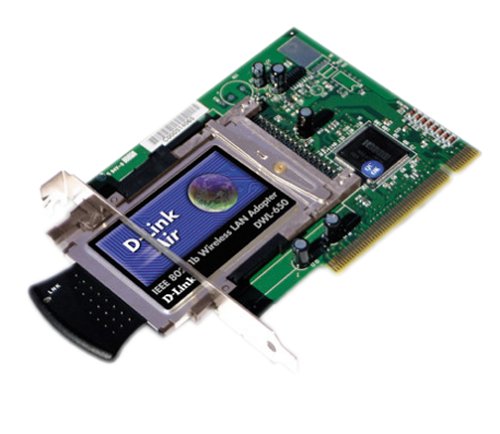
Image: The D-Link DWL-500 11Mb Wireless LAN PCI Network Card. This image shows the physical appearance of the network card, which is designed to be inserted into a PCI slot on a desktop computer's motherboard.
4.2 Pemasangan Pemandu
After hardware installation, your operating system may automatically detect the new hardware. If it prompts for drivers, or if the device does not function correctly, you will need to install the drivers manually.
- Insert Driver CD: Place the D-Link DWL-500 driver CD into your computer's CD-ROM drive.
- Jalankan Program Persediaan: If an auto-run window appears, select the option to install drivers or run the setup program. If not, navigate to the CD-ROM drive in 'My Computer' and locate and run the 'Setup.exe' or 'Install.exe' file.
- Ikuti Arahan Pada Skrin: Follow the prompts provided by the installation wizard. You may need to restart your computer after the installation is complete.
- Sahkan Pemasangan: After restarting, check your computer's Device Manager to ensure the D-Link DWL-500 is listed correctly without any error symbols.
5. Operating the Wireless Card
5.1 Menyambung ke Rangkaian Tanpa Wayar
Once the drivers are installed, your DWL-500 card will enable your computer to detect available wireless networks.
- Access Wireless Network Settings: Depending on your operating system, access the wireless network connection utility. This is often found in the system tray (bottom right corner of the screen) or within the Network Connections section of the Control Panel.
- Imbas untuk Rangkaian: Use the utility to scan for available wireless networks.
- Pilih Rangkaian Anda: Choose your desired wireless network (SSID) from the list of detected networks.
- Enter Security Key (if applicable): If the network is secured, you will be prompted to enter the network's security key or passphrase (e.g., WEP key).
- Sambung: Click 'Connect' to establish a connection to the wireless network.
The DWL-500 supports 11 Mbps data transfer rates, providing sufficient bandwidth for typical internet browsing and file sharing within its indoor range of 115 to 328 feet and outdoor range of 328 to 984 feet.
6. Penyelenggaraan
To ensure optimal performance and longevity of your D-Link DWL-500 wireless card, consider the following maintenance tips:
- Kemas Kini Pemandu: Periodically check the official D-Link website for updated drivers. Keeping your drivers current can improve performance and compatibility.
- Pembersihan Fizikal: If your computer case accumulates dust, carefully clean around the PCI card and its antenna connection points using compressed air. Ensure the computer is powered off and unplugged before cleaning.
- Kedudukan Antena: Ensure the antenna is positioned optimally for the best signal reception. Avoid placing the computer in locations where the signal might be obstructed by large metal objects or thick walls.
7. Penyelesaian masalah
If you encounter issues with your D-Link DWL-500, try the following troubleshooting steps:
- Tiada Rangkaian Tanpa Wayar Dikesan:
- Ensure the card is properly seated in the PCI slot.
- Verify that the drivers are correctly installed in Device Manager.
- Check if your wireless router/access point is powered on and broadcasting its SSID.
- Move closer to the wireless access point to rule out range issues.
- Tidak Dapat Menyambung ke Rangkaian Tertentu:
- Double-check the security key (WEP/WPA) you are entering. It is case-sensitive.
- Ensure your network's security settings (e.g., WEP, WPA) are compatible with the DWL-500.
- Restart both your computer and the wireless router.
- Kelajuan Sambungan Perlahan:
- Ensure there are no major obstructions between your computer and the wireless access point.
- Check for sources of interference (e.g., cordless phones, microwave ovens).
- Update your wireless card drivers.
- Card Not Recognized by OS:
- Re-seat the card in the PCI slot.
- Try installing the card in a different PCI slot.
- Ensure your operating system is supported by the DWL-500 drivers.
8. Spesifikasi
| Jenama | D-Link |
| Nombor Model | DWL-500 |
| Antara Muka Perkakasan | Ethernet, PCI |
| Kadar Pemindahan Data | 11 Megabit Sesaat |
| Julat Dalaman | 115 hingga 328 kaki |
| Julat Luar | 328 hingga 984 kaki |
| Dimensi Produk | 12.07 x 1.91 x 17.15cm; 362.87g |
| ASIN | B000051SHN |
| UPC | 790069232244, 790069232459 |
| Pengeluar | D-Link Systems, Inc. |
| Tarikh Mula-mula Tersedia | 19 Disember 2000 |
| Dihentikan oleh Pengeluar | ya |
9. Waranti dan Sokongan
For detailed warranty information, please refer to the documentation included with your product at the time of purchase or visit the official D-Link webtapak. Terma dan syarat waranti mungkin berbeza mengikut wilayah dan produk.
For technical support, driver downloads, and additional product information, please visit the D-Link support website or contact D-Link customer service directly. Contact information can typically be found on the D-Link official webtapak: www.dlink.com


