📘 Matica manuals • Free online PDFs
Matica logo

Matica Manuals & User Guides

Matica specializes in high-performance card issuance systems, including direct-to-card and retransfer printers (MC and XID series) for secure ID and financial card production.

Tip: include the full model number printed on your Matica label for the best match.

About Matica manuals on Manuals.plus

Matica Technologies is a leading global vendor of financial and secure ID card issuance solutions. The company designs, manufactures, and markets a comprehensive range of products, from desktop card printers like the MC and XID series to centralized issuance systems used by banks and government agencies.

Matica's portfolio includes direct-to-card printers, retransfer printers, and laser engraving technologies, ensuring high-quality, secure, and durable credentials for identity management and payment applications.

Matica manuals

Manual terkini daripada manuals+ dipilih susun untuk jenama ini.

Panduan Pengguna Pencetak Kad Plastik MATICA MC310

3 September 2024
MATICA MC310 Plastic Card Printer User Guide Open the carton box Remove accessory boxes. Carefully remove the printer and remove plastic. Retain and store all packing materials for future use.…
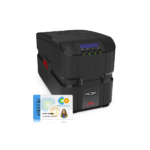
Panduan Pengguna Pencetak Kad Pemindahan Semula MATICA XID8300

3 Ogos 2024
XID8300 Retransfer Card Printer Specifications: Model: XID8300 Capacity: 1,000 prints (DIC10216), 750 prints (DIC10217, DIC10218, DIC10313, DIC10319), 1,000 prints (DIK10044, DIC10311) Product Information: The XID8300 Retransfer card printer is a…

Panduan Pengguna MATICA MC110 Terus ke Pencetak Kad

17 Julai 2024
MATICA MC110 Direct to Card Printer Specifications Model: MC110 Contents: MC110 printer Power supply Power cord USB cable Cleaning card Cleaning swab Product Usage Instructions Unboxing and Contents Check:  Open…

MATICA MC DTC Series Direct to Card Printing User Manual

25 Jun 2024
MC DTC Series Direct to Card Printing Specifications Product Name: MC DTC Series Copyright: Matica July 2022 Environmental Impact: Committed to reducing environmental impact through energy efficiency Regulatory Compliance: WEEE…

Matica XID-M300 Quick Start Guide

panduan permulaan cepat
A concise guide to quickly set up and start using the Matica XID-M300 retransfer card printer, covering unboxing, installation, driver setup, and registration.

Matica MC DTC Series Card Printer User Manual

manual
This user manual provides comprehensive instructions for operating, installing, and maintaining Matica MC DTC Series card printers (MC110, MC210, MC310, S3110). It covers product features, technical specifications, software setup, printing…

Matica XID-M600 ID Card Printer Datasheet

lembaran data
Technical specifications and features of the Matica XID-M600 retransfer dye-sublimation ID card printer, including 600 dpi resolution, 150+ cards per hour speed, connectivity options, supported card materials, and consumable part…

Matica manuals from online retailers

Matica support FAQ

Soalan lazim tentang manual, pendaftaran dan sokongan untuk jenama ini.

  • Where can I download drivers and software for my Matica printer?

    Drivers, firmware updates, and installation guides can be downloaded by visiting the Matica installation portal at www.maticagroup.com/install.

  • How do I register my Matica printer for warranty?

    You can validate your warranty, receive update notifications, and gain access to support by registering your device at www.maticagroup.com/register.

  • What routine maintenance does my Matica card printer require?

    Regular cleaning is essential for print quality. Use the provided cleaning cards and swabs to clean the rollers and printhead as described in your model's user guide. For retransfer printers like the XID8300, daily cleaning of the cleaning roller is recommended if used frequently.

  • What should I do if my printer is missing accessories?

    If you find missing or damaged items upon opening the box, please contact your authorized dealer immediately for assistance.

  • How do I load cards into the Matica printer?

    Open the input hopper (or front card door) and insert cards according to the orientation sticker inside the device. Ensure the card thickness lever is adjusted to match your card stock.