
1. Pengenalan
This manual provides essential information for setting up, operating, maintaining, and troubleshooting your Lenovo IdeaCentre AIO 27 All-in-One Desktop PC. Please read this manual thoroughly before using your device to ensure proper functionality and to maximize its lifespan.

Figure 1: Lenovo IdeaCentre AIO 27 All-in-One Desktop PC
2. Kandungan Pakej
Sahkan bahawa semua item terdapat dalam pembungkusan produk anda:
- Lenovo IdeaCentre AIO 27 Desktop PC
- Penyesuai Kuasa (90W)
- Keyboard (may be wired or wireless, depending on configuration)
- Mouse (may be wired or wireless, depending on configuration)
- Dokumentasi (Panduan Mula Pantas, Maklumat Waranti)
3. Produk Lebihview
3.1 Komponen Utama
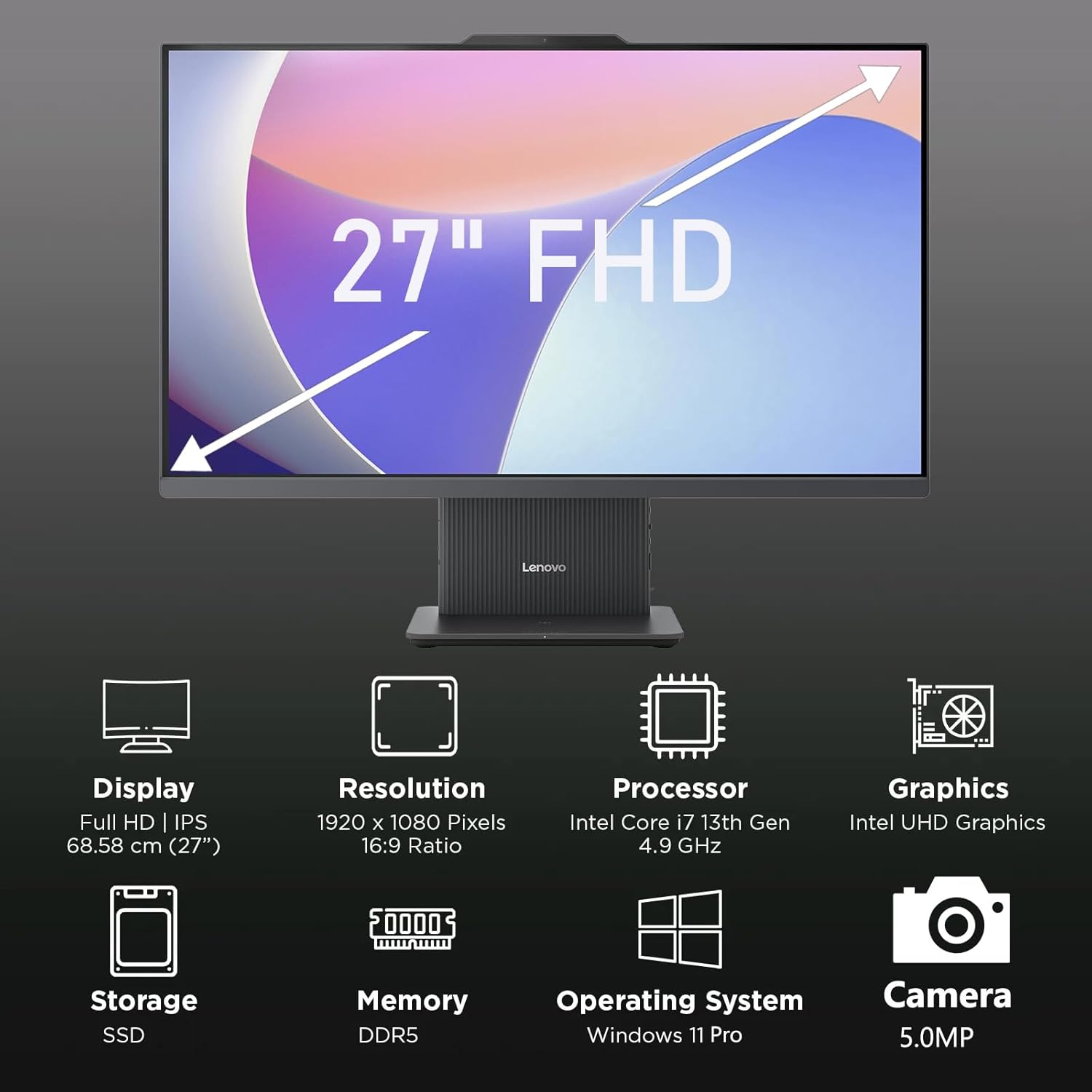
Gambar 2: Lebihview of key features including Display, Resolution, Processor, Graphics, Storage, Memory, Operating System, and Camera.
- paparan: 27-inch Full HD (1920x1080) IPS, 300 nits, anti-glare.
- Webcam: Integrated 5.0MP webcam with dual microphones.
- Penceramah: Integrated 3W x2 HARMAN speakers.
- Pemproses: Intel Core i7-13620H.
- Ingatan: RAM DDR5.
- Storan: PCIe NVMe SSD.
3.2 Port dan Penyambung

Figure 3: Detailed diagram of ports and connectors on the Lenovo IdeaCentre AIO 27.
- E-shutter (for webprivasi kamera)
- Butang kuasa
- HDMI-dalam 1.4
- Kuasa DC-masuk
- USB-A 480Mbps (USB 2.0)
- Ethernet (RJ-45)
- USB-A 480Mbps (USB 2.0)
- USB-A 10Gbps (USB 3.2 Gen 2)
- HDMI keluar 2.1 TMDS
- USB-C 10Gbps (data transfer only)
- Headphone / microphone combo jack
4. Persediaan
4.1 Membuka kotak dan Meletakkan
- Keluarkan PC AIO dan semua aksesori dari bungkusan dengan berhati-hati.
- Place the AIO PC on a stable, flat surface with adequate ventilation around the device.
4.2 Kuasa Penyambung
- Connect the power adapter cable to the DC-in port (4) on the rear of the AIO PC.
- Palamkan penyesuai kuasa ke dalam salur keluar elektrik yang dibumikan.
4.3 Menyambung Peranti
- Connect your keyboard and mouse to the available USB-A ports (5, 7, 8) on the rear of the AIO PC.
- If using wired Ethernet, connect the cable to the RJ-45 port (6).
- For external displays, use the HDMI-out port (9). To use the AIO as a display for another device, use the HDMI-in port (3).
4.4 But Permulaan dan Persediaan Windows
- Press the power button (2) to turn on the PC.
- Ikut arahan pada skrin untuk melengkapkan persediaan awal Windows 11 Pro, termasuk bahasa, rantau, sambungan rangkaian dan penciptaan akaun pengguna.
4.5 Melaraskan Dirian

Figure 4: The AIO stand allows for ergonomic tilt adjustment.
The integrated stand allows for tilt adjustment from -5° to 15° to optimize your viewing angle and posture. Gently adjust the display to your preferred position.
5. Mengendalikan PC Anda
5.1 Operasi Asas
- Hidupkan/Mati Kuasa: Press the power button (2) to turn on. To shut down, click Start > Power > Shut down in Windows.
- Mod tidur: Press the power button briefly or select Sleep from the Start menu.
5.2 Menggunakan Webkamera dan Audio

Figure 5: The 5MP webcam and Harman audio enhance video conferencing.
- Webcam: The integrated 5.0MP webcam is ideal for video conferencing and online communication. Use the E-shutter (1) to physically block the camera for privacy.
- Mikrofon: Dual microphones provide clear audio input.
- Penceramah: HARMAN speakers deliver high-quality audio output.
5.3 Ketersambungan
- Wi-Fi 6: Sambungkan ke rangkaian tanpa wayar untuk akses internet berkelajuan tinggi.
- Bluetooth 5.2: Pair with Bluetooth-enabled devices such as headphones, speakers, or mobile phones.
- Port USB: Utilize the various USB-A and USB-C ports for connecting external drives, printers, and other peripherals.
5.4 Ciri Windows 11 Pro
Your AIO PC comes pre-installed with Windows 11 Pro, offering advanced features for productivity and security:
- BitLocker: For advanced data encryption.
- Desktop Jauh: Access your PC from another device.
- Domain Join: Integrate into corporate networks.
- Windows Hello: Secure and fast login using facial recognition (if IR camera is present) or PIN.
6. Penyelenggaraan
6.1 Membersihkan PC Anda
- paparan: Gunakan kain lembut dan tidak berbulu sedikit dampdibilas dengan air atau pembersih skrin yang tidak kasar. Jangan sembur cecair terus ke atas skrin.
- Chassis: Wipe with a soft, dry cloth. Avoid harsh chemicals or abrasive materials.
- Pengudaraan: Ensure ventilation openings are clear of dust and obstructions to prevent overheating.
6.2 Kemas Kini Perisian
Regularly check for and install Windows updates and driver updates to ensure optimal performance and security. Go to Settings > Windows Update to check for updates.
6.3 Sandaran Data
Sandarkan data penting anda secara berkala ke pemacu luaran atau storan awan untuk mengelakkan kehilangan data.
7. Penyelesaian masalah
This section addresses common issues you might encounter with your IdeaCentre AIO 27.
| Masalah | Penyelesaian yang Mungkin |
|---|---|
| PC tidak dihidupkan | Ensure the power adapter is securely connected to both the PC and a working electrical outlet. Test the outlet with another device. |
| Tiada paparan pada skrin | Check power connection. Ensure the PC is powered on. If using HDMI-in, verify the external device is on and correctly connected. |
| Tiada sambungan internet (Wi-Fi) | Check if Wi-Fi is enabled in Windows settings. Verify your router is working. Reconnect to the Wi-Fi network. |
| Tiada audio | Check volume levels in Windows. Ensure speakers are not muted. Verify audio drivers are up to date. |
| Webcam tak berfungsi | Ensure the E-shutter (1) is open. Check privacy settings in Windows. Verify webcam drivers are installed and up to date. |
8. Spesifikasi

Figure 6: Details of the Intel Core i7-13620H processor.

Figure 7: The 27-inch FHD display offers comfortable viewing.
| Ciri | Spesifikasi |
|---|---|
| Jenama | Lenovo |
| Nama Model | IdeaCentre AIO 27 |
| Sistem Operasi | Windows 11 Pro |
| Pemproses | Intel Core i7-13620H (10 Teras, 16 Benang, sehingga 4.9GHz) |
| Grafik | Grafik Intel UHD Bersepadu |
| Paparan | 27-inch FHD (1920x1080) IPS, 300 nits, Anti-glare, 99% sRGB |
| Ingatan | 32GB DDR5 RAM (5200 MT/s) |
| Penyimpanan | 1TB M.2 PCIe 4.0x4 NVMe SSD |
| Audio | High Definition (HD) Audio, Realtek ALC233-CG codec, 3W x2 HARMAN speakers |
| Webcam | 5.0MP with Dual Microphones |
| Kesambungan Wayarles | Wi-Fi 6 (802.11ax 2x2), Bluetooth 5.2 |
| Pelabuhan (Belakang) | 1x USB-A 10Gbps, 2x USB-A 480Mbps, 1x HDMI-in 1.4, 1x HDMI-out 2.1 TMDS, 1x RJ-45, 1x Power Connector |
| Ports (Left) | 1x USB-C 10Gbps (data transfer only), 1x 3.5mm combo audio jack |
| Cip Keselamatan | Perisian tegar TPM 2.0 |
| Penyesuai Kuasa | 90W 89% adapter |
| Dimensi (W x D x H) | 611.72 x 192 x 473.16 mm (24.08 x 7.55 x 18.62 inci) |
| Berat badan | Sekitar 7.1 kg (15.65 lbs) |
9. Maklumat Waranti
Your Lenovo IdeaCentre AIO 27 PC comes with a standard manufacturer's warranty. The specific terms and duration of your warranty may vary by region and purchase agreement. Please refer to the warranty documentation included in your product packaging or visit the official Lenovo support webtapak untuk maklumat terperinci.
Typically, the warranty covers defects in materials and workmanship under normal use. It does not cover damage caused by misuse, accidents, unauthorized modifications, or external factors.
10. Sokongan dan Maklumat Hubungan
For technical support, service, or additional information, please contact Lenovo customer support through the following channels:
- Sokongan Lenovo Webtapak: melawat sokongan.lenovo.com for drivers, manuals, and troubleshooting guides.
- Sokongan Telefon: Refer to your warranty card or the Lenovo support webtapak untuk nombor hubungan serantau.
- Sembang Dalam Talian: Available on the Lenovo support website for real-time assistance.
Please have your product's serial number ready when contacting support. The serial number is typically located on a label on the back or bottom of your AIO PC.