
1. Pengenalan
Thank you for choosing the Insoma Wi-Fi Water Timer. This device allows you to remotely control your garden watering schedules via a smartphone application, integrate with voice assistants like Alexa and Google Assistant, and manage irrigation efficiently. This manual provides comprehensive instructions for setup, operation, and maintenance to ensure optimal performance and longevity of your water timer.
2. Produk Lebihview
Ciri-ciri Utama
- 100% Wi-Fi Connection: No gateway required. Connects directly to 2.4GHz Wi-Fi for remote control from anywhere.
- Easy App Operation: Manage watering programs and review history via the Smart Life app.
- Kawalan Suara Pintar: Sesuai dengan Alexa dan Google Assistant untuk operasi bebas tangan.
- Manual Watering & Weather Delay: Manually water for 1 minute to 24 hours. Use weather delay to pause schedules for 24, 48, or 72 hours.
- Multiple Schedule Settings: Supports up to 20 watering schedules (10 normal, 10 cycle/soak) to meet diverse irrigation needs.
- Reka bentuk tahan lasak: Features brass water inlet and outlet, IP55 waterproof and UV-resistant ABS resin construction, and a sealed battery compartment.
Komponen
The Insoma Wi-Fi Water Timer consists of the main timer unit, a brass water inlet connector, and a hose outlet connector.
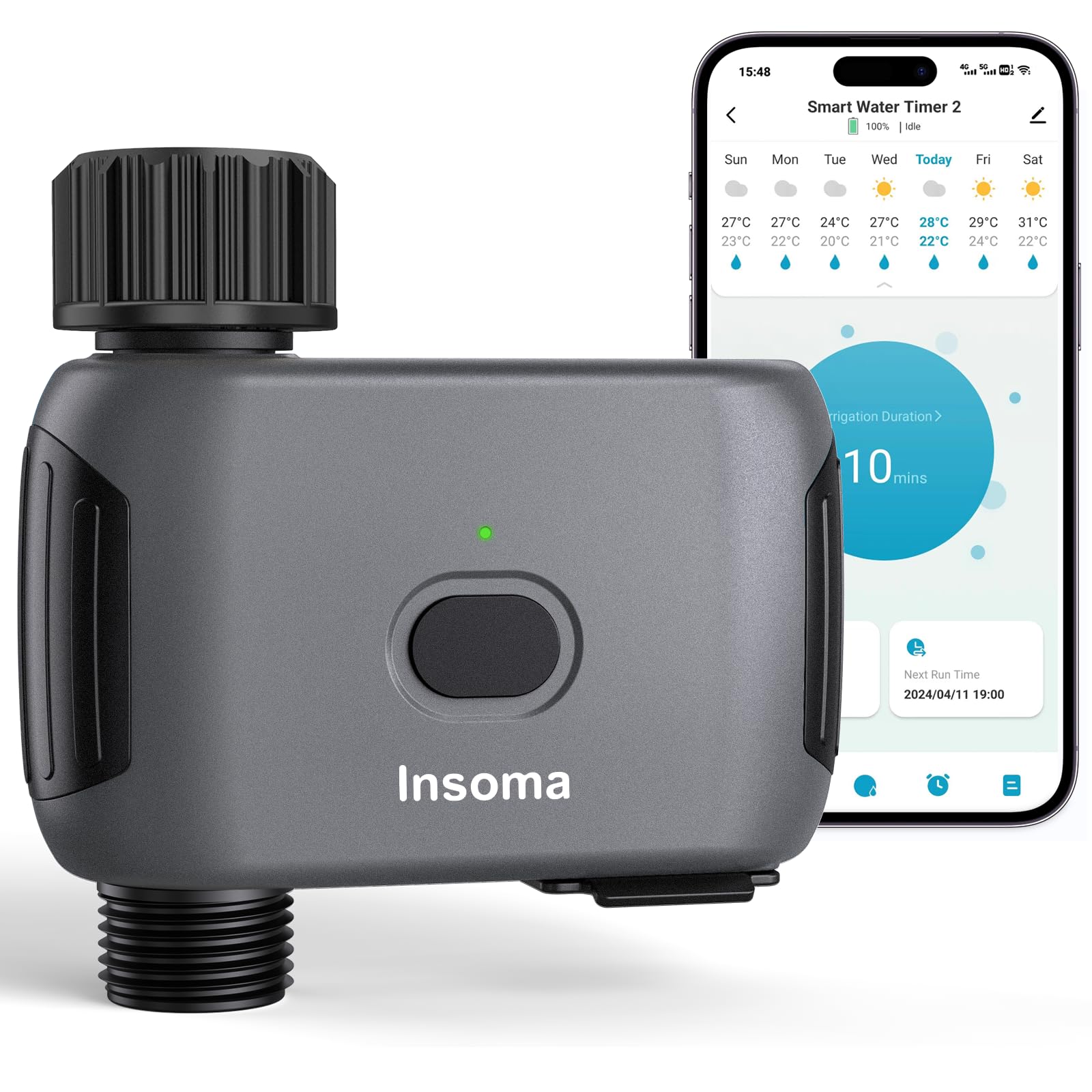
Figure 2.1: Insoma Wi-Fi Water Timer main unit.

Figure 2.2: Reinforced water inlet with filter.
3. Panduan Persediaan
3.1 Pemasangan Bateri
- Buka penutup petak bateri di belakang pemasa.
- Insert four (4) AA alkaline batteries (not included), ensuring correct polarity.
- Securely close the battery compartment cover to maintain the IP55 waterproof rating. The sealing strip inside prevents water intrusion.
3.2 Pemasangan Fizikal
- Connect the water timer to your outdoor faucet. Ensure a tight fit to prevent leaks. The brass inlet provides a secure connection.
- Attach your garden hose to the outlet of the water timer.
3.3 Pemasangan Apl dan Sambungan Wi-Fi
- Muat turun Kehidupan Pintar aplikasi daripada gedung aplikasi telefon pintar anda (iOS atau Android).
- Daftar atau log masuk ke akaun Smart Life anda.
- Pastikan telefon pintar anda disambungkan ke a Rangkaian Wi-Fi 2.4GHz. The Insoma Water Timer only supports 2.4GHz Wi-Fi.
- In the Smart Life app, tap the "+" icon to add a new device.
- Follow the on-screen instructions to add the Insoma Wi-Fi Water Timer. This typically involves putting the device into pairing mode (refer to the device's LED indicator for status) and confirming your Wi-Fi network details.
- Once connected, you can rename the device for easier identification.
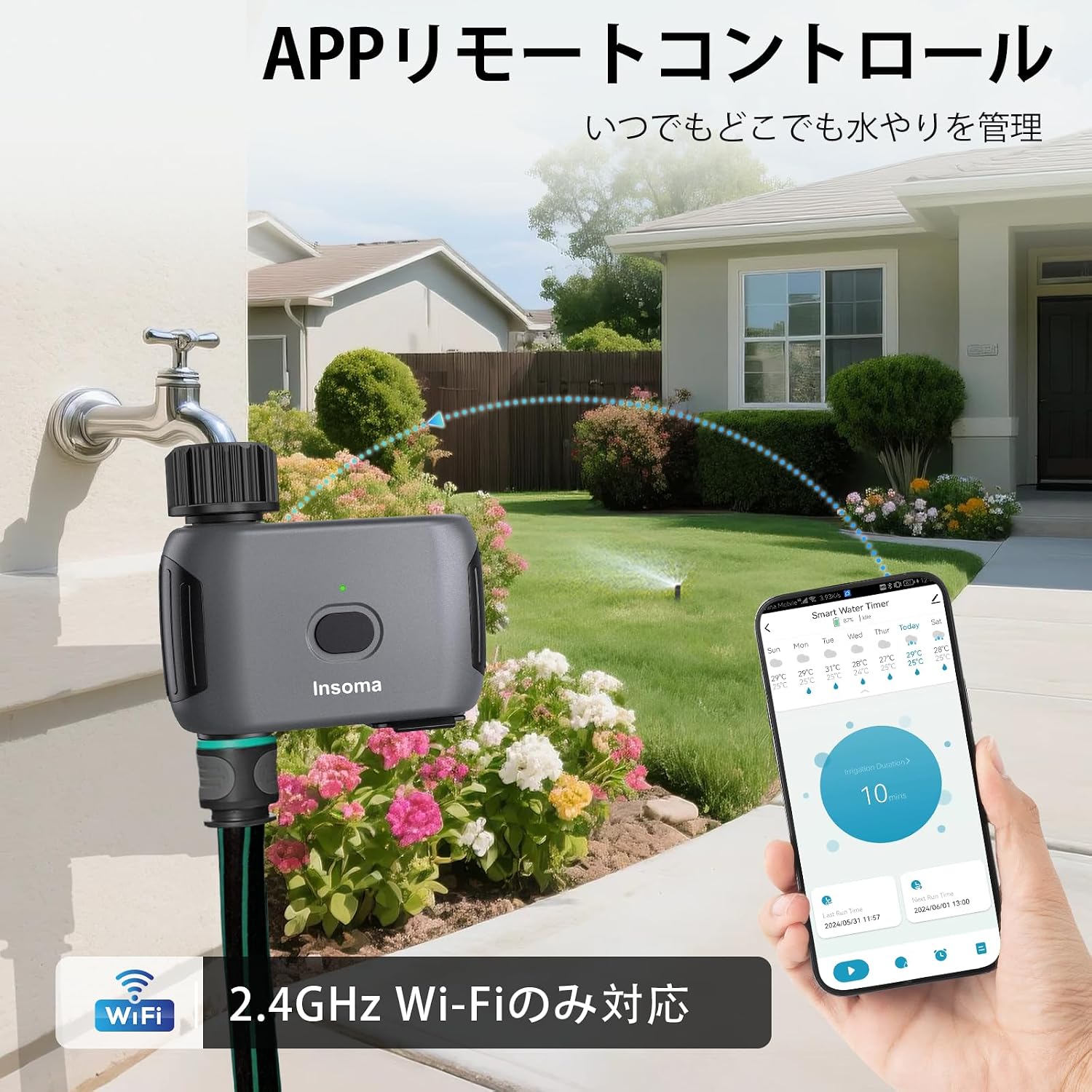
Rajah 3.1: Antara muka alat kawalan jauh aplikasi.
3.4 Integrasi Pembantu Suara
- Buka aplikasi Alexa atau Google Home pada telefon pintar anda.
- Dayakan kemahiran/perkhidmatan "Kehidupan Pintar".
- Link your Smart Life account with your voice assistant account.
- Discover devices. Your Insoma Wi-Fi Water Timer should appear.
- You can now use voice commands such as "Alexa, turn on the water timer" or "Hey Google, turn off the garden sprinkler."

Rajah 3.2: Integrasi kawalan suara.
4. Arahan Operasi
4.1 Scheduling Watering Programs
The Smart Life app allows you to set up to 20 different watering schedules.
- Jadual Biasa: Set specific start times, watering durations (1 minute to 24 hours), and days of the week for regular irrigation.
- Cycle/Soak Schedule: Ideal for efficient watering, this mode allows you to set a cycle duration (e.g., water for 10 minutes, then pause for 20 minutes) within a specified start and end time, and on selected days. This helps water penetrate the soil better and reduces runoff.
Untuk membuat jadual:
- Open the Smart Life app and select your water timer.
- Navigasi ke bahagian penjadualan.
- Choose "Normal Schedule" or "Cycle/Soak Schedule."
- Configure the start time, duration, frequency, and other parameters as needed.
- Simpan jadual.

Figure 4.1: Schedule setting options in the app.
4.2 Penyiraman Manual
You can initiate manual watering at any time, overriding current schedules temporarily.
- Melalui Apl: In the Smart Life app, select your water timer and choose the manual watering option. Set the desired duration (1 minute to 24 hours) and start watering.
- Melalui Butang Peranti: Press the button on the water timer to initiate manual watering. The default duration can often be configured in the app.
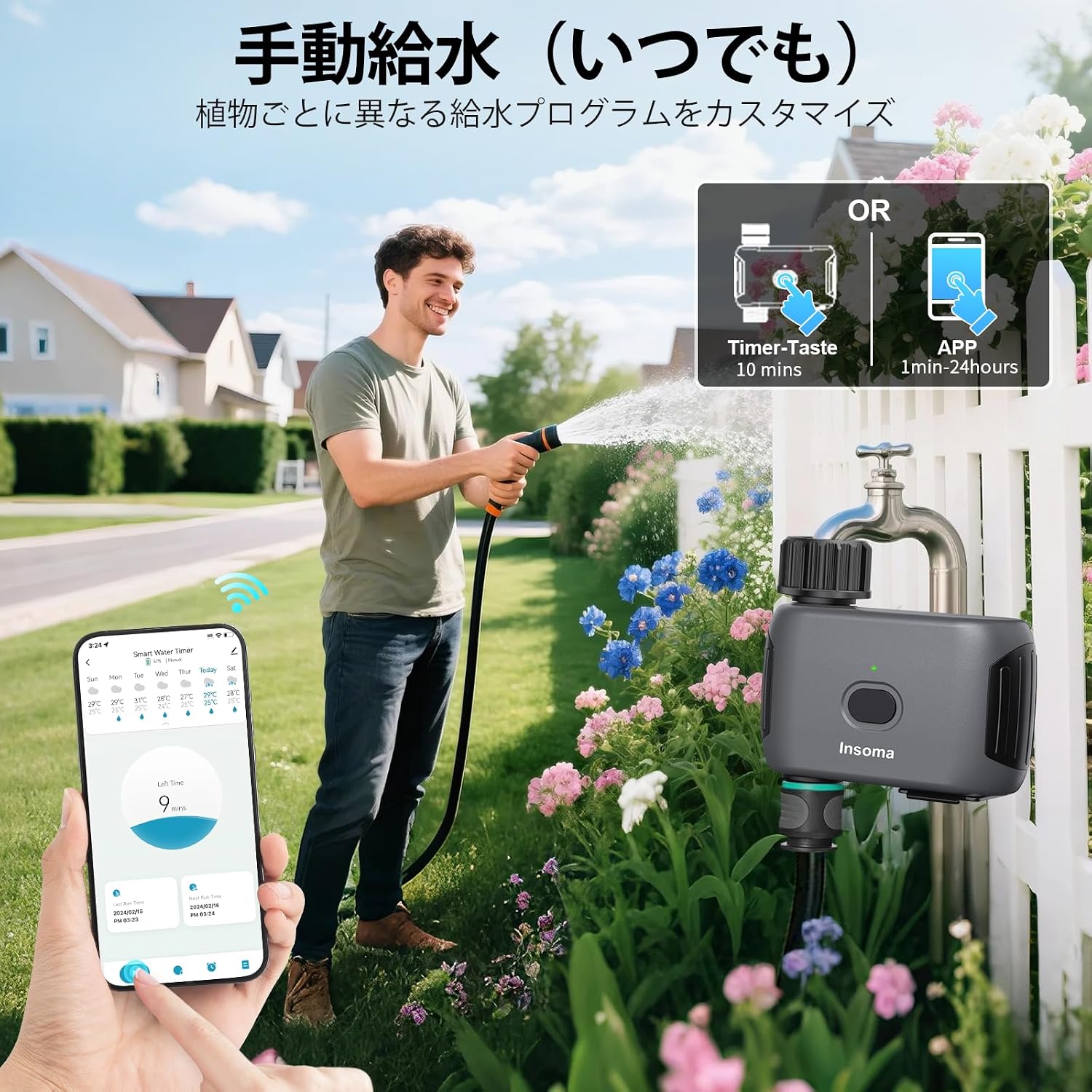
Figure 4.2: Manual watering options.
4.3 Weather Delay Function
To prevent overwatering during rain, use the weather delay function. This feature temporarily pauses all programmed schedules.
- In the Smart Life app, navigate to the weather delay settings for your water timer.
- Select a delay period: 24 hours, 48 hours, or 72 hours.
- Confirm the delay. Schedules will automatically resume after the selected period.

Figure 4.3: Weather delay function.
5. Penyelenggaraan
5.1 Pembersihan
- Periodically check the water inlet filter for debris. If clogged, remove and rinse it under running water.
- Wipe the exterior of the timer with a damp kain. Jangan gunakan pembersih yang melelas atau rendam unit di dalam air.
5.2 Penggantian Bateri
The timer uses 4 AA alkaline batteries, which can last up to 1 year under normal use. Replace batteries when the low battery indicator appears in the app or on the device, or if the device becomes unresponsive. Follow the battery installation steps in Section 3.1.
5.3 Musim sejuk
Before the first frost, disconnect the water timer from the faucet and hose. Remove the batteries. Store the unit indoors in a dry, protected area to prevent damage from freezing temperatures.
6. Penyelesaian masalah
| Masalah | Kemungkinan Punca | Penyelesaian |
|---|---|---|
| Device won't connect to Wi-Fi. | Incorrect Wi-Fi band (not 2.4GHz), weak signal, incorrect password. | Ensure your router is broadcasting a 2.4GHz signal. Move the timer closer to the router. Double-check Wi-Fi password. Reset the timer and try pairing again. |
| Tiada aliran air. | Faucet off, low water pressure, clogged filter, dead batteries. | Ensure the faucet is fully open. Check water pressure (operating pressure: 7.26-116 PSI). Clean the inlet filter. Replace batteries. |
| Schedules not running. | Weather delay active, incorrect schedule settings, low batteries. | Check if weather delay is active in the app. Verify schedule times and days. Replace batteries. |
| Kebocoran air. | Sambungan longgar, O-ring rosak. | Ensure all connections are tightened. Check O-rings for damage and replace if necessary. |
7. Spesifikasi
- Jenama: Insoma
- Nombor Model: SGW03WF-G-JP
- warna: Hitam
- Dimensi (D x W x H): 115 mm x 45 mm x 115 mm
- Jenis Bateri: 4 x AA Alkali (tidak termasuk)
- Tekanan Air Operasi: 7.26 - 116 PSI
- Penilaian Kalis Air: IP55
- Kekerapan Wi-Fi: 2.4GHz sahaja
- Max Schedules: 20 (10 Normal, 10 Cycle/Soak)
- Negara Asal: China
8. Waranti dan Sokongan
For product support, troubleshooting assistance, or warranty inquiries, please contact Insoma customer service through the retailer where you purchased the product or visit the official Insoma webtapak. Sila simpan bukti pembelian anda untuk tuntutan waranti.