
pengenalan
This guide provides detailed instructions for operating your Kindle Paperwhite. It covers all features, settings, and common problem solutions to help you maximize your device's capabilities. Whether you are a new owner or have been using a Kindle Paperwhite for years, this manual will help you explore its full potential.
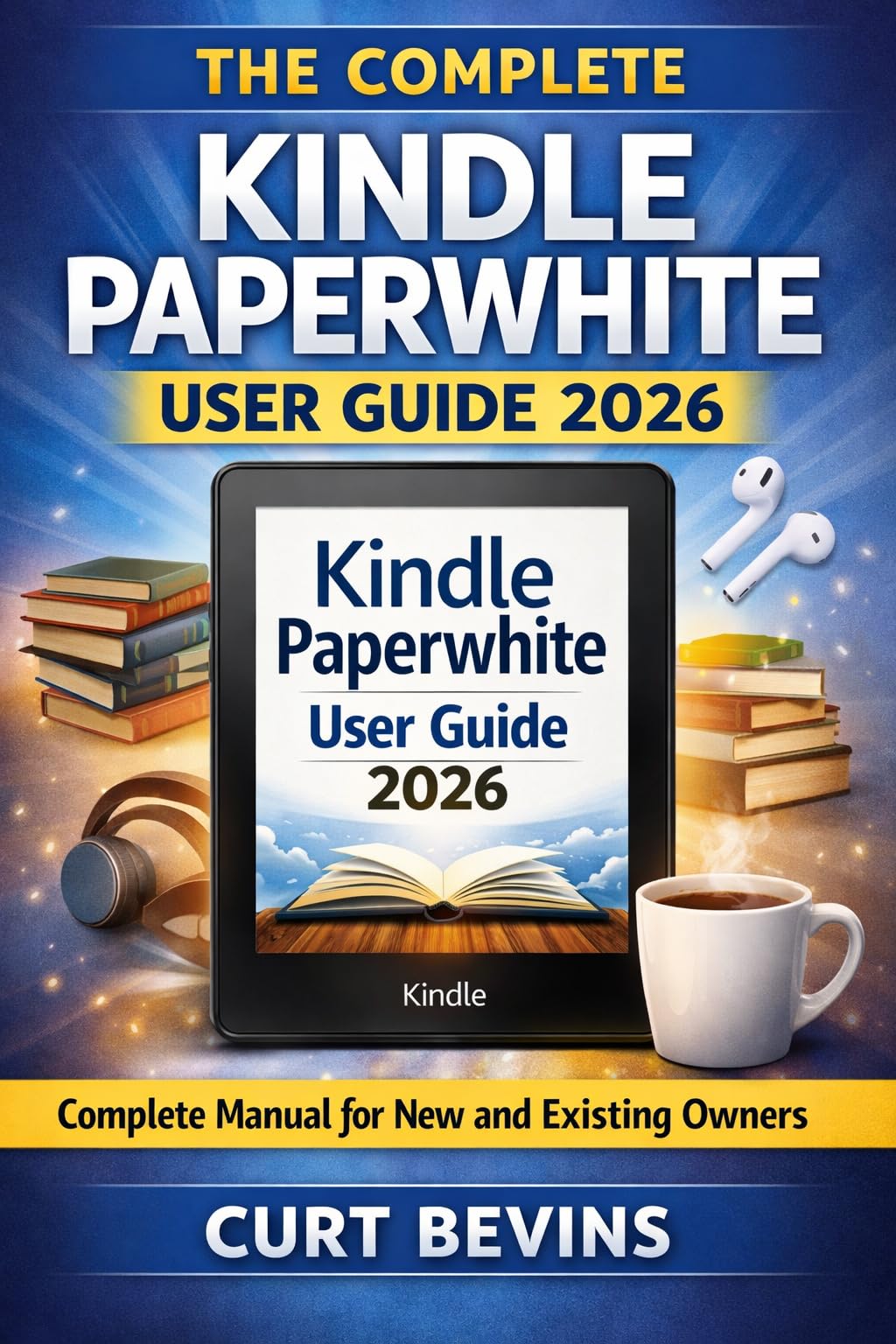
Image of a Kindle Paperwhite e-reader displaying text on its screen. This image shows the Kindle Paperwhite device, highlighting its display suitable for reading.
Persediaan
Konfigurasi Peranti Awal
Follow these steps for the initial setup of your Kindle Paperwhite:
- Hidupkan kuasa: Tekan dan tahan butang kuasa sehingga skrin diaktifkan.
- Pemilihan Bahasa: Pilih bahasa pilihan anda daripada senarai.
- Sambungan Wi-Fi: Select your Wi-Fi network and enter the password. Ensure a stable internet connection for registration and content downloads.
- Pendaftaran Akaun Amazon: Sign in with your existing Amazon account or create a new one. This links your Kindle to your content library.
- First-Time Configuration: Follow on-screen prompts to complete basic settings, such as time zone and optional tutorials.
Operating Your Kindle Paperwhite
Tetapan Membaca
Customize your reading experience with various display options:
- fon: Adjust font style and size for optimal readability.
- Cahaya Hangat: Enable or adjust the warm light feature to reduce eye strain, especially in low-light conditions.
- Mod Gelap: Switch to dark mode for an inverted color scheme (white text on a black background).
- Warna latar belakang: Select from available background color options.
- Muat Semula Halaman: Configure how often the screen refreshes to prevent ghosting.
Advanced Reading Features
Enhance your reading with these integrated tools:
- X-Ray: Explore the 'bones of the book' to see characters, historical figures, terms, and topics.
- Kata Bijak: Get instant access to definitions and synonyms above difficult words.
- Pembina Perbendaharaan Kata: Automatically save words you look up in the dictionary to improve your vocabulary.
- Page Flip: Skim through your book page by page, chapter by chapter, or jump to any part without losing your current place.
- Highlighting and Annotations: Select text to highlight or add notes. Access your notes from any device at read.amazon.com.
Library Management
Organize and access your content efficiently:
- Koleksi: Create custom collections to group your books.
- Filters and Sorting: Use filters to view specific types of content and sort your library by title, author, or recent activity.
- Public Library Borrowing: Borrow books free from your public library using the Libby app integration.
- Amazon Household: Set up Amazon Household to share your entire library with a partner or family members.
Content Transfer
Send documents and PDFs to your Kindle:
- Send to Kindle: Use the 'Send to Kindle' browser extension or email service to transfer PDFs and other documents directly to your device.
Buku audio
Listen to Audible audiobooks on your Kindle Paperwhite:
- Integrasi Boleh Dengar: Connect Bluetooth headphones or speakers to listen to Audible audiobooks.
- Whispersync for Voice: Seamlessly switch between reading an ebook and listening to its Audible audiobook counterpart.
Goodreads Integration
Track your reading progress and discover new books:
- Goodreads on Kindle: Connect your Goodreads account to track books you've read, want to read, and share updates with friends.
Signature Edition Exclusive Features
If you own a Signature Edition Kindle Paperwhite, you benefit from:
- Pengecasan Tanpa Wayar: Charge your device wirelessly using compatible Qi chargers.
- Auto-Adjusting Light: The screen's front light automatically adjusts based on ambient lighting conditions.
Kebolehcapaian
The Kindle Paperwhite includes features to assist users with various needs:
- SuaraView Pembaca Skrin: Provides spoken feedback as you navigate your device.
- Magnifier Tool: Enlarges text and elements on the screen for better visibility.
Menyelesaikan masalah
Isu biasa dan penyelesaiannya:
- Skrin Pembekuan: If your Kindle becomes unresponsive, press and hold the power button for 40 seconds to perform a hard reset.
- Isu Wi-Fi: Ensure your Wi-Fi password is correct and your device is within range. Try restarting your router.
- Missing Books: Verify your Kindle is registered to the correct Amazon account. Sync your device to refresh your library.
- Longkang Bateri: Reduce screen brightness, turn off Wi-Fi when not needed, and ensure no background processes are consuming excessive power.
Spesifikasi
| Ciri | Perincian |
|---|---|
| ASIN | B0GT49F9MM |
| Penerbit | Curt Bevins |
| Tarikh Penerbitan | 19 Mac 2026 |
| Edisi | pertama |
| Bahasa | Inggeris |
| File Saiz | 1.8 MB |
| Pembaca Skrin | Disokong |
| X-Ray | Not Enabled (for this guide) |
| Enhanced Typesetting | Didayakan |
| Kata Bijak | Not Enabled (for this guide) |
| Panjang Cetakan | 83 muka surat |
| Selak Halaman | Didayakan |
Waranti dan Sokongan
For information regarding your Kindle Paperwhite's warranty, please refer to the documentation provided with your device at the time of purchase or visit the official Amazon support website. For technical assistance, troubleshooting beyond this guide, or service inquiries, please contact Amazon Customer Service directly.