
1. Pengenalan
Thank you for choosing the THOMSON TDF-1001P Digital Photo Frame. This device allows you to display your favorite photos and videos, play music, and utilize features like a calendar, clock, and alarm. With Wi-Fi connectivity, you can easily share media and receive weather updates. Please read this manual thoroughly before operating the device to ensure proper use and maintenance.
2. Maklumat Keselamatan
- Jangan dedahkan peranti kepada kelembapan, hujan atau suhu yang melampau.
- Elakkan meletakkan peranti berhampiran sumber haba atau di bawah cahaya matahari langsung.
- Gunakan hanya penyesuai kuasa yang disediakan. Menggunakan penyesuai yang tidak dibenarkan boleh merosakkan peranti dan membatalkan jaminan.
- Jangan cuba membuka atau membaiki peranti ini sendiri. Rujuk semua servis kepada kakitangan yang berkelayakan.
- Jauhkan peranti daripada medan magnet yang kuat.
- Clean the screen with a soft, dry cloth. Do not use liquid cleaners or sprays directly on the screen.
3. Kandungan Pakej
Sila semak pakej untuk item berikut:
- THOMSON TDF-1001P Digital Photo Frame
- Penyesuai Kuasa
- Manual Pengguna (dokumen ini)
- Stand (if applicable)
4. Produk Lebihview
Biasakan diri anda dengan komponen bingkai foto digital anda.
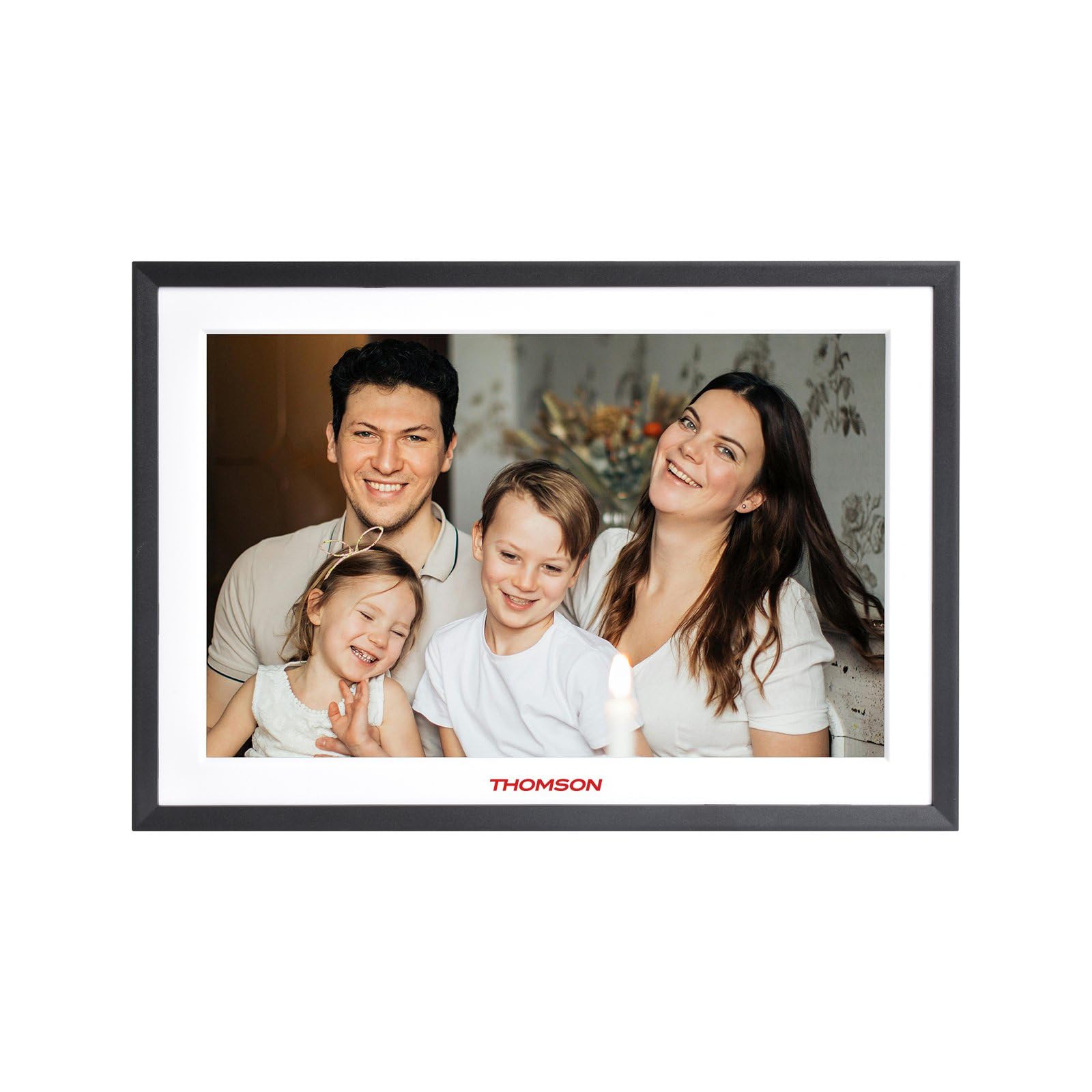
Rajah 4.1: Depan view of the THOMSON TDF-1001P Digital Photo Frame. This image shows the 10.1-inch IPS display with a black frame, designed for clear photo and video playback.
4.1. Panel hadapan
- Skrin Sentuh IPS 10.1 inci: The main display for viewing content and interacting with the device.
4.2. Panel Belakang dan Port
The rear panel typically includes various ports for connectivity and power.
- Input Kuasa: Menyambung kepada penyesuai kuasa yang disediakan.
- Port USB: Untuk menyambungkan pemacu USB ke pemindahan media.
- Slot Kad SD: For inserting SD cards to expand storage or transfer media.
- Butang Tetapkan Semula: A small pinhole button to reset the device if necessary.
5. Persediaan
5.1. Hidupkan Kuasa Awal
- Unpack the digital photo frame and its accessories.
- Attach the stand to the back of the frame, ensuring it is securely fastened.
- Connect the power adapter to the power input port on the frame.
- Plug the power adapter into a wall outlet. The frame will automatically power on.
- Ikut arahan pada skrin untuk memilih bahasa dan wilayah anda.
5.2. Sambungan Wi-Fi
Connecting to Wi-Fi enables online features like photo sharing and weather updates.
- Daripada menu utama, ketik pada 'Tetapan'.
- Select 'Wi-Fi' or 'Network Settings'.
- Toggle Wi-Fi to 'On'. The frame will scan for available networks.
- Pilih rangkaian Wi-Fi yang anda inginkan daripada senarai.
- Enter the Wi-Fi password using the on-screen keyboard and tap 'Connect'.
- Once connected, a Wi-Fi icon will appear on the status bar.
5.3. App Setup for Sharing
To share photos and videos via Wi-Fi, you will need to install the dedicated app on your smartphone.
- Locate the app name or QR code in the frame's settings under 'Cloud Services' or 'App Connection'.
- Download and install the app on your smartphone from your device's app store.
- Buka aplikasi dan buat akaun atau log masuk.
- Follow the app's instructions to pair your smartphone with the digital photo frame, typically by scanning a QR code displayed on the frame or entering a unique device ID.
- Once paired, you can send photos and videos directly from your smartphone to the frame.
6. Operating the Digital Photo Frame
6.1. Menavigasi Antara Muka
The frame features a touch screen for easy navigation. Tap icons to open applications and swipe to browse content or menus.
6.2. Photo and Video Playback
- From the main menu, tap the 'Photos' or 'Gallery' icon.
- Select the source of your media (Internal Storage, SD Card, USB Drive, or Cloud/App).
- Browse through your albums or individual files. Tap on a photo or video to view ia.
- During playback, you can typically swipe left/right to navigate between files, or tap the screen to reveal playback controls (play/pause, next, previous, rotate, delete).
6.3. Main balik Muzik
- Tap the 'Music' icon from the main menu.
- Select the source of your music files.
- Browse and tap on a song to begin playback.
- Use the on-screen controls for play/pause, skip, volume adjustment, and repeat modes.
6.4. Calendar, Clock, and Alarm
- Kalendar: Tap the 'Calendar' icon to view the current date and month. Some models may allow adding events.
- jam: The current time is usually displayed on the home screen. Time settings can be adjusted in the 'Settings' menu.
- penggera: Access the 'Alarm' function via the main menu or 'Settings'. You can set multiple alarms with custom times and sounds.
6.5. Weather Updates
If connected to Wi-Fi, the frame can display local weather information.
- Ensure the frame is connected to Wi-Fi.
- Go to 'Settings' and find 'Weather' or 'Location Services'.
- Enable weather updates and set your location (either automatically or manually).
- The weather forecast will then be displayed on the home screen or a dedicated weather widget.
7. Penyelenggaraan
7.1. Membersihkan Peranti
- Sentiasa matikan kuasa dan cabut plag peranti sebelum membersihkannya.
- Gunakan kain lembut dan bebas lin untuk mengelap skrin dan bingkai dengan perlahan.
- For stubborn smudges on the screen, lightly dampen the cloth with water or a screen-safe cleaning solution, then wipe gently. Do not spray liquids directly onto the screen.
- Elakkan pembersih atau pelarut yang melelas.
7.2. Penyimpanan
When not in use for extended periods, store the digital photo frame in a cool, dry place, away from direct sunlight and extreme temperatures. It is recommended to keep the original packaging for storage.
8. Penyelesaian masalah
Bahagian ini menangani isu biasa yang mungkin anda hadapi.
| Masalah | Kemungkinan Punca | Penyelesaian |
|---|---|---|
| Bingkai tidak dihidupkan. | Penyesuai kuasa tidak disambungkan atau rosak. | Pastikan penyesuai kuasa disambungkan dengan kukuh pada bingkai dan soket kuasa yang berfungsi. Cuba soket lain. |
| Tidak dapat menyambung ke Wi-Fi. | Kata laluan salah, di luar julat atau masalah penghala. | Verify the Wi-Fi password. Move the frame closer to the router. Restart your Wi-Fi router. |
| Photos/videos not displaying. | Tidak disokong file format, corrupted files, or incorrect source selected. | pastikan files are in supported formats (e.g., JPEG for photos, MP4 for videos). Check if the files are corrupted. Select the correct storage source (SD card, USB, internal). |
| Skrin sentuh tidak bertindak balas. | Gangguan perisian sementara. | Restart the frame by unplugging and replugging the power adapter. If the issue persists, use a pin to press the reset button on the back. |
9. Spesifikasi
| Ciri | Spesifikasi |
|---|---|
| Model | TDF-1001P |
| Saiz Paparan | 10.1 inci |
| Resolusi | 800 * 1280 IPS |
| Nisbah Aspek | 16:10 |
| Internal Flash Storage | 32 GB |
| Skrin Sentuh | G+P Type |
| Ketersambungan | Wi-Fi |
| Fungsi | Photo, Music, Video, Calendar, Clock, Alarm, Weather, Wi-Fi Sharing |
| bahan | Plastic black frame and white middle frame |
| Dimensi Item (L x W) | 7.25" L x 10.44" W |
| Sumber Kuasa | Elektrik Bertali |
10. Maklumat Waranti
The THOMSON TDF-1001P Digital Photo Frame comes with a Waranti terhad 1 tahun from the date of purchase. This warranty covers manufacturing defects in materials and workmanship under normal use. It does not cover damage caused by misuse, accidents, unauthorized modifications, or external causes such as power surges.
Please retain your proof of purchase for warranty claims. For detailed warranty terms and conditions, refer to the warranty card included in your package or contact customer support.
11. Sokongan Pelanggan
If you have any questions, require technical assistance, or need to make a warranty claim, please contact THOMSON customer support. Refer to the contact information provided on the product packaging or the official THOMSON webtapak.
When contacting support, please have your product model number (TDF-1001P) and proof of purchase readily available.


