
pengenalan
Thank you for choosing the CHIVALZ PM220 Portable Thermal Label Printer. This manual provides essential information for setting up, operating, maintaining, and troubleshooting your device. Please read it thoroughly before use to ensure optimal performance and longevity of your printer.
The CHIVALZ PM220 is a compact, wireless thermal label printer designed for various labeling needs, including clothing, addresses, barcodes, and household products. It connects seamlessly with smartphones via Bluetooth for convenient printing.
Kandungan Pakej
Sebelum meneruskan persediaan, sila sahkan bahawa semua item ada di dalam pakej:
- CHIVALZ PM220 Thermal Label Printer
- Kabel Pengecas USB
- One roll of thermal labels
- Manual Pengguna (dokumen ini)
Persediaan
1. Mengecas Pencetak
Before initial use, fully charge the printer. Connect the provided USB charging cable to the printer's charging port and a compatible USB power adapter (not included) or a computer's USB port. The charging indicator light will show the charging status.
2. Loading Thermal Labels
- Open the label compartment cover.
- Insert the thermal label roll with the printing surface facing upwards. Ensure the labels are aligned correctly with the feed mechanism.
- Pull a small portion of the label roll out past the print head.
- Tutup penutup petak label dengan kemas.
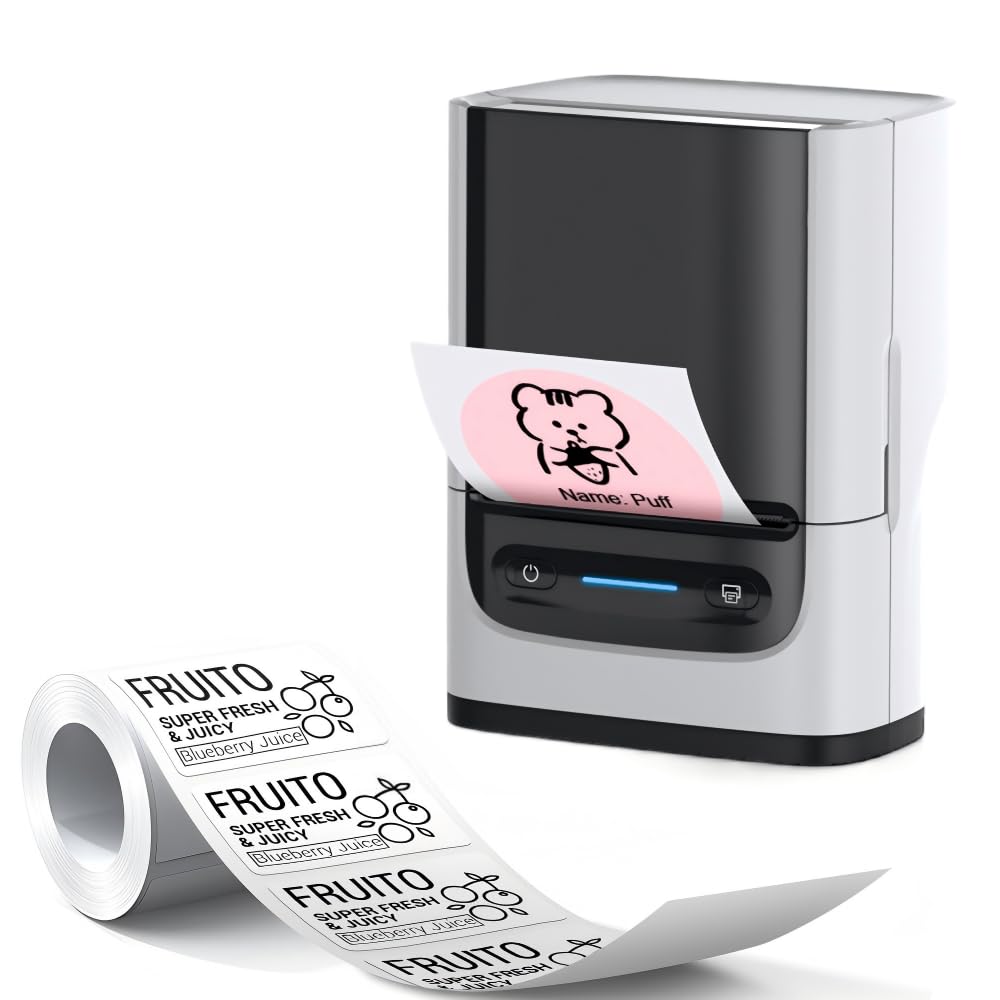
Image: The CHIVALZ PM220 printer with a thermal label roll correctly inserted into its compartment. The label roll is visible, extending slightly from the printer's output slot.
3. Installing the Mobile Application
Cari untuk the official CHIVALZ label printing application on your smartphone's app store (e.g., Apple App Store for iOS or Google Play Store for Android). Download and install the application.
4. Menyambung melalui Bluetooth
- Ensure your CHIVALZ PM220 printer is powered on.
- Dayakan Bluetooth pada telefon pintar anda.
- Open the CHIVALZ label printing application.
- Within the app, navigate to the device connection settings. Select the CHIVALZ PM220 from the list of available Bluetooth devices. The printer's name typically includes "CHIVALZ" or "PM220".
- Follow any on-screen prompts to complete the pairing process. A successful connection will usually be indicated within the app.
Arahan Operasi
1. Menghidupkan/Mematikan
- Untuk Menghidupkan: Tekan dan tahan butang kuasa selama lebih kurang 3 saat sehingga lampu penunjuk menyala.
- Untuk Mematikan: Tekan dan tahan butang kuasa selama lebih kurang 3 saat sehingga lampu penunjuk padam.
2. Mencipta dan Mencetak Label
- Ensure the printer is connected to your smartphone via Bluetooth.
- Open the CHIVALZ label printing application.
- Select a label template or create a new label design. The app allows for text, images, barcodes, and QR codes.
- Customize your label content as needed.
- Praview the label to ensure it appears as desired.
- Tap the "Print" button within the application. Select the number of copies if applicable.
- The printer will feed and print the labels. Carefully tear off the printed labels along the perforation.
Penyelenggaraan
1. Membersihkan Kepala Cetak
Regular cleaning of the print head ensures optimal print quality. Use a soft, lint-free cloth lightly dampdicairkan dengan alkohol isopropil. Lap permukaan kepala cetak dengan lembut. Biarkan ia kering sepenuhnya sebelum menggunakan pencetak.
- Kekerapan: Clean the print head after every 5-10 rolls of labels or if print quality degrades.
- Awas: Do not touch the print head with bare hands as oils can affect print quality.
2. Penjagaan Bateri
Untuk memanjangkan hayat bateri:
- Elakkan menyahcas sepenuhnya bateri dengan kerap.
- Simpan pencetak di tempat yang sejuk dan kering apabila tidak digunakan untuk tempoh yang lama.
- Charge the printer at least once every three months if stored for a long time.
3. Label Storage
Store thermal labels in a cool, dry place away from direct sunlight and heat sources. Exposure to heat or light can cause labels to fade prematurely.
Menyelesaikan masalah
| Masalah | Kemungkinan Punca | Penyelesaian |
|---|---|---|
| Pencetak tidak dihidupkan. | Bateri lemah; Butang kuasa tidak ditekan dengan betul. | Cas pencetak; Tekan dan tahan butang kuasa selama 3 saat. |
| Tidak dapat menyambung melalui Bluetooth. | Bluetooth off on phone/printer; Printer not discoverable; App issue. | Ensure Bluetooth is enabled on both devices; Restart printer and phone; Reinstall app. |
| Poor print quality (faint, blank lines). | Print head dirty; Incorrect label orientation; Low battery. | Clean the print head; Re-insert labels correctly; Charge the printer. |
| Labels not feeding or jamming. | Labels incorrectly loaded; Label compartment not closed properly. | Open and re-load labels, ensuring proper alignment; Close cover firmly. |
| Printer stops responding. | Gangguan perisian sementara. | Perform a soft reset by powering off and on the printer. |
Spesifikasi
| Ciri | Perincian |
|---|---|
| Jenama | CHIVALZ |
| Nama Model | PM220 |
| Teknologi Ketersambungan | Bluetooth |
| Teknologi Percetakan | terma |
| warna | putih |
| Output Pencetak | Monokrom |
| Max Monochrome Print Speed | 203 dpi (titik per inci) |
| Dimensi Produk (L x W x H) | 13 x 8 x 10 centimeters (approx. 5.1 x 3.1 x 3.9 inches) |
| Saiz Media Maks | 4 x 6 inci |
| Komponen yang Disertakan | Gulung label |
| Pengeluar | CHIVALZ |
| ASIN | B0GSGB976P |
Waranti dan Sokongan
Maklumat Waranti
The CHIVALZ PM220 Thermal Label Printer comes with a standard manufacturer's warranty. Please refer to the warranty card included in your package or visit the official CHIVALZ webtapak untuk terma dan syarat terperinci mengenai perlindungan dan tempoh waranti.
Sokongan Pelanggan
For technical assistance, troubleshooting not covered in this manual, or warranty claims, please contact CHIVALZ customer support. Contact details can typically be found on the official CHIVALZ webtapak atau pada pembungkusan produk.
When contacting support, please have your product model (PM220) and purchase information ready.