
1. Pengenalan
This manual provides essential information for the proper setup, operation, and maintenance of your eufy Security eufyCam C37 wireless outdoor security camera. Please read these instructions carefully before using the device to ensure optimal performance and safety.
Video: eufyCam C37 Product OverviewVideo ini memberikan gambaran ringkasview of the eufyCam C37's features and design.
2. Apa yang ada di dalam Kotak
- eufyCam C37
- Kabel Jenis-C 0.6m
- Mounting Bracket, Screw Pack
- Panduan Mula Pantas
- Solar Panel, Solar Panel Mounting Base
3. Produk Lebihview

Image: eufyCam C37 with its detachable solar panel, showcasing its outdoor setup.
Imej: Depan view of the eufyCam C37, highlighting the camera lens and spotlight.
The eufyCam C37 is a wireless outdoor security camera featuring 360° pan and tilt capabilities, 2K resolution, AI tracking, and a flexible solar panel for continuous power. It supports local storage and offers color night vision.
4. Arahan Persediaan
4.1. Persediaan Awal
- Cas Kamera: Fully charge the eufyCam C37 using the provided USB-C cable and a 5V USB-A port. A full charge takes approximately 8 hours. The blue light indicates charging and turns off when complete.
- Masukkan Kad microSD: Open the silicone cover and insert a microSD card (up to 256 GB), ensuring it faces the right direction. A microSD card is required for recording events if not connected to a HomeBase.
- Keluarkan Filem Pelindung: Peel off any protective film from the camera lens and spotlight.
4.2. Persediaan Aplikasi
- Muat turun apl eufy Security daripada App Store (iOS) atau Google Play (Android).
- Buat akaun atau log masuk.
- Follow the on-screen instructions to add eufyCam C37 to your device list. This typically involves scanning a QR code on the device.
- Connect the camera to your Wi-Fi network (2.4GHz only) or to a compatible HomeBase (HomeBase Mini or HomeBase 3, firmware V3.7.8.4+ or V4.0.5.6+ respectively).
- Update the eufy app to version 6.0.10 or newer for smooth operation.
Video: eufyCam C37 How-To Video. This video demonstrates the step-by-step process of setting up and installing the eufyCam C37.
4.3. Choosing the Perfect Location
- Ensure the chosen outdoor location has a strong and stable Wi-Fi signal.
- If the Wi-Fi signal is weak, consider moving the camera closer to your HomeBase Mini or moving the HomeBase Mini closer to the camera.
- Install the camera at a recommended height of 7.2 - 8.2 ft (2.2 - 2.5 m) for optimal coverage.

Image: Diagram illustrating easy installation and flexible placement options for the eufyCam C37 and its solar panel.
4.4. Memasang Kamera
- Mark the screw positions on the wall or ceiling using the mounting bracket as a template.
- Drill holes in the marked locations. Insert anchors if mounting on a masonry wall (skip for wooden walls).
- Attach the mounting base to the wall using the provided screws.
- Install the camera onto the mounting bracket. Note: eufyCam C37 supports inverted installation only.
- Use the eufy app to adjust the camera angle and ensure the desired area is within view.
4.5. Memasang Panel Suria
Position the 3W solar panel for optimal sunlight exposure. The detachable design allows you to place the solar panel separately from the camera, ensuring continuous charging without compromising the camera's viewsudut ing.

Image: The eufyCam C37 with its flexible solar panel, demonstrating how the panel can be positioned for optimal sunlight independently of the camera's mounting.
5. Arahan Operasi
5.1. 360° AI Tracking with Pan & Tilt
The eufyCam C37 provides 360° property coverage, eliminating blind spots. Its AI auto-tracking feature keeps subjects perfectly centered in the frame, enhancing home protection. This feature supports human, vehicle, and pet tracking.

Image: Visual representation of the eufyCam C37's 360° AI tracking capabilities, showing human, vehicle, and pet tracking.
5.2. 2K Color Night Vision
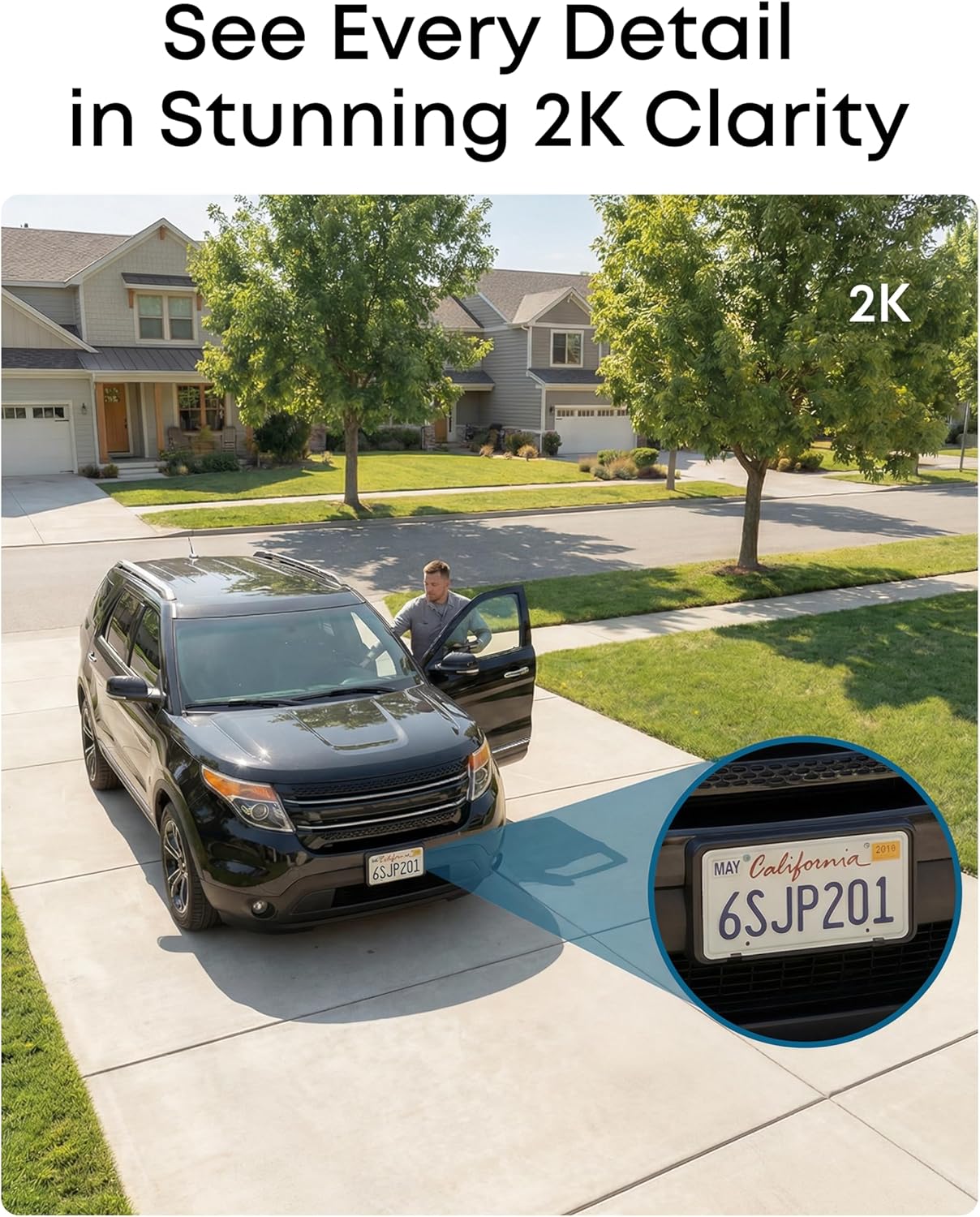
Capture crystal-clear details with 2K resolution, offering 77% more pixels than standard 1080p. The built-in spotlight illuminates faces, license plates, and clothing details in vivid color, even in total darkness.

Image: A comparison showing the clarity of 2K color night vision from the eufyCam C37 versus standard human vision in low light conditions.
5.3. Smart AI Detection
The camera instantly identifies people, vehicles, and pets, automatically tracking their movement to deliver highly relevant alerts and clear monitoring. You can customize detection zones to receive alerts only from specific areas.

Image: Illustration of smart AI detection zones, showing how the camera can differentiate between humans, vehicles, and pets within defined areas.
5.4. Local Storage and No Monthly Fees
The eufyCam C37 supports local storage of up to 256GB via a microSD card (sold separately), ensuring your data remains private and under your control without cloud subscriptions or hidden costs.

Image: Diagram showing the microSD card slot for local storage on the eufyCam C37, emphasizing data privacy.
6. Penyelenggaraan
6.1. Pengecasan Suria
The 3W flexible solar panel provides continuous charging, requiring zero maintenance. Ensure the panel is positioned to receive optimal sunlight for consistent power. The camera's 6700mAh rechargeable battery provides dependable backup power when sunlight is limited.
6.2. Rintangan Cuaca
The eufyCam C37 is IP65 weatherproof, built to withstand various weather conditions including rain, snow, or heat, for reliable protection all year round. The recommended temperature range for solar panel charging is 14°F to 113°F (-10°C to 45°C). The camera operating temperature is 14°F to 113°F (-10°C to 45°C).

Image: Depiction of the eufyCam C37 and its solar panel enduring rain and high temperatures, highlighting its IP65 weatherproof rating and solar charging capability.
7. Penyelesaian masalah
- Isu Ketersambungan: Ensure your Wi-Fi network is 2.4GHz. If connecting to HomeBase, verify it's a HomeBase Mini or HomeBase 3 with the required firmware version.
- QR Code Scan Failure: Ensure sufficient lighting and proper distance (4-8 inches) when scanning the QR code during app setup. Clean the camera lens if necessary.
- Tiada Rakaman: Confirm a microSD card is properly inserted and formatted. Check the eufy app settings to ensure recording is enabled for detected events.
- Bateri Tidak Dicas: Verify the solar panel is receiving direct sunlight. Check the cable connection between the solar panel and the camera. Ensure the charging port is clean and free of debris.
- Pan and Tilt Not Functioning: Pan and tilt may not function in freezing temperatures. Ensure the camera is within its operating temperature range.
8. Spesifikasi
| Ciri | Spesifikasi |
|---|---|
| Jenama | eufy Security |
| Nama Model | eufyCam C37 |
| Nombor Model | T814X |
| Penggunaan yang Disyorkan | Keselamatan Luar |
| Teknologi Ketersambungan | 2.4GHz 802.11 b/g/n Wi-Fi (WPA, WPA2, WPA3) |
| Ciri Khas | 360° AI Tracking, Flexible Detachable Design, Night Vision, No Monthly Fee |
| Penggunaan Dalaman/Luar | Luar |
| Peranti Serasi | Smartphone, HomeBase Mini, HomeBase 3 |
| Jenis Pengawal | Amazon Alexa |
| Jenis Gunung | Pemasangan Dinding/Siling |
| warna | putih |
| Resolusi Tangkapan Video | 2K |
| Kadar Bingkai | 15 bingkai sesaat |
| Julat Penglihatan Malam | 6 Meter |
| Jenis Penglihatan Malam | Warna Malam |
| Sumber Kuasa | Dikuasakan Bateri (Boleh dicas semula) |
| Wattage | 3 watts (Solar Panel) |
| Format Tangkapan Video | MP4 |
| Dimensi Item | 2 x 6 x 4 inci |
9. Waranti dan Sokongan
The eufyCam C37 comes with a manufacturer's warranty. For specific warranty details, please refer to the documentation included with your product or visit the official eufy Security website. For technical support, troubleshooting assistance, or further inquiries, please contact eufy Security customer service through their official channels.