
1. Pengenalan
This manual provides essential information for setting up, operating, maintaining, and troubleshooting your Thunderobot Radiant 16S Gaming Laptop. Please read this guide thoroughly to ensure optimal performance and longevity of your device.
2. Persediaan
2.1 Membuka Kotak dan Menghidupkan Kuasa Awal
Carefully remove the laptop and all accessories from the packaging. Connect the power adapter to the laptop and a power outlet. Press the power button to start the laptop. Follow the on-screen instructions for initial Windows 11 Home setup.
2.2 Menyambung Peranti
Utilize the various ports available to connect your external devices such as a mouse, keyboard, external display, or headset.
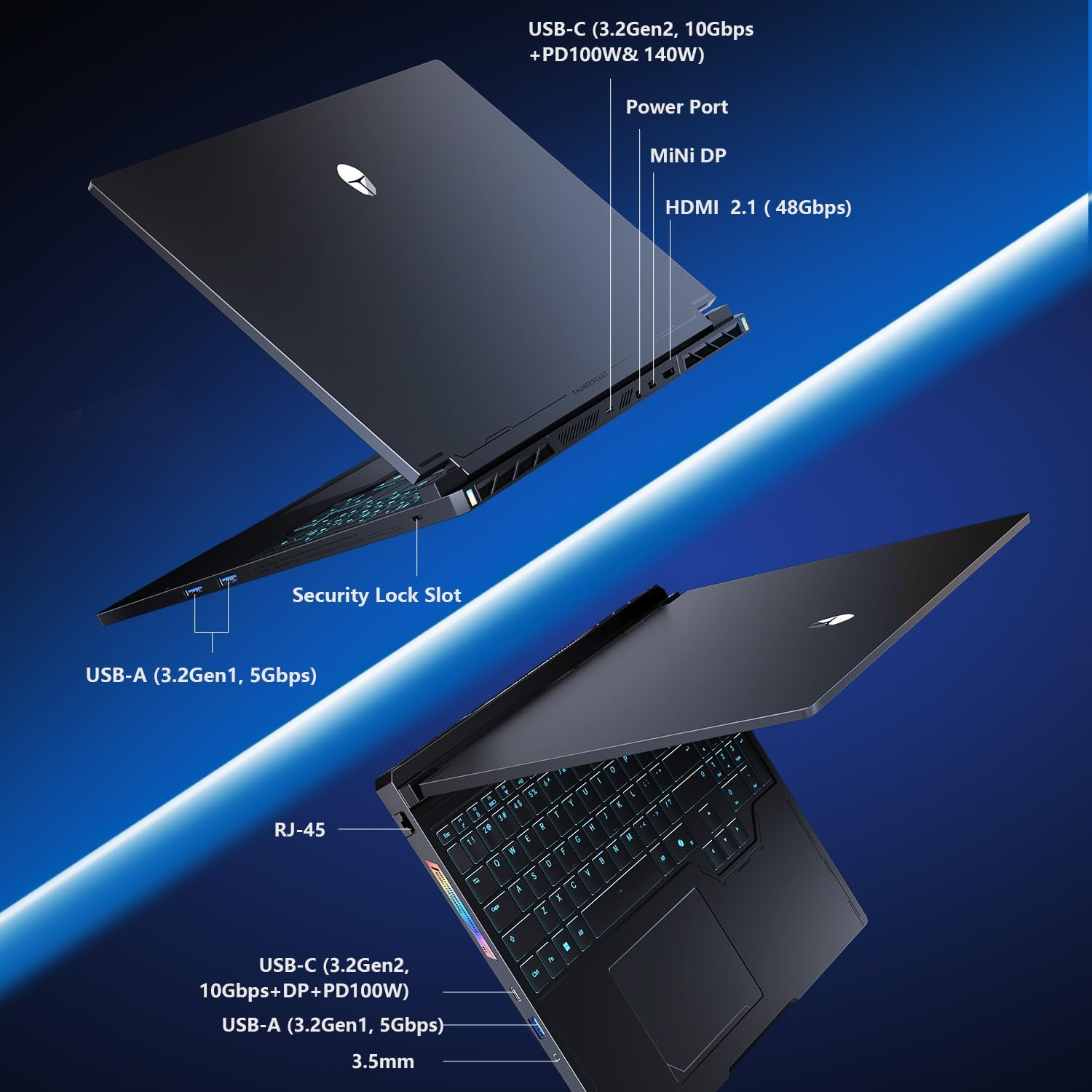
Figure 2.2: Connectivity options including USB-C, USB-A, HDMI, Mini DP, Ethernet, and audio jack.
3. Arahan Operasi
3.1 Papan Kekunci dan Pad Sentuh
The laptop features an RGB backlit keyboard and a responsive glass-like touchpad. Customize keyboard backlighting through the system's control center software.
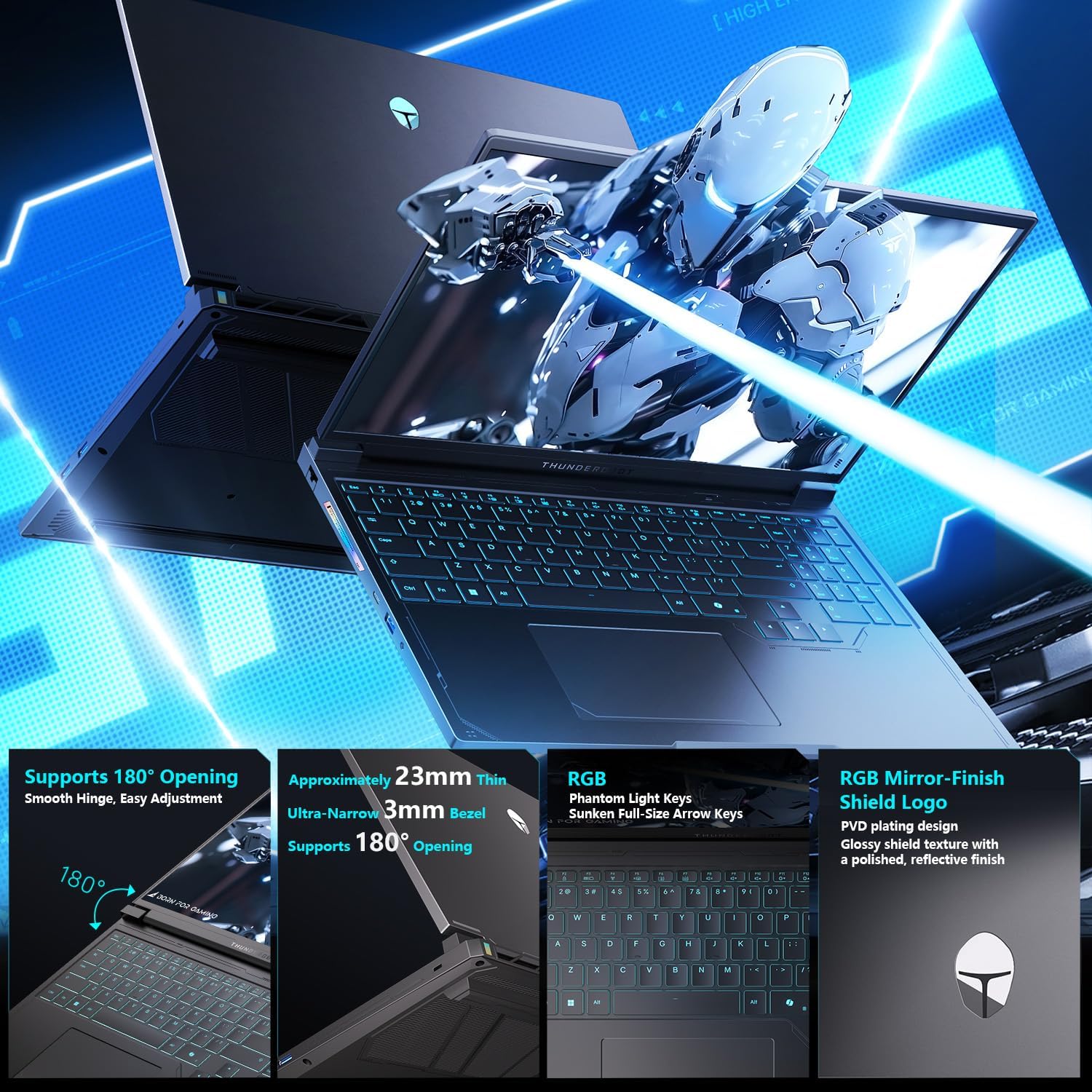
Figure 3.1: Keyboard layout with RGB backlighting and the integrated touchpad.
3.2 Control Center Modes
The integrated Control Center allows you to switch between different performance modes to optimize your laptop for various tasks. These modes include:
- Mod Pejabat: Optimized for power saving and quiet operation during productivity tasks.
- Mod Permainan: Balances performance and cooling for a smooth gaming experience.
- Mod Turbo: Unleashes maximum performance for demanding applications and intense gaming.
Ensure the device is connected to a power source to enable GPU direct-output mode and unlock the full refresh rate in the control center.

Figure 3.2: Control Center interface for managing performance modes.
4. Ciri-ciri Utama
- Fast DDR5 Memory & NVMe Storage: Equipped with 32GB DDR5 RAM and a 1TB PCIe M.2 SSD for rapid multitasking and quick load times.
- Advanced Compute & Graphics Engine: Features an AMD Ryzen 9 7945HX processor and NVIDIA GeForce RTX 5060 Laptop GPU for high computational throughput and smooth graphics.
- 300Hz QHD+ High-Fidelity Display: A 16-inch 2560x1600 (2.5K) display with a 300Hz refresh rate, full DCI-P3 color reproduction, pro calibration, and 500-nit brightness for sharp visuals and reduced eye fatigue.
- Enhanced WindBlade Cooling Architecture: Dual ultra-thin low-noise fans, four heat pipes, and an improved 3D airflow structure deliver up to 200W of cooling performance while maintaining low noise levels (43dB).
- All-Around Connectivity Options: Includes dual USB-C, triple USB-A 3.X, HDMI, Ethernet, and an audio jack for comprehensive peripheral support.
- Wi-Fi 6: Ensures stable and fast wireless internet connectivity.

Gambar 4.1: Lebihview of the GPU and CPU capabilities.

Figure 4.2: Features of the Hummingbird Eye-Care Display.

Figure 4.3: Illustration of the advanced cooling system.
5. Spesifikasi
| Ciri | Perincian |
|---|---|
| Saiz Skrin | 16 Inci |
| Resolusi Skrin Maks | 2560x1600 Pixels (QHD+ 2.5K) |
| Pemproses | AMD Ryzen 9 7945HX (5.4 GHz) |
| RAM | 32 GB DDR5 (4800 MHz) |
| Pemacu Keras | 1 TB PCIe M.2 SSD |
| Pemproses bersama Grafik | GPU Komputer Riba NVIDIA GeForce RTX 5060 (8GB GDDR6) |
| Sistem Operasi | Windows 11 Home |
| Jenis Wayarles | 802.11ax (Wi-Fi 6) |
| Pelabuhan | Dual USB-C, Triple USB-A 3.X, HDMI 2.1, Ethernet, Audio Jack, Mini DP |
| Ciri Khas | RGB Backlit Keyboard, Numeric Keypad, Hummingbird Eye-Care Panel |
| Berat Barang | 12 paun |
| Dimensi Produk | 14.05 x 10.22 x 1.17 inci |
6. Penyelenggaraan
6.1 Pembersihan
Regularly clean the screen with a soft, lint-free cloth and a screen-safe cleaning solution. Use compressed air to clear dust from the keyboard and cooling vents. Ensure the laptop is powered off before cleaning.
6.2 Penjagaan Sistem Penyejukan
The WindBlade Cooling Architecture is designed for efficient heat dissipation. To maintain optimal cooling performance, ensure that the air vents are not obstructed. Avoid placing the laptop on soft surfaces that can block airflow. Periodically check for dust buildup in the vents and clean as described above.
6.3 Ketahanan Bateri
To maximize battery life, avoid fully discharging the battery frequently. For prolonged storage, charge the battery to about 50-60% and store the laptop in a cool, dry place.
7. Penyelesaian masalah
7.1 Isu Kuasa
- Komputer riba tidak dihidupkan: Pastikan penyesuai kuasa disambungkan dengan selamat pada kedua-dua komputer riba dan salur keluar kuasa yang berfungsi. Periksa sama ada salur keluar kuasa berfungsi.
- Bateri tidak dicas: Verify the power adapter is correctly connected. Try a different power outlet.
7.2 Masalah Paparan
- Tiada paparan: Connect an external monitor to check if the issue is with the laptop's internal display. Ensure the display cable is properly connected if using an external monitor.
- Skrin berkelip: Update your graphics drivers. Adjust display refresh rate settings in Windows.
7.3 Isu Prestasi
- Prestasi perlahan: Close unnecessary applications. Check for background processes consuming high CPU/RAM. Ensure the cooling system is clean and functioning. Switch to a higher performance mode in the Control Center.
- Terlalu panas: Ensure vents are clear. Use the laptop on a hard, flat surface. Consider using a cooling pad.
8. Waranti dan Sokongan
Every Thunderobot laptop includes a Waranti 12 bulan, offering expert support and thorough diagnostics. We also provide a Waranti 90 hari on all warranty replacement parts, ensuring hassle-free repairs. Your complete satisfaction is our commitment.
For technical assistance, please visit the official Thunderobot support website or contact our customer service team. Keep your purchase receipt and product serial number handy for faster service.