
1. Pengenalan
Terima kasih kerana membeliasing the FreeWolf G6 Wireless Gaming Mouse. This manual provides detailed instructions for setting up, operating, and maintaining your device. Please read this manual carefully before use to ensure optimal performance and longevity of your mouse.
2. Maklumat Keselamatan
- Jauhkan peranti daripada air dan cecair lain untuk mengelakkan kejutan elektrik atau kerosakan.
- Do not attempt to disassemble or repair the mouse yourself. Refer all servicing to qualified personnel.
- Elakkan mendedahkan tetikus kepada suhu yang melampau atau cahaya matahari langsung.
- Buang bateri mengikut peraturan tempatan. Jangan bakar.
3. Kandungan Pakej
- FreeWolf G6 Wireless Gaming Mouse
- Kabel Pengecas USB
- Penerima USB 2.4G (disimpan dalam tetikus)
- Manual Pengguna
4. Produk Lebihview
Familiarize yourself with the various components and buttons of your FreeWolf G6 mouse:

Image: Diagram illustrating the button layout and features of the FreeWolf G6 Wireless Gaming Mouse. Key components include the Left Button, Right Button, Middle Button (scroll wheel), CPI Cycle button, Light Switch, Webpage Button, Backward button, Forward button, Desktop Button, Fire Button, Receiver Storage Compartment, BT Connection Button, and Power Switch Button (2.4G-OFF-BT).
- Butang Kiri: Fungsi klik kiri standard.
- Butang Kanan: Fungsi klik kanan standard.
- Butang Tengah (Roda Skrol): Scroll and middle-click function.
- CPI Cycle Button: Adjusts the mouse's DPI sensitivity.
- Suis Lampu: Controls the mouse's LED lighting.
- Webpage Button: Navigates to a webpage (functionality may vary by software).
- Butang ke belakang: Navigasi masuk semula web pelayar atau file penjelajah.
- Butang ke hadapan: Navigasi ke hadapan web pelayar atau file penjelajah.
- Butang Desktop: One-click return to desktop.
- Butang Api: Programmable button, often used for rapid-fire actions in games.
- Receiver Storage Compartment: Stores the 2.4G USB receiver when not in use.
- BT Connection Button: Memulakan mod berpasangan Bluetooth.
- Power Switch Button (2.4G-OFF-BT): Selects connection mode or turns off the mouse.
5. Persediaan
5.1 Mengecas Tetikus
The FreeWolf G6 mouse features a built-in rechargeable lithium battery. Before first use, or when the battery is low, connect the mouse to a power source using the provided USB charging cable.

Image: The FreeWolf G6 mouse connected via its USB cable to a laptop, indicating the charging process. The mouse features a built-in rechargeable battery for extended use.
- Sambungkan hujung kecil kabel pengecas USB ke port pengecasan di bahagian hadapan tetikus.
- Connect the larger end of the USB cable to a USB port on your computer or a USB wall adapter.
- The mouse's indicator light will show charging status (e.g., breathing light, solid light, or off when fully charged).
5.2 Sambungan Wayarles 2.4G
- Locate the 2.4G USB receiver stored in the compartment on the bottom of the mouse.
- Palamkan penerima USB ke dalam port USB yang tersedia pada komputer anda.
- Slide the Power Switch Button on the bottom of the mouse to the '2.4G' position.
- Komputer anda harus secara automatik mengesan dan memasang pemacu yang diperlukan. Tetikus sedia untuk digunakan.
5.3 Sambungan Bluetooth
- Slide the Power Switch Button on the bottom of the mouse to the 'BT' position.
- Press and hold the BT Connection Button on the bottom of the mouse for 3-5 seconds until the indicator light starts flashing, indicating pairing mode.
- Pada komputer atau peranti anda, pergi ke tetapan Bluetooth dan cari peranti baharu.
- Select 'FreeWolf G6' (or similar name) from the list of available devices to pair.
- Once paired, the indicator light on the mouse will stop flashing and remain solid or turn off. The mouse is now connected via Bluetooth.
6. Arahan Operasi
6.1 Hidupkan/Mati Kuasa
Use the Power Switch Button on the bottom of the mouse to turn it on or off, or to select the desired connection mode (2.4G or BT).
6.2 Pelarasan DPI
The mouse features 5 adjustable DPI levels, allowing you to customize cursor sensitivity for different tasks or games. Press the CPI Cycle Button (refer to Product Overview, item 4) to cycle through the available DPI settings.
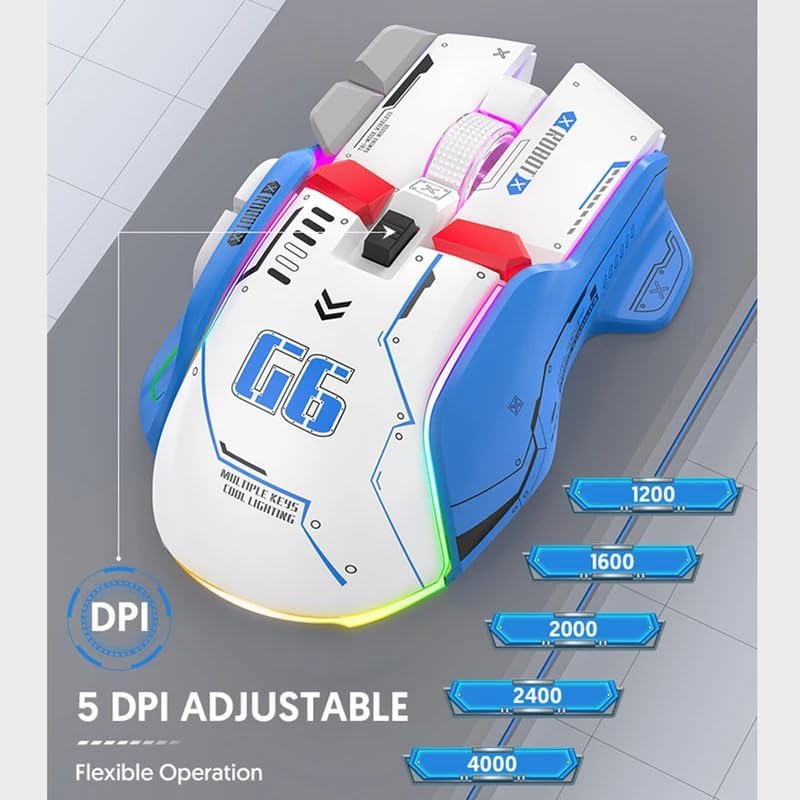
Image: The FreeWolf G6 mouse displaying its 5 adjustable DPI settings: 1200, 1600, 2000, 2400, and 4000 DPI. This allows for flexible operation and sensitivity control.
- Available DPI levels: 1200, 1600, 2000, 2400, 4000.
- Each press of the CPI Cycle Button will switch to the next DPI level.
6.3 Fungsi Butang
Beyond the standard left, right, and middle clicks, the FreeWolf G6 offers several additional buttons for enhanced functionality. Refer to the Product Overview section (Section 4) for the location of each button.
- Webpage Button: Typically used for specific browser functions or can be customized.
- Backward/Forward Buttons: Navigasi web halaman atau folder.
- Butang Desktop: Instantly minimizes all open windows to show the desktop.
- Butang Api: Often used in gaming for rapid, repeated clicks.
6.4 Reka Bentuk Ergonomik
The FreeWolf G6 features a symmetrical design with a high curve back, engineered to provide a comfortable grip for various hand positions and reduce strain during extended use.

Image: A hand gripping the FreeWolf G6 mouse, illustrating its symmetrical design, high curve back, and slip-resistant surface for comfortable and secure handling.
6.5 Operasi Senyap
The FreeWolf G6 is designed for silent clicking, minimizing noise during use, which is beneficial in quiet environments or during late-night gaming sessions.
7. Penyelenggaraan
- Pembersihan: Gunakan kain lembut dan kering untuk mengelap permukaan tetikus. Untuk kotoran degil, gunakan sedikit kainamp kain boleh digunakan, tetapi pastikan tiada kelembapan memasuki peranti.
- Storan: When not in use for extended periods, turn off the mouse and store it in a cool, dry place.
- Penjagaan Bateri: Avoid fully discharging the battery frequently. Charge the mouse regularly to maintain battery health.
8. Penyelesaian masalah
- Tetikus tidak bertindak balas:
- Ensure the mouse is powered on and the correct connection mode (2.4G or BT) is selected.
- Periksa tahap bateri dan cas jika perlu.
- For 2.4G connection, ensure the USB receiver is securely plugged into a working USB port.
- For Bluetooth connection, ensure Bluetooth is enabled on your device and the mouse is properly paired. Try re-pairing if necessary.
- Pergerakan kursor tidak menentu atau perlahan:
- Bersihkan penderia optik di bahagian bawah tetikus.
- Adjust the DPI setting using the CPI Cycle Button.
- Pastikan anda menggunakan tetikus pada permukaan yang sesuai (tidak terlalu memantulkan cahaya atau lutsinar).
- Sambungan sering terputus:
- Gerakkan tetikus lebih dekat dengan penerima/peranti untuk mengurangkan gangguan.
- Elakkan menggunakan tetikus berhampiran peranti wayarles lain yang boleh menyebabkan gangguan.
- Pastikan bateri dicas secukupnya.
9. Spesifikasi
| Ciri | Perincian |
|---|---|
| Model | G6 |
| Teknologi Ketersambungan | Bluetooth, 2.4G Wireless (Tri-Mode) |
| Jenis Kuasa | Rechargeable (Built-in Lithium Battery) |
| Bilangan Butang | 9 |
| Bilangan Penggelek | 1 (Roda Skrol) |
| Tahap DPI | 1200, 1600, 2000, 2400, 4000 (Adjustable) |
| Mod Operasi | Opto-elektronik |
| Ciri Khas | Silent Operation, One-Click Return Desktop, Backlight, Portable |
| Orientasi Tangan | Betul |
| Peranti Serasi | Komputer Peribadi |
| Berat Kasar | 195g |
10. Waranti dan Sokongan
This product comes with a standard manufacturer's warranty. For detailed warranty information or technical support, please refer to the documentation included with your purchase or contact the retailer. Keep your proof of purchase for warranty claims.