
1. Persediaan
1.1 Kandungan Pakej
Sebelum pemasangan, sila sahkan bahawa semua komponen terdapat di dalam pakej:
- KTC H24F7 24 Inch 240Hz Monitor
- Pangkalan Monitor
- Papan Monitor
- Penyesuai Kuasa
- Kabel HDMI
- Panduan Mula Pantas (QSG)
1.2 Arahan Perhimpunan
Ikuti langkah ini untuk memasang monitor anda:
- Keluarkan monitor dan semua komponen dengan berhati-hati dari pembungkusan.
- Attach the monitor stand to the monitor base. Ensure it clicks securely into place.
- Connect the assembled stand and base to the back of the monitor. The stand is designed for easy snap-in installation.
- Letakkan monitor pada permukaan yang stabil dan rata.

1.3 Pemasangan Pemasangan VESA
The KTC H24F7 monitor supports VESA 100mm x 100mm mounting for alternative stand or wall mount solutions. Ensure you use M4-0.7 x 10mm screws (not included) for secure installation.

1.4 Menyambung ke Peranti
Connect your computer or other devices to the monitor using the appropriate cables.
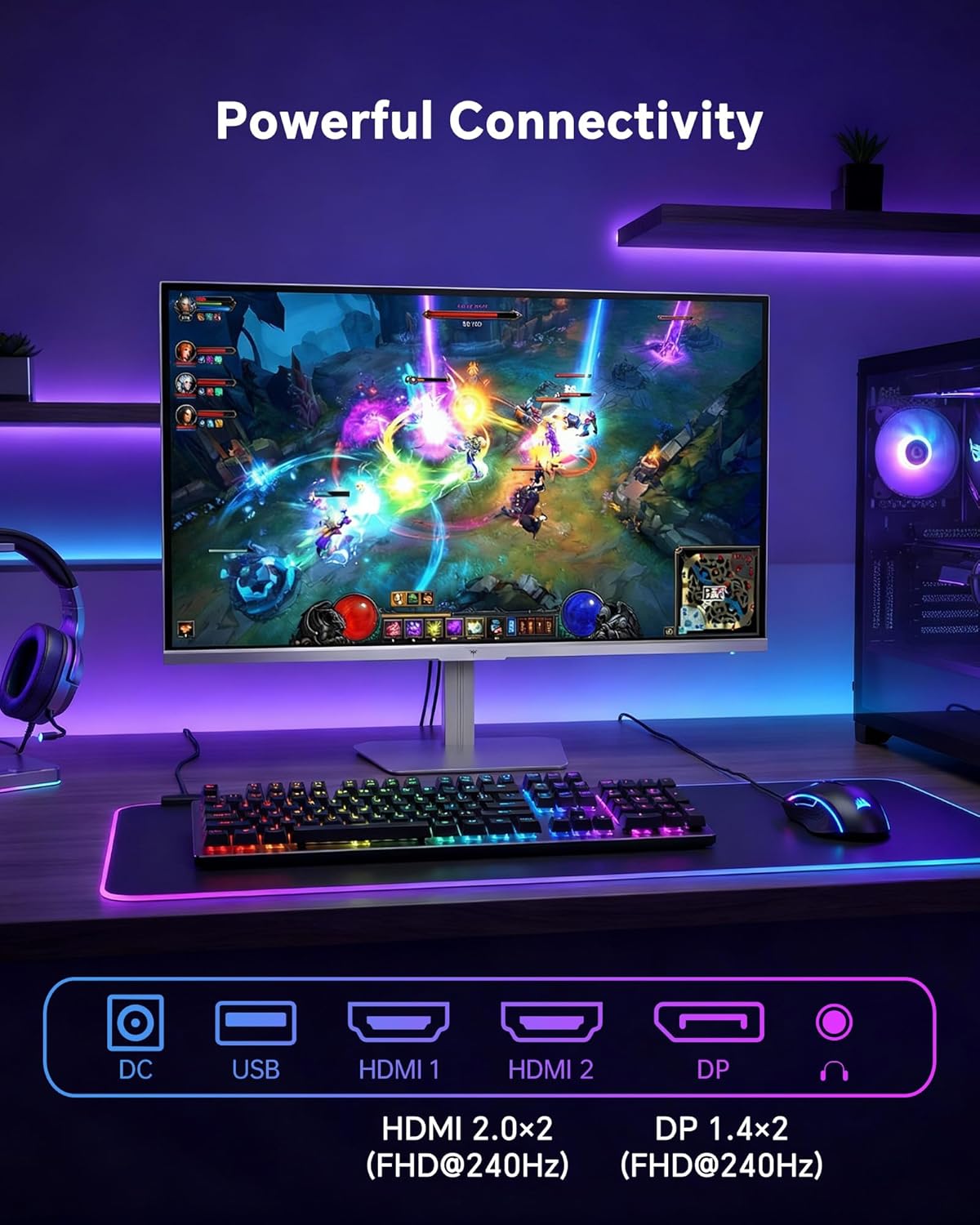
- HDMI: Use an HDMI cable to connect to devices with HDMI output. The monitor has two HDMI 2.0 ports, supporting FHD at 240Hz.
- DisplayPort: Use a DisplayPort cable for devices with DisplayPort output. The monitor has one DisplayPort 1.4, supporting FHD at 240Hz.
- Kuasa: Connect the power adaptor to the DC input on the monitor and then to a power outlet.
- USB: A USB 2.0 port is available for connecting peripherals.
- Keluar Audio: A 3.5mm audio jack is available for connecting headphones or external speakers.
2. Arahan Operasi
2.1 Hidupkan/Mati Kuasa
Tekan butang kuasa yang terletak pada monitor untuk menghidupkan atau mematikannya. Lampu penunjuk kuasa akan menyala apabila monitor aktif.
2.2 Menu Paparan Pada Skrin (OSD).
The OSD menu allows you to adjust various monitor settings. Use the control buttons (typically located on the back or bottom of the monitor) to navigate the menu and select options. Refer to the Quick Start Guide for specific button functions.
2.3 Tetapan Paparan
Optimumkan anda viewpengalaman dengan melaraskan tetapan berikut:
- Kadar Segar Semula: The monitor supports a 240Hz refresh rate for smooth motion. Ensure your graphics card settings are configured to utilize this rate.

- Penyegerakan Adaptif: This technology synchronizes the monitor's refresh rate with your graphics card's frame rate to eliminate screen tearing and stuttering. Enable Adaptive Sync in the OSD menu and ensure it is also enabled in your graphics card control panel (FreeSync/G-Sync compatible).

- HDR 400: High Dynamic Range 400 provides enhanced contrast and color accuracy, delivering brighter highlights and deeper shadows. Activate HDR in the OSD menu and your operating system display settings for compatible content.

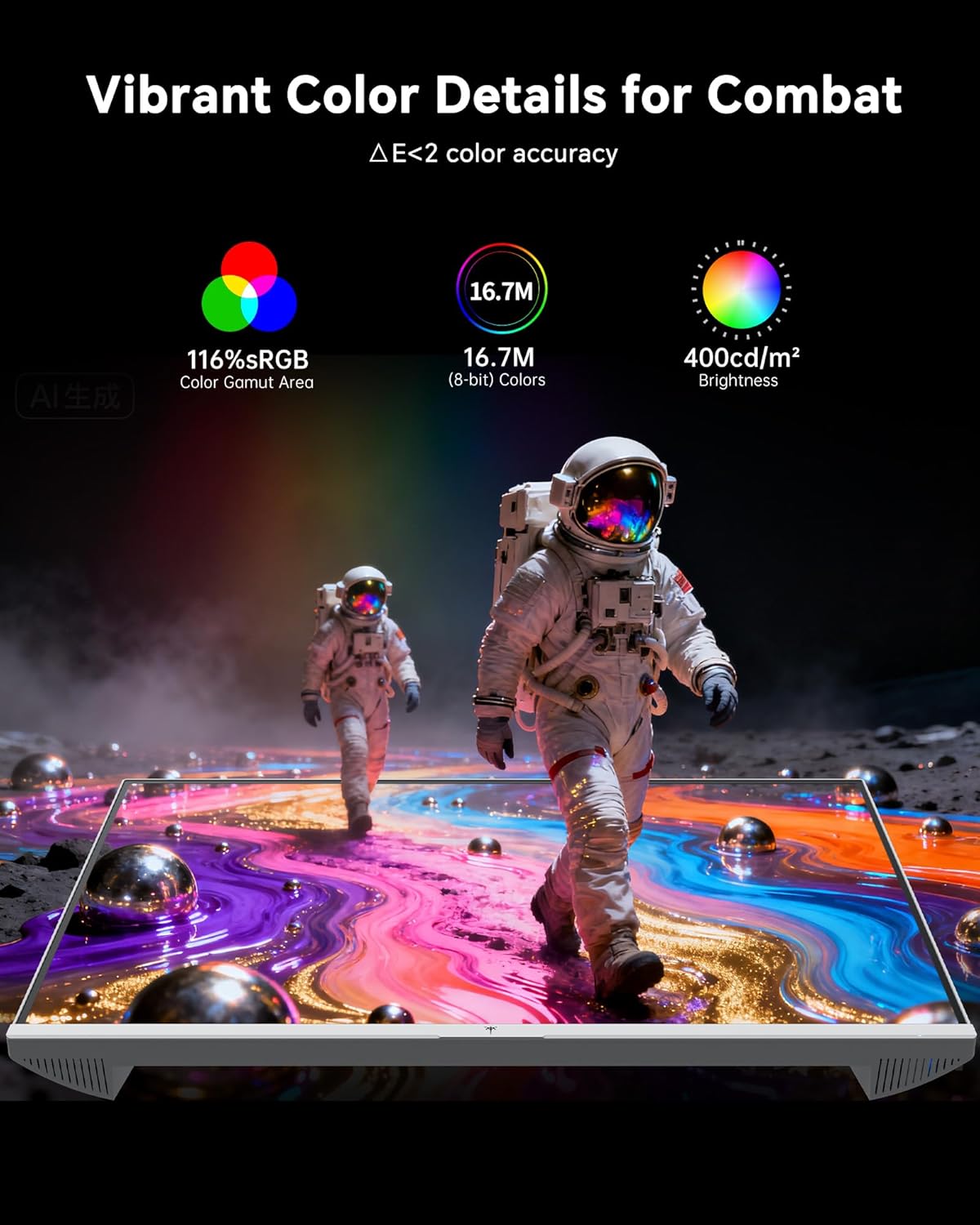
- Tetapan Warna: The monitor offers 116% sRGB color gamut and 16.7 million colors. Adjust brightness (up to 400 cd/m²) and color temperature through the OSD menu to suit your preference.
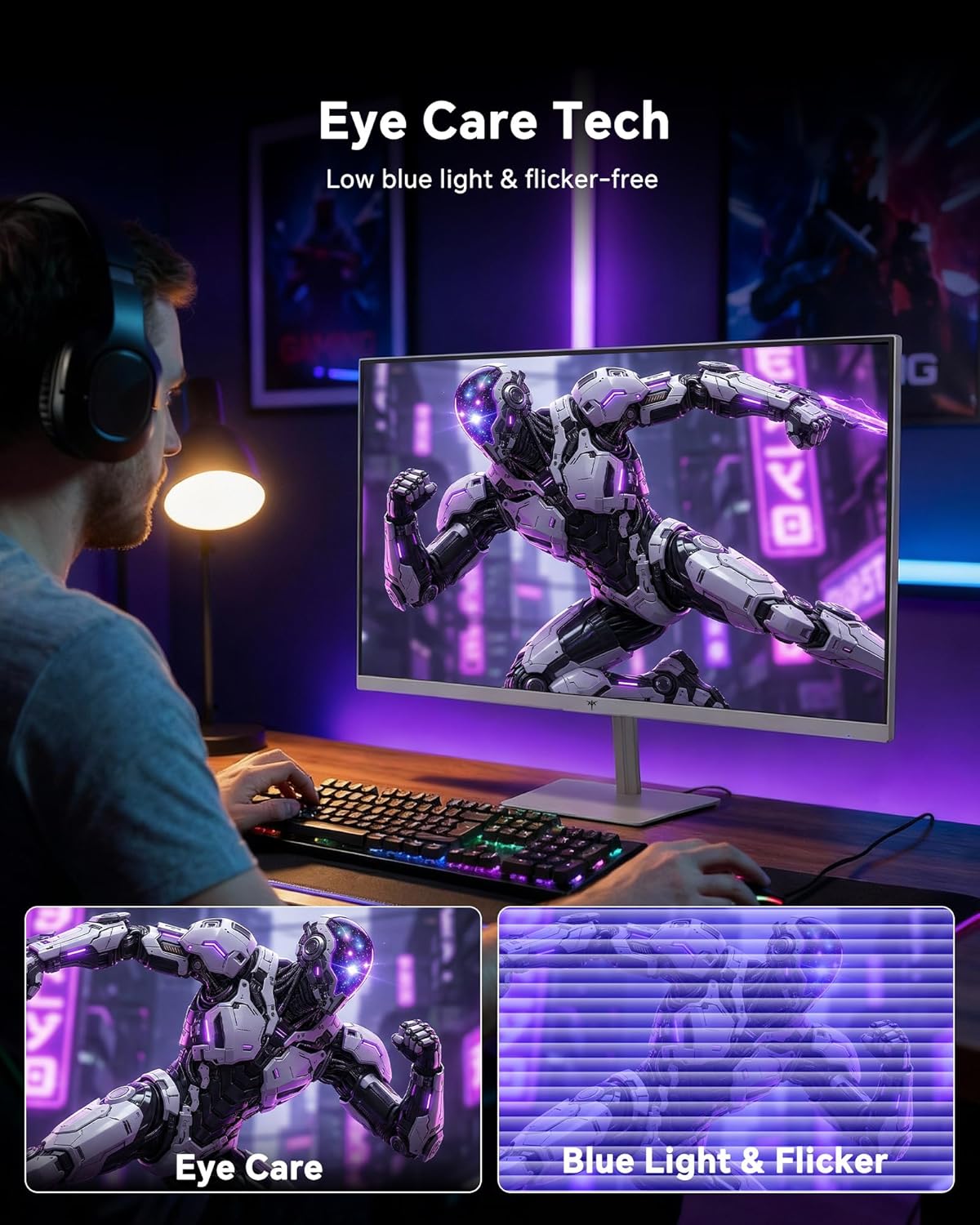
- Teknologi Penjagaan Mata: The monitor features low blue light and flicker-free technology to reduce eye strain during prolonged use. These settings can typically be adjusted or enabled within the OSD menu.
2.4 Monitor Tilt Adjustment
The monitor supports tilt adjustment from -5° to 15° (±3°). Gently adjust the monitor panel to your desired viewsudut ing.
3. Penyelenggaraan
3.1 Membersihkan Monitor
Untuk membersihkan skrin monitor dan casing:
- Sentiasa matikan monitor dan cabut palam kuasa sebelum membersihkan.
- Gunakan kain lembut dan tidak berbulu sedikit dampdisapu dengan air atau pembersih skrin yang lembut dan tidak melelas.
- Wipe the screen gently to remove dust and smudges. Avoid applying excessive pressure.
- Untuk casing, use a dry, soft cloth. Do not use alcohol, ammonia, or abrasive cleaners, as these can damage the surface.
3.2 Penjagaan Am
- Elakkan meletakkan objek berat pada monitor atau kabelnya.
- Jangan dedahkan monitor kepada cahaya matahari langsung, haba berlebihan atau kesejukan yang melampau.
- Jauhkan monitor daripada cecair dan kelembapan tinggi.
- Pastikan pengudaraan yang betul di sekeliling monitor untuk mengelakkan terlalu panas.
4. Penyelesaian masalah
If you encounter issues with your KTC H24F7 monitor, refer to the following common problems and solutions:
| Masalah | Kemungkinan Punca | Penyelesaian |
|---|---|---|
| Tiada gambar di skrin | Power cable disconnected; Video cable disconnected or loose; Incorrect input source selected; Monitor is off. | Ensure power cable is securely connected and monitor is on. Check video cable connections (HDMI/DisplayPort) at both the monitor and computer. Press the input source button on the monitor to cycle through inputs. |
| Imej berkelip atau koyak | Adaptive Sync not enabled; Graphics card driver issues; Faulty video cable. | Enable Adaptive Sync in the OSD menu and your graphics card control panel. Update graphics card drivers. Try a different video cable. If using DisplayPort 1, try DisplayPort 2 or HDMI if available, as some units may experience issues with specific ports. |
| Colors appear incorrect or washed out | Color settings incorrect; HDR not properly configured; Faulty video cable. | Adjust color settings (brightness, contrast, color temperature) in the OSD menu. Ensure HDR is enabled in both the OSD and your operating system for HDR content. Try a different video cable. |
| Monitor not reaching 240Hz | Graphics card limitations; Incorrect display settings in OS; Cable bandwidth limitations. | Ensure your graphics card supports 240Hz at 1080p. Verify display settings in your operating system (e.g., Windows Display Settings or NVIDIA/AMD control panel) are set to 240Hz. Use the provided HDMI cable or a certified DisplayPort 1.4 cable. |
| Stuck or dead pixels | Kecacatan pembuatan. | A small number of stuck or dead pixels (typically 1-3) may be considered normal for LCD panels. If the issue is severe or persistent, contact customer support. |
5. Spesifikasi
| Ciri | Perincian |
|---|---|
| Jenama | CTC |
| Nombor Model | H24F7 |
| Saiz Skrin | 24 Inci |
| Resolusi | FHD 1080p (1920 x 1080 Piksel) |
| Jenis Panel | IPS pantas |
| Kadar Segar Semula | 240 Hz |
| Masa Tindak Balas | 1 Milisaat (MPRT) |
| Nisbah Aspek | 16:9 |
| Kecerahan | 400 Candela setiap Meter Persegi |
| Nisbah Kontras | 1000:1 |
| Warna Gamut | 116% sRGB |
| Sokongan HDR | HDR 400 |
| Penyegerakan Adaptif | FreeSync, G-Sync Compatible |
| Ketersambungan | 2x HDMI 2.0, 1x DisplayPort 1.4, 1x USB 2.0, 1x Audio Out (3.5mm) |
| Ciri Penjagaan Mata | Low Blue Light, Flicker-Free, Anti-Glare Screen |
| Pelarasan | Tilt (-5° to 15°) |
| Gunung VESA | 100mm x 100mm |
| Dimensi (D x W x H) | 5.39"D x 21.25"W x 15.74"H |
| Berat Barang | 3.2 Kilogram |
| warna | putih |
6. Waranti & Sokongan
6.1 Maklumat Waranti
The KTC H24F7 monitor comes with a three-year manufacturer warranty. Waranti ini melindungi kecacatan pada bahan dan mutu kerja di bawah penggunaan biasa.
Sila simpan bukti pembelian anda untuk tuntutan waranti.
6.2 Sokongan Pelanggan
For technical assistance, warranty claims, or any questions regarding your KTC H24F7 monitor, please contact KTC customer support. KTC aims to provide responsive customer support and typically responds within 12 hours.
You can usually find contact information on the official KTC website or through the retailer where you purchased the product. When contacting support, please have your monitor model number (H24F7) and purchase details ready.