
pengenalan
This manual provides detailed instructions for the installation, operation, and troubleshooting of your AINAVITO 10-inch QLED Android 13 Car Stereo. Please read this manual thoroughly before installation and use to ensure proper functionality and safety. Keep this manual for future reference.
Persediaan dan Pemasangan
The AINAVITO 10-inch QLED Android 13 Car Stereo is designed for Dodge Ram 1500/2500/3500 models from 2013-2018, and the Ram 1500 Classic from 2019-2024. It includes two separate dash frames to accommodate both Manual AC and Automatic AC systems, ensuring compatibility with various vehicle trims.
Komponen yang Disertakan
Your complete installation kit includes the following items:
- Main Head Unit (10-inch QLED Android 13 Car Stereo)
- Dash Frames (one for Manual AC, one for Automatic AC)
- Kamera Sandaran HD 1080P
- Antena GPS
- Plug-and-Play Wiring Harnesses
- Kabel Kuasa
- RCA kabel
- Kabel Radio
- Mikrofon
- Modul GPS
- Kabel USB (x2)
- Reversing Control Cable
- Frame Removal Tool
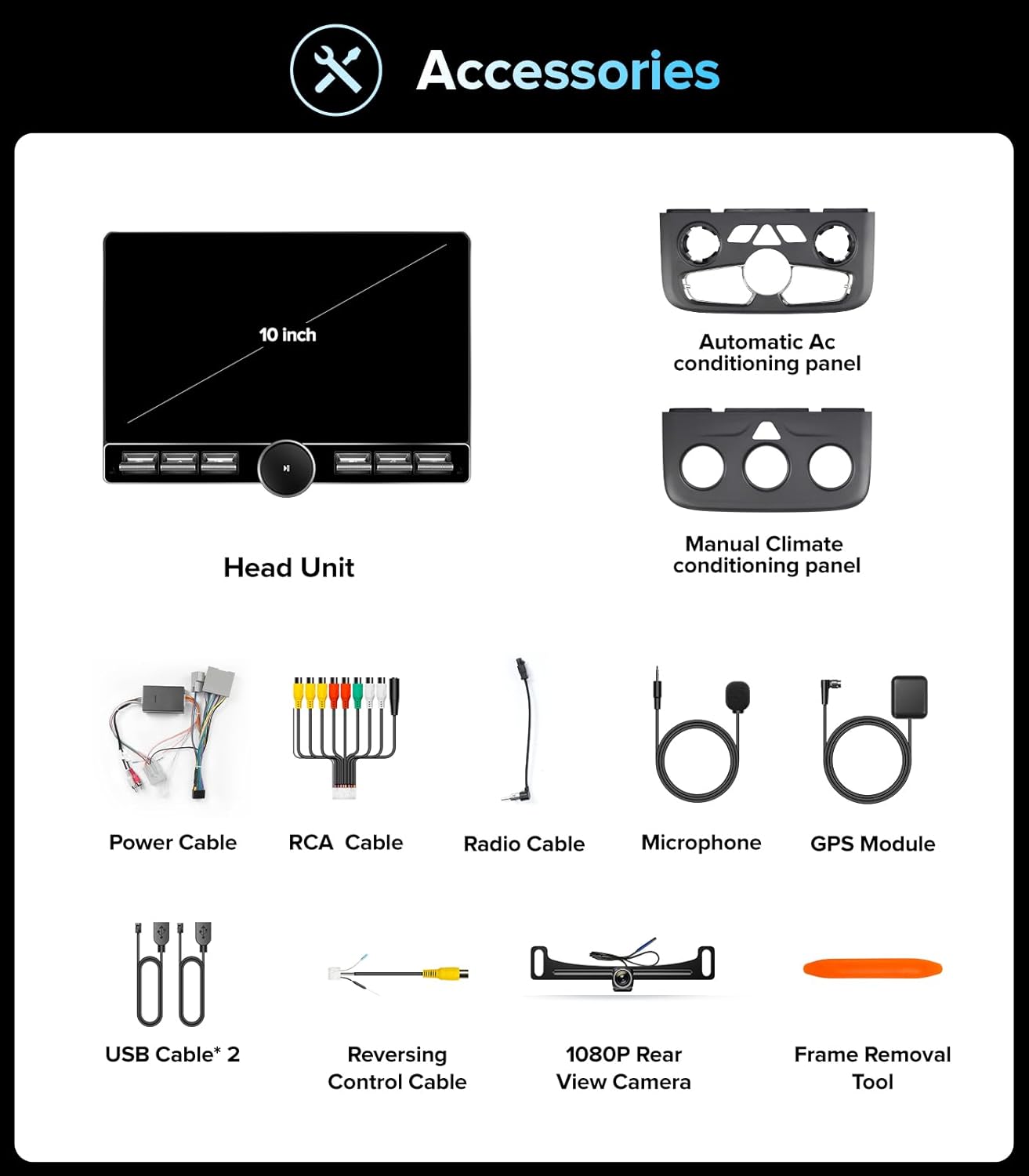
Figure 1: All accessories included in the AINAVITO car stereo installation kit.
Integrasi Kenderaan
The plug-and-play harness is designed to retain your factory Steering Wheel Controls (SWC), ensuring seamless integration with your truck’s original systems. This allows you to manage audio and other functions without removing your hands from the steering wheel.
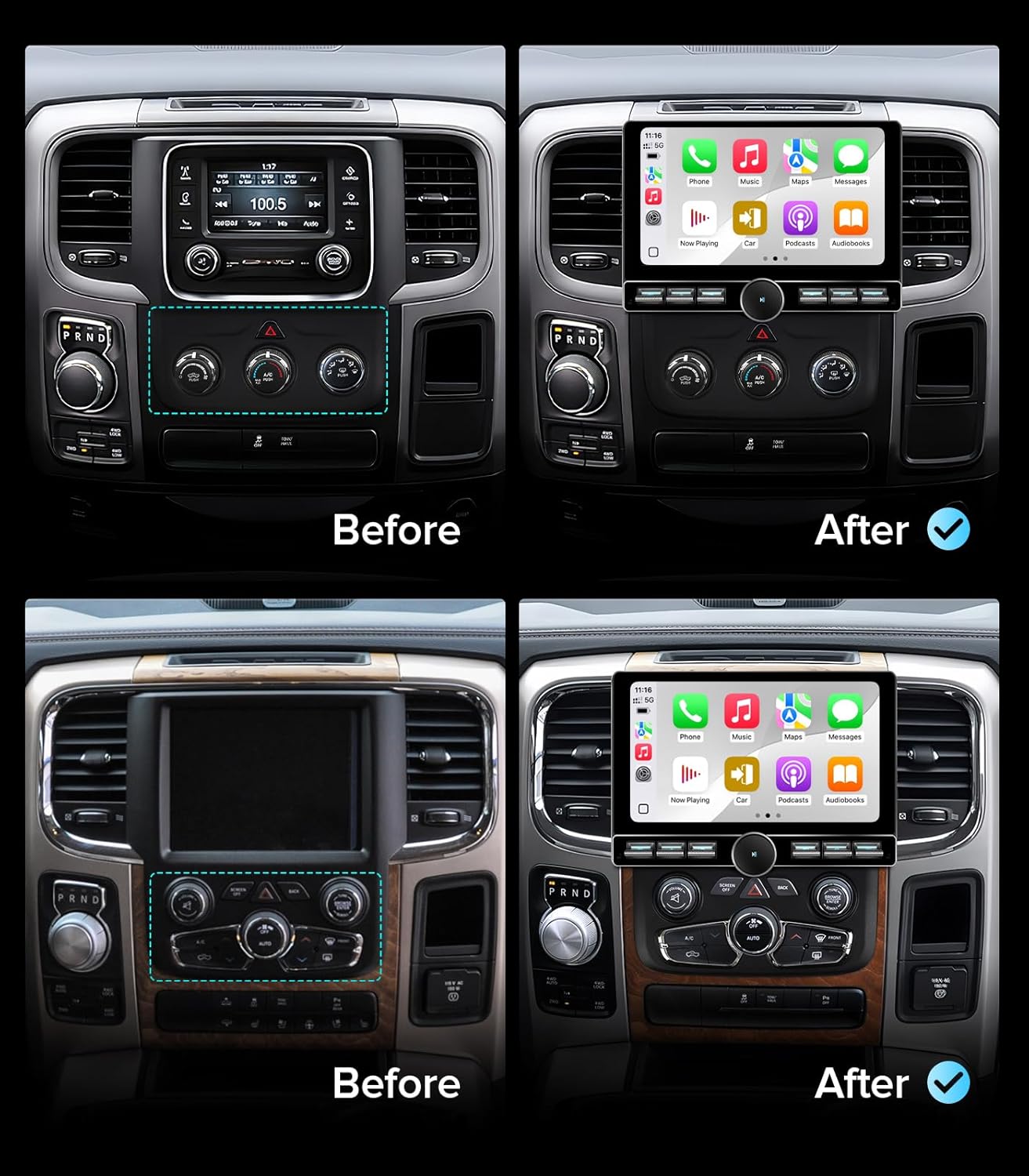
Figure 2: Before and after installation of the AINAVITO car stereo in a Dodge Ram dashboard.
Arahan Operasi
User Interface and Performance
The stereo operates on the latest Android 13.0 system, powered by 4GB RAM and 64GB ROM for smooth multitasking and responsive performance. The 10-inch QLED touch screen features a 1280x720 resolution, providing clear visibility and vibrant colors even in direct sunlight.

Figure 3: The 10-inch QLED touch screen with high-definition display.
CarPlay Tanpa Wayar dan Android Auto
The car stereo supports both wireless and wired CarPlay and Android Auto. Connect your smartphone via Bluetooth or USB to access calls, messages, music, and navigation apps directly on the stereo display. It also supports iPhone Airplay and wireless/wired Mirroring Link for seamless phone interaction.

Rajah 4: Fungsi CarPlay Tanpa Wayar dan Android Auto.
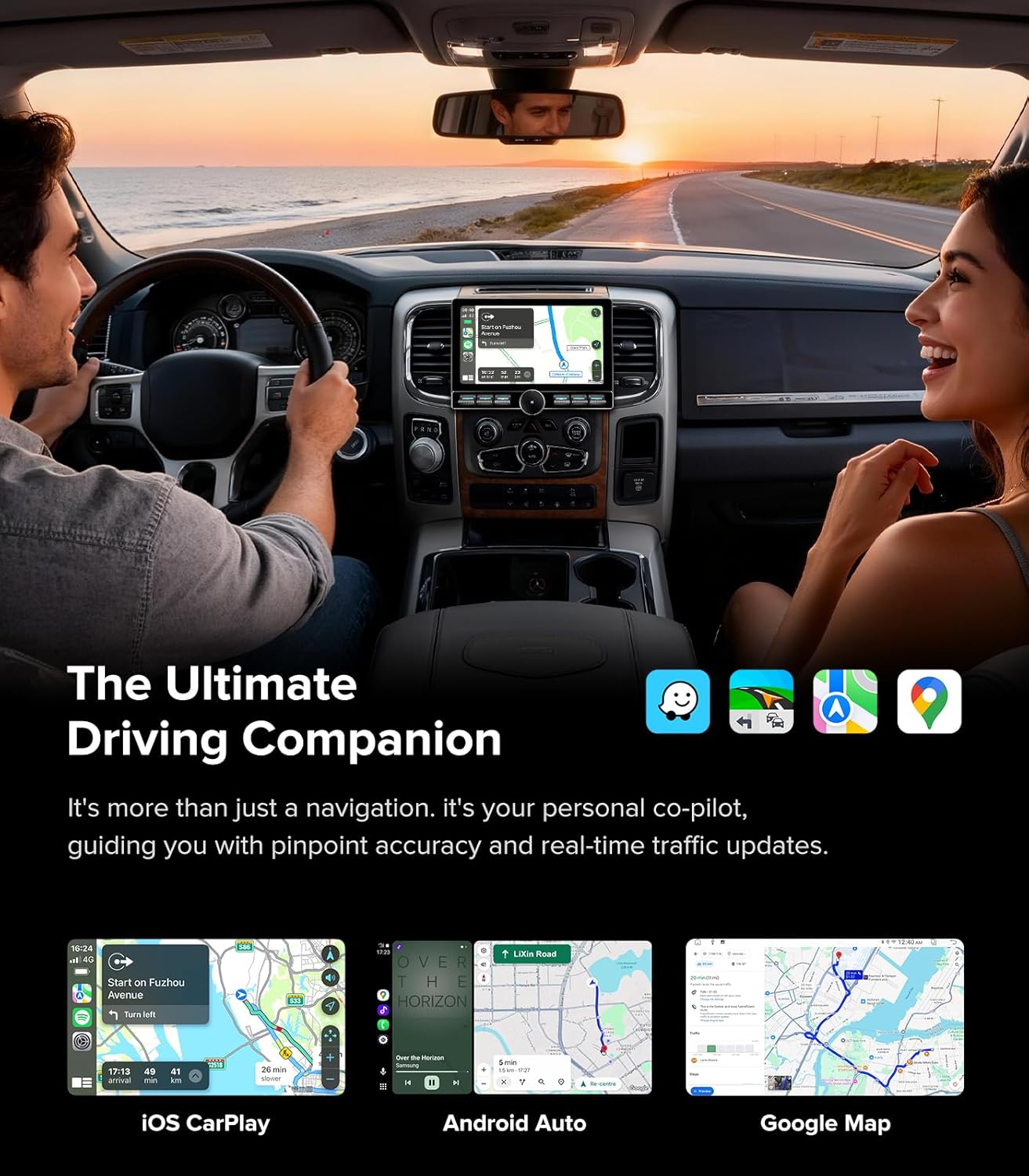
Figure 5: Navigation and media display during driving with CarPlay and Android Auto.
Physical Volume Knob and Shortcut Keys
Unlike full-touch screens, this unit features a customizable physical volume knob and shortcut keys. These provide tactile feedback, allowing drivers to manage volume and navigation by feel, which helps minimize distractions while driving.

Figure 6: Customizable physical knob and key functions.
Ciri Utama Berakhirview
The system integrates various features for an enhanced driving experience:
- 10-inch QLED Screen with Full Lamination
- 4GB RAM + 64GB ROM
- Kesambungan Bluetooth 5.4
- Support for Steering Wheel Controls (SWC)
- 1080P OEM Camera Support
- Navigasi GPS
- 5GHz WiFi Connection
- Sistem Operasi Android 13.0

Gambar 7: Lebihview daripada ciri-ciri produk utama.
Menyelesaikan masalah
Backup Camera Display Issues
If your backup camera image is not displaying, follow these steps to check the system. This guide is for models equipped with a CAN-Bus box.
- Check the backup camera cable connection: Ensure the camera extension cable is connected to the Backup Camera Video Input cable, not the CVBS cable in the RCA harness. Incorrect connection will prevent the backup image from displaying.
- Check the reverse signal wire connection: Locate the third wire in the power harness, counting from the black ground wire. This is the reverse control wire. Connect the reverse signal wire from the camera extension to this wire using a "T" splice. Do not cut the wire; just peel and connect. An incorrect connection would be plugging the signal wire into the second red wire; it must be connected to the third brown wire in the power harness.
- Connect the extension cable to the camera: Ensure the camera extension cable is plugged tightly into the camera.
- Insulate power and ground wires on the extension cable: For the power (red) and ground (black) wires on the camera extension cable, do not connect them to any other wires. Separate them and insulate them individually to prevent them from touching metal and causing a short circuit.
- Adjust system settings: On the car stereo, go to "Settings" > "Reverse" menu. Find "Reversing System Selection" and select "AUTO".
After completing these steps, the image should display normally when reversing. If the image still does not appear, please contact customer support.
Video 1: Detailed guide on troubleshooting backup camera display issues, including wiring and settings adjustments.

Figure 8: The 1080P AHD rearview camera provides a 170° ultra-wide angle view.
Spesifikasi
| Ciri | Penerangan |
|---|---|
| Jenama | AINAVITO |
| Teknologi Ketersambungan | Auxiliary, Bluetooth 5.4, Wi-Fi, Wireless/Wired (CarPlay+Android Auto), Wireless/Wired Mirroring + Airplay |
| Jenis Pengawal | Android 13.0, Mechanical knob |
| Ciri Khas | Android Auto, Apple CarPlay, Cooling Fan, Front View Camera Input, GPS Navigation |
| Peranti Serasi | AMP, DSP, Smartphone, Speaker, iPhone |
| Jenis Penyambung | RCA |
| Mod Keluaran Audio | Surround/Bass Boost/Bass Filter/Sound Field |
| warna | Hitam |
| Perkhidmatan Internet yang Disokong | Facebook, Google, TikTok, YouTube |
| Kaedah Kawalan | Apl, Sentuh |
Sokongan
AINAVITO is committed to providing comprehensive support for your product. If you encounter any issues or require assistance with installation, our 24/7 engineer guidance is available to ensure a smooth and unobstructed experience.
For further assistance, please refer to the contact information provided with your product packaging or visit the AINAVITO official support channels.