
1. Pengenalan
Welcome to the Acer OHR632 Wireless Gaming Headsets user manual. This guide provides essential information for setting up, operating, and maintaining your new gaming headset. Please read this manual thoroughly before use to ensure optimal performance and longevity of your device.
The Acer OHR632 offers versatile connectivity options including 2.4GHz wireless, Bluetooth 5.3, and a 3.5mm wired connection, making it compatible with a wide range of devices such as PS5, PS4, PC, and Nintendo Switch. Enjoy immersive stereo sound, a noise-canceling microphone, and extended battery life for an enhanced gaming experience.
2. Apa yang Termasuk
Carefully unpack your Acer OHR632 Wireless Gaming Headset package. The following items should be included:
- Acer OHR632 Wireless Gaming Headset
- Detachable Omni-directional Noise-reduction Microphone
- 2.4GHz USB-A Wireless Dongle (with USB-C adapter)
- Kabel Pengecas USB-A ke USB-C
- Kabel Audio 3.5mm
- Manual Pengguna (dokumen ini)

Rajah 2.1: Kandungan Pakej
3. Ciri-ciri Produk
- Tri-Mode Wireless Connectivity: Seamlessly switch between 2.4GHz wireless, Bluetooth 5.3, and 3.5mm wired connections for ultimate flexibility across various devices.
- Bunyi Stereo Imersif: Equipped with powerful 50mm drivers and ultra-low latency (≤20ms) for high-fidelity audio, providing a competitive edge in gaming.
- Mikrofon Pembatalan Bunyi: Detachable omni-directional microphone with noise reduction ensures clear voice communication during gaming or calls.
- Keserasian Universal: Designed for plug-and-play functionality with PS5, PS4, PC, Nintendo Switch, and other compatible devices.
- Extended Comfort & Battery Life: Lightweight design, adjustable headband, and memory foam ear cushions provide comfort for long sessions. Up to 40 hours of gameplay on a single 3-hour charge.

Figure 3.1: Tri-Mode Connectivity Overview
4. Arahan Persediaan
4.1 Pengecasan Awal
Before first use, fully charge your headset. Connect the USB-C end of the charging cable to the headset's USB-C port and the USB-A end to a power source (e.g., computer USB port, USB wall adapter). The LED indicator on the headset will show charging status and turn off when fully charged (approximately 3 hours).
4.2 Memasang Mikrofon
Insert the detachable microphone into the dedicated microphone port on the left earcup. Ensure it is securely seated. The microphone is omni-directional and flexible for optimal positioning.

Figure 4.1: Microphone Attachment
4.3 Adjusting for Comfort
Adjust the headband to fit comfortably on your head. The earcups feature memory foam cushions designed for extended wear. Ensure the 'L' and 'R' indicators on the inside of the headband correspond to your left and right ears, respectively.

Figure 4.2: Headset Comfort Features
5. Arahan Operasi
5.1 Menghidupkan/Mematikan
To power on the headset, press and hold the Power button located on the earcup until you hear an audible 'Power On' prompt and the LED indicator illuminates. To power off, press and hold the Power button again until you hear 'Power Off'.
5.2 Kawalan Kelantangan
Use the volume roller/buttons on the earcup to adjust the audio output level. Rotate up to increase volume, and down to decrease.
5.3 Mikrofon Bisu
The microphone can be muted/unmuted using the dedicated mute button on the earcup or by flipping the microphone boom upwards (if applicable). Refer to the headset's physical controls for exact functionality.
6. Mod Kesambungan
6.1 2.4GHz Wireless Connection (for PC, PS5, PS4, Switch Docked)
- Insert the 2.4GHz USB-A wireless dongle into an available USB port on your device. If your device only has USB-C ports, use the provided USB-C adapter.
- Power on your Acer OHR632 headset.
- The headset should automatically pair with the dongle. You will hear an audible 'Connected' prompt.
- Pastikan alat dengar dipilih sebagai peranti output dan input audio dalam tetapan bunyi peranti anda.
6.2 Bluetooth 5.3 Connection (for Mobile, Switch Handheld, etc.)
- Power on your Acer OHR632 headset.
- Press and hold the Bluetooth pairing button (refer to headset controls for exact location) until the LED indicator flashes, indicating pairing mode.
- On your device, go to Bluetooth settings and select 'Acer OHR632' from the list of available devices.
- Once paired, you will hear an audible 'Connected' prompt.
6.3 Sambungan Berwayar 3.5mm
- Connect one end of the provided 3.5mm audio cable to the 3.5mm port on your headset.
- Connect the other end of the 3.5mm audio cable to the audio jack of your device (e.g., controller, PC, mobile phone).
- The headset will operate in passive wired mode. Power is not required for audio, but the microphone may require power depending on the device.

Figure 6.1: Headset Connected to PS5
7. Spesifikasi
| Ciri | Penerangan |
|---|---|
| Jenama | Acer |
| Nombor Model | OHR632 |
| Teknologi Ketersambungan | Wayarles (2.4GHz, Bluetooth 5.3), Berwayar (Bicu 3.5mm) |
| Penempatan Telinga | Atas Telinga |
| Jenis Pemacu Audio | Pemacu Dinamik (50mm) |
| Mikrofon | Detachable Omni-directional Noise-reduction |
| Hayat Bateri | Sehingga 40 Jam |
| Masa Pengecasan Bateri | 3 Jam |
| Peranti Serasi | Gaming Consoles (PS5, PS4, Switch), Computers (PC) |
| Ciri-ciri Tambahan | Adjustable Headband, Lightweight, Memory Foam Ear Cushions |
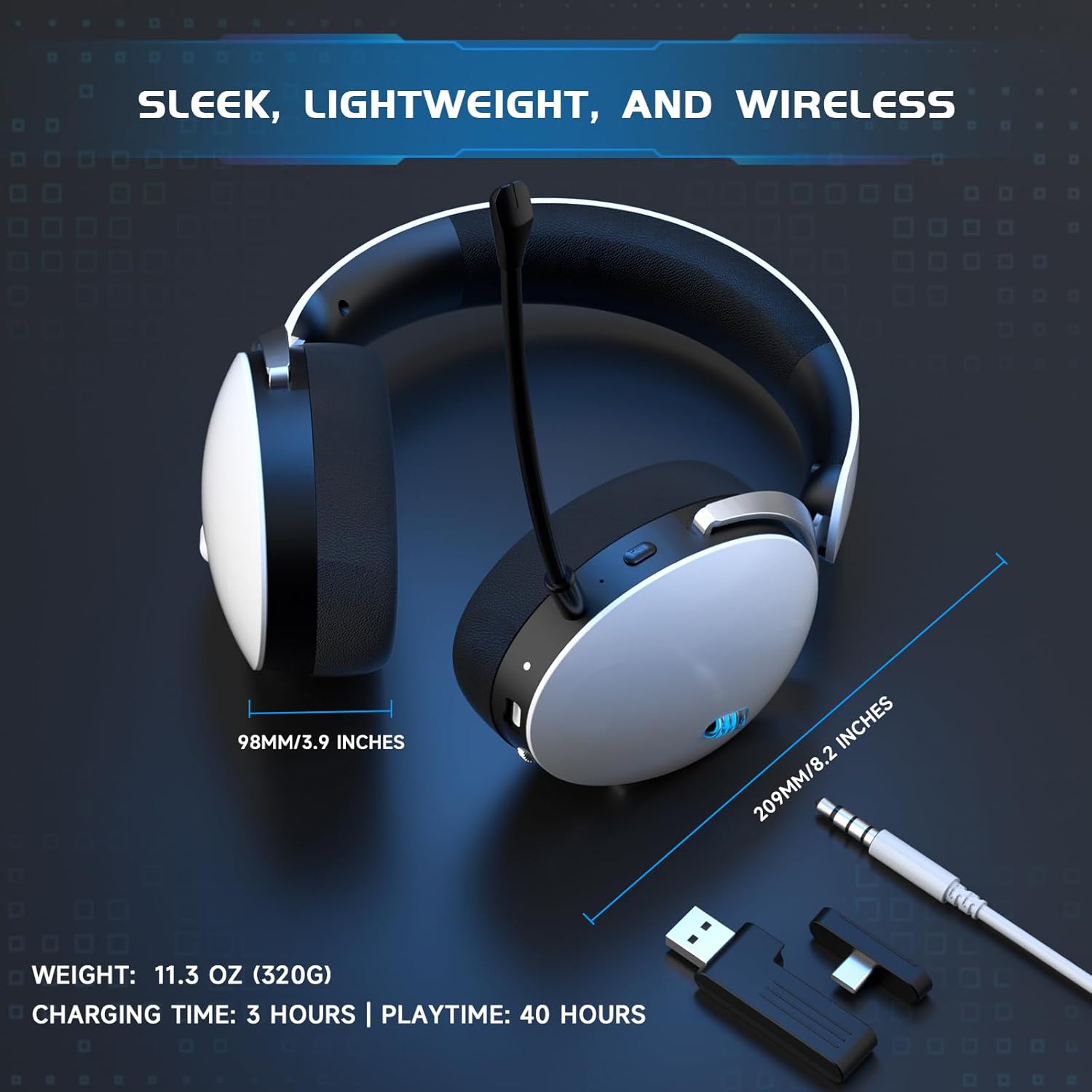
Figure 7.1: Headset Dimensions and Battery Life
8. Penyelenggaraan
To ensure the longevity and optimal performance of your Acer OHR632 headset, follow these maintenance guidelines:
- Pembersihan: Gunakan kain lembut dan kering untuk membersihkan set kepala. Elakkan menggunakan bahan kimia yang keras atau bahan yang melelas. Untuk kusyen telinga, lap perlahan-lahan dengan iklanamp kain dan biarkan kering sepenuhnya.
- Storan: Simpan alat dengar di tempat yang sejuk dan kering jauh dari cahaya matahari langsung dan suhu yang melampau.
- Pengendalian: Avoid dropping the headset or exposing it to excessive force. Do not twist or bend the cables excessively.
- Penjagaan Mikrofon: When not in use, detach the microphone to prevent damage, or flip it up if the design allows.
9. Penyelesaian masalah
If you encounter any issues with your Acer OHR632 headset, please refer to the following troubleshooting tips:
9.1 Tiada Bunyi / Kelantangan Rendah
- Semak Kelantangan: Ensure the headset's volume control is turned up and not muted. Also, check your device's master volume.
- Ketersambungan: Verify the headset is properly connected via 2.4GHz dongle, Bluetooth, or 3.5mm cable. For wireless connections, ensure the headset is paired and within range.
- Tetapan peranti: Confirm that the Acer OHR632 is selected as the default audio output device in your computer or console's sound settings.
- But semula: Try restarting both your headset and the connected device.
9.2 Mikrofon Tidak Berfungsi
- Semak Bisu: Ensure the microphone is not muted on the headset or in your device's software settings.
- Sambungan: Verify the detachable microphone is securely inserted into the headset port.
- Tetapan peranti: Confirm the Acer OHR632 microphone is selected as the default input device in your computer or console's sound settings. Adjust microphone input levels if necessary.
- Tetapan Aplikasi: Semak tetapan mikrofon dalam permainan atau aplikasi komunikasi tertentu yang anda gunakan.
9.3 Pairing Issues (2.4GHz / Bluetooth)
- Kitaran Kuasa: Turn off and then on both the headset and the dongle/Bluetooth device.
- pasangan semula: For Bluetooth, unpair the headset from your device and attempt to pair again. For 2.4GHz, ensure the dongle is plugged in and the headset is in pairing mode (if manual pairing is required, refer to specific instructions for your device).
- Gangguan: Beralih dari peranti wayarles lain yang mungkin menyebabkan gangguan.
10. Waranti dan Sokongan
Your Acer OHR632 Wireless Gaming Headset is covered by a Waranti Pengeluar 1 Tahun dari tarikh pembelian. Waranti ini melindungi kecacatan pada bahan dan mutu kerja di bawah penggunaan biasa.
For warranty claims, technical support, or further assistance, please contact Acer Customer Service through their official website or the contact information provided with your product packaging. Please retain your proof of purchase for warranty validation.