
pengenalan
This manual provides detailed instructions for the installation, operation, maintenance, and troubleshooting of your Jufodrca 10.1-inch HD Touch Screen Car Radio. Please read this manual thoroughly before using the product to ensure proper function and safety.
This unit is designed for Honda Accord models manufactured between 2008 and 2012.
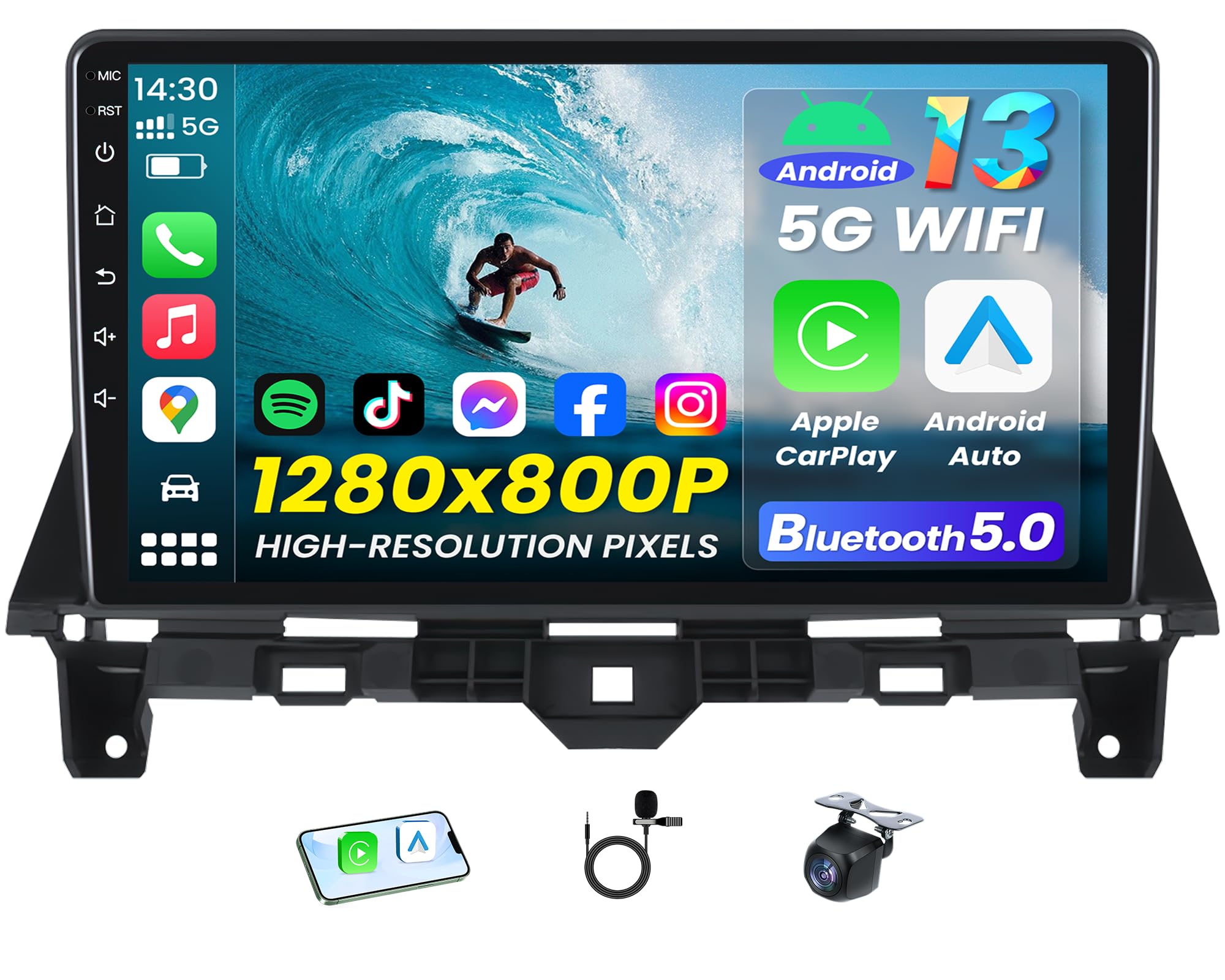
Image: The Jufodrca 10.1-inch car radio seamlessly integrated into a Honda Accord dashboard.
Model Kereta Berkenaan
This car radio is compatible with original factory-style car radios for Honda Accord models from 2008 to 2012. Before installation, verify the year, dimensions, and shape of your vehicle's center console to ensure compatibility.

Image: Visual guide demonstrating the fitment of the car radio in a Honda Accord dashboard, including examples of compatible and incompatible setups.
Persediaan dan Pemasangan
1. Semakan Pra-Pemasangan
- Pastikan pencucuhan kenderaan dimatikan dan bateri diputuskan sambungannya sebelum memulakan pemasangan.
- Verify all included components are present according to the packing list.
2. Pemasangan Fizikal
- Keluarkan radio kereta asal dan trim papan pemuka dengan berhati-hati.
- Connect the wiring harness from the new unit to the vehicle's existing wiring. Ensure all connections are secure.
- Connect the GPS antenna and any other external antennas (e.g., WiFi antenna).
- If installing a backup camera, route the camera cable to the rear of the vehicle and connect it to the designated input on the head unit.
- Mount the new car radio securely into the dashboard opening.
- Reinstall dashboard trim.

Image: The 1080P backup camera view displayed on the car radio screen, showing parking guidelines and the camera unit itself.
3. Steering Wheel Control (SWC) Setup
The unit supports Steering Wheel Control (SWC) compatibility. After installation, access the SWC settings in the unit's menu to program your steering wheel buttons. This allows control of essential functions like volume and track selection directly from your steering wheel.

Image: The car radio's interface for configuring steering wheel controls, showing various functions that can be assigned to physical buttons.
Arahan Operasi
1. Operasi Asas
- Hidupkan/Mati Kuasa: Tekan dan tahan butang kuasa pada unit atau gunakan penyalaan kenderaan.
- Kawalan Kelantangan: Adjust using the physical knob or on-screen controls.
- Skrin Sentuh: Navigate menus and select options by touching the 10.1-inch HD display.

Image: A visual representation highlighting the clarity and sharpness of the 1280x800 HD display compared to lower resolution screens.
2. CarPlay Wayarles & Android Auto
Connect your smartphone wirelessly to access calls, messages, music, and navigation apps directly on the car radio display. This feature allows for safe interaction with your phone while driving.
- Pastikan Bluetooth dan Wi-Fi didayakan pada telefon pintar anda.
- Pada radio kereta, pilih ikon CarPlay atau Android Auto.
- Ikut gesaan pada skrin untuk memasangkan peranti anda.

Image: The car radio display showing the Wireless CarPlay and Android Auto interface with various app icons and voice control prompts.
3. Built-in GPS Navigation
The integrated GPS navigation provides real-time traffic updates and route guidance. Access the navigation application from the main menu.
- Select the "Navigation" or "Maps" icon from the home screen.
- Masukkan destinasi anda menggunakan papan kekunci pada skrin.
- Follow the voice and visual prompts for turn-by-turn directions.
4. Kesambungan Bluetooth
Pair your phone via Bluetooth for hands-free calling and wireless music streaming.
- Go to the "Bluetooth" settings on the car radio.
- Dayakan Bluetooth pada telefon pintar anda dan cari peranti yang tersedia.
- Select the car radio's name (e.g., "Jufodrca Car Radio") from your phone's Bluetooth list and confirm pairing.
- Setelah digandingkan, anda boleh membuat/menerima panggilan dan menstrim audio.

Image: Diagram illustrating the independent Bluetooth 5.0 module and external antenna, enhancing connection stability and audio quality.
5. Radio FM/RDS
Access the FM radio tuner for local broadcasts. RDS (Radio Data System) provides additional information like station name and song title where available.
- Pilih ikon "Radio" daripada menu utama.
- Use the scan function to find stations or manually tune to a frequency.
- Save your favorite stations to presets for quick access.

Image: The car radio's interface showing advanced audio settings, including equalizer, surround sound, and sound filter options, alongside a comparison of upgraded vs. ordinary radio sound staging.
6. 5G WiFi Connectivity
Connect to a Wi-Fi network for internet access, app downloads, and system updates.
- Go to "Settings" and then "Wi-Fi".
- Hidupkan Wi-Fi dan pilih rangkaian yang anda inginkan daripada senarai.
- Masukkan kata laluan jika digesa.

Image: A graphic illustrating the benefits of 5G WiFi for faster internet speed and stable connection, along with the OTA (Over-The-Air) update capability.
Penyelenggaraan
1. Pembersihan Skrin
To clean the touch screen, power off the unit. Use a soft, lint-free cloth slightly dampdicairkan dengan air atau larutan pembersih skrin. Elakkan bahan kimia yang keras atau bahan yang kasar.
2. Kemas Kini Perisian (OTA)
The unit supports Over-The-Air (OTA) updates to ensure you have the latest features and performance improvements. Connect the unit to a stable Wi-Fi network to check for and install updates.
- Go to "Settings" > "System" > "About device" > "Software update".
- Ikut arahan pada skrin untuk memuat turun dan memasang sebarang kemas kini yang tersedia.
- Do not power off the unit during an update process.
Menyelesaikan masalah
| Masalah | Kemungkinan Punca | Penyelesaian |
|---|---|---|
| Unit tidak dihidupkan. | Sambungan kuasa longgar, fius pecah, masalah bateri kenderaan. | Check power wiring and fuse. Ensure vehicle battery is charged. |
| Tiada bunyi. | Volume too low, mute activated, speaker wiring issue. | Tingkatkan kelantangan. Periksa sama ada bisu aktif. Sahkan sambungan pembesar suara. |
| GPS tidak memperoleh isyarat. | Antena GPS tidak disambungkan atau terhalang dengan betul. | Pastikan antena GPS disambungkan dengan selamat dan mempunyai jernih view dari langit. |
| Isu sambungan Bluetooth. | Bluetooth not enabled, device not paired, interference. | Ensure Bluetooth is on for both devices. Re-pair the device. Move closer to the unit. |
| CarPlay/Android Auto tidak bersambung. | Incorrect settings, phone compatibility, Wi-Fi/Bluetooth issues. | Check phone settings for CarPlay/Android Auto. Ensure Wi-Fi and Bluetooth are active. Restart phone and unit. |
| Skrin sentuh tidak bertindak balas. | Gangguan perisian sementara, kerosakan skrin. | Mulakan semula unit. Jika isu berterusan, hubungi sokongan. |
Spesifikasi
| Ciri | Perincian |
|---|---|
| Jenama | Jufodrca |
| Saiz Skrin | 10.1 Inci |
| Resolusi Paparan | 1280*800 HD |
| Sistem Operasi | Android |
| Memori (RAM) | 2GB |
| Storan (ROM) | 64GB |
| Teknologi Ketersambungan | Bluetooth 5.0, USB, 5G Wi-Fi |
| Ciri Khas | Wireless CarPlay & Android Auto, Built-in GPS, FM RDS Radio, Steering Wheel Control (SWC), 1080P Rear View Sokongan Kamera |
| Jenis Peta | Seluruh dunia |
| Mod Keluaran Audio | Stereo |
| Input Antara Muka Manusia | Skrin sentuh |
| Peranti Serasi | Telefon pintar |
| Nombor Model (ASIN) | B0G5WTP7R6 |
| GTIN/UPC | 754175629381 |
Waranti dan Sokongan
Maklumat Waranti
This product comes with a standard manufacturer's warranty. For specific details regarding warranty coverage, duration, and terms, please refer to the documentation included with your purchase or contact the seller directly. Keep your proof of purchase for warranty claims.
Sokongan Pelanggan
If you encounter any issues or have questions not covered in this manual, please contact Jufodrca customer support or the retailer from whom you purchased the product. Provide your model number (B0G5WTP7R6) and a detailed description of the issue for efficient assistance.