
pengenalan
This manual provides detailed instructions for the installation, operation, and maintenance of your COMFAST AC1200 Dual-Band WiFi Repeater. Please read this guide thoroughly before using the device to ensure proper setup and optimal performance. Keep this manual for future reference.
Produk Selesaiview
The COMFAST AC1200 WiFi Repeater is designed to extend your existing wireless network coverage, eliminating Wi-Fi dead zones. It supports dual-band transmission with speeds up to 1200Mbps (867Mbps on 5GHz and 300Mbps on 2.4GHz) and features high-gain antennas for 360° omnidirectional coverage. Its compact design includes ventilation holes to prevent overheating and a smart LED indicator for signal quality assessment.
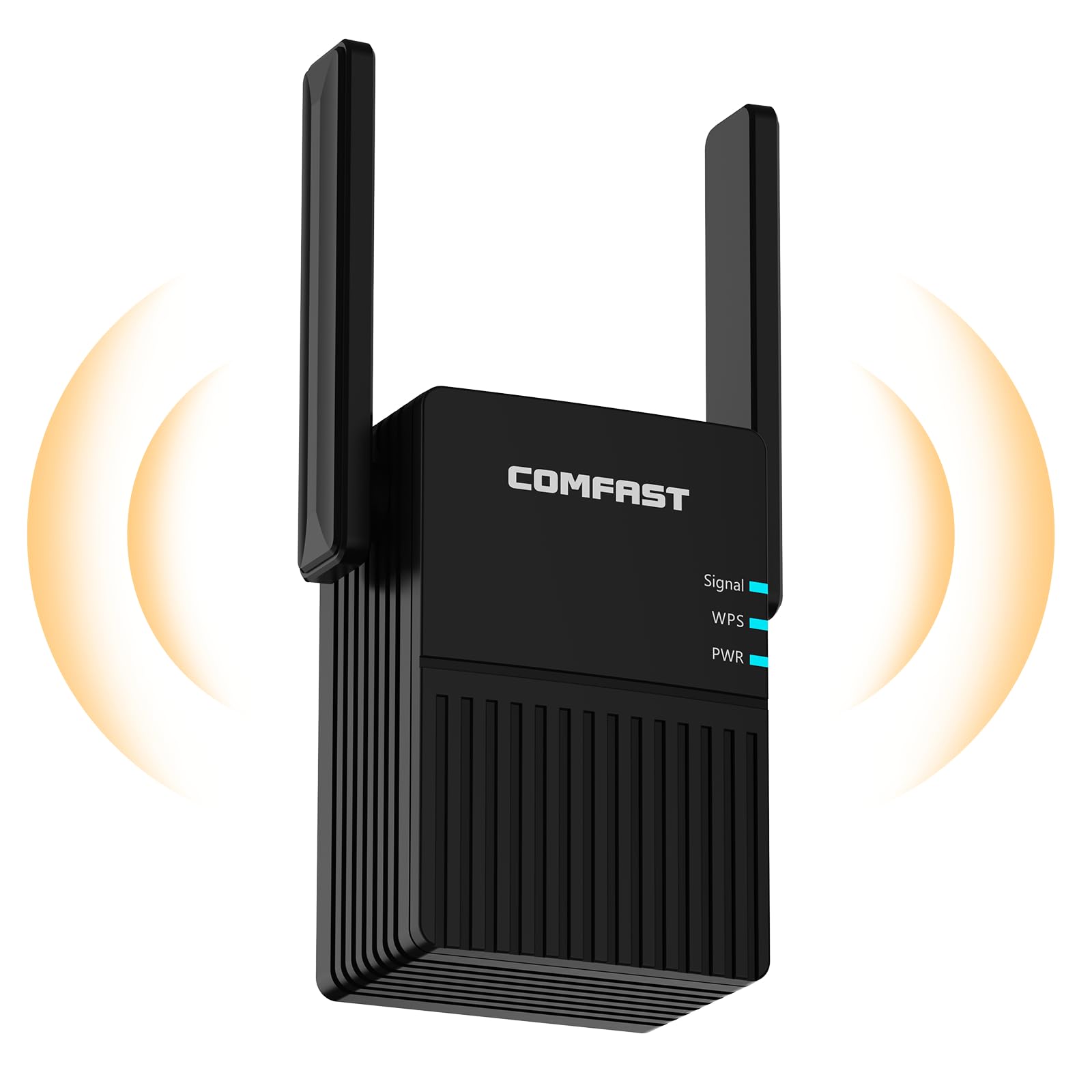
Image: The COMFAST AC1200 WiFi Repeater, a black rectangular device with two adjustable external antennas, designed to plug directly into a wall outlet.

Image: A diagram illustrating the COMFAST repeater extending WiFi coverage throughout a multi-room house, highlighting its 360-degree signal amppemberitahuan.
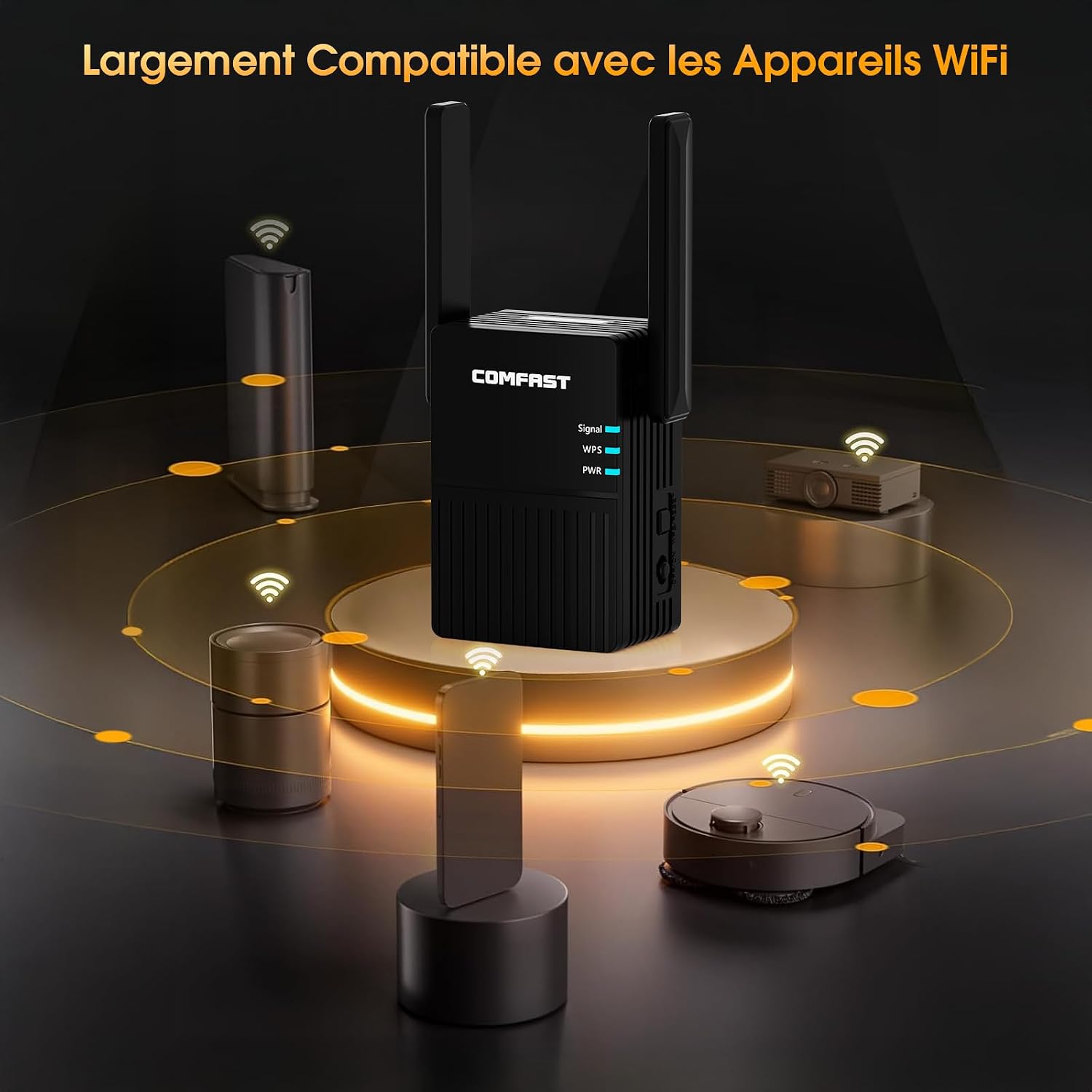
Image: The COMFAST WiFi Repeater shown centrally, surrounded by icons representing various compatible devices such as laptops, smartphones, tablets, and smart home devices, indicating broad compatibility.
Kandungan Pakej
Sila tandai kotak untuk item berikut:
- 1 x COMFAST AC1200 WiFi Repeater
- 1 x Manual Pengguna (dokumen ini)
Arahan Persediaan
The COMFAST AC1200 WiFi Repeater offers two primary methods for setup: via a web browser or using the WPS button.

Image: A visual guide detailing two setup methods: connecting via a smartphone and web browser, and a one-click setup using the WPS button on both the repeater and the main router.
Kaedah 1: Web Browser Setup (Recommended for detailed configuration)
- Plug the repeater into a power outlet near your main router.
- Wait for the power LED to stabilize.
- Connect your smartphone or computer to the repeater's default Wi-Fi network (e.g., "COMFAST_XXXX"). No password is required initially.
- Buka a web pelayar dan masukkan 192.168.10.1 dalam bar alamat.
- Log in using the default username and password, which is typically admin untuk kedua-duanya.
- Follow the on-screen instructions to scan for available Wi-Fi networks.
- Select your main Wi-Fi network and enter its password.
- Configure the repeater's Wi-Fi name (SSID) and password. You can choose to keep it the same as your main network or create a new one.
- Save the settings. The repeater will restart.
- Once restarted, connect your devices to the repeater's extended Wi-Fi network.
Method 2: WPS Button Setup (Quick Setup)
This method is suitable if your main router supports WPS (Wi-Fi Protected Setup).
- Plug the repeater into a power outlet near your main router.
- Wait for the power LED to stabilize.
- Press the WPS button on your COMFAST repeater. The WPS LED should start blinking.
- Dalam masa dua minit, tekan butang WPS pada penghala utama anda.
- Wait for the WPS LED on the repeater to become solid, indicating a successful connection.
- You can now unplug the repeater and move it to a desired location within the range of your main router's signal.
Mod Pengendalian
The COMFAST AC1200 WiFi Repeater primarily operates as a Wi-Fi extender, boosting the signal of your existing wireless network. It supports dual-band operation, allowing devices to connect to either the 2.4GHz or 5GHz frequency band for optimal performance based on their capabilities and distance from the repeater.
- Jalur 2.4GHz: Offers wider coverage and better penetration through walls, suitable for general internet use and older devices. Supports speeds up to 300Mbps.
- Jalur 5GHz: Provides faster speeds and less interference, ideal for high-bandwidth activities like HD video streaming and online gaming. Supports speeds up to 867Mbps.

Image: A graphic representation of the COMFAST WiFi Repeater's dual-band capabilities, showing 300Mbps for the 2.4GHz band and 867Mbps for the 5GHz band, with icons for 8K streaming and multiple device connections.
Ciri Keselamatan
The COMFAST AC1200 WiFi Repeater incorporates advanced encryption protocols to protect your network from unauthorized access and cyber threats. It supports:
- WPA-PSK/WPA2: Wi-Fi Protected Access Pre-Shared Key, offering robust security for personal networks.
- WPA/WPA2: Enhanced security protocols that help safeguard your online privacy and data integrity.
These features help prevent cyberattacks and ensure a secure network experience.

Image: The COMFAST WiFi Repeater positioned behind a large, glowing shield icon, surrounded by smaller icons representing private data protection, malicious website attack prevention, anti-trojan, and anti-colonization features.
Penyelenggaraan
To ensure the longevity and optimal performance of your COMFAST AC1200 WiFi Repeater, consider the following maintenance tips:
- penempatan: Position the repeater in a central location within the desired coverage area, away from obstructions like thick walls, metal objects, and large appliances that can interfere with Wi-Fi signals.
- Pengudaraan: Ensure the repeater's ventilation holes are not blocked to allow for proper heat dissipation. Overheating can affect performance and device lifespan.
- Pembersihan: Periodically clean the device with a soft, dry cloth. Avoid using liquid cleaners or aerosols.
- Kemas kini Firmware: Semak COMFAST rasmi website for any available firmware updates. Keeping your device's firmware up-to-date can improve performance, stability, and security.
Menyelesaikan masalah
If you encounter issues with your COMFAST AC1200 WiFi Repeater, refer to the following common problems and solutions:
- Tiada Isyarat atau Isyarat Lemah:
- Ensure the repeater is plugged into a working power outlet.
- Relocate the repeater closer to your main router. The optimal placement is halfway between your router and the Wi-Fi dead zone.
- Check the smart LED indicator on the repeater; a solid blue light usually indicates a good signal connection.
- Signal range can be affected by building structure and environmental factors.
- Kelajuan Internet Perlahan:
- The speed of the extended signal primarily depends on the quality and speed of the upstream router's signal. Ensure your main router is providing adequate speed.
- Reduce the number of devices connected to the repeater.
- Try connecting to the 5GHz band if your device supports it, as it generally offers faster speeds with less interference.
- Unable to Access Web Laman Pengurusan (192.168.10.1):
- Ensure your device is connected to the repeater's Wi-Fi network (e.g., "COMFAST_XXXX").
- Kosongkan cache dan kuki penyemak imbas anda atau cuba penyemak imbas lain.
- Restart the repeater and your connecting device.
- Persediaan WPS Gagal:
- Ensure your main router supports WPS.
- Press the WPS button on both devices within the two-minute window.
- Jika WPS terus gagal, gunakan web kaedah persediaan pelayar.
- Terlalu panas:
- Ensure the repeater is placed in a well-ventilated area and its vents are not obstructed.
- Unplug the device for a few minutes to allow it to cool down if it feels excessively hot.
If these steps do not resolve your issue, please contact COMFAST customer support.
Spesifikasi
| Ciri | Penerangan |
|---|---|
| Jenama | SELESA |
| Nombor Model | CF-AC1200 |
| Standard Tanpa Wayar | 802.11a/b/g/n/ac |
| Kadar Pemindahan Data | Sehingga 1200 Mbps (867Mbps pada 5GHz, 300Mbps pada 2.4GHz) |
| Kelas Band Kekerapan | Jalur Dwi (2.4 GHz, 5 GHz) |
| Ciri Khas | 1-click setup, MU-MIMO, LED indicator |
| warna | Hitam |
| Peranti Serasi | Personal Computer, Router, Smartphone, Tablet |
| Komponen yang Disertakan | 1 x AC1200 WiFi Repeater, 1 x User Manual |
Waranti dan Sokongan
Waranti: The COMFAST AC1200 WiFi Repeater comes with a 1-year warranty from the date of purchase. This warranty covers manufacturing defects and malfunctions under normal use. Please retain your proof of purchase for warranty claims.
Sokongan Teknikal: If you have any questions, require assistance with setup, or encounter issues not covered in the troubleshooting section, please contact COMFAST customer support. Refer to the contact information provided on the product packaging or the official COMFAST webtapak untuk mendapatkan butiran sokongan yang paling terkini.
For further information and resources, please visit the official COMFAST webtapak: COMFAST Brand Store