
1. Pengenalan
This manual provides detailed instructions for the installation, operation, and maintenance of your ASHATA Prime B365M D2VX SI motherboard. This M-ATX motherboard supports 9th and 8th Generation Intel Core i9, i7, i5, i3, Pentium, and Celeron series processors with an LGA 1151 socket. It features integrated Gigabit Ethernet for network connectivity and an ALC887 7.1 channel sound chip for audio. Please read this manual thoroughly before proceeding with installation.

Rajah 1.1: ASHATA Prime B365M D2VX SI Motherboard. This image displays the overall layout of the motherboard, highlighting the LGA 1151 socket, DDR4 memory slots, and various connectors. It supports 9th and 8th Gen Intel CPUs, features integrated Gigabit LAN, and an ALC887 7.1 channel sound chip.
2. Persediaan dan Pemasangan
2.1 Pemasangan CPU
Ensure the CPU socket lever is open. Carefully align your LGA 1151 processor with the socket, matching the triangular markers on the CPU and socket. Gently place the CPU into the socket without forcing it. Close the lever to secure the CPU.
2.2 Pemasangan Memori (RAM).
This motherboard features two DDR4 DIMM slots, supporting dual-channel DDR4 2666/2400/2133MHz memory modules up to a maximum capacity of 32GB. Open the clips on both ends of the DIMM slot. Align the memory module with the slot, ensuring the notch on the module matches the key in the slot. Press down firmly on both ends of the module until the clips snap into place.

Rajah 2.1: Double Channel DDR4 Memory Slots. This image highlights the two DDR4 memory slots and the M.2 slot. The motherboard supports up to 32GB of DDR4 2666/2400/2133MHz memory and includes four Serial ATA III ports and one M.2 slot for storage.
2.3 Pemasangan Peranti Storan
The motherboard provides four Serial ATA III (SATA 6Gbps) interfaces for traditional hard drives and SSDs, and one M.2 slot for high-speed NVMe or SATA M.2 SSDs. Connect SATA data cables from your storage devices to the SATA ports on the motherboard. For M.2 SSDs, insert the module into the M.2 slot and secure it with the provided screw.
2.4 PCI Express Card Installation
The motherboard includes one PCI Express x16 graphics slot and two PCI Express x1 slots. Insert your graphics card or other expansion cards into the appropriate slots, ensuring they are fully seated and secured with the case's retention mechanism.
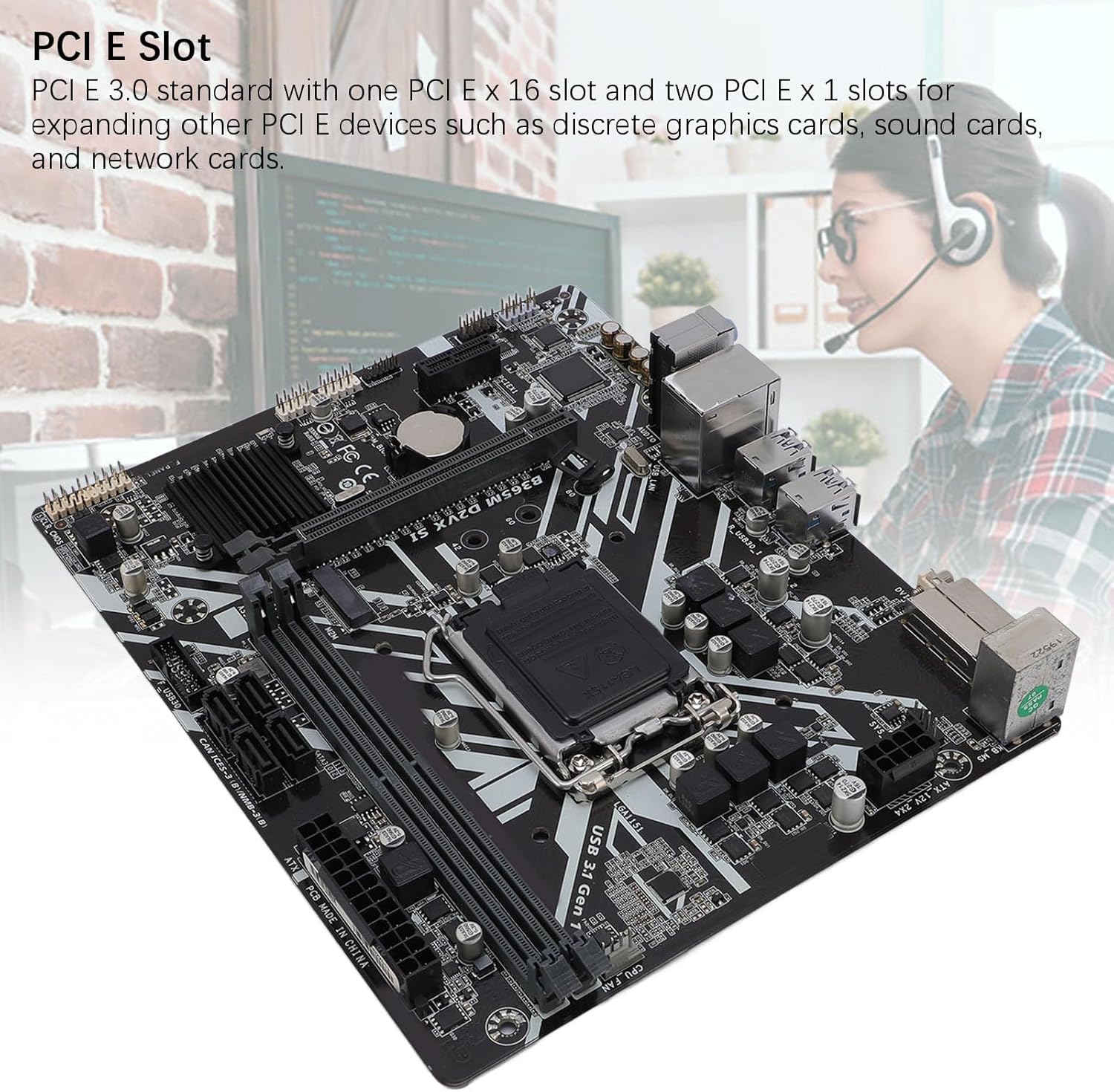
Rajah 2.2: PCI E Slots. This image shows the PCI E 3.0 standard slots, including one PCI E x16 graphics slot and two PCI E x1 slots, allowing for expansion with discrete graphics cards, sound cards, and network cards.
2.5 Sambungan Kuasa
Connect the 24-pin ATX main power connector and the 8-pin ATX 12V power connector from your power supply unit (PSU) to the corresponding ports on the motherboard. Ensure all power connections are secure.

Rajah 2.3: Multi-Phase Power Supply Area. This image illustrates the robust construction of the motherboard, featuring all solid-state capacitors and 8-pin plus 24-pin power connectors for stable performance and long service life.
2.6 Sambungan persisian
Connect your peripherals to the rear I/O panel. This includes USB 3.1 Gen 1 ports (4 on rear), USB 2.0 ports (2 on rear), the RJ-45 Ethernet port, and the 3 audio jacks. The motherboard also features a DVI interface for video output.

Rajah 2.4: DVI Output and Rear I/O Ports. This image displays the rear I/O panel, highlighting the DVI output for connecting to a TV or display, along with USB ports, Ethernet, and audio jacks.
Video 2.1: Product Demonstration. This video provides a general overview and demonstration of a motherboard, showcasing its various components and features. While not specific to the B365M D2VX SI, it illustrates common motherboard aspects.
3. Arahan Operasi
3.1 Boot-Up Awal
After assembling all components and connecting power, press the power button on your computer case. The system should initiate the boot process. If no display appears, refer to the troubleshooting section.
3.2 Akses BIOS/UEFI
To access the BIOS/UEFI setup utility, press the designated key (commonly DEL or F2) repeatedly during the initial boot sequence. The BIOS/UEFI allows you to configure system settings, boot order, and monitor hardware status.
3.3 Paparan Output
Connect your monitor to the DVI port on the motherboard's rear I/O panel for integrated graphics output. If a discrete graphics card is installed, connect your monitor to the graphics card's output ports.
3.4 Network and Audio
The integrated Gigabit LAN provides high-speed network connectivity. Connect an Ethernet cable to the RJ-45 port. For audio, connect speakers or headphones to the appropriate audio jacks on the rear I/O panel. The ALC887 7.1 channel sound chip supports various audio configurations.
4. Penyelenggaraan
Penyelenggaraan yang betul memastikan ketahanan dan prestasi papan induk anda stabil.
- Pembersihan: Regularly clean dust from inside your computer case using compressed air. Ensure the system is powered off and unplugged before cleaning. Avoid using liquids or abrasive materials.
- Elektrik Statik: Always discharge static electricity from your body before handling the motherboard or other components. Use an anti-static wrist strap if available.
- Kemas Kini BIOS: Periksa pengeluar secara berkala weblaman web untuk kemas kini BIOS/UEFI. Kemas kini boleh meningkatkan keserasian, kestabilan dan prestasi. Ikuti arahan kemas kini dengan teliti untuk mengelakkan kerosakan sistem.
- Keadaan Persekitaran: Kendalikan papan induk dalam persekitaran yang mempunyai pengudaraan yang baik dengan suhu dan kelembapan yang stabil untuk mengelakkan terlalu panas dan degradasi komponen.
5. Penyelesaian masalah
If you encounter issues, perform the following basic troubleshooting steps:
- Tiada Kuasa:
- Check if the power supply unit (PSU) is connected and switched on.
- Ensure the 24-pin and 8-pin power connectors are securely attached to the motherboard.
- Verify the front panel power switch cable is correctly connected to the motherboard header.
- Tiada Paparan:
- Confirm the monitor is connected to the correct video output (motherboard DVI or discrete graphics card).
- Reseat the graphics card (if applicable) and memory modules.
- Uji dengan monitor atau kabel yang berbeza jika boleh.
- Ketidakstabilan/Ranap Sistem:
- Semak suhu CPU dan GPU untuk memastikan ia berada dalam had operasi yang selamat.
- Verify memory modules are properly seated and functioning correctly (test one module at a time).
- Pastikan semua pemandu dikemas kini.
- Network Not Detected:
- Ensure the Ethernet cable is securely connected to the RJ-45 port and the router/modem.
- Check network adapter drivers in the operating system.
- Verify network settings in the operating system.
- Tiada Audio:
- Confirm speakers/headphones are connected to the correct audio jacks.
- Check audio drivers and sound settings in the operating system.
- Ensure the front panel audio connector is correctly attached to the motherboard header.
6. Spesifikasi
Below are the detailed specifications for the ASHATA Prime B365M D2VX SI motherboard:
| Ciri | Spesifikasi |
|---|---|
| Model Papan Induk | B365M D2VX SI |
| Chipset | Intel B365 High Speed Chipset |
| Soket CPU | LGA 1151 |
| Supported CPU Types | 9th and 8th Generation Intel Core i9/i7/i5/i3, Pentium, Celeron Series Processors |
| Jenis Memori | 2 x DDR4 DIMM slot |
| Kapasiti Memori Maksimum | 32GB |
| Memory Description | Supports Double Channel DDR4 2666/2400/2133MHz |
| PCI E Standard | PCI E 3.0 |
| PCI E Slots | 1 x PCI E X16 Graphics Slot, 2 x PCI E X1 Slots |
| Antaramuka Penyimpanan | 4 x Serial ATA III Interfaces, 1 x M.2 Slot |
| Antaramuka USB | 6 x USB 3.1 Gen 1 Ports (4 rear, 2 via header), 6 x USB 2.0/1.1 Ports (2 rear, 4 via header) |
| Antara Muka Video | 1 x DVI Interface |
| Cip Audio | Integrated ALC887 7.1 Channel Sound Chip |
| Network Chip | Onboard Gigabit Network Chip |
| Penyambung Kuasa | 1 x 8 Pin Power Connector, 1 x 24 Pin Power Connector |
| Motherboard Form Factor | M-ATX |
| Dimensi Bungkusan | 29 x 26 x 6 cm |
| Berat Barang | 568 g |
7. Waranti dan Sokongan
For warranty information and technical support, please refer to the documentation included with your purchase or visit the official ASHATA website. Keep your proof of purchase for warranty claims. If you encounter issues not covered in this manual, contact ASHATA customer support for assistance.