
pengenalan
This manual provides detailed instructions for setting up, operating, maintaining, and troubleshooting your AWOW AiBook 11 Windows 11 Tablet with Keyboard. Please read this manual thoroughly before using your device to ensure proper function and longevity.
Apa yang ada dalam Kotak
Sahkan bahawa semua item terdapat dalam pakej:
- PC tablet
- Papan Kekunci boleh tanggal
- Pengecas PD 36W
- Manual Pengguna
Produk Selesaiview
The AWOW AiBook 11 is a versatile 2-in-1 device designed to function as both a tablet and a mini laptop. It features a 10.1-inch display, an Intel N150 processor, 12GB of RAM, and a 256GB SSD, running on Windows 11.

Imej: Selesaiview of the AWOW AiBook 11's key features including display size, processor, storage, RAM, operating system, connectivity, and cameras.
Persediaan
1. Mengecas Peranti
Before initial use, fully charge your tablet. Use the provided 36W Power Delivery (PD) charger. A full charge typically takes approximately 3 hours.

Image: The AWOW AiBook 11 tablet connected to a charger, illustrating the 36W PD fast charging capability and battery life indicators.
2. Memasang Papan Kekunci
The keyboard connects magnetically to the tablet. Align the tablet with the keyboard's connector and allow the magnets to secure it in place. The keyboard also functions as a protective cover and includes an integrated stand.
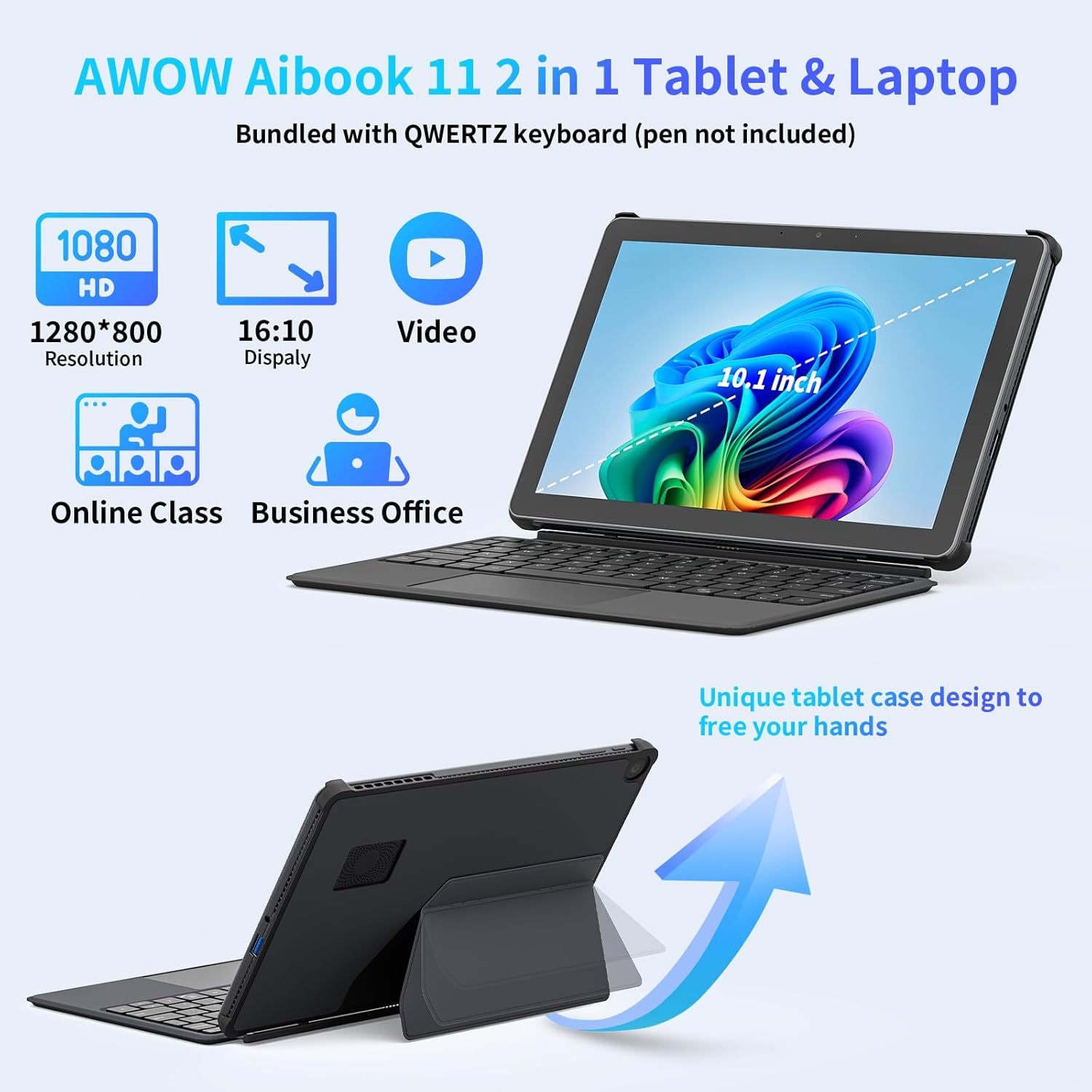
Image: The AWOW AiBook 11 tablet shown with its detachable keyboard and protective cover, highlighting its 2-in-1 functionality.
3. Hidupkan Awal dan Persediaan Windows
Press and hold the power button located on the side of the tablet until the screen illuminates. Follow the on-screen prompts to complete the Windows 11 initial setup, including language selection, network connection, and user account creation.
Mengendalikan Peranti Anda
1. Cara Penggunaan
The AiBook 11 supports multiple usage modes:
- Mod Tablet: Detach the keyboard for a pure tablet experience, ideal for touch navigation and media consumption.
- Mod Komputer Riba: Attach the keyboard and use the integrated stand for a traditional laptop setup, suitable for typing and productivity.
- Creative Mode: Adjust the stand to an angled position for drawing or comfortable viewing.

Image: The AWOW AiBook 11 tablet demonstrating its flexibility in laptop, creative, and handheld tablet modes.
2. Ciri Paparan
The device features a 10.1-inch In-Cell Full HD (1920x1080) display. In-Cell technology integrates the touch layer directly into the LCD, resulting in a thinner panel and clear visuals with reduced glare.

Image: A visual comparison illustrating the difference between traditional display layers and the thinner, integrated layers of an In-Cell display.
3. Ketersambungan
The AiBook 11 offers various connectivity options:
- wayarles: Supports WiFi 6 (802.11ax) for high-speed internet and Bluetooth 5.0 for connecting peripherals.
- Pelabuhan: Includes Micro HDMI (4K 60Hz), a full-function Type-C port (4K 144Hz), and a USB 3.0 port. A headphone jack is also available.

Image: The AWOW AiBook 11 tablet connected to two external monitors, demonstrating its capability to extend the display via Type-C and Micro HDMI ports.
4. Prestasi dan Storan
The tablet is powered by an Intel N150 Quad-Core processor, paired with 12GB of LPDDR5 RAM and a 256GB PCIe 3.0 SSD. This configuration supports efficient multitasking and quick application loading. Storage can be expanded via a TF card slot, supporting up to 512GB.

Image: A diagram showing the benefits of 12GB LPDDR5 RAM and 256GB PCIe 3.0 SSD for multitasking and data access speed.
Penyelenggaraan
1. Membersihkan Peranti
Gunakan kain lembut dan tidak berbulu untuk membersihkan skrin dan permukaan luar. Untuk kotoran degil, sedikitampen the cloth with water or a screen-cleaning solution. Avoid abrasive materials or harsh chemicals.
2. Pengurusan Bateri
To prolong battery life, avoid fully discharging the battery frequently. Charge the device when the battery level is low. Store the device in a cool, dry place when not in use for extended periods.
3. Kemas Kini Perisian
Semak dan pasang kemas kini Windows secara kerap untuk memastikan sistem anda mempunyai tampung keselamatan dan peningkatan prestasi terkini. Pergi ke Tetapan > Kemas Kini Windows untuk mengurus kemas kini.
4. Peluasan Storan
If additional storage is required, insert a TF (microSD) card into the designated slot. The device supports TF cards up to 512GB.
5. Sistem Penyejukan
The AiBook 11 includes an internal fan system to manage heat and maintain stable CPU performance during operation. Ensure ventilation slots are not obstructed to allow for proper airflow.

Image: A diagram illustrating the internal fan system designed to cool the processor and maintain device stability.
Menyelesaikan masalah
- Peranti Tidak Dihidupkan: Ensure the device is charged. Connect the charger and wait a few minutes before attempting to power on again. If the issue persists, perform a hard reset by holding the power button for 10-15 seconds.
- Skrin Tidak Membalas: If the touchscreen is unresponsive, try restarting the device. If using the keyboard, ensure it is properly connected.
- Isu Kesambungan Wi-Fi/Bluetooth: Check if Wi-Fi or Bluetooth is enabled in Windows settings. Restart the device and your router/Bluetooth accessory. Ensure drivers are up to date via Device Manager.
- Slow Performance or Overheating: Close unnecessary applications running in the background. Ensure ventilation slots are clear. If the device consistently runs warm, reduce intensive tasks.
- Papan Kekunci Tidak Berfungsi: Ensure the magnetic connection is secure. Restart the tablet. If the issue continues, detach and reattach the keyboard.
Untuk bantuan lanjut, sila rujuk bahagian sokongan.
Spesifikasi
| Ciri | Spesifikasi |
|---|---|
| Nama Model | AiBook 11 |
| Sistem Operasi | Windows 11 |
| Saiz Skrin | 10.1 Inci |
| Resolusi Skrin | 1920x1080 Piksel |
| Pemproses | Intel N150 (up to 3.6 GHz) |
| RAM | 12 GB LPDDR5 |
| Penyimpanan | 256 GB PCIe 3.0 SSD |
| Storan Boleh Dikembangkan | TF Card up to 512 GB |
| Pemproses bersama Grafik | Grafik Intel UHD |
| Jenis Wayarles | 802.11ax (WiFi 6), Bluetooth 5.0 |
| Pelabuhan | Micro HDMI, Type-C (Full-function), USB 3.0, Headphone Jack |
| Purata Hayat Bateri | 7 Jam |
| Mengecas | PD 36W Fast Charging |
| Berat Barang | 2.5 paun (lebih kurang 1.13 kg) |
| Dimensi Produk | 9.6 x 0.4 x 6.5 inci (lebih kurang 24.5 x 1.0 x 16.4 cm) |
Waranti dan Sokongan
Your AWOW AiBook 11 Tablet is covered by a manufacturer's warranty. Please refer to the warranty card included in your product packaging for specific terms and conditions. For technical support, troubleshooting assistance, or warranty claims, please visit the official AWOW webtapak atau hubungi bahagian perkhidmatan pelanggan mereka. Maklumat hubungan biasanya boleh didapati pada pengilang webtapak atau dalam dokumentasi produk.