
1. Pengenalan
Thank you for choosing the GNCC GC4 2K Indoor Security Camera. This manual provides essential information for setting up, operating, and maintaining your camera. Please read it thoroughly before use to ensure optimal performance and safety.
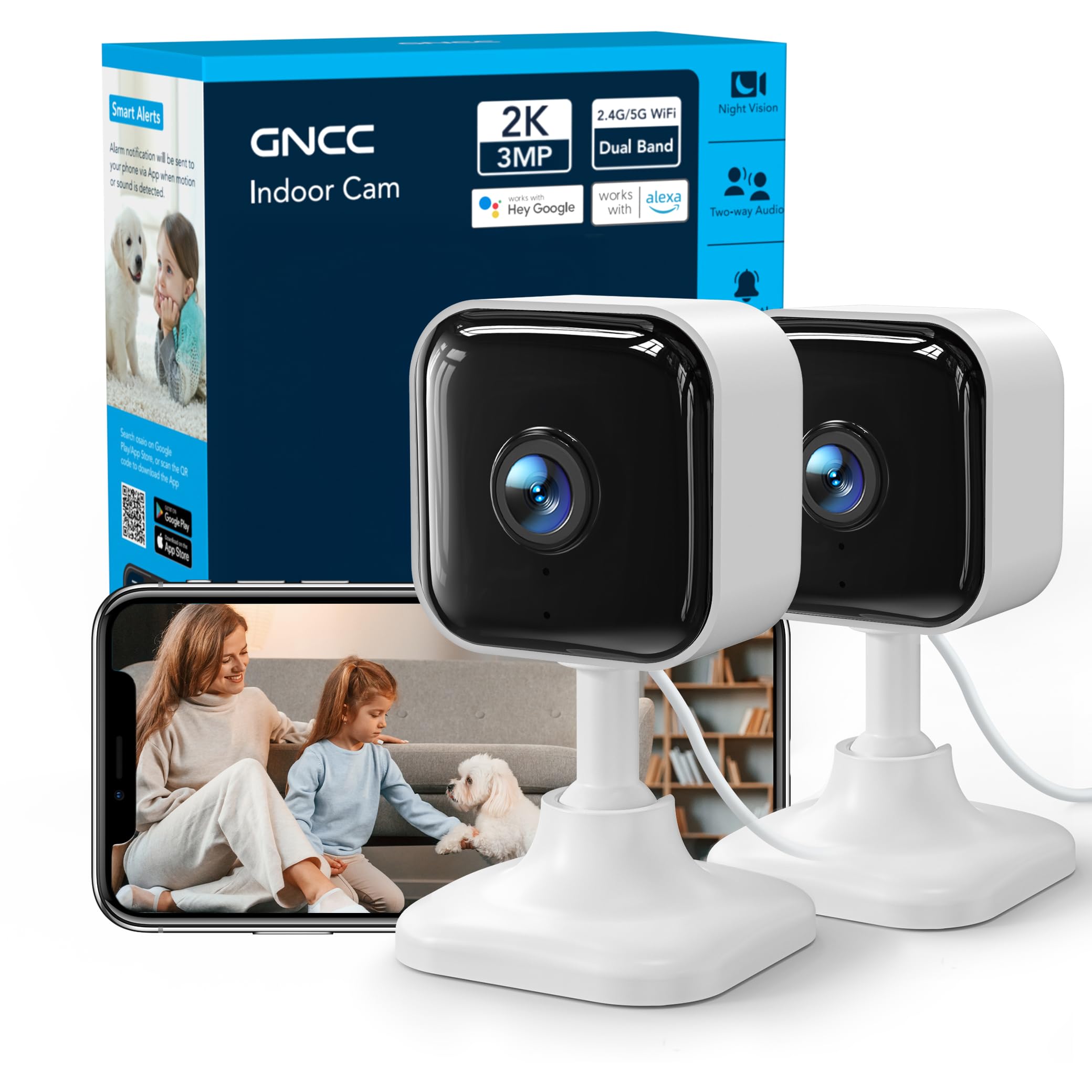
Image: GNCC GC4 2K Indoor Security Camera, a compact white camera with a black lens, shown on a stand.
2. Kandungan Pakej
Sahkan bahawa semua item terdapat dalam pakej anda:
- GNCC GC4 2K Indoor Security Camera
- Penyesuai Kuasa
- Kabel Kuasa USB (6.5 kaki)
- Mounting Accessories (Adhesive tape, screws, wall anchors)
- Manual Arahan (Dokumen ini)
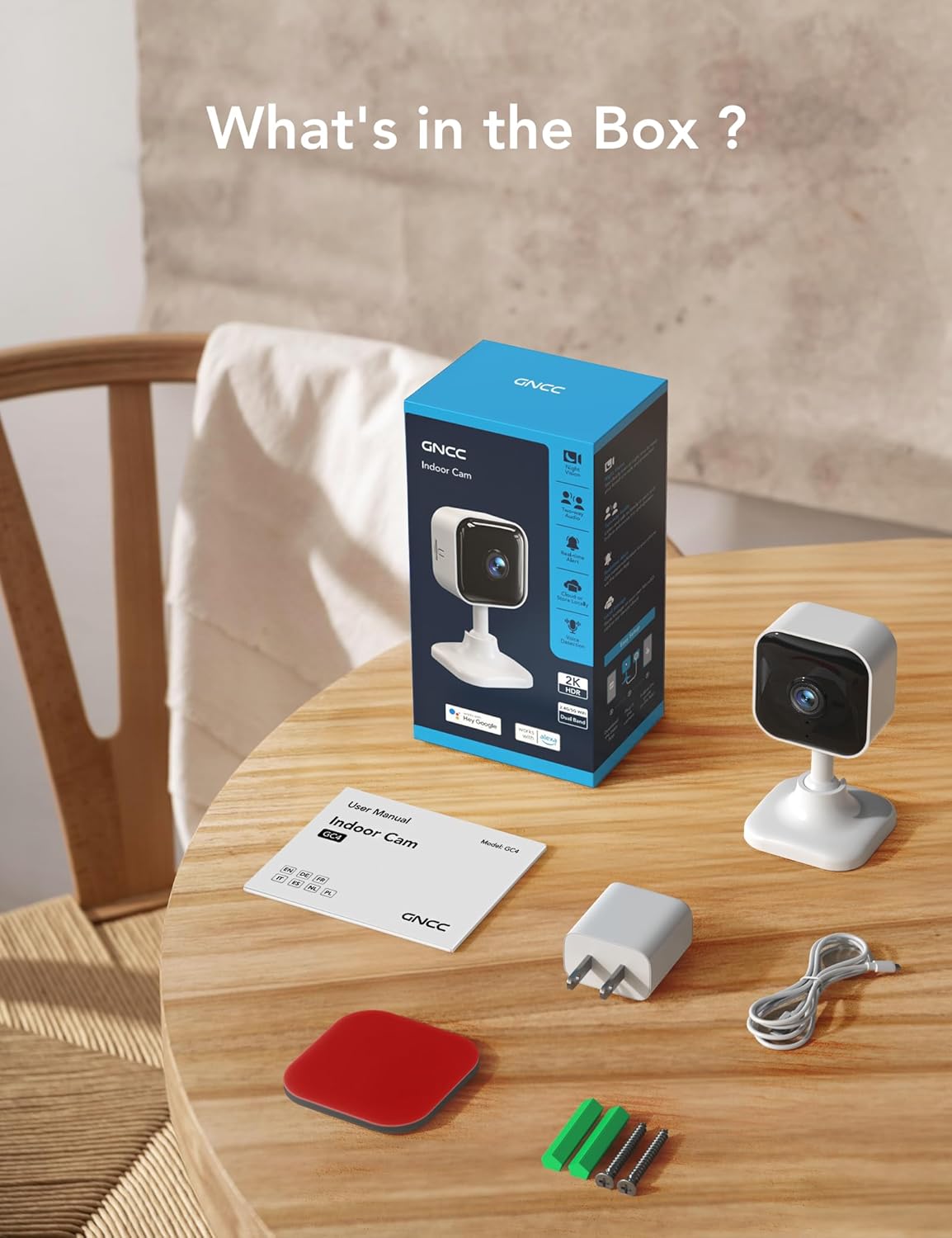
Image: Contents of the GNCC GC4 camera box, including the camera, power adapter, cable, and mounting hardware.
3. Produk Lebihview
Biasakan diri anda dengan komponen kamera:
- Kanta Kamera: Captures 2K Full HD video.
- LED inframerah: Provide 32ft night vision.
- mikrofon: Untuk komunikasi audio dua hala.
- Penceramah: For two-way audio communication and alerts.
- Slot Kad MicroSD: Supports local storage up to 128GB (card not included).
- Butang Tetapkan Semula: Used for resetting the camera to factory settings.
- Port Kuasa USB: Untuk menyambungkan kabel kuasa.

Image: Diagram highlighting key features of the GNCC GC4 camera, such as 2.4G/5G WiFi, 2K FHD resolution, IR Night Vision, Motion Detection, 2-Way Audio, and Local/Cloud Storage.
4. Persediaan
4.1 Kuasa Awal dan Tetapkan Semula
- Plug the camera into a power outlet using the provided power adapter and USB cable.
- Tunggu kamera dihidupkan.
- Locate the reset button (usually near the MicroSD card slot). Use a pin or a thin object to press and hold the reset button for approximately 5-10 seconds until the indicator light blinks red. This indicates the camera is ready for pairing.
4.2 Muat Turun Apl dan Berpasangan
- Muat turun Osaio aplikasi daripada gedung aplikasi telefon pintar anda (iOS atau Android).
- Open the Osaio app and create an account or log in.
- Pastikan telefon anda disambungkan ke rangkaian Wi-Fi 2.4GHz atau 5GHz.
- Dayakan Bluetooth pada telefon anda.
- In the Osaio app, tap the '+' icon to add a new device. The app should automatically detect the GC4 camera.
- Follow the on-screen prompts to connect the camera to your Wi-Fi network by entering your Wi-Fi password.
- Setelah disambungkan, anda boleh menamakan kamera anda dan mula menggunakannya.
Video: A step-by-step guide on how to connect the GNCC GC4 Camera to the Osaio App.

Image: Visual guide showing the steps to set up the GNCC GC4 camera using the Osaio app, from plugging in to successful device naming.

Image: GNCC GC4 camera illustrating its dual-band 2.4G/5G Wi-Fi connectivity for a stable connection.
5. Arahan Operasi
5.1 Langsung View dan Audio Dua Hala
Open the Osaio app and select your camera to view the live feed. Use the microphone icon to speak through the camera and the speaker icon to listen to audio from the camera's location.

Image: A child and a dog in a living room, with speech bubbles indicating two-way audio communication through the GNCC GC4 camera.
5.2 Pengesanan Gerakan dan Bunyi
The camera features human, motion, and sound detection. When triggered, the app will send notifications to your smartphone. Sensitivity settings can be adjusted within the Osaio app.
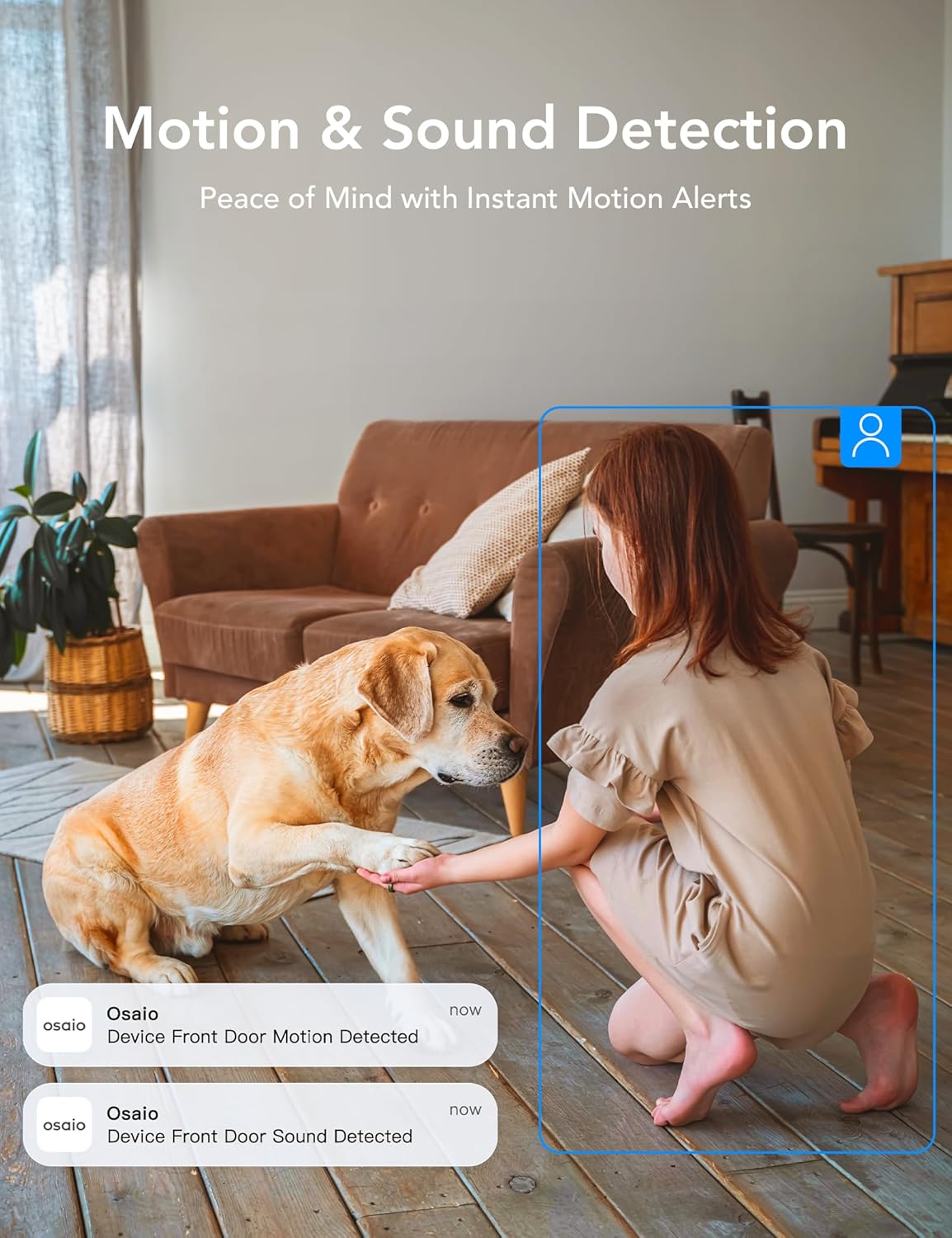
Image: A girl and a dog in a living room, with app notifications indicating motion and sound detection by the Osaio device.
5.3 Penglihatan Malam Inframerah
The camera automatically switches to infrared night vision in low-light conditions, providing clear black-and-white video up to 32 feet.
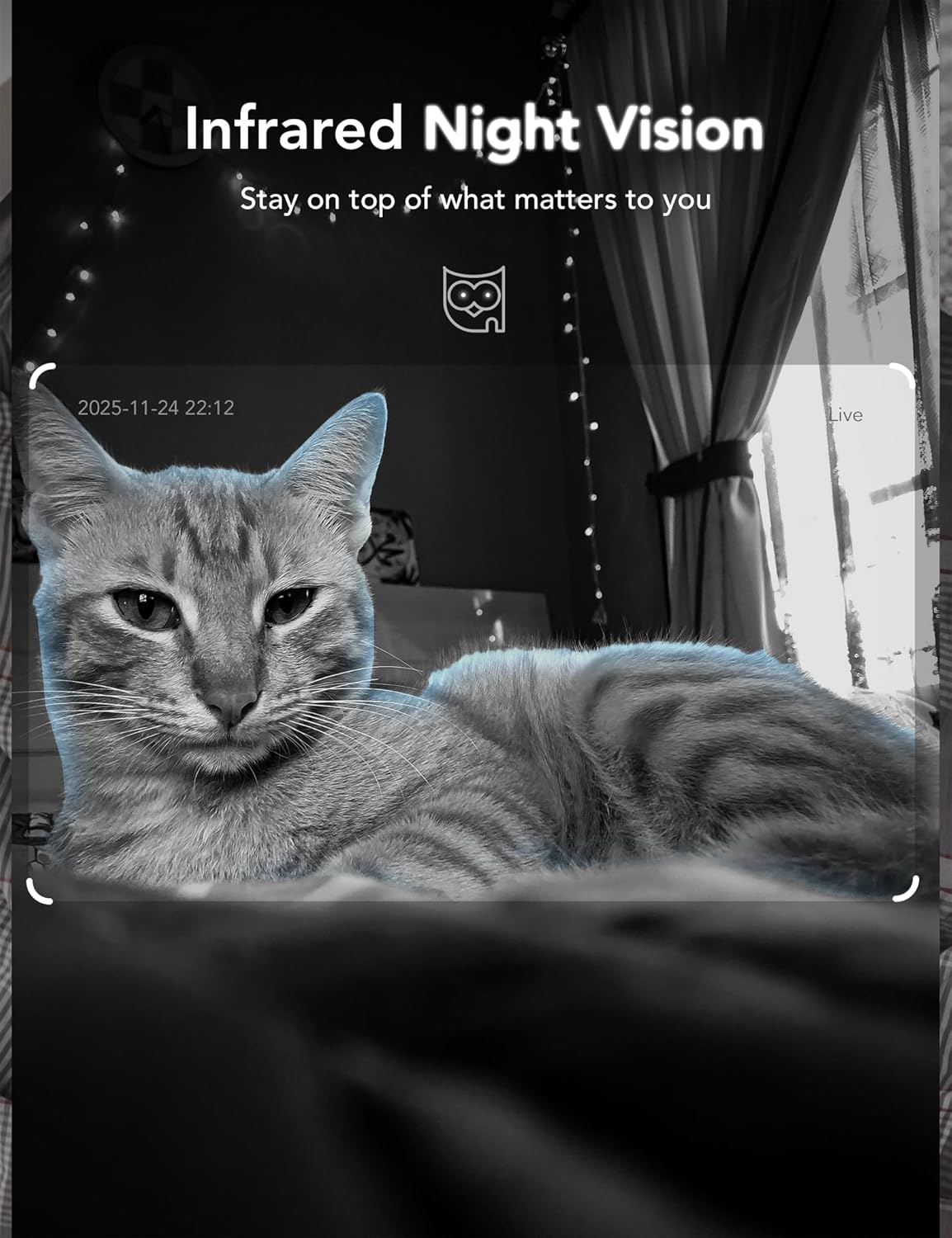
Image: A cat captured in infrared night vision by the GNCC GC4 camera, demonstrating clear visibility in darkness.
5.4 Pilihan Storan
The GC4 camera supports two storage methods:
- Storan Setempat: Insert a MicroSD card (up to 128GB, not included) into the camera's slot for 24/7 continuous recording. Ensure the camera is powered off before inserting or removing the card.
- Storan Awan: The Osaio app offers secure, encrypted cloud storage with a 14-day free trial for one camera per account. Subscription is required after the trial period.
Video: Demonstration of inserting a MicroSD card into the GNCC GC4 camera for local storage.
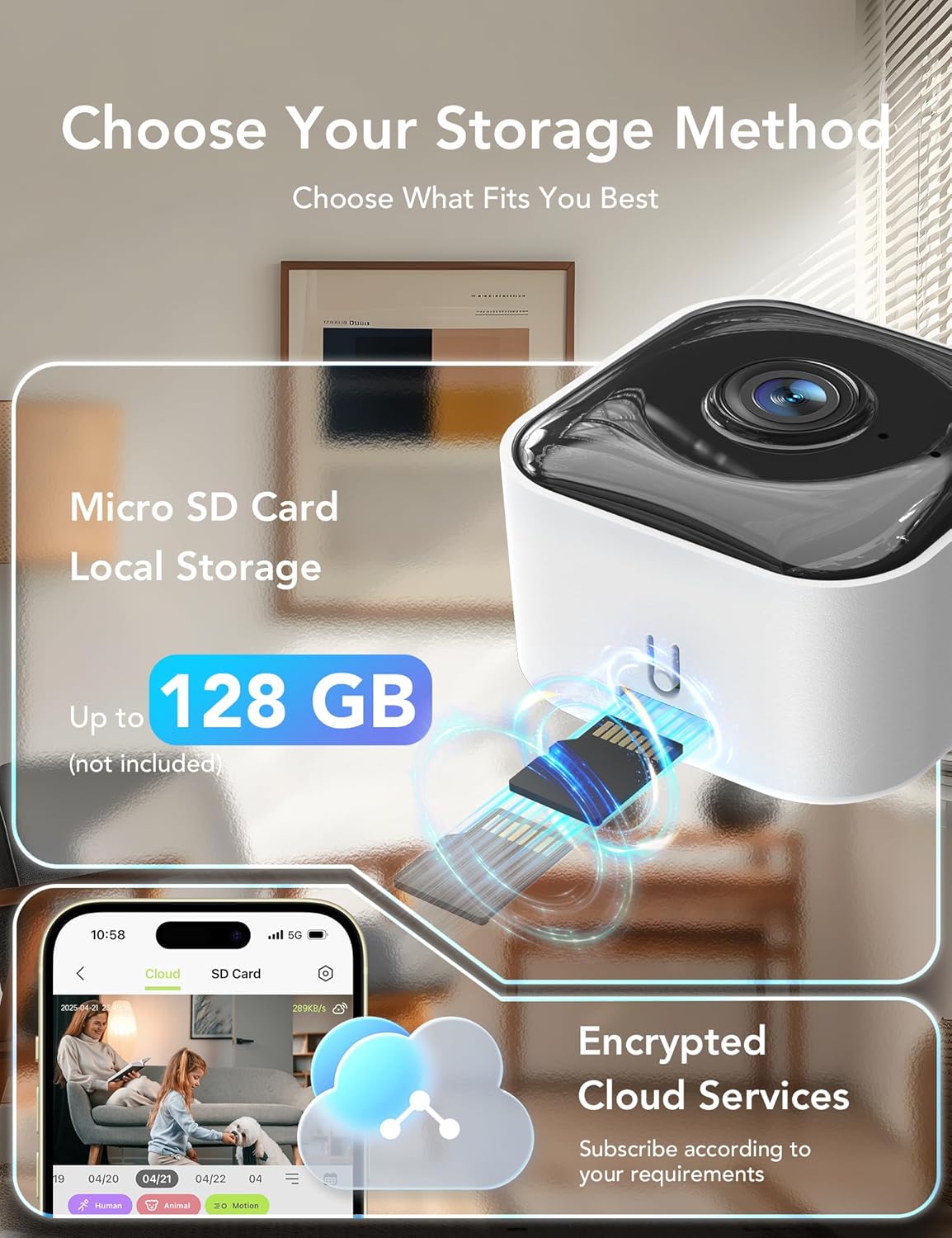
Image: Visual representation of the GNCC GC4 camera's storage options, including MicroSD card local storage (up to 128GB) and encrypted cloud services via the Osaio app.
6. Kaedah Pemasangan
The GNCC GC4 camera offers flexible installation options:
- Berdiri bebas: Place the camera on any flat surface like a shelf or table.
- Pemasangan Dinding: Use the included adhesive tape or screws and wall anchors to securely mount the camera to a wall.
Video: Demonstration of three different installation methods for the GNCC GC4 camera.
7. Integrasi Rumah Pintar
The GNCC GC4 camera is compatible with Amazon Alexa and Google Assistant, allowing for voice control and live feed viewpada paparan pintar yang serasi.
7.1 Connecting with Amazon Alexa
- Open the Alexa app and log in to your account.
- Tap 'More' in the lower right corner, then choose 'Skills & Games'.
- Tap the search icon in the upper right corner and search for 'Osaio'.
- Tap 'OSAIO' and click 'ENABLE TO USE'.
- Sign in to your Osaio account to link it with Alexa.
- Tap 'Authorize' and then 'Close'.
- Alexa will discover your devices. Once complete, you can use voice commands like "Alexa, show me the [camera name]".
Video: A guide on connecting the GNCC GC4 camera to Amazon Alexa for voice control.

Image: A woman in a kitchen interacting with an Alexa device to view the GNCC GC4 camera feed, demonstrating smart home integration.
8. Penyelenggaraan
- Pembersihan: Use a soft, dry cloth to clean the camera lens and body. Avoid harsh chemicals or abrasive materials.
- Kemas kini Firmware: Regularly check the Osaio app for firmware updates to ensure your camera has the latest features and security enhancements.
- penempatan: Ensure the camera is placed in a location with good Wi-Fi signal strength and away from direct sunlight or heat sources.
- Mod Privasi: Utilize the privacy mode feature in the Osaio app to temporarily disable recording and live view when privacy is desired.

Image: A bedroom scene with the GNCC GC4 camera's privacy mode activated, indicated by a green toggle switch in the app interface.
9. Penyelesaian masalah
- Kamera tidak bersambung ke Wi-Fi: Ensure your Wi-Fi password is correct and the camera is within range of your router. Try resetting the camera and repeating the pairing process.
- Offline status: Check your Wi-Fi connection and the camera's power supply. Restart the camera by unplugging and replugging it.
- Kualiti video yang lemah: Ensure a strong Wi-Fi signal. If using a MicroSD card, check its health and ensure it's not full.
- No motion/sound alerts: Verify that detection settings are enabled and sensitivity is adjusted appropriately in the Osaio app. Check app notification permissions on your phone.
- Isu audio dua hala: Ensure your phone's microphone and speaker are working and that the app has necessary permissions. Check the camera's volume settings.
10. Spesifikasi
| Ciri | Perincian |
|---|---|
| Nombor Model | GC4 |
| Resolusi Video | 2K (3MP) |
| Julat Penglihatan Malam | Up to 32 feet (Infrared) |
| Kesambungan Wi-Fi | Dwi-Jalur 2.4GHz / 5GHz |
| Pilihan Storan | MicroSD Card (up to 128GB), Cloud Storage (Subscription) |
| Audio | Audio Dua Hala |
| Pengesanan | Human, Motion, Sound Detection |
| Keserasian Rumah Pintar | Amazon Alexa, Pembantu Google |
| Sumber Kuasa | Elektrik Bertali |
| Dimensi (L x W x H) | 1.96 x 1.37 x 3.74 inci |
| Berat badan | 11.7 auns |
11. Maklumat Waranti
GNCC products come with a limited warranty from the date of purchase. Please refer to the warranty card included in your package or visit the official GNCC website for detailed terms and conditions. This warranty typically covers manufacturing defects but does not cover damage caused by misuse, accidents, or unauthorized modifications.
12. Sokongan Pelanggan
If you encounter any issues or have questions regarding your GNCC GC4 camera, please contact our customer support team:
- e-mel: [Masukkan E-mel Sokongan Pelanggan Di Sini]
- telefon: [Insert Customer Support Phone Number Here]
- Webtapak: Visit the GNCC Store on Amazon
Our support team is available to assist you with technical issues, warranty claims, and general inquiries.