
pengenalan
The NEEWER F4 4-inch Phone Vlog Selfie Monitor Screen is designed to enhance your mobile video recording and photography experience. It allows you to use your smartphone's high-quality rear camera for selfies and vlogging by mirroring your phone screen in real-time. This ensures accurate framing and improved content quality. This manual provides comprehensive instructions for optimal use of your device.
Maklumat Keselamatan
- Jauhkan peranti daripada air dan persekitaran kelembapan tinggi.
- Elakkan daripada mendedahkan peranti kepada suhu yang melampau atau cahaya matahari langsung untuk tempoh yang lama.
- Jangan cuba membuka atau membaiki peranti sendiri. Rujuk kepada kakitangan perkhidmatan yang berkelayakan.
- Use only the provided charging cable and a compatible power adapter (5V 2A recommended) to prevent damage.
- Handle the screen with care to avoid scratches or impact damage.
Kandungan Pakej
Sahkan bahawa semua item terdapat dalam pakej anda:
- 1 x Phone Selfie Monitor Screen
- 1 x Dual Sided Phone Clamp
- 1 x Bluetooth Remote
- 1 x Kabel USB C ke USB C
- 1 x Drawstring Bag
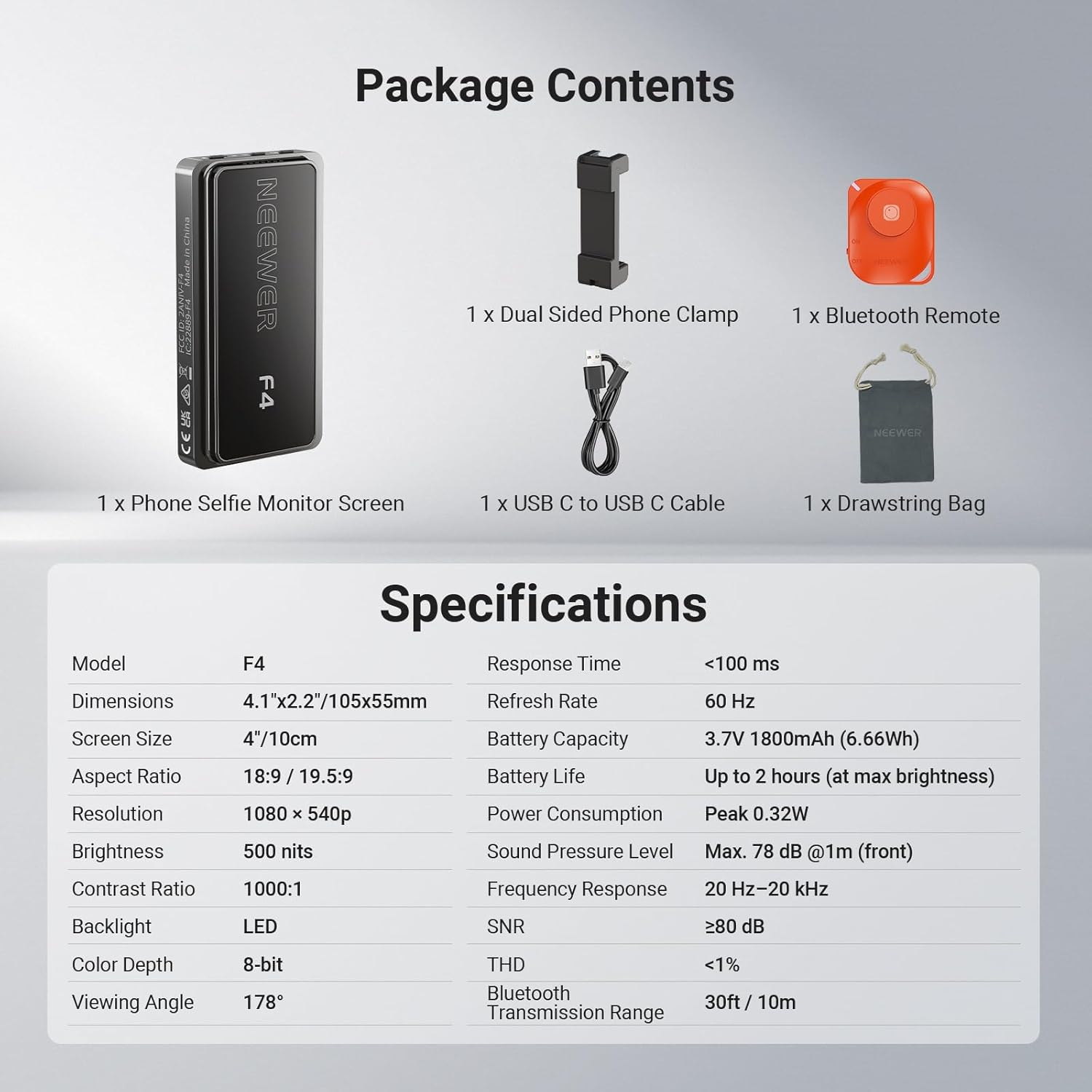
Image: Contents of the NEEWER F4 package, including the monitor, phone clamp, Bluetooth remote, USB-C cable, and drawstring bag.
Produk Selesaiview
The NEEWER F4 monitor features a 4-inch HD display with 1080x540p resolution and 500 nits brightness for clear viewing. It includes a built-in speaker and an 1800mAh battery for up to 2 hours of continuous use. The device supports wireless screen mirroring and offers a 180° screen rotation function.

Imej: Selesaiview of the NEEWER F4 monitor highlighting its 4-inch display, 500 nits brightness, 1800mAh battery, built-in speaker, 1080x540 resolution, and Type-C charging port.
Persediaan
1. Mengecas Monitor
Before initial use, fully charge the monitor. Connect the provided USB-C to USB-C cable to the monitor's Type-C port and a compatible USB power source (e.g., wall adapter, power bank, computer USB port). The charging indicator will show the charging status.

Image: The NEEWER F4 monitor connected to a USB-C charging cable, illustrating the charging process and battery capacity.
2. Attaching to Your Smartphone
The monitor comes with a dual-sided phone clamp that features a magnetic mount. This clamp securely attaches the monitor to the back of your smartphone.
- Attach the dual-sided phone clamp to your smartphone, ensuring a secure fit.
- Align the NEEWER F4 monitor with the magnetic area on the phone clamp. The magnets will secure the monitor in place.
- For additional accessories like a fill light or microphone, utilize the cold shoe slot integrated into the phone clamp. Insert the accessory's cold shoe base into this slot.

Image: Illustration of the NEEWER F4 monitor attaching to a smartphone via the magnetic phone clamp, and the cold shoe installation point for accessories.
3. Wireless Connection (Screen Mirroring)
The monitor connects wirelessly to your smartphone via screen mirroring technology.
- Untuk iPhone:
- Switch the monitor's network mode button to the "W" (Wireless) mode.
- On your iPhone, go to Wi-Fi settings, search for the device's SSID (network name), and connect to it.
- Enable screen mirroring/projection on your iPhone and select the NEEWER F4 device.
- For Android Smartphones (excluding Google Pixel phones):
- Switch the monitor's network mode button to the "D" (Direct) mode.
- On your Android phone, turn on Wi-Fi.
- Enable screen mirroring/projection (often found as "Smart View," "Cast," "Wireless Display," etc.) and select the NEEWER F4 device.
Note: The NEEWER F4 is not compatible with Google Pixel phones for wireless mirroring.

Image: Step-by-step guide for connecting the NEEWER F4 monitor to both iPhone and Android devices via Wi-Fi screen mirroring.
Arahan Operasi
1. Basic Monitor Functions
- Hidupkan/Mati Kuasa: Press and hold the Power button located on the side of the monitor.
- Putaran Skrin: A single click of the Power/Screen rotation button will rotate the display 180°, eliminating inverted images.
- Pelarasan Kecerahan: Use the Brightness Adjustment button to cycle through 3 brightness levels (30%, 65%, 100%) to suit your environment. The 500 nits brightness ensures clear viewing even in strong light.
- Suis Mod Rangkaian: Use the Network Mode Switch Button to toggle between "W" (Wireless for iPhone) and "D" (Direct for Android) modes.

Image: The NEEWER F4 monitor displaying real-time phone screen mirroring, highlighting its wireless capability and built-in speaker.

Image: Close-up of the NEEWER F4 monitor's side buttons (Power/Screen rotation, Brightness Adjustment, Network Mode Switch) and an illustration of 180° screen rotation.
2. Using the Bluetooth Remote (RT-116)
The included RT-116 Wireless Bluetooth Remote allows you to control your phone's camera functions remotely, such as taking photos or starting/stopping video recording.
- Ensure the remote has a battery installed (pre-installed).
- Hidupkan alat kawalan jauh.
- On your smartphone, enable Bluetooth and pair with the "RT-116" remote.
- Once paired, you can use the remote to trigger your phone's camera shutter or start/stop video recording from up to 33ft (10m) away.

Image: The NEEWER F4 monitor in use with a smartphone, accompanied by the RT-116 Wireless Bluetooth Remote, showing its transmission range and compatibility.
Penyelenggaraan
- Bersihkan skrin dengan kain lembut dan tidak berbulu. Jangan gunakan pembersih atau pelarut yang melelas.
- Store the monitor in the provided drawstring bag when not in use to protect it from dust and scratches.
- Ensure the USB-C port is free from dust and debris to maintain proper charging.
- Elakkan daripada menjatuhkan peranti atau terkena impak yang kuat.
Menyelesaikan masalah
| Masalah | Kemungkinan Punca | Penyelesaian |
|---|---|---|
| Monitor tidak dihidupkan. | Bateri lemah atau butang kuasa tidak ditekan dengan betul. | Charge the monitor fully. Press and hold the power button for a few seconds. |
| No screen mirroring/connection. | Incorrect network mode, Wi-Fi not enabled, or phone not compatible. | Ensure the monitor is in the correct "W" (iPhone) or "D" (Android) mode. Verify Wi-Fi is on and screen mirroring is enabled on your phone. Confirm your phone is not a Google Pixel device. |
| Screen image is inverted. | Screen rotation setting. | Press the Power/Screen rotation button once to flip the image 180°. |
| Bluetooth remote not connecting. | Remote off, low battery, or not paired. | Ensure the remote is turned on. Check/replace remote battery. Pair the remote via your phone's Bluetooth settings. |
| Hayat bateri pendek. | High brightness setting or continuous use. | Reduce screen brightness. Battery life is up to 2 hours at maximum brightness. Recharge as needed. |
Spesifikasi
| Ciri | Perincian |
|---|---|
| Model | F4 |
| Dimensi | 4.1" x 2.2" / 105 x 55mm |
| Saiz Skrin | 4 Inci / 10cm |
| Nisbah Aspek | 18:9 / 19.5:9 |
| Resolusi | 1080 x 540p |
| Kecerahan | 500 nits |
| Nisbah Kontras | 1000:1 |
| Lampu latar | LED |
| Kedalaman Warna | 8-bit |
| Viewsudut | 178° |
| Masa Tindak Balas | <100 ms |
| Kadar Segar Semula | 60 Hz |
| Kapasiti Bateri | 3.7V 1800mAh (6.66Wj) |
| Hayat Bateri | Up to 2 hours (at max brightness) |
| Penggunaan Kuasa | Puncak 0.32W |
| Tahap Tekanan Bunyi | Max. 78 dB @1m (front) |
| Respons Kekerapan | 20 Hz – 20 kHz |
| SNR | ≥80 dB |
| THD | <1% |
| Julat Penghantaran Bluetooth | 30 kaki / 10m |
Waranti dan Sokongan
The NEEWER F4 Selfie Monitor Screen comes with a Waranti Pengeluar 1 Tahun. For warranty claims, technical support, or service inquiries, please contact NEEWER customer support through their official webtapak atau peruncit tempat produk itu dibeli. Sila simpan bukti pembelian anda untuk pengesahan waranti.
For additional resources and product information, visit the official NEEWER store: Kedai NEEWER