
1. Persediaan
1.1 Membuka Kotak dan Kandungan Pakej
Keluarkan semua item dari bungkusan dengan berhati-hati. Pastikan semua komponen ada sebelum meneruskan pemasangan.
- TV 4K Siri 55" Roku Select
- Penyangga dan skru
- Alat Kawalan Jauh
- Manual Pengguna

Figure 1: Contents of the Roku Select Series 55-inch TV package.
1.2 Pemasangan Fizikal
The Roku Select Series TV can be installed using the included stands for table mounting or by using a compatible VESA wall mount (200 x 100 mm, sold separately).
Table Mount Installation:
- Letakkan skrin TV ke bawah pada permukaan yang lembut dan bersih untuk mengelakkan calar.
- Attach the two TV stands to the designated slots on the bottom of the TV using the provided screws. Ensure they are securely fastened.
- Angkat TV dengan berhati-hati dan letakkan pada permukaan yang stabil dan rata.
Pemasangan Dinding:
For wall mounting, refer to the instructions provided with your VESA 200 x 100 mm compatible wall mount kit. Ensure the wall can support the weight of the television (approximately 20.1 pounds without stand).

Figure 2: TV dimensions and package contents overview.
1.3 Menyambung Peranti
The TV features multiple ports for connecting external devices. Refer to the back panel diagram for port locations.

Figure 3: Rear panel connections including HDMI, USB, and network ports.
- HDMI Ports (3 total): Connect gaming consoles, Blu-ray players, soundbars, or other HDMI-enabled devices.
- USB Port (1 total): Sambungkan peranti storan USB untuk main balik media.
- Port Ethernet (LAN): Untuk sambungan internet berwayar.
- Input Antena/Kabel: Sambungkan antena untuk siaran melalui udara atau sambungan TV kabel.
- Optical (S/PDIF) Output: For digital audio output to a sound system.
1.4 Penghidupan Awal dan Sambungan Rangkaian
- Sambungkan kord kuasa ke TV dan salur keluar kuasa.
- Tekan butang kuasa pada alat kawalan jauh untuk menghidupkan TV.
- Follow the on-screen instructions to complete the initial setup, including language selection (English, Spanish, French, Portuguese are supported).
- Select your preferred network connection:
- Wi-Fi: Pilih rangkaian Wi-Fi anda daripada senarai dan masukkan kata laluan.
- Ethernet: If an Ethernet cable is connected, the TV will automatically attempt to establish a wired connection.
- The TV will guide you through linking to a Roku account, which is necessary to access streaming channels and features.
2. Arahan Operasi
2.1 Fungsi Kawalan Jauh
The included voice remote provides intuitive control over your TV. It operates via Bluetooth, eliminating the need for direct line-of-sight.

Figure 4: Roku Voice Remote layout and key functions.
- Butang Kuasa: Menghidupkan atau mematikan TV.
- Pad Arah (butang OK di tengah): Menavigasi menu dan memilih item.
- Kelantangan Naik/Turun: Melaraskan kelantangan TV.
- Butang Bisukan: Membisukan atau menyahbisukan audio TV.
- Butang Suara: Activates voice search and control.
- Main Semula Segera: Melompat ke belakang beberapa saat dalam main balik video.
- Butang TV Langsung: Accesses the live TV channel guide.
- Butang Pelancaran Pantas: Dedicated buttons for popular streaming apps (e.g., Netflix, Disney+, Apple TV, Prime Video). These can be customized for your favorite apps.
- Pencari Jauh Hilang: If the remote is misplaced, use the Roku mobile app to activate an audible alert from the remote.
2.2 Home Screen Navigation and Streaming
The Roku home screen provides quick access to all your streaming channels, inputs, and settings.
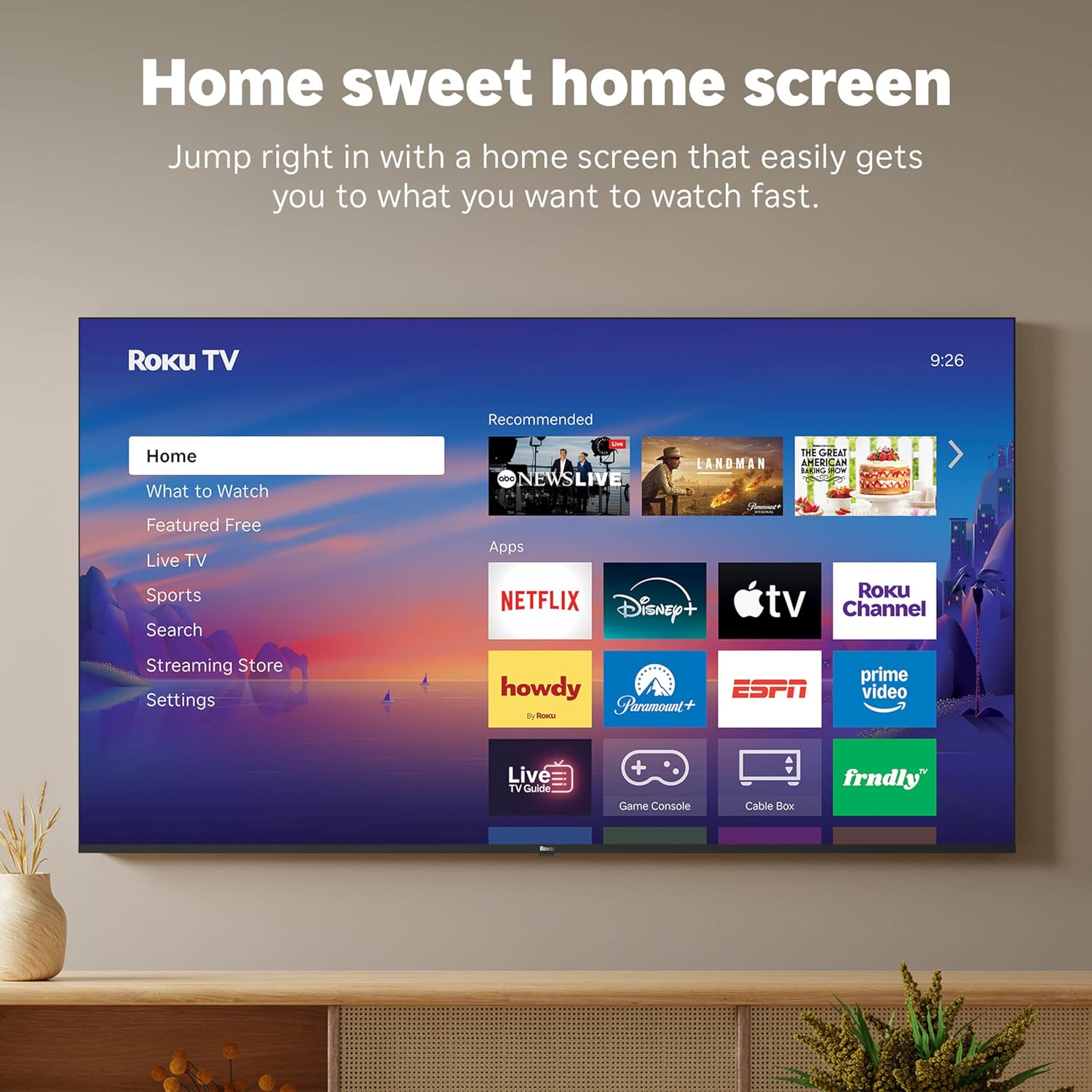
Figure 5: The Roku TV home screen interface.
- Use the directional pad on your remote to navigate through the menu options on the left side of the screen (Home, What to Watch, Live TV, Sports, Search, Streaming Store, Settings).
- Select an app icon from the main grid to launch your desired streaming service.
- The TV's fast Wi-Fi and optimized app launch ensure quick access to entertainment.
2.3 Tetapan Gambar dan Bunyi
The Roku Select Series TV offers advanced picture and sound technologies for an enhanced viewpengalaman dalam.
- 4K QLED Display: Provides sharp 4K resolution and accurate colors.
- Sokongan HDR10: Enhances contrast and color depth for compatible content.
- Gambar Pintar Roku: Automatically optimizes incoming TV signals and selects the appropriate picture mode for content.
- Audio Dolby: Delivers clear speech and enhanced sound quality through the integrated 2.1 channel speakers (20 Watts maximum output power).
- Mod Fon Kepala Bluetooth: Sambungkan fon kepala Bluetooth untuk mendengar secara peribadi tanpa mengganggu orang lain.
2.4 Kawalan Suara dan Integrasi Rumah Pintar
Control your TV and integrate it into your smart home ecosystem.

Figure 6: Roku TV's smart home compatibility.
- Roku Voice: Use the voice button on your remote to search for content, launch apps, or control playback.
- Keserasian Pembantu Pintar: The TV is compatible with Siri, Alexa, and Google Assistant for voice control through external smart devices.
- Apple AirPlay: Share videos, photos, music, and more from your Apple devices directly to your TV.
2.5 Live TV Access
Access live television channels directly from the home screen.

Figure 7: Live TV channel guide interface.
- Connect an antenna to the TV's Antenna/Cable input.
- Use the 'Live TV' option on the home screen or the dedicated button on the remote to access the channel guide.
- The TV supports ATSC tuner type for digital broadcasts.
3. Penyelenggaraan
3.1 Membersihkan TV
- Sentiasa cabut plag TV sebelum membersihkan.
- Gunakan kain lembut, kering dan bebas serabut untuk mengelap skrin dan kabinet dengan perlahan.
- Untuk tanda degil, ringankan dampen kain dengan air atau pembersih skrin yang lembut dan tidak melelas. Jangan sembur pembersih terus ke skrin.
- Avoid using harsh chemicals, abrasive pads, or solvents as they can damage the TV's finish.
3.2 Kemas Kini Perisian
The Roku TV receives automatic software updates to provide new features and improvements. Ensure your TV is connected to the internet to receive these updates.
4. Penyelesaian masalah
If you encounter issues with your Roku TV, consider the following basic troubleshooting steps:
- Tiada Kuasa: Pastikan kord kuasa dipasang dengan selamat pada kedua-dua TV dan salur keluar elektrik yang berfungsi. Cuba kedai lain.
- Tiada Gambar/Bunyi: Verify that the correct input source is selected. Check all cable connections (HDMI, antenna, etc.) for looseness.
- Jauh Tidak Menjawab: Replace the AAA batteries in the remote control. Ensure there are no obstructions between the remote and the TV (though Bluetooth reduces this issue). Re-pair the remote if necessary (refer to Roku support documentation).
- Isu Sambungan Rangkaian: Pergi ke Tetapan > Rangkaian > Semak sambungan to diagnose network problems. Restart your router and modem.
- Apl Tidak Memuatkan/Ranap: Try restarting the app. If the issue persists, remove the app and reinstall it from the Streaming Store.
- Kualiti Gambar Lemah: Check your internet speed for streaming content. For broadcast TV, adjust your antenna. Ensure the TV's picture settings are appropriate for the content being viewed.
For more detailed troubleshooting or persistent issues, visit the Roku support website or consult the full User Manual PDF available online.
5. Spesifikasi
| Ciri | Perincian |
|---|---|
| Nama Model | Roku 55" Select Series 4K |
| Nombor Model | 55R5D5 |
| Saiz Skrin | 55 Inci |
| Teknologi Paparan | 4K UHD, LED, QLED |
| Resolusi | 4K (3840 x 2160) |
| Kadar Segar Semula | 60 Hz |
| Format HDR Disokong | HDR10, HDR10+, HLG |
| Picture Quality Enhancement | 4K, Roku Smart Picture |
| Kuasa Output Audio | 20 Watt |
| Integrated Surround Sound | Audio Dolby |
| Teknologi Ketersambungan | Bluetooth, Ethernet, USB C, Wi-Fi |
| Port HDMI | 3 |
| Port USB | 1 |
| Sistem Operasi | OS Roku |
| Kawalan Suara | Roku Voice, Siri, Alexa, Google Assistant |
| Pencerminan Skrin | AirPlay 2, Miracast |
| Dimensi Produk (D x W x H) | 12.7"D x 48.3"W x 30.5"H |
| Berat Barang | 20.5 paun |
| Pemasangan VESA Standard | 200 x 100 mm |
| Penggunaan Kuasa | 160 watt |
| UPC | 829610009322 |
6. Waranti dan Sokongan
6.1 Waranti Terhad
Roku warrants the hardware of this device against defects in materials and workmanship under normal use for a period of satu (1) tahun from the date of purchase (“Warranty Period”), provided it is used in accordance with the provided documentation.
If Roku determines that the device’s hardware is defective during the Warranty Period, Roku’s sole obligation, and your exclusive remedy, will be to either repair or replace the unit with either a new or rebuilt device, at its option.
Important information about warranty returns and replacements is available on the Roku support site.
6.2 Pemulangan Produk
You may return a device for any reason, subject to the terms of the applicable return policy:
- Within thirty (30) days from the date of purchase from Roku.
- Within the applicable return period if purchased from an authorized reseller or distributor.
Additional details regarding product returns can be found on the Roku support site.
6.3 Sokongan Tambahan
For further assistance, including detailed guides and FAQs, please refer to the official Roku support website. A downloadable PDF version of the User Manual is also available for reference: Manual Pengguna (PDF).