
1. Pengenalan
Thank you for choosing the Pisichen 27-inch 4K UHD Touchscreen Monitor with Webcam. This manual provides essential information for the safe and efficient operation of your new monitor. Please read it thoroughly before use and retain it for future reference.
2. Maklumat Keselamatan
- Sumber Kuasa: Use only the power adapter supplied with the monitor. Ensure the power outlet meets the voltage keperluan.
- Pengudaraan: Jangan sekat bukaan pengudaraan. Benarkan ruang yang mencukupi di sekeliling monitor untuk aliran udara yang betul.
- Pendedahan Cecair: Jauhkan monitor daripada cecair. Jangan dedahkannya kepada hujan atau lembapan.
- Pembersihan: Disconnect the power cable before cleaning. Use a soft, dry cloth. Avoid abrasive cleaners.
- penempatan: Letakkan monitor pada permukaan yang stabil dan rata untuk mengelakkannya daripada jatuh.
- Servis: Jangan cuba servis monitor sendiri. Rujuk semua servis kepada kakitangan yang berkelayakan.
3. Kandungan Pakej
Sila semak kandungan bungkusan semasa membuka bungkusan. Jika terdapat barang yang hilang atau rosak, hubungi peruncit anda.
- Pisichen 27-inch 4K UHD Touchscreen Monitor
- Stand Monitor (Tapak dan Lengan)
- Penyesuai Kuasa
- Kabel HDMI
- USB-B to USB-A Cable (for Touch Function)
- Manual Pengguna
4. Produk Lebihview
4.1 Ciri-ciri Utama
- Ultra HD 4K Touchscreen Display: 27-inch 4K Ultra HD screen with vibrant colors, sharp details, and wide viewing angles. Features a responsive 10-point touchscreen for intuitive control.
- Built-in High-Definition Webcam: Bersepadu webcam for video calls, online meetings, and streaming, reducing desk clutter.
- Ketersambungan Serbaguna: Multiple ports including HDMI, DisplayPort, and USB-C for easy connections to various devices. Supports both touch and traditional input.
- Optimized for Productivity and Creativity: Large 4K touch display for precise control and streamlined workflows, ideal for graphic designers, content creators, and multitasking.
- Sleek and Functional Design: Modern design with an adjustable stand for optimal viewing angles and comfort during extended use.
4.2 Memantau Pelabuhan
The monitor features various ports for connecting to your devices. Refer to the image below for port identification.
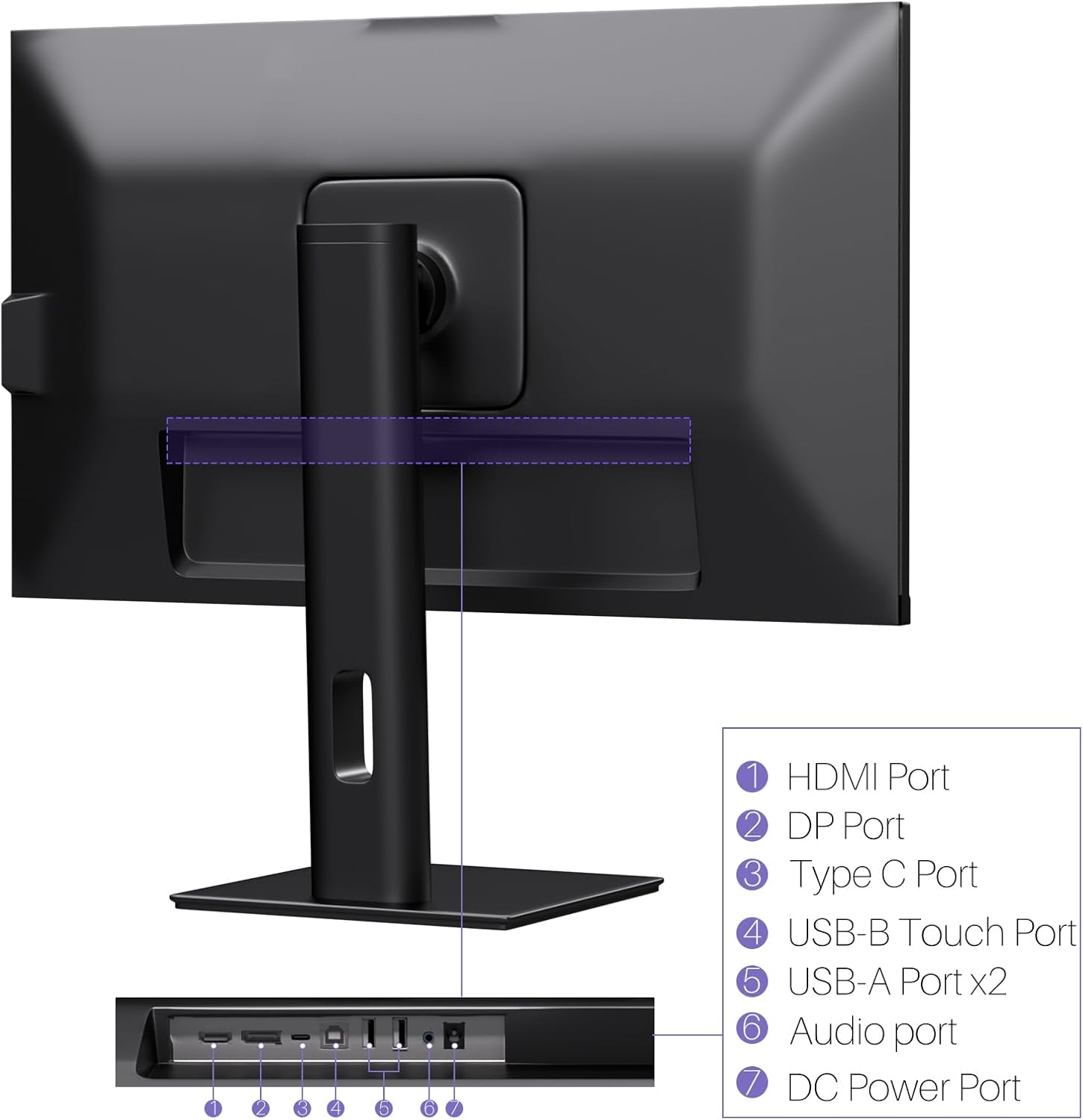
Imej: Belakang view of the monitor displaying the HDMI, DP, Type-C, USB-B Touch, USB-A, Audio, and DC Power ports.
- Port HDMI: Connects to devices via HDMI cable for video and audio input.
- Port DP: Connects to devices via DisplayPort cable for video and audio input.
- Pelabuhan Jenis-C: Connects to devices via USB-C cable for video, audio, and power delivery. (Requires USB-C port on signal device to support DisplayPort Alternate Mode for touch functionality).
- USB-B Touch Port: Connects to your computer via USB-B to USB-A cable to enable touchscreen functionality.
- Port USB-A (x2): Untuk menyambungkan peranti USB.
- Port Audio: Untuk menyambungkan peranti audio luaran.
- Port Kuasa DC: Menyambung kepada penyesuai kuasa.
5. Arahan Persediaan
5.1 Memasang Pendirian
- Keluarkan komponen monitor dan berdiri dengan berhati-hati daripada pembungkusan.
- Attach the stand arm to the monitor's VESA mounting points.
- Secure the stand base to the arm using the provided screws.
- Ensure all connections are tight and the monitor is stable.
5.2 Menyambung ke Peranti
The monitor supports various connection types. Choose the appropriate cable for your device.

Image: Connection diagrams illustrating how to connect the monitor as a secondary display (HDMI/DP + DC), a touchscreen monitor (HDMI/DP + USB-B + DC), or via USB-C (USB-C + DC).
- For Video and Audio (Non-Touch): Sambungkan kabel HDMI atau DisplayPort daripada komputer anda ke port yang sepadan pada monitor.
- For Video, Audio, and Touch (Windows PC): Connect an HDMI or DisplayPort cable for video/audio. Additionally, connect the USB-B to USB-A cable from the monitor's USB-B Touch Port to a USB-A port on your computer.
- For Video, Audio, and Touch (USB-C Compatible Device): Connect a USB-C cable from your device to the monitor's Type-C port. Ensure your device's USB-C port supports DisplayPort Alternate Mode for touch functionality.
5.3 Sambungan Kuasa
- Connect the power adapter to the monitor's DC Power Port.
- Palamkan penyesuai kuasa ke salur keluar dinding.
6. Arahan Operasi
6.1 Hidupkan/Mati Kuasa
Press the power button located on the monitor to turn it on or off.
6.2 Menu Paparan Pada Skrin (OSD).
Use the control buttons (typically located on the back or bottom of the monitor) to navigate the OSD menu. This menu allows you to adjust settings such as brightness, contrast, color temperature, input source, and other display parameters.
6.3 Kefungsian Skrin Sentuh
The monitor features a 10-point multi-touch screen. Ensure the USB-B to USB-A cable (or USB-C cable for compatible devices) is connected to enable touch functionality.

Image: A user's hand interacting with the monitor screen, highlighting the responsive 10-point touch experience.
- Sentuhan Asas: Tap to click, swipe to scroll.
- Gerak Isyarat Berbilang Sentuh: Use two fingers to zoom in/out, rotate, or pan, depending on the application.
- Touch Calibration (Windows Only): If the cursor does not align with your touch, calibration may be required. Go to Control Panel > Hardware and Sound > Tablet PC Settings > Calibrate. Follow the on-screen prompts.
6.4 Using the Built-in Webcam
Yang bersepadu webcam is automatically detected by most operating systems and video conferencing applications. No additional drivers are typically required.

Image: The monitor displaying a video conference call, showcasing its integrated webcam for seamless communication.
- Open your preferred video conferencing software (e.g., Zoom, Microsoft Teams, Skype).
- Select the integrated webcam as your video input device in the application's settings.
6.5 Adjusting Display Resolution
To set the resolution of the monitor (Windows):
- Klik kanan pada desktop anda dan pilih "Tetapan Paparan".
- Find your monitor (if multiple displays are connected).
- Under "Display resolution," select the recommended resolution of 3840 x 2160.
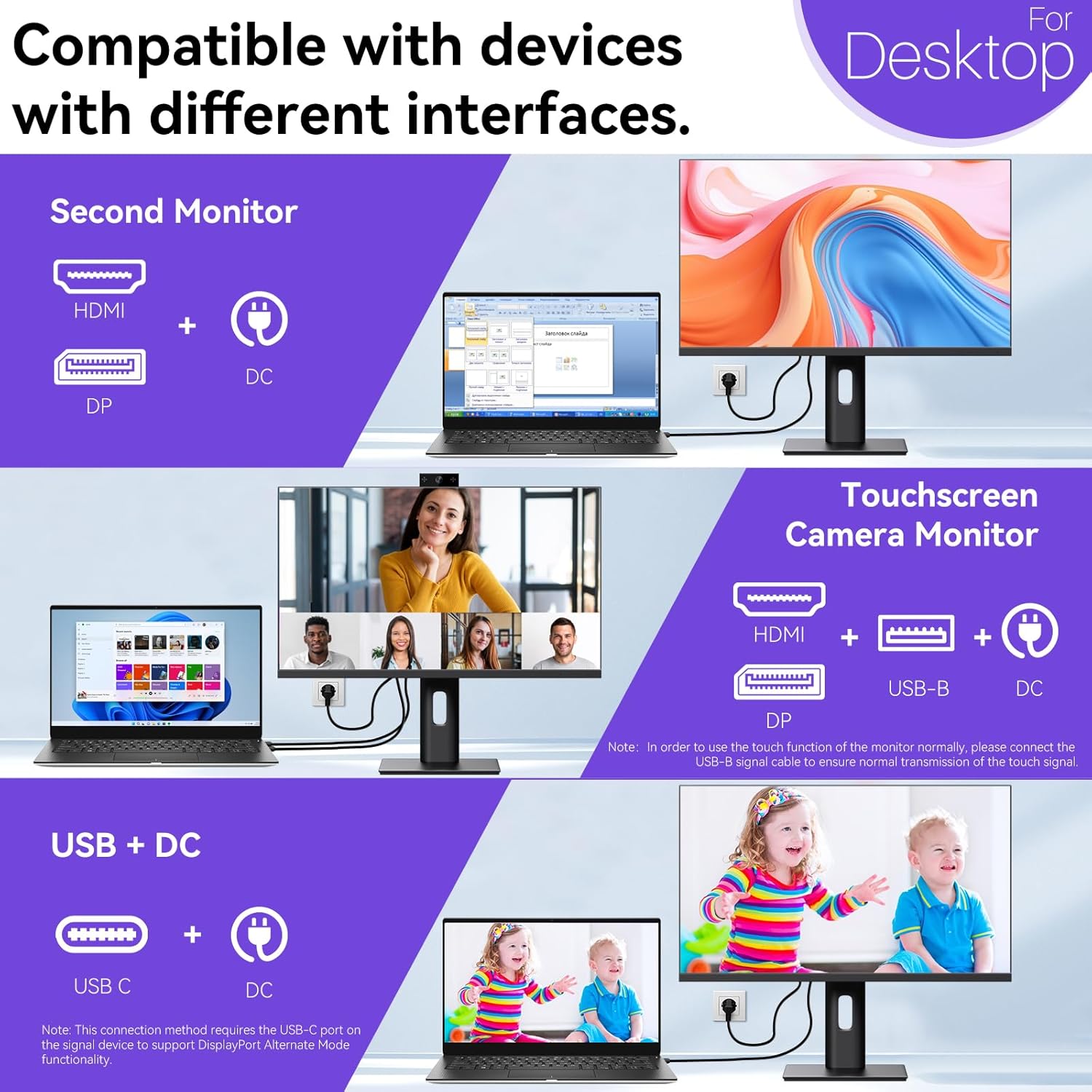
Image: A visual comparison demonstrating the superior clarity of 4K UHD (3840x2160) compared to FHD (1920x1080) and QHD (2560x1440) resolutions.
7. Penyelenggaraan
- Membersihkan Skrin: Lap skrin perlahan-lahan dengan kain lembut yang tidak berbulu. Untuk tanda degil, ringankan dampen kain dengan air atau penyelesaian pembersihan khusus skrin. Jangan sembur cecair terus ke skrin.
- Membersihkan Casing: Gunakan kain lembut dan kering untuk membersihkan monitor casing.
- Storan: If storing the monitor for an extended period, disconnect it from power, pack it in its original packaging, and store it in a cool, dry place.
8. Penyelesaian masalah
If you encounter issues with your monitor, refer to the following troubleshooting guide. For problems not listed, please contact customer support.
| Masalah | Kemungkinan Punca | Penyelesaian |
|---|---|---|
| Tiada gambar di skrin | Kabel kuasa diputuskan; Kabel video diputuskan; Sumber input salah dipilih. | Ensure power cable is securely connected. Check video cable (HDMI/DP/USB-C) connections. Select correct input source via OSD menu. |
| Skrin sentuh tidak bertindak balas | USB-B cable not connected; USB-C port not supporting DisplayPort Alternate Mode; Device incompatibility (e.g., iPhone). | Ensure the USB-B to USB-A cable is connected from the monitor to your computer. If using USB-C, verify your device's USB-C port supports DisplayPort Alternate Mode. Note: Touch function is not supported when connected to an iPhone due to iOS system restrictions. |
| Cursor moves incorrectly (Windows) | Touchscreen calibration required. | Perform touchscreen calibration: Go to Control Panel > Hardware and Sound > Tablet PC Settings > Calibrate. |
| Webcam tidak dikesan | USB connection issue; Software settings. | Ensure all necessary USB cables are connected. Check your application's settings to select the correct webcam. |
9. Spesifikasi
| Ciri | Perincian |
|---|---|
| Jenama | Pisichen |
| Nombor Model | 27INTSCMR-4K |
| Saiz Skrin | 27 Inci |
| Resolusi | 3840 x 2160 Piksel (4K UHD 2160p) |
| Nisbah Aspek | 16:9 |
| Kecerahan Imej | 400 Candela |
| Penerangan Permukaan Skrin | Berkilat |
| Dimensi Produk | 14.37 x 24.21 x 16.54 inci |
| Berat Barang | 16.59 paun |
| Pengeluar | Shenzhen Konowa Electronics Co., LTD |
| Ketersambungan | HDMI, DisplayPort, USB-C, USB-B (for touch), USB-A (x2), Audio Port |
10. Waranti dan Sokongan
This product comes with a manufacturer's warranty. Please refer to the warranty card included in your package for specific terms and conditions. For technical support or inquiries, please contact Pisichen customer service at support_2308@163.com. When contacting support, please provide your model number and a detailed description of the issue, including any relevant pictures or videos.