
1. Persediaan
1.1 Kandungan Pakej
- AULA MINI60 HE PRO Keyboard
- Kabel USB-C
- Penarik Kekunci
- Manual Pengguna (dokumen ini)
1.2 Pilihan Kesambungan
The AULA MINI60 HE PRO supports three connection modes: Bluetooth 5.0, 2.4GHz wireless, and USB-C wired. Use the switch on the keyboard to select your preferred mode.

Image: Tri-mode connectivity options for the AULA MINI60 HE PRO keyboard.
Sambungan Berwayar USB-C:
- Sambungkan kabel USB-C yang disediakan ke port USB-C papan kekunci.
- Sambungkan hujung kabel yang lain ke port USB yang tersedia pada komputer anda.
- Ensure the mode switch on the keyboard is set to 'Wired' or 'USB-C'.
Sambungan Wayarles 2.4GHz:
- Insert the 2.4GHz USB dongle into an available USB port on your computer.
- Ensure the mode switch on the keyboard is set to '2.4G'.
- The keyboard should automatically connect. If not, refer to the troubleshooting section.
Sambungan Bluetooth 5.0:
- Ensure the mode switch on the keyboard is set to 'BT'.
- On your device (PC, Mac, tablet, smartphone), enable Bluetooth and search for new devices.
- Select 'AULA MINI60 HE PRO' from the list of available devices to pair.
1.3 Mengecas Papan Kekunci
The keyboard is equipped with a 4000mAh battery. Connect the USB-C cable to the keyboard and a power source (e.g., computer USB port, USB wall adapter) to charge. The RGB lighting may indicate charging status.
1.4 Web-Based Driver Setup
The AULA MINI60 HE PRO utilizes a web-based driver for customization. This eliminates the need for software downloads and ensures compatibility across various operating systems (Windows, macOS, Linux).
- Buka a web penyemak imbas pada peranti anda yang disambungkan.
- Navigate to the official AULA web driver portal (refer to product packaging or official webtapak untuk yang tepat URL).
- The interface allows for key remapping, macro creation, RGB lighting customization, and performance adjustments.
Imej: Web-based driver interface for keyboard customization.
2. Arahan Operasi
2.1 Ciri-ciri Utama
Hall Effect Magnetic Switches:
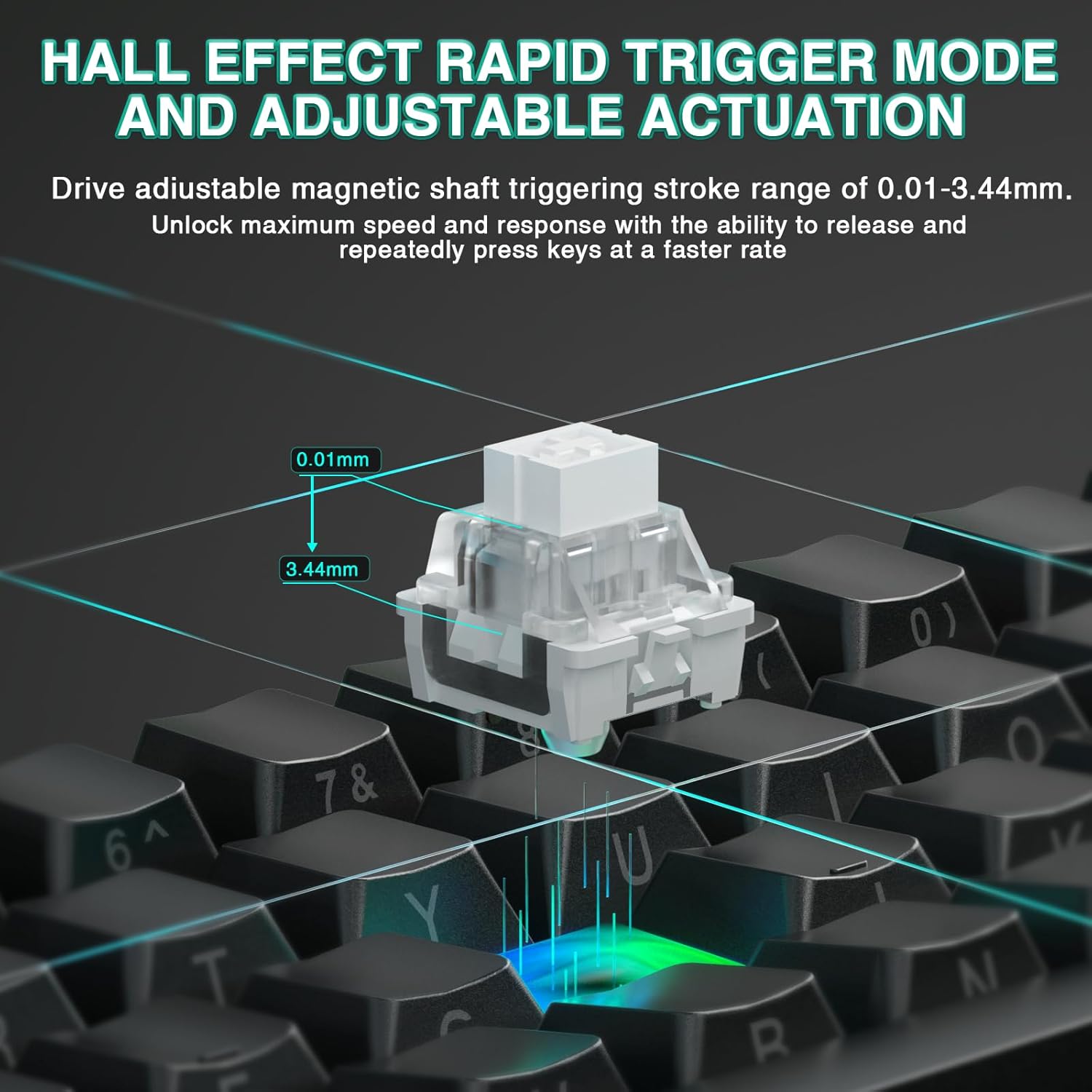
The keyboard features advanced Hall Effect magnetic switches, providing precise and consistent actuation. These switches offer adjustable actuation points and rapid trigger mode for enhanced responsiveness.
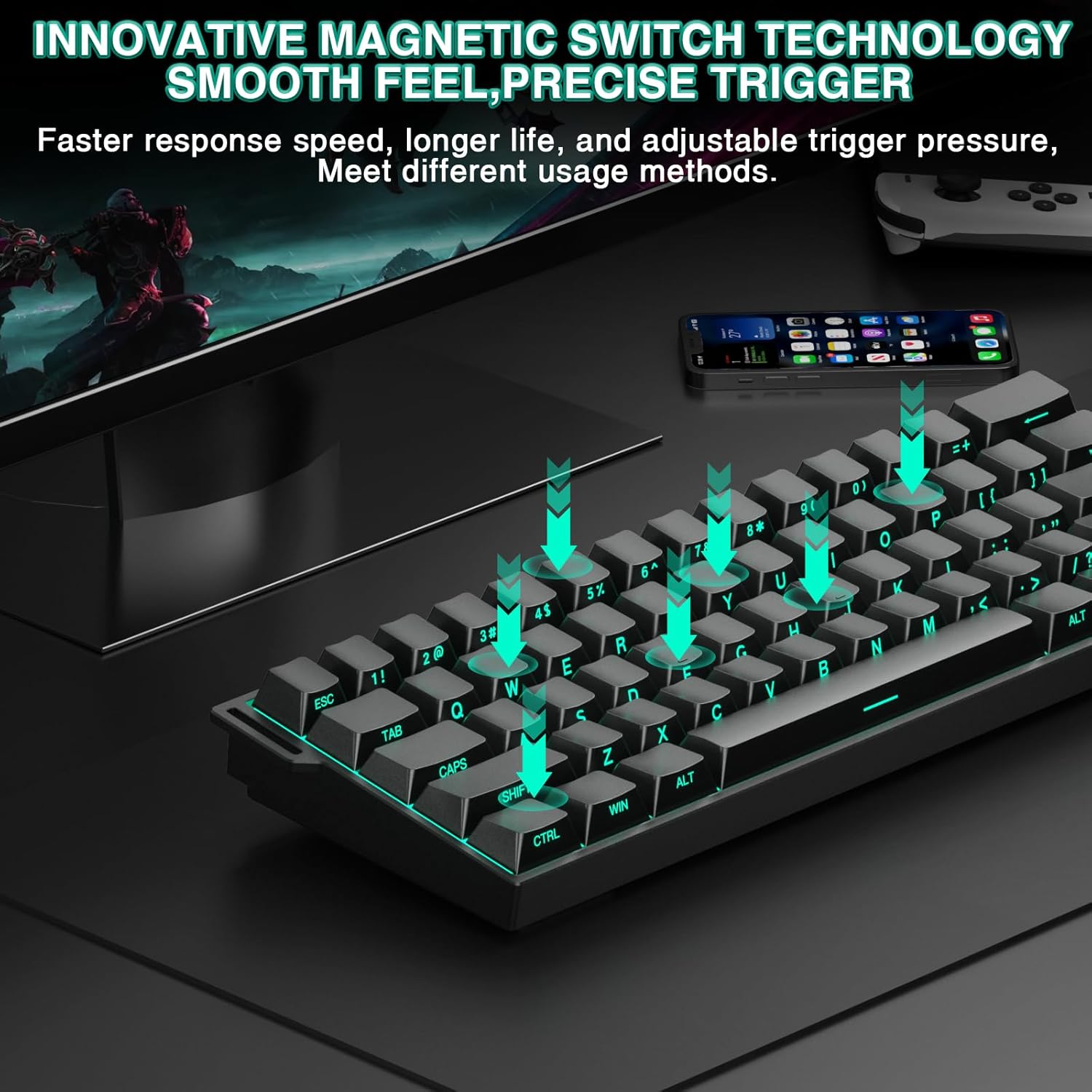
Image: Illustration of magnetic switch technology.
Adjustable Actuation & Rapid Trigger Mode:
Customize the actuation distance of each key from 0.01mm to 3.44mm using the web driver. Rapid Trigger mode allows keys to reactivate instantly upon reset, enabling faster repeated inputs. The ultra-low RT step distance of 0.01mm ensures quick response times.

Image: Hall Effect magnetic switch with adjustable actuation.
8000 Hz Polling Rate:
The keyboard supports an 8000 Hz polling rate, providing ultra-fast response times and minimal input lag for competitive gaming.
60% Compact Design:
The MINI60 HE PRO features a compact 60% layout, optimizing desk space while retaining essential functionality. This design is suitable for various uses, including gaming, work, and travel.

Image: The 60% compact design of the keyboard.
2.2 Pencahayaan RGB Dinamik
The keyboard offers 19 RGB backlight effects and 16.8 million customizable colors. The lower light position design illuminates side-printed PBT keycaps.
RGB Control Shortcuts:
- FN + Space: Turn RGB lighting ON/OFF.
- FN + [: Decrease lighting speed.
- FN + ]: Increase lighting speed.
- FN + Alt (Kanan): Switch lighting effect mode.
- FN + Ctrl (Kanan): Switch lighting effect color.
- FN + Anak Panah Atas: Increase light brightness.
- FN + Anak Panah Bawah: Decrease light brightness.
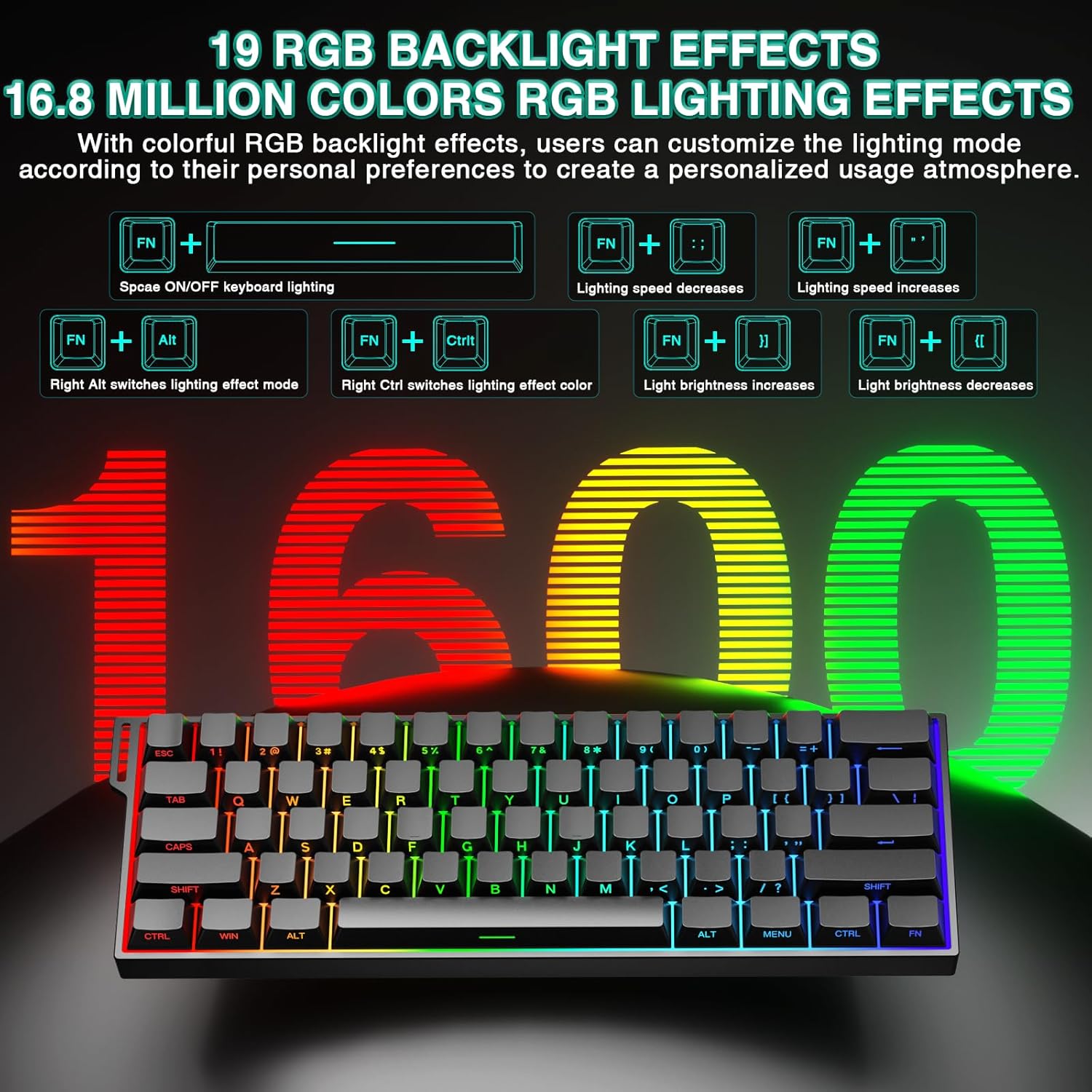
Image: RGB lighting effects and control shortcuts.
2.3 Reka Bentuk Boleh Tukar Panas
The keyboard features full-key hot-swappable sockets, allowing for easy replacement of switches without soldering. This enables customization with most 2-pin magnetic switches on the market.
2.4 Sound-Dampening Padding
Internal sound-dampening foam and other layers are integrated to reduce switch noise and improve the acoustic profile daripada papan kekunci.
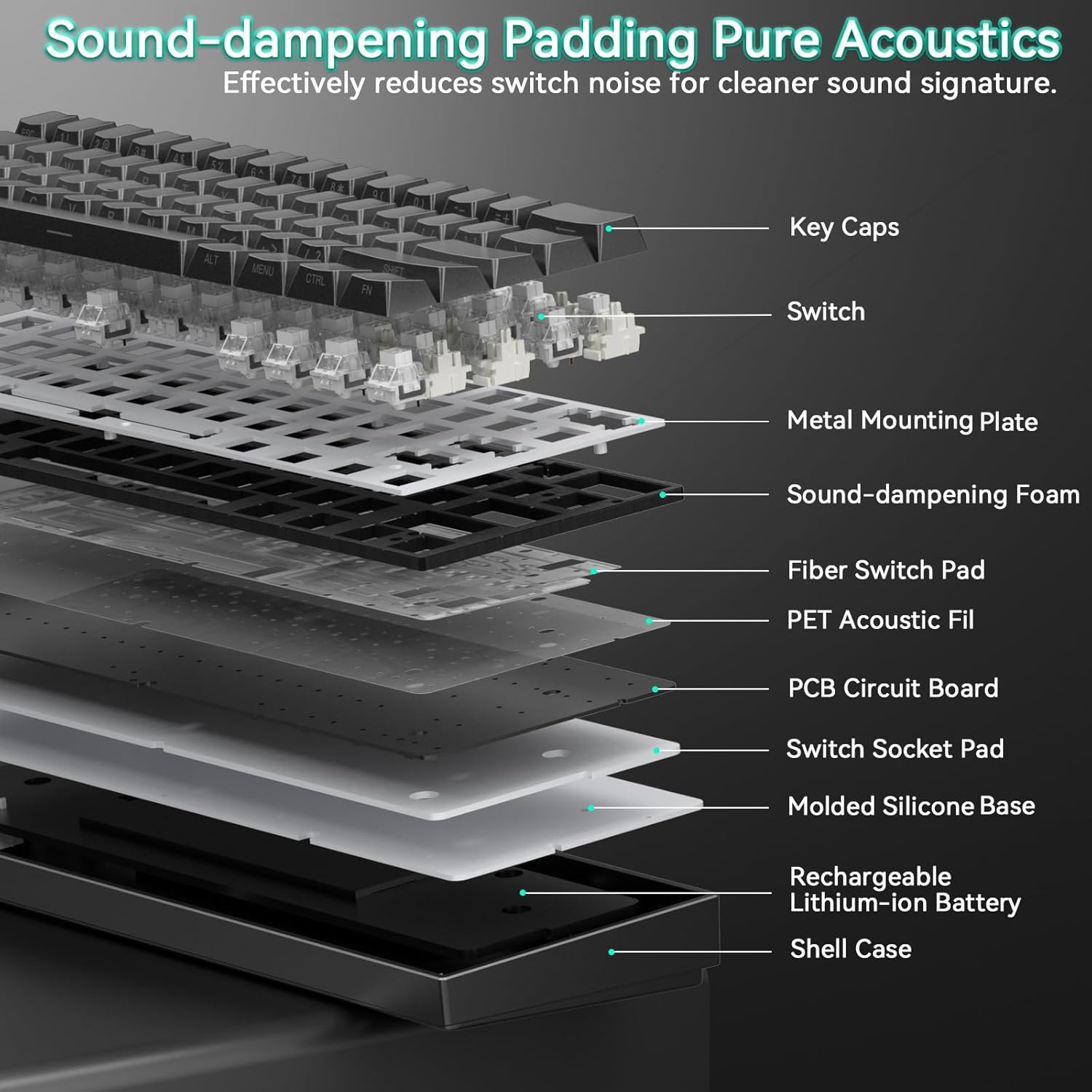
Image: Internal structure showing sound-damplapisan ening.
2.5 Produk Selesaiview Video
Video: Tamatview of the AULA Mini60 HE Gaming Keyboard, highlighting its Hall Effect Magnetic Switches and various features. This video is provided by CORBOBO Direct.
3. Penyelenggaraan
3.1 Membersihkan Papan Kekunci
To maintain optimal performance and appearance, regularly clean your keyboard:
- Putuskan sambungan papan kekunci daripada semua sumber kuasa sebelum membersihkannya.
- Gunakan kain lembut dan tidak berbulu sedikit dampdibasahkan dengan air atau larutan pembersih lembut untuk mengelap penutup kekunci dan casis. Elakkan kelembapan berlebihan.
- Untuk habuk dan serpihan di antara penutup kekunci, gunakan udara termampat.
- Do not use harsh chemicals, abrasives, or solvents, as these may damage the keyboard's finish or keycap legends.
3.2 Penggantian Kekunci dan Suis
The hot-swappable design allows for easy replacement of keycaps and switches.
- Use the provided keycap puller to gently remove keycaps. Grip the keycap firmly and pull straight up.
- Once the keycap is removed, use a switch puller (not included, but commonly available) to carefully extract the switch from its socket.
- Align the pins of the new switch with the holes in the PCB socket and press down gently until it clicks into place. Ensure the switch is seated correctly to avoid bending pins.
- Place the desired keycap onto the new switch stem and press down firmly.
4. Penyelesaian masalah
4.1 Papan Kekunci Tidak Bertindak Balas
- Semak Sambungan: Ensure the keyboard is properly connected via USB-C, 2.4GHz dongle, or Bluetooth. Verify the mode switch is set correctly.
- Tahap Bateri: If using wireless modes, check the battery level. Connect the keyboard via USB-C to charge.
- Mulakan semula Peranti: Cuba mulakan semula komputer atau peranti anda.
- Pemacu/Perisian: Akses ke web-based driver to ensure no conflicting settings or profiles aktif.
4.2 Isu Pencahayaan RGB
- Brightness/Mode: Use the FN key combinations (FN + Space, FN + Up/Down Arrow, FN + Right Alt, FN + Right Ctrl) to adjust brightness and switch lighting modes/colors.
- Web Pemandu: Customize lighting effects and settings through the web-pemandu berasaskan.
4.3 Kekunci Tidak Mendaftar atau Menaip Dua Kali
- Semakan Suis: If a specific key is affected, gently remove the keycap and inspect the switch for any visible damage or debris. Consider replacing the switch if it's faulty.
- Actuation Settings: Dalam web driver, check the actuation distance settings. Extremely low actuation points might cause unintended triggers.
- Kemas kini Firmware: Semak web driver for any available firmware updates for the keyboard.
5. Spesifikasi
| Ciri | Perincian |
|---|---|
| Nombor Model | MINI60 HE |
| Jenama | CORBOBO |
| Teknologi Ketersambungan | Tanpa Wayar 2.4G, Bluetooth 5.0, Berwayar USB-C |
| Penerangan Papan Kekunci | Hall Effect Keyboard, Magnetic Switch Rapid Trigger Mechanical Gaming Keyboard Wireless |
| Ciri Khas | Hall Effect Keyboard, Hot-Swappable, Magnetic Switch Keyboard, Rapid Trigger Keyboard, Side-Printed PBT Keycaps, RGB Backlit |
| Peranti Serasi | Konsol Permainan, Komputer Riba, PC, Telefon Pintar, Tablet |
| Sokongan Warna Lampu Latar Papan Kekunci | RGB (16.8 juta warna) |
| bahan | plastik |
| Berat Barang | 2.38 paun |
| Dimensi Pakej | 13.54 x 6.69 x 2.24 inci |
| Bateri | Bateri 1 x 9V (termasuk) |
| Pengeluar | AULA |
6. Waranti & Sokongan
6.1 Maklumat Waranti
Please refer to the product packaging or the official CORBOBO website for detailed warranty terms and conditions. Typically, products come with a limited manufacturer's warranty covering defects in materials and workmanship.
6.2 Sokongan Pelanggan
For technical assistance, troubleshooting, or warranty claims, please contact CORBOBO customer support through their official website or the retailer where the product was purchased. Keep your proof of purchase handy when contacting support.