
pengenalan
This manual provides detailed instructions for the setup, operation, maintenance, and troubleshooting of your Pisichen 24-inch Touchscreen Monitor with Built-in Webcam (Model 238TS-CMR). This monitor features a 2K QHD (2560x1440) resolution display with a 100Hz refresh rate, 10-point multi-touch functionality, and an integrated pop-up webcam, designed to enhance your productivity and interactive experience.
Maklumat Keselamatan
- Sentiasa letakkan monitor di atas permukaan yang stabil dan rata untuk mengelakkan terjatuh secara tidak sengaja.
- Jangan dedahkan monitor kepada hujan, kelembapan atau suhu yang melampau.
- Elakkan menyekat bukaan pengudaraan untuk mengelakkan terlalu panas.
- Gunakan hanya penyesuai kuasa yang dibekalkan bersama monitor.
- Disconnect the power cable from the outlet before cleaning or if the monitor will be unused for an extended period.
- Jangan cuba membuka atau membaiki monitor sendiri. Rujuk semua servis kepada kakitangan yang berkelayakan.
Kandungan Pakej
Sila pastikan semua item ada dalam pakej anda:
- Pisichen 24-inch Touchscreen Monitor (Model 238TS-CMR)
- Stand Monitor (Tapak dan Lengan)
- Penyesuai Kuasa dan Kabel
- Kabel HDMI
- Kabel USB-C ke USB-C
- USB-A to USB-B Cable (for touch functionality with non-USB-C devices)
- Manual Pengguna (dokumen ini)
Persediaan
1. Perhimpunan Berdiri
- Keluarkan monitor dari pembungkusannya dengan berhati-hati dan letakkannya menghadap ke bawah di atas permukaan yang lembut dan bersih untuk mengelakkan calar.
- Attach the stand arm to the back of the monitor using the provided screws.
- Connect the stand base to the stand arm and secure it with the designated screw.
- Once assembled, carefully lift the monitor and place it upright on your desk.

Figure 1: Monitor stand assembly and adjustment capabilities.
2. Menyambung ke Peranti Anda
The monitor supports multiple connection types. Choose the appropriate cable for your device.
- Sambungan Kuasa: Connect the power adapter to the monitor's DC power port and then plug it into a power outlet.
- USB-C Connection (Recommended for full functionality): If your device has a USB-C port that supports DisplayPort Alternate Mode, connect the monitor using the provided USB-C to USB-C cable. This single cable can transmit video, audio, and touch signals, and may also provide power delivery to your laptop.
- HDMI or DisplayPort Connection: Connect an HDMI or DisplayPort cable from your device to the corresponding port on the monitor for video and audio. For touch functionality, you must also connect the USB-A to USB-B cable from your device's USB port to the monitor's USB-B upstream port.
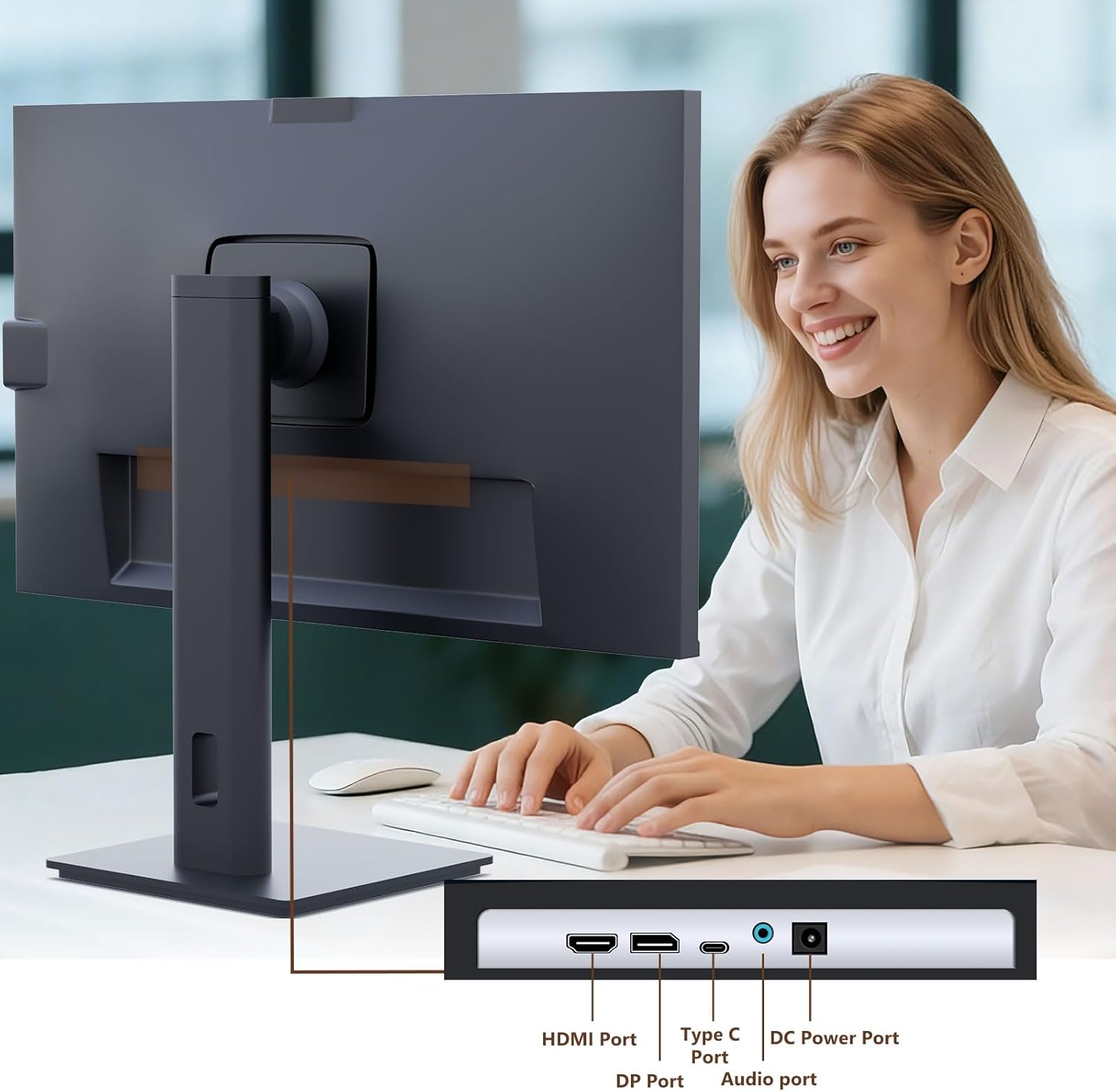
Figure 2: Available ports on the Pisichen monitor.

Figure 3: USB-C one-cable connection for simplified setup.

Figure 4: Connection options for desktop and laptop devices.
3. Kuasa Awal Hidup
Press the power button located on the monitor to turn it on. The monitor will automatically detect the active input source. If multiple sources are connected, you may need to select the correct input via the On-Screen Display (OSD) menu.
Arahan Operasi
1. Touchscreen Functionality
The monitor supports 10-point multi-touch. Ensure the USB-C cable is connected (for full functionality) or the USB-A to USB-B cable is connected in addition to your video cable for touch input to work. Touch gestures are similar to those used on tablets or smartphones.
- Ketik: Single touch for selection or activation.
- Seret: Touch and hold, then move your finger to move items.
- Cubit/Sebarkan: Gunakan dua jari untuk mengezum masuk atau keluar.
- Leret: Move your finger across the screen to scroll or navigate.

Figure 5: Demonstrating intuitive touch interaction.

Figure 6: Collaborative use of the multi-touch display.
2. Built-in Webcam Penggunaan
The monitor features a pop-up webcam for privacy and convenience. To use the webcam, gently press the top center of the monitor frame where the webcam is located. It will pop up. To retract it, gently press it down until it clicks into place.
Ensure your operating system and video conferencing software recognize the webcam. No additional drivers are typically required for basic functionality.

Figure 7: The monitor with its built-in pop-up webcam in use during a video conference.

Figure 8: High-definition video calls using the integrated webcam.
3. Menu Paparan Pada Skrin (OSD).
The OSD menu allows you to adjust various monitor settings. Use the buttons on the back or bottom of the monitor to navigate and select options.
- Kecerahan/Kontras: Laraskan tahap pencahayaan dan kontras paparan.
- Tetapan Warna: Ubah suai suhu warna, gamma dan parameter berkaitan warna yang lain.
- Sumber Input: Manually select between HDMI, DisplayPort, or USB-C inputs.
- Audio: Laraskan kelantangan untuk pembesar suara terbina dalam atau fon kepala yang disambungkan.
- Mod Gambar: Select preset display modes (e.g., Standard, Game, Movie).
- HDR: Enable or disable High Dynamic Range settings for improved dark detail optimization.

Figure 9: HDR feature for enhanced visual detail.
4. Pelarasan Ergonomik
Penyangga monitor membenarkan pelbagai pelarasan untuk mengoptimumkan anda viewkeselesaan:
- Pelarasan Ketinggian: Tolak atau tarik monitor ke atas atau ke bawah dengan lembut.
- Condong: Tilt the screen forward or backward to find the ideal angle.
- Pusing: Putar monitor ke kiri atau kanan pada tapaknya.
- Pivot: Putar skrin 90 darjah untuk mod potret viewing.
Figure 10: Ergonomic adjustments for optimal viewing.
Penyelenggaraan
- Membersihkan Skrin: Lap skrin perlahan-lahan dengan kain lembut yang tidak berbulu. Untuk tanda degil, dampLap kain sedikit dengan air atau pembersih skrin yang tidak kasar. Jangan sembur cecair terus ke skrin.
- Membersihkan Badan: Gunakan kain lembut dan kering untuk mengelap casing. Elakkan menggunakan detergen yang kuat atau pembersih yang kasar.
- Storan: Jika menyimpan monitor untuk tempoh yang lama, cabut semua kabel dan simpan di tempat yang sejuk dan kering, sebaik-baiknya dalam pembungkusan asalnya.
Menyelesaikan masalah
Tiada Kuasa
- Pastikan kabel kuasa disambungkan dengan selamat ke kedua-dua monitor dan salur keluar kuasa.
- Sahkan alur keluar kuasa berfungsi dengan memasang peranti lain.
- Check if the power adapter is correctly connected to the monitor.
Tiada Isyarat / Skrin Kosong
- Confirm the video cable (HDMI, DP, or USB-C) is securely connected to both the monitor and your device.
- Pastikan sumber input yang betul dipilih dalam menu OSD monitor.
- Semak tetapan paparan komputer anda untuk memastikan monitor dikesan dan diaktifkan.
- Cuba kabel atau port video lain jika tersedia.
Fungsi Sentuh Tidak Berfungsi
- If using HDMI or DisplayPort, ensure the USB-A to USB-B cable is connected from your device to the monitor.
- If using USB-C, ensure your device's USB-C port supports DisplayPort Alternate Mode and touch data transmission.
- Check your operating system's touch settings.
- Note that some devices, such as game consoles (PS3/4/5, Xbox, Steam Deck, Fire TV Cube) and certain Apple products (iPhone, iPad, Switch), do not support touch functionality with this monitor.

Figure 11: Touch compatibility chart for various devices.
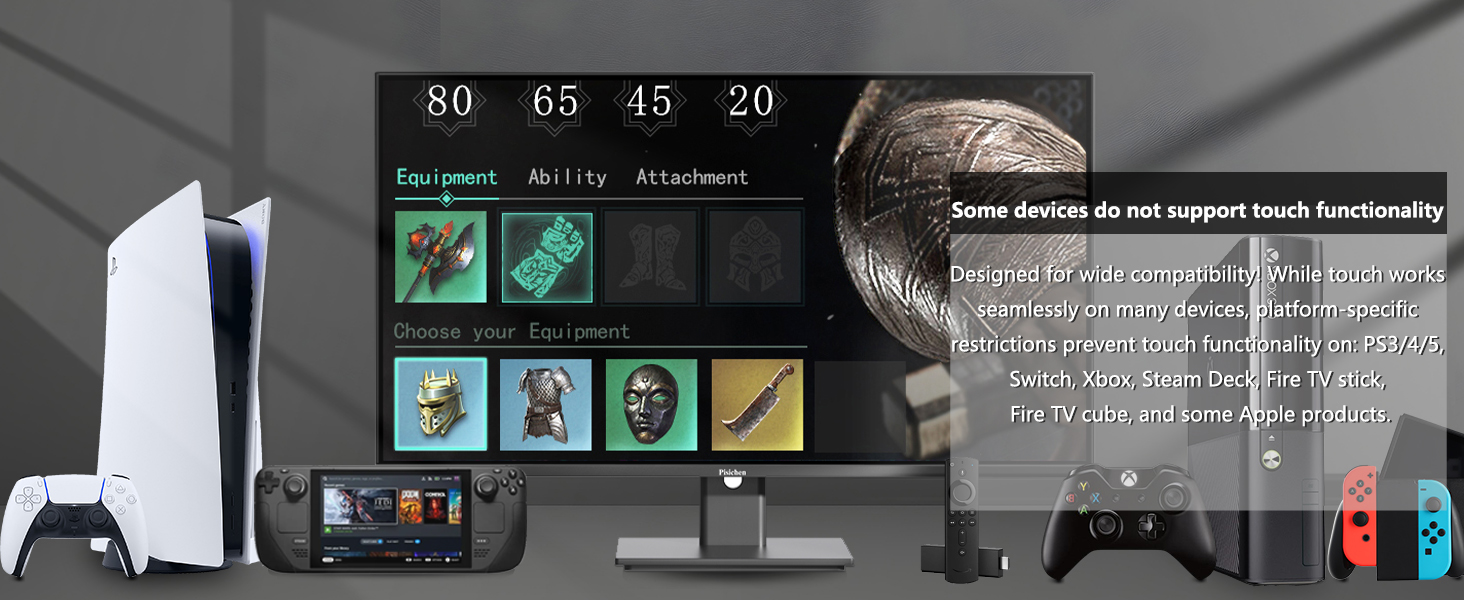
Figure 12: Devices that do not support touch functionality.
WebKamera Tidak Dikesan
- Memastikan webcam is fully popped up.
- Verify that the USB connection (either USB-C or USB-A to USB-B) is properly established.
- Check your operating system's privacy settings to ensure camera access is granted to applications.
- Mulakan semula komputer anda.
Spesifikasi
| Ciri | Penerangan |
|---|---|
| Nombor Model | 238TS-CMR |
| Saiz Skrin | 23.8 Inci |
| Resolusi | 2560 x 1440 (QHD Wide 1440p) |
| Kadar Segar Semula | 100Hz |
| Kecerahan | 400 Candela (nit) |
| Nisbah Kontras | 3000:1 |
| Teknologi Sentuhan | 10-Titik Berbilang Sentuhan |
| Webcam | Built-in Pop-up Camera |
| Ketersambungan | HDMI, DisplayPort (DP), USB Type-C, USB-B (upstream), Audio Out, DC Power |
| Nisbah Aspek | 16:9 |
| Permukaan Skrin | Berkilat |
| Dimensi Produk | 1.97 x 21.26 x 12.6 inci |
| Berat Barang | 11.53 paun |
| Pengeluar | Shenzhen Konowa Electronics Co., LTD |
Waranti dan Sokongan
Your Pisichen monitor is covered by a limited warranty. Please refer to the warranty card included in your package for specific terms and conditions, including the warranty period and coverage details.
For technical support, troubleshooting assistance, or warranty claims, please contact Pisichen customer service. Contact information can typically be found on the manufacturer's webtapak atau pada kad jaminan.
When contacting support, please have your monitor's model number (238TS-CMR) and purchase information readily available.