
1. Produk Lebihview
The ECHTPower P03 Wireless Controller is designed for an enhanced gaming experience on both PlayStation 4 and PC. It features advanced Hall Effect joysticks for precision, programmable back buttons for custom controls, a Type-C charging port, and immersive vibration feedback. This manual provides instructions for setup, operation, and maintenance.
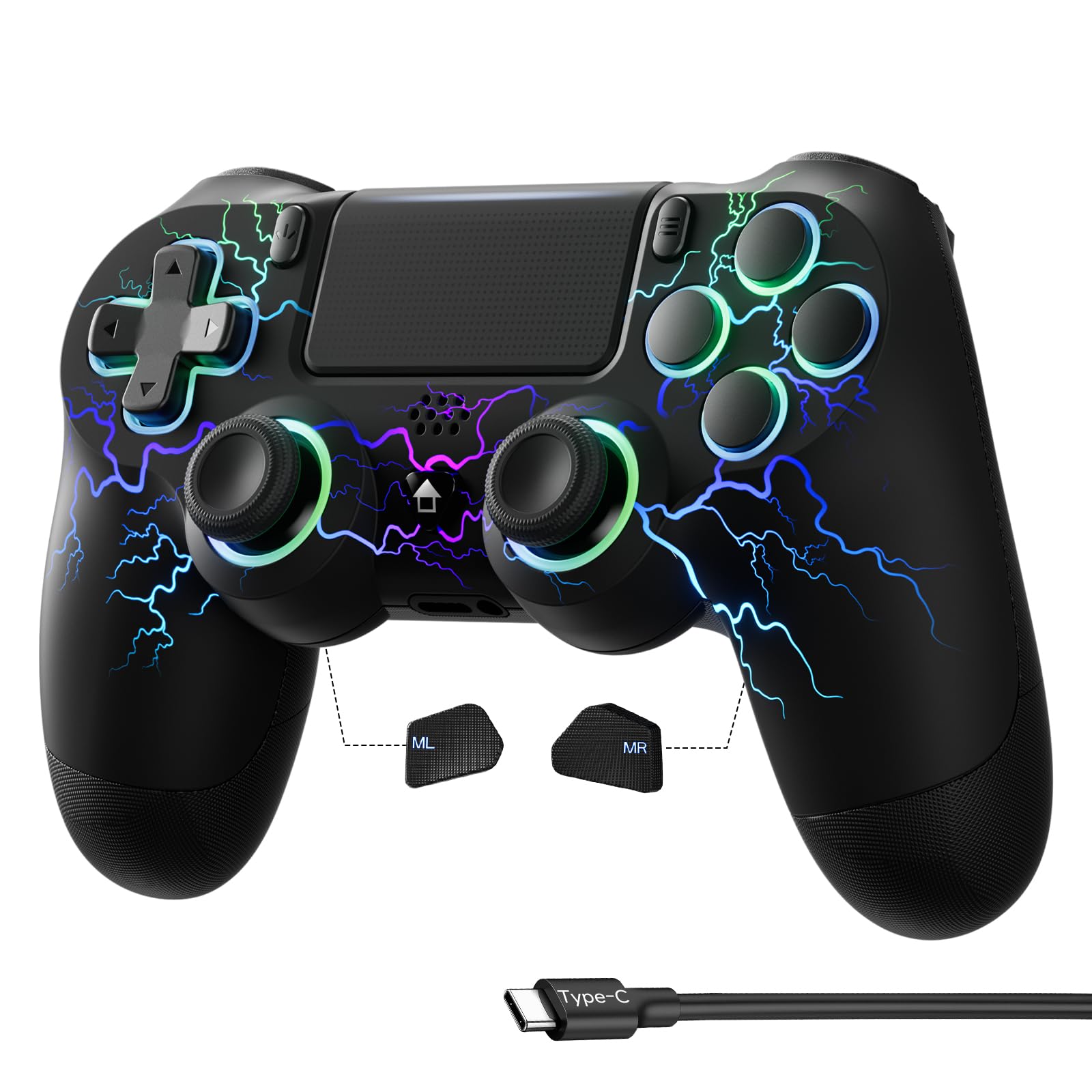
Image: ECHTPower P03 Wireless Controller, showcasing its ergonomic design and illuminated buttons.
2. Ciri-ciri Utama
- Port Pengecasan Jenis-C: Equipped with a modern Type-C port for faster and more convenient charging. The 1000mAh battery provides up to 10 hours of continuous gameplay.
- Kesambungan Tanpa Wayar: Supports Bluetooth wireless connection for both PS4 and PC, offering freedom of movement during gameplay.
- Kayu Joy Kesan Dewan: Utilizes magnetic Hall Effect technology to prevent joystick drift and wear, ensuring precise and responsive control in all games.
- Butang Kembali Boleh Diprogram: Two customizable back buttons allow users to assign complex button combinations or frequently used actions for a competitive edge.
- Fungsi Turbo: Enables rapid-fire actions by holding down a button, ideal for games requiring quick, repeated inputs.
- Immersive Vibration: Provides realistic haptic feedback, enhancing the gaming experience by making in-game actions feel more impactful.
- Giroskop: Integrated gyroscope for motion control in supported games.
- Ergonomic Anti-slip Design: Designed for comfort during long gaming sessions, with an anti-slip texture for a secure grip.
3. Kandungan Pakej
Sila semak pakej untuk item berikut:
- ECHTPower P03 Wireless Controller
- Kabel Pengecas USB-C
- Manual Pengguna
4. Persediaan dan Sambungan
4.1 Mengecas Pengawal
Before first use, fully charge the controller using the provided USB-C cable. Connect the Type-C end to the controller and the USB-A end to a power source (e.g., PS4 console, PC, or USB wall adapter).

Image: Controller connected via Type-C cable, illustrating the charging process. A 1000mAh battery provides long duration, with 2-4 hours charging time for 10 hours of use.
4.2 Connecting to PS4
- Hidupkan konsol PS4 anda.
- Connect the controller to the PS4 console using the USB-C cable.
- Press the PS button on the controller. The light bar will flash and then turn solid, indicating a successful connection.
- You can then disconnect the cable for wireless play.
4.3 Connecting to PC (Wireless)
- Pastikan PC anda telah mengaktifkan Bluetooth.
- Pada pengawal, tekan dan tahan butang KONGSI butang dan PS button simultaneously until the light bar starts flashing rapidly. This indicates pairing mode.
- Pada PC anda, pergi ke tetapan Bluetooth dan cari peranti baharu.
- Select "Wireless Controller" or "GamePad" from the list of available devices to pair.
- Once paired, the light bar will turn solid, indicating a successful connection.

Image: The controller is compatible with PS4/Slim/Pro, PC, Android/iOS, and Steam Deck, offering wide compatibility.
5. Arahan Operasi
5.1 Joystick Calibration
To ensure optimal joystick performance and prevent drift, perform calibration:
- Tekan dan tahan butang Segi tiga butang, Bulatan butang, dan RUMAH butang serentak.
- The RGB lights will flash rapidly in red, green, and blue sequence.
- Rotate both the left and right joysticks more than three full turns.
- Akhir sekali, tekan butang X button to complete the calibration. The lights will return to their previous state.
Video: Demonstrates the joystick calibration process, showing the button presses and joystick rotations required.

Image: Close-up of the Hall Effect joystick, highlighting its precision and durability with "Drift Prevention" and "5 Million Uses" indicators.
5.2 RGB Light Adjustment
The controller features customizable RGB lighting:
- To cycle through RGB modes, press the KONGSI dan PILIHAN butang serentak.
- To turn off the RGB lights, press the KONGSI dan R3 butang serentak.
- To adjust the brightness of the RGB lights, press the M button (located on the back) while pushing the joystick downwards.
Video: Shows how to adjust the RGB lighting modes and brightness on the controller.

Image: The controller displaying various RGB lighting effects, indicating 9 colors and 7 modes for an immersive gaming experience.
5.3 Changing PC Connection Mode (DS4/XINPUT)
When connected to a PC, the controller can switch between DS4 and XINPUT modes:
- Connect the controller to your PC via the USB-C cable.
- To switch from DS4 mode to XINPUT mode, press and hold the KONGSI dan PILIHAN buttons simultaneously for 5 seconds. The light bar will change from blue (DS4) to orange (XINPUT).
- To switch from XINPUT mode back to DS4 mode, press and hold the KONGSI dan PILIHAN buttons simultaneously for 5 seconds. The light bar will change from orange (XINPUT) to blue (DS4).
Video: Illustrates how to switch between DS4 and XINPUT modes when the controller is connected to a PC, showing the corresponding light bar color changes.
5.4 Turbo Function Configuration
The Turbo function allows for rapid, repeated button presses:
- Turbo Manual: Tekan dan tahan butang M button (on the back) and then press the desired function button (e.g., X, Circle, Square, Triangle, L1, R1, L2, R2). The function button will now activate Turbo mode when held.
- Turbo Automatik: Tekan dan tahan butang M button, then press the function button twice. The function button will now activate Turbo mode automatically without needing to be held.
- Nyahaktifkan Turbo: Tekan dan tahan butang M button, then press the function button three times. The Turbo function for that button will be deactivated.
Video: Explains how to configure and deactivate the Turbo function for individual buttons on the controller.

Image: A user playing a game with the controller, illustrating the benefit of the Turbo function for rapid actions.
5.5 Pelarasan Getaran
Adjust the intensity of the controller's vibration feedback:
- Tekan dan tahan butang L1, R1, L2, dan R2 butang serentak.
- The vibration intensity can be adjusted through three levels: 0% (no vibration), 50% (medium), and 100% (strong). Cycle through these levels by repeating the button combination.
Video: Demonstrates how to adjust the vibration intensity of the controller through its three available levels.

Image: The controller with visual cues indicating active vibration, emphasizing the "Real Vibration" feature for realistic game actions.
5.6 Programmable Back Buttons
The two back buttons (MR and ML) can be programmed to replicate other button inputs:
- Tekan dan tahan butang M button (on the back) and the desired back button (MR or ML) simultaneously until the light bar flashes.
- Sambil masih memegang M button, press the button(s) you wish to map to the back button.
- Release all buttons. The light bar will stop flashing, indicating successful programming.
- To clear a programmed back button, repeat the process without pressing any function buttons in step 2.

Imej: Belakang view of the controller showing the MR and ML programmable back buttons, with an illustration of possible button mappings.
6. Penyelenggaraan
- Pastikan pengawal bersih dengan mengelapnya dengan kain lembut dan kering.
- Elakkan mendedahkan pengawal kepada suhu, kelembapan atau cahaya matahari langsung yang melampau.
- Do not disassemble the controller, as this will void the warranty.
- Simpan alat kawalan jauh di tempat yang selamat apabila tidak digunakan untuk mengelakkan kerosakan.
7. Penyelesaian masalah
- Pengawal tidak bersambung: Ensure the controller is charged. Try connecting via USB cable first to establish a connection. For PC, ensure Bluetooth is enabled and the controller is in pairing mode.
- Hanyut kayu riang: Perform the joystick calibration procedure as described in section 5.1.
- Getaran tidak berfungsi: Check the vibration intensity settings as described in section 5.5. Ensure it's not set to 0%.
- Butang tidak responsif: Ensure the controller is properly connected and charged. If the issue persists, try resetting the controller (a small reset button is usually located on the back, requiring a pin to press).
- PC mode issues: Ensure you are in the correct DS4 or XINPUT mode for your game, as described in section 5.3.
8. Spesifikasi
| Ciri | Perincian |
|---|---|
| Jenama | ECHPower |
| Model | P03 |
| Dimensi | 16.9 x 11.5 x 7.4 cm |
| Berat badan | 300 g |
| Ketersambungan | Bluetooth (Wireless), USB-C (Wired) |
| Platform yang Serasi | PS4, PC, Android/iOS, Steam Deck |
| Kapasiti Bateri | 1000mAh |
| Ciri Khas | Hall Effect Joysticks, Programmable Back Buttons, Turbo Function, Vibration, Gyroscope, RGB Lighting |
| Bilangan Butang | 10 (excluding joysticks and D-pad) |
| warna | Berbilang warna (RGB) |
9. Waranti dan Sokongan
ECHTPower products come with a standard manufacturer's warranty. For detailed warranty information, technical support, or service inquiries, please refer to the warranty card included with your product or visit the official ECHTPower webtapak.
For further assistance, please contact ECHTPower customer support.