
1. Pengenalan
This manual provides essential information for setting up, operating, maintaining, and troubleshooting your Auusda 16-inch FHD Laptop T161N. Please read this manual thoroughly before using your device to ensure proper function and longevity.
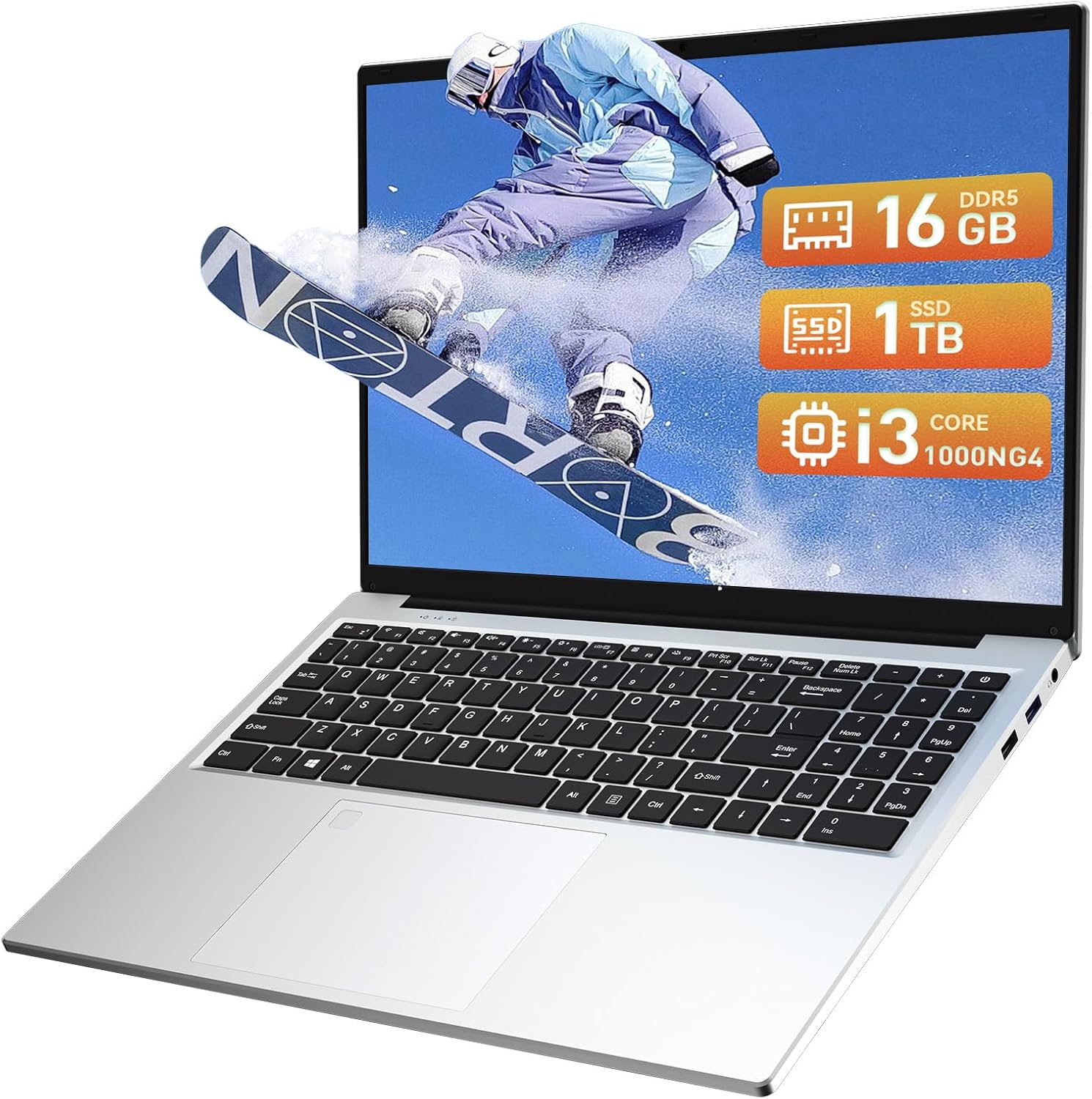
Image: The Auusda 16-inch FHD Laptop T161N, showcasing its sleek design and screen.
2. Apa yang ada di dalam Kotak
Upon opening your Auusda T161N laptop package, verify that all the following items are included:
- Auusda 16-inch FHD Laptop T161N
- Penyesuai Kuasa/Pengecas
- Manual Arahan (dokumen ini)
- Penutup Papan Kekunci

Image: A visual representation of the items included in the Auusda T161N laptop packaging.
3. Produk Lebihview
3.1 Ciri-ciri Utama
- paparan: 16-inch Full HD (1920x1080) IPS screen with 180° viewsudut ing.
- Pemproses: Intel Core i3-1000NG4 (up to 3.2GHz).
- Ingatan: 16GB DDR4 RAM.
- Storan: 1TB PCIe SSD.
- Ketersambungan: Wi-Fi 6, Bluetooth 5.3.
- Keselamatan: Fingerprint Reader.
- Input: Backlit Keyboard.
- Sistem pengendalian: Windows 11 Pro.
3.2 Port dan Penyambung
The Auusda T161N laptop is equipped with various ports for versatile connectivity:
- Port USB 3.0 (x2)
- Full-Function Type-C Port (x1) - Supports data transfer, screen mirroring, and charging.
- Port USB 2.0 (x1)
- Mini HDMI Port (x1)
- 3.5mm Standard Headphone Jack (x1)
- Microphone Input (shared with headphone jack)
- Port Pengecasan

Image: A detailed diagram illustrating the location and type of ports on the Auusda T161N laptop.
3.3 Visual Overview
Video: Tamatview of the Auusda 16-inch FHD Laptop T161N, demonstrating its design and key features.
4. Persediaan
4.1 Pengecasan Awal
- Connect the power adapter to the charging port on the laptop.
- Palamkan penyesuai kuasa ke salur keluar dinding.
- Benarkan komputer riba mengecas sekurang-kurangnya 30 minit sebelum penggunaan awal, atau sehingga penunjuk bateri menunjukkan cas yang mencukupi.
4.2 Menghidupkan dan Persediaan Windows Awal
- Tekan butang kuasa yang terletak pada papan kekunci untuk menghidupkan komputer riba.
- Ikut arahan pada skrin untuk melengkapkan proses persediaan Windows 11 Pro. Ini termasuk memilih rantau, bahasa, menyambung ke rangkaian Wi-Fi dan membuat akaun pengguna.
- Ensure you have an active internet connection for Windows updates and driver installations during the setup.
5. Arahan Operasi
5.1 Keyboard Functions (Fn + Function Keys)
The laptop features a full-size keyboard with dedicated function keys that can be accessed by pressing the Fn kekunci bersama kekunci fungsi yang sepadan (F1-F12).
- Papan Kekunci Bercahaya Belakang: Tekan Fn + F9 to cycle through 2 brightness levels. Pressing it a third time turns the backlight off.
- Kunci nombor: Tekan Fn + Num Lk to toggle the numeric keypad on or off.
- Kawalan Kelantangan: guna Fn + Speaker keys (F1-F3) to mute, decrease, or increase volume.
- Kawalan Kecerahan: guna Fn + Sun keys (F4-F5) to decrease or increase screen brightness.

Image: A visual guide to using the Fn (Function) keys on the Auusda T161N keyboard for various controls.
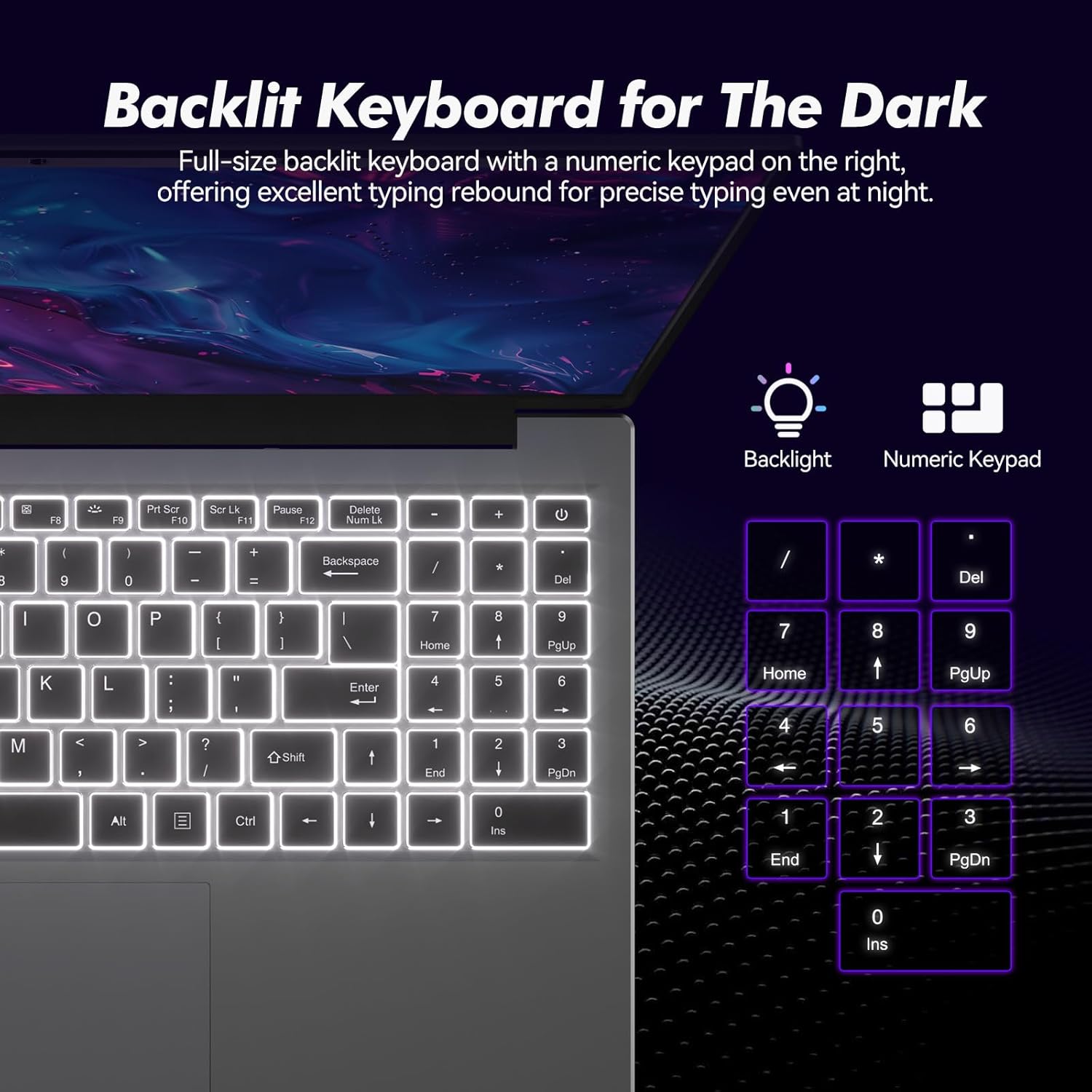
Imej: Jarak dekat view of the backlit keyboard and numeric keypad, highlighting their functionality.
5.2 Pembaca Cap Jari
The integrated fingerprint reader provides a secure and fast way to unlock your laptop. To set up fingerprint recognition:
- Navigasi ke Tetapan Windows > Akaun > Pilihan log masuk.
- Di bawah 'Windows Hello Fingerprint', klik 'Sediakan'.
- Ikut gesaan pada skrin untuk mendaftar cap jari anda.
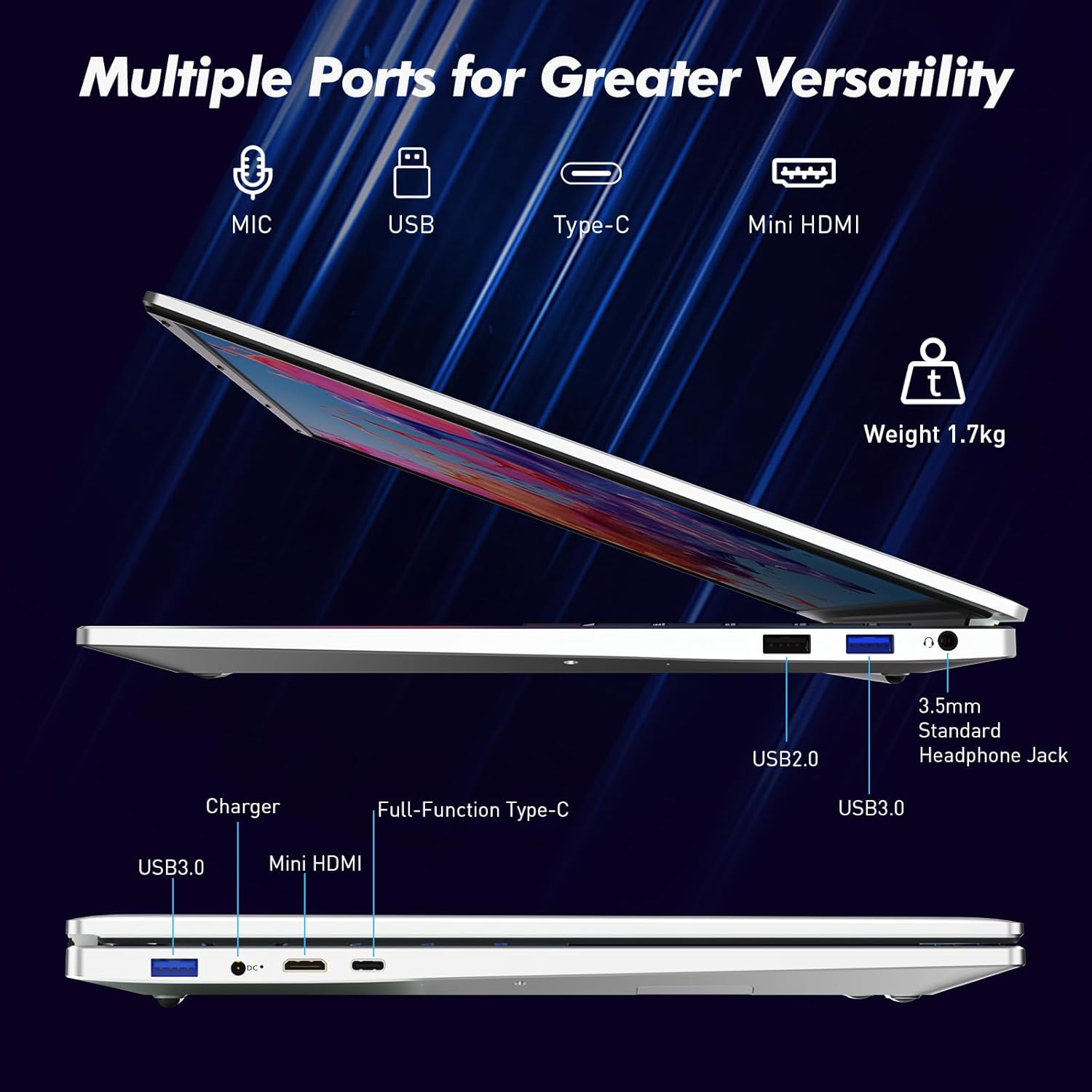
Image: A visual representation of the fingerprint reader location and its quick unlock capability.
5.3 Type-C Connectivity
The full-function Type-C port offers versatile connectivity options:
- Pemindahan Data: Connect compatible devices for high-speed data exchange.
- Pencerminan Skrin: Output video to an external display using a compatible Type-C to HDMI/DisplayPort adapter (sold separately).
- mengecas: Charge the laptop using a compatible Type-C power delivery charger.
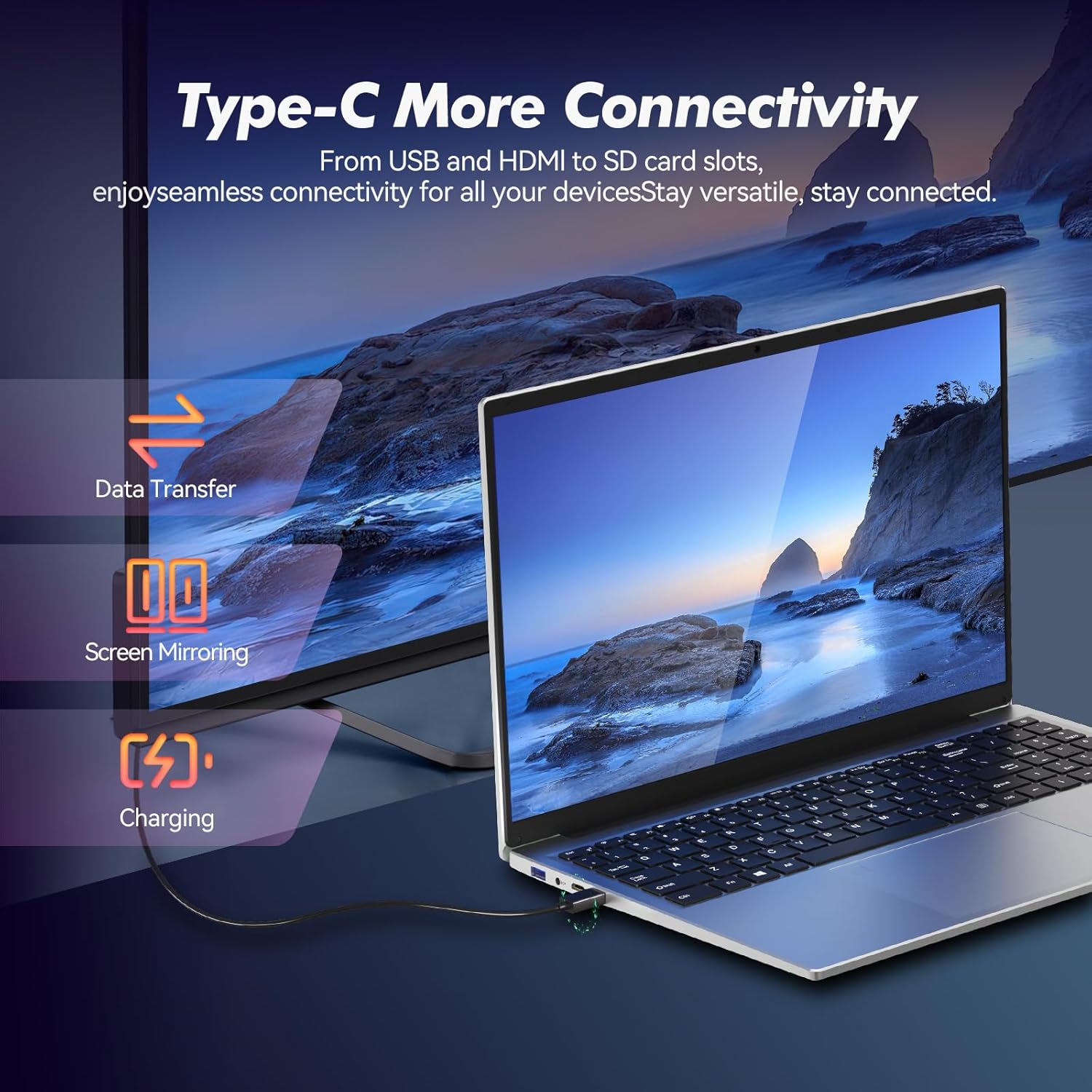
Image: Illustrates the multi-functional capabilities of the Type-C port, including data transfer, screen mirroring, and charging.
5.4 Wi-Fi 6 and Bluetooth 5.3
The laptop supports Wi-Fi 6 for faster and more stable wireless internet connections and Bluetooth 5.3 for connecting wireless peripherals.
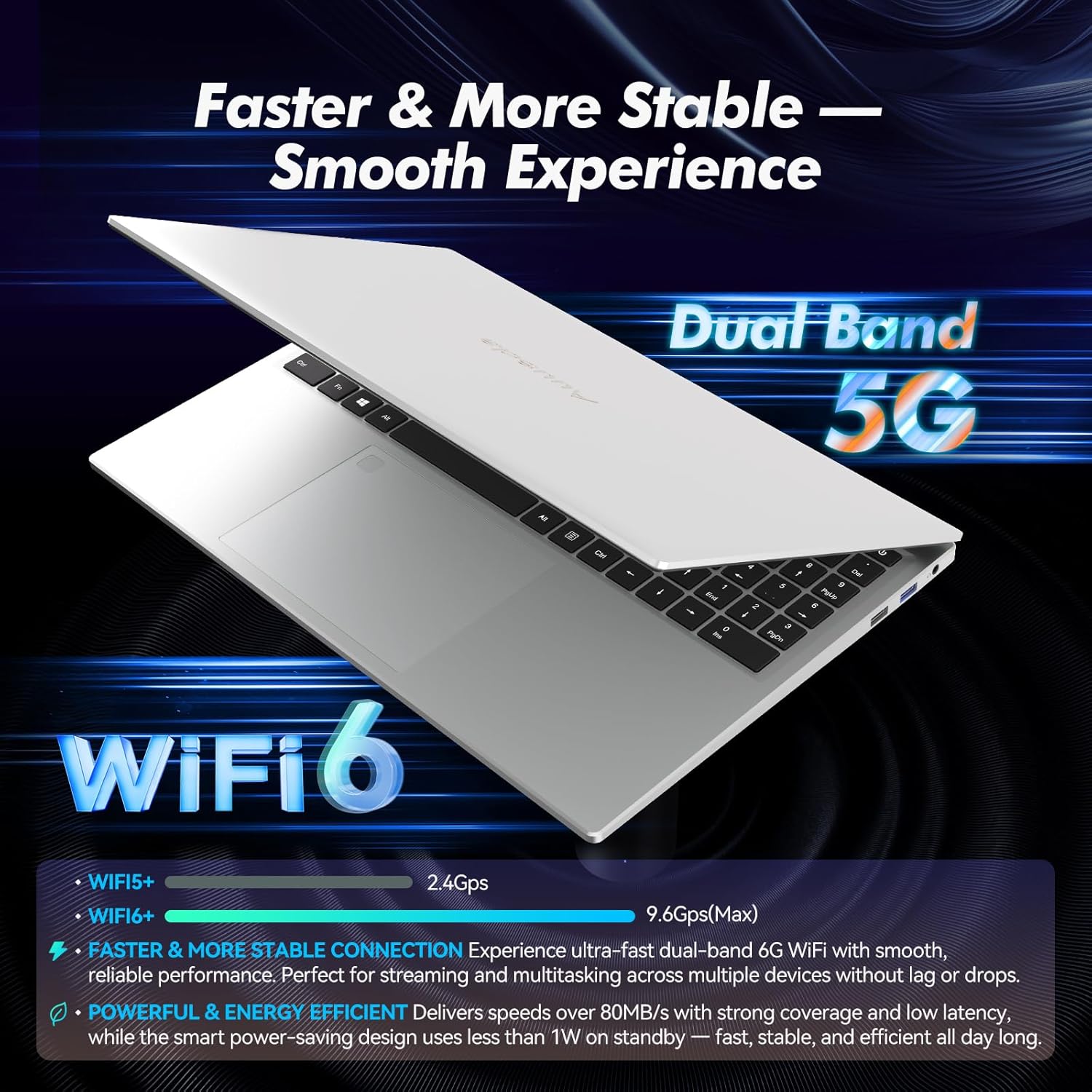
Image: Highlights the advanced wireless connectivity of the laptop, including Wi-Fi 6 and Dual Band 5G support.
6. Spesifikasi
Below are the detailed technical specifications for the Auusda 16-inch FHD Laptop T161N:
| Ciri | Spesifikasi |
|---|---|
| Nombor Model | T161N |
| Saiz Skrin | 16 Inci |
| Resolusi Skrin | 1920 x 1080 piksel (FHD) |
| Pemproses | Intel Core i3-1000NG4 (1.09 GHz, up to 3.2 GHz) |
| RAM | 16 GB DDR4 SDRAM |
| Pemacu Keras | 1 TB SSD (PCIe) |
| Pemproses bersama Grafik | Iris Plus Graphics G4 48EUs (Integrated) |
| Sistem Operasi | Windows 11 Pro |
| Jenis Wayarles | 802.11ax (Wi-Fi 6), Bluetooth 5.3 |
| Port USB 3.0 | 2 |
| Port USB 2.0 | 1 |
| Berat Barang | 5.21 paun |
| Dimensi Produk | 14.17 x 10.83 x 0.71 inci |
| warna | Perak |
| Bateri | 1 bateri 12V (termasuk) |
7. Penyelenggaraan
Regular maintenance helps ensure the optimal performance and longevity of your laptop.
7.1 Pembersihan
- Gunakan kain lembut dan tidak berbulu untuk membersihkan skrin dan permukaan luar. Untuk kesan degil, gosok sedikitampbersihkan kain dengan air atau pencuci yang selamat untuk skrin.
- Elakkan menyembur cecair terus ke atas komputer riba.
- Gunakan udara termampat untuk membersihkan habuk daripada kekunci papan kekunci dan gril pengudaraan.
7.2 Kemas Kini Perisian
- Regularly check for and install Windows updates to ensure system stability and security. Go to Settings > Windows Update.
- Keep your drivers updated. Windows Update typically handles this, but you may occasionally need to check the Auusda support website for specific driver updates.
7.3 Penjagaan Bateri
- Elakkan menyahcas sepenuhnya bateri dengan kerap.
- Simpan komputer riba di tempat yang sejuk dan kering jika tidak digunakan untuk tempoh yang lama.
8. Penyelesaian masalah
Bahagian ini menangani isu biasa yang mungkin anda hadapi dengan komputer riba anda.
8.1 Komputer Riba Tidak Dihidupkan
- Pastikan penyesuai kuasa disambungkan dengan selamat pada kedua-dua komputer riba dan salur keluar kuasa yang berfungsi.
- Sahkan alur keluar kuasa berfungsi dengan memasang peranti lain.
- If the battery is completely drained, allow it to charge for at least 15-30 minutes before attempting to power on again.
8.2 Isu Ketersambungan Wi-Fi
- Check if Wi-Fi is enabled in Windows settings (Settings > Network & internet > Wi-Fi).
- Mulakan semula penghala dan modem anda.
- Pastikan anda berada dalam julat rangkaian Wi-Fi anda.
- Update your Wi-Fi drivers if necessary.
8.3 Keyboard or Touchpad Not Responding
- Mulakan semula komputer riba.
- Check for any physical obstructions or debris under the keys or on the touchpad.
- Ensure the touchpad has not been accidentally disabled (some laptops have a function key or a setting to toggle the touchpad).
Untuk bantuan lanjut, rujuk bahagian sokongan di bawah.
9. Waranti dan Sokongan
Auusda provides customer support and warranty services for its products.
9.1 Maklumat Waranti
Auusda laptops typically come with a two-year after-sales service period. Please retain your proof of purchase for warranty claims.
9.2 Sokongan Pelanggan
If you encounter issues or require technical assistance, please contact Auusda customer support:
- Sokongan E-mel: Send your order number and a video demonstrating the problem to Auusda.ltd@gmail.com.
- Amazon Buyer Account: Log in to your Amazon buyer account, find your order, and click "Get Help" or "Ask questions" for direct support.