
1. Pengenalan
This manual provides detailed instructions for the setup, operation, maintenance, and troubleshooting of your GMKtec Nucbox G10 Mini PC. The Nucbox G10 is a compact and powerful desktop computer designed for various applications, from office tasks to multimedia entertainment, featuring an AMD Ryzen 5 3500U processor, 16GB DDR4 RAM, and a 1TB NVMe SSD.
2. Kandungan Pakej
Sahkan bahawa semua item yang disenaraikan di bawah terdapat dalam pakej anda:
- GMKtec Nucbox G10 AMD Ryzen 5 3500U Mini PC Computer
- Bekalan Kuasa & Kabel
- Kabel HDMI
- Pemasangan dan Skru VESA
- Manual Pengguna (dokumen ini)

Image: Retail Boxed Packaging. This image displays the GMKtec Nucbox G10 Mini PC, power supply, HDMI cable, VESA mount, screws, and user manual, illustrating the complete contents of the product package.
3. Produk Lebihview
3.1 Ciri-ciri Utama
- Pemproses: AMD Ryzen 5 3500U (4 Cores, 8 Threads, up to 3.70GHz Turbo Boost)
- Grafik: Integrated AMD Radeon Vega 8 Graphics (1200 MHz)
- Ingatan: 16GB Dual Channel DDR4 RAM (expandable up to 64GB)
- Storan: 1TB M.2 2280 NVMe SSD (expandable up to 16TB via dual M.2 2280 PCIe 3.0 slots)
- Rangkaian: 2.5GbE Ethernet, WiFi 5, Bluetooth 5.0
- Output Paparan: Triple 4K display support via HDMI 2.1, DisplayPort 1.4, and Full Function USB-C
- penyejukan: Silent Turbo Cooling Fan system

Image: Nucbox G10 Feature Overview. This image provides a visual summary of the mini PC's core components including the AMD Ryzen 5 3500U CPU, Radeon Vega 8 Graphics, DDR4 RAM, M.2 SSD, 2.5GbE LAN, WiFi 5, Bluetooth 5.0, triple display support, and cooling system.
3.2 Port dan Penyambung
The Nucbox G10 features a comprehensive set of ports for connectivity:
- Depan: 1x CTIA Audio Jack, 2x USB 3.2 (5Gbps), 1x Power Button
- belakang: 1x Type-C (PD Only), 1x USB 2.0, 1x 2.5G Giga LAN, 1x HDMI 2.1 (4K@60Hz), 1x DP 1.4 (4K@60Hz), 1x Full Function USB-C (PD/DP/Data), 1x Kensington Lock slot

Image: Front Panel Ports. This image shows the front of the Nucbox G10, highlighting the power button, two USB 3.2 ports, and the CTIA audio jack.

Image: Rear Panel Ports. This image illustrates the rear of the Nucbox G10, detailing the USB-C (PD Only), USB 2.0, 2.5G LAN, HDMI 2.1, DisplayPort 1.4, Full Function USB-C, and Kensington Lock slot.
4. Panduan Persediaan
4.1 Menyambung Peranti
- Pantau: Connect your monitor(s) to the Mini PC using the HDMI, DisplayPort, or USB-C ports. The Nucbox G10 supports up to three 4K displays simultaneously.
- Papan Kekunci dan Tetikus: Sambungkan papan kekunci dan tetikus USB anda ke port USB yang tersedia.
- Rangkaian: For a wired connection, connect an Ethernet cable from your router/modem to the 2.5GbE LAN port. For wireless, ensure your WiFi network is available.
- Audio: Connect speakers or headphones to the 3.5mm audio jack on the front panel if needed.
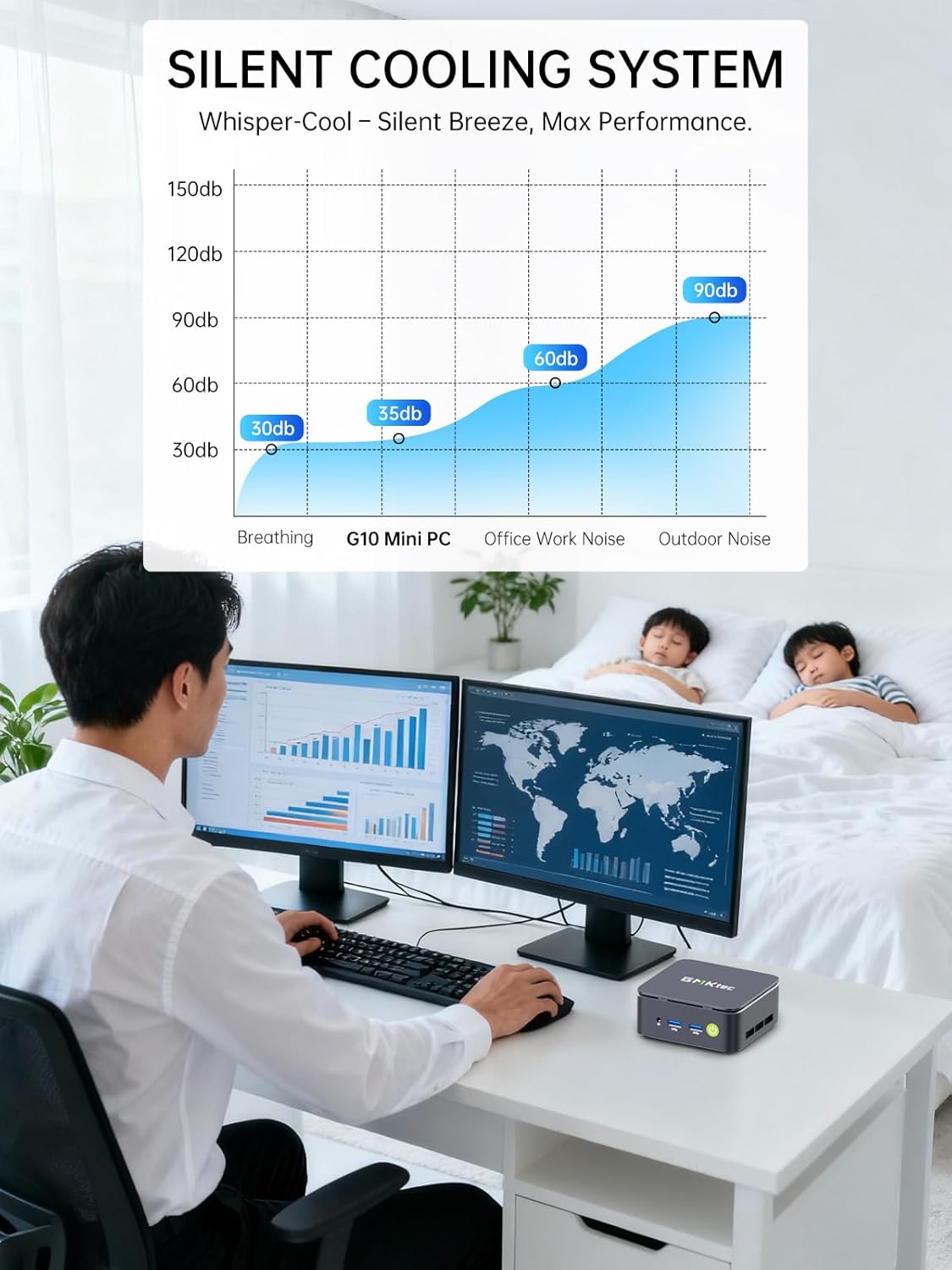
Image: Triple Display Setup. This image demonstrates the Nucbox G10 connected to two vertical monitors and a tablet, showcasing its triple display capability for enhanced productivity.
4.2 Sambungan Kuasa
Connect the provided power adapter to the DC-in port on the Mini PC, then plug the power cable into a wall outlet. The Mini PC is designed for low power consumption.
4.3 Boot Permulaan
Press the power button on the front panel. The Mini PC will boot into the pre-installed Windows 11 Pro operating system. Follow the on-screen instructions for initial Windows setup.
5. Arahan Operasi
5.1 Hidupkan/Mati Kuasa
- Hidupkan kuasa: Tekan butang kuasa sekali.
- Matikan: From Windows, go to Start > Power > Shut down. Alternatively, press and hold the power button for 5 seconds to force a shutdown (use only when necessary).
5.2 Sistem Operasi
Your Nucbox G10 comes with Windows 11 Pro pre-installed. Ensure you keep your operating system updated for optimal performance and security.
5.3 Kesambungan Rangkaian
- Berwayar (Ethernet): Once the Ethernet cable is connected, the system should automatically detect the network.
- Tanpa Wayar (Wi-Fi): In Windows, click the Wi-Fi icon in the taskbar, select your network, enter the password, and connect.
- Bluetooth: To connect Bluetooth devices, go to Windows Settings > Bluetooth & devices, and pair your device.
6. Penyelenggaraan
6.1 Pembersihan
Regularly clean the exterior of the Mini PC with a soft, dry cloth. Ensure ventilation openings are free from dust to maintain optimal cooling performance. Do not use liquid cleaners directly on the device.

Image: Ultra Efficient Cooling System. This image provides an internal view of the Nucbox G10, highlighting the silent turbo cooling fan designed for efficient heat dissipation.
6.2 Kemas Kini Perisian
Keep your Windows operating system and drivers updated to ensure system stability, security, and performance. Windows Update can be accessed via Settings > Windows Update.
6.3 Storan dan Pengembangan Memori
The Nucbox G10 supports memory expansion up to 64GB DDR4 RAM and storage expansion up to 16TB via its dual M.2 2280 PCIe 3.0 slots. Consult a qualified technician for hardware upgrades to avoid voiding your warranty or damaging the device.
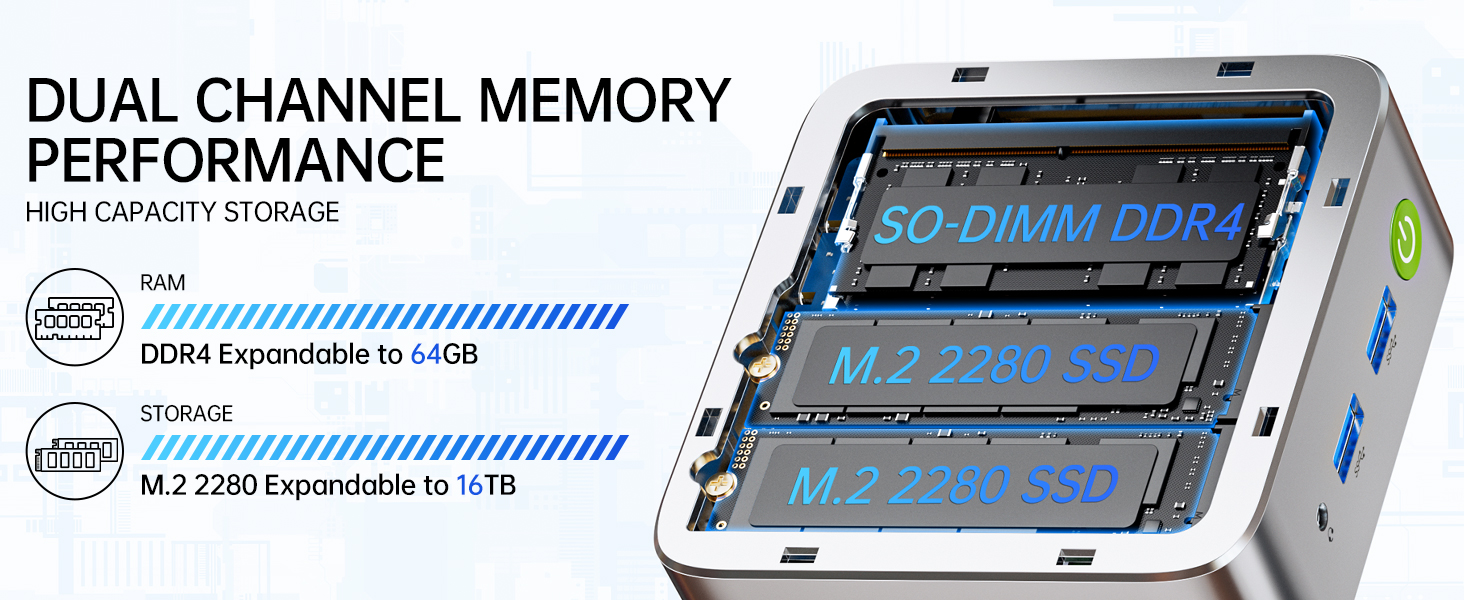
Image: Dual Channel Memory Performance and High Capacity Storage. This diagram illustrates the internal layout for SO-DIMM DDR4 RAM and M.2 2280 SSDs, indicating their expandability.
7. Penyelesaian masalah
Jika anda menghadapi masalah dengan Mini PC anda, rujuk masalah dan penyelesaian biasa berikut:
- Tiada Kuasa:
- Pastikan penyesuai kuasa disambungkan dengan selamat ke PC Mini dan salur keluar kuasa yang berfungsi.
- Sahkan alur keluar kuasa berfungsi dengan memasang peranti lain.
- Tiada Paparan:
- Check that the HDMI, DisplayPort, or USB-C cable is firmly connected to both the Mini PC and the monitor.
- Pastikan monitor dihidupkan dan ditetapkan kepada sumber input yang betul.
- Cuba sambungkan ke paparan lain atau gunakan kabel lain.
- Isu Ketersambungan Rangkaian:
- Berwayar: Check the Ethernet cable connection. Restart your router/modem.
- wayarles: Ensure Wi-Fi is enabled in Windows settings. Verify your Wi-Fi password. Restart your router.
- Prestasi Perlahan:
- Tutup aplikasi yang tidak perlu berjalan di latar belakang.
- Ensure the system has adequate ventilation and is not overheating.
- Semak dan pasang sebarang kemas kini Windows atau kemas kini pemacu yang belum selesai.
- Jalankan pembersihan cakera untuk mengosongkan ruang storan.
8. Spesifikasi
| Ciri | Spesifikasi |
|---|---|
| Jenama | GMKtec |
| Nama Model | G10 |
| Sistem Operasi | Windows 11 Pro |
| Model CPU | AMD Ryzen 5 3500U |
| Kelajuan CPU | 3.7 GHz (Boost) |
| Kiraan Pemproses | 4 |
| Pemproses bersama Grafik | AMD Radeon Vega 8 Graphics 1200 MHz |
| Memori RAM Dipasang | 16 GB DDR4 |
| Saiz Maksimum Memori RAM | 64 GB |
| Kelajuan Memori | 2400 MT/s |
| Kapasiti Penyimpanan Memori | SSD NVMe 1 TB |
| Penerangan Cakera Keras | Dual Slot M.2 2280 PCIE Max. 16TB |
| Teknologi Ketersambungan | HDMI 2.1, RJ45 2.5GbE LAN, USB 3.2, USB-C (DP/DATA/PD), WIFI5/ BT 5.0 |
| Keserasian Tanpa Wayar | 802.11a/b/g/n/ac (WiFi 5), Bluetooth 5.0 |
| Output Video | HDMI 2.1, DisplayPort, Type-C (Triple Display) |
| Resolusi Paparan Maksimum | 4096 × 2160 Pixels (4K) |
| Jumlah Port USB | 4 (2x USB 3.2, 1x USB 2.0, 1x USB-C Full Function) |
| Penggunaan Kuasa | 25 Watts (Typical) |
| Dimensi Item | 4.1 x 3.8 x 1.7 inci |
| Berat Barang | 0.95 Kilogram |
| Kaedah Penyejukan | Dual Cooling Fan |
| Ciri-ciri Tambahan | RTC Wake, Auto Power On, Wake On LAN, PXE Boot |
9. Waranti dan Sokongan
9.1 Maklumat Waranti
GMKtec menawarkan a Waranti terhad 1 tahun for each Mini PC, starting from the date of purchase. This warranty covers defects due to design and workmanship. Please retain your proof of purchase for warranty claims.
9.2 Sokongan Pelanggan
For technical assistance, warranty claims, or any questions regarding your GMKtec Nucbox G10 Mini PC, please contact GMKtec customer support. You can typically find contact information on the official GMKtec website or through the seller's contact page where you purchased the product (e.g., GMKtec-Direct on Amazon).