
1. Pengenalan
Welcome to the AlgoLaser T150 Pro 3W Mini Laser Engraver Machine user manual. This document provides essential information for the safe and effective operation of your new laser engraver. The T150 Pro is a high-precision tool designed for DIY enthusiasts, hobbyists, and small business owners, enabling the creation of personalized gifts, home decor, and custom products. Its compact, tank-inspired design ensures stability and durability, delivering professional engraving results.
This machine is suitable for engraving various materials including wood, acrylic, and leather. It is ideal for personal projects, small business production, and educational settings. Please read this manual thoroughly before operating the device to ensure proper usage and to maximize its potential.

Image 1.1: The AlgoLaser T150 Pro Mini Laser Engraver, highlighting its robust design.
2. Maklumat Keselamatan
Operating a laser engraver involves inherent risks. Adhere to all safety guidelines to prevent injury and damage to the equipment.
- Perlindungan Mata: Always wear the provided laser safety goggles when the machine is operating. Direct exposure to the laser beam can cause severe and permanent eye damage.
- Pengudaraan: Operate the engraver in a well-ventilated area or use an appropriate fume extraction system. Engraving certain materials can produce harmful fumes and particles.
- Bahaya Kebakaran: Laser boleh menyalakan bahan mudah terbakar. Jangan sekali-kali meninggalkan mesin tanpa pengawasan semasa operasi. Pastikan alat pemadam api berdekatan.
- Keserasian Bahan: Only engrave materials approved for laser processing. Avoid PVC, vinyl, ABS, and other materials that produce toxic or corrosive fumes when laser cut or engraved.
- Kanak-kanak dan Haiwan Kesayangan: Keep children and pets away from the operating area. This device is not a toy.
- Hentian kecemasan: Biasakan diri anda dengan lokasi dan fungsi butang berhenti kecemasan.
- Pengesanan Kecondongan: The T150 Pro features advanced tilt detection technology that automatically turns off the laser if the machine shifts by more than 20 degrees, enhancing safety during operation.
3. Kandungan Pakej
Sahkan bahawa semua item yang disenaraikan di bawah disertakan dalam pakej anda. Jika mana-mana komponen hilang atau rosak, sila hubungi sokongan pelanggan.

Image 3.1: Visual representation of the AlgoLaser T150 Pro package contents.
- X-axis Frame
- Laser Engraver/Cutter Unit
- Modul Laser (3W)
- Penyesuai Kuasa
- Cermin Mata Keselamatan Laser
- Screwdriver and Wrench Set
- Skru Thumb
- Hexagon Screws M5x30
- 2mm Gauge Block (for focusing)
- Material Kit (sampbahan-bahan)
- Kabel USB
4. Produk Lebihview dan Ciri
The AlgoLaser T150 Pro is engineered for precision and ease of use, offering a range of features for both beginners and experienced users.
- Professional-Grade Engraving: Ideal for crafters, small shop owners, and creative entrepreneurs, capable of working with wood, metal, acrylic, leather, and more.
- Mudah Alih & Jimat Ruang: Compact and lightweight design suitable for desktops in homes, classrooms, and workshops.
- Kawasan Kerja Besar: Features a 150 x 150 mm engraving area.
- Kelajuan Tinggi: Achieves engraving speeds of up to 8000 mm/min with high precision.
- Prestasi Dipertingkat: Equipped with an upgraded chip for advanced image processing, offering 200% more computing power.
- Persediaan Pantas: 90% pre-assembled design allows for rapid deployment.
- Built-in Security: Advanced tilt detection automatically shuts off the laser if the machine shifts by 20 degrees.
- Boleh dikembangkan: Compatible with optional rotary rollers for engraving cylindrical objects.

Image 4.1: The T150 Pro seamlessly integrates into a desktop environment.

Image 4.2: Performance enhancement through upgraded chip technology.

Imej 4.3: Cthamples of creative applications with the AlgoLaser T150 Pro.
5. Panduan Persediaan
The AlgoLaser T150 Pro is designed for quick and easy setup, with most components pre-assembled.
5.1 Perhimpunan Permulaan
- Carefully unpack all components from the box and verify against the package contents list.
- Place the main frame on a stable, level surface.
- Attach the laser module to the X-axis frame. Ensure it is securely fastened according to the included quick start guide.
- Connect the power adapter and USB cable to the machine and your computer.
5.2 Memfokuskan Laser
Accurate focusing is crucial for optimal engraving results.
- Place the material to be engraved on the working platform.
- Position the 2mm gauge block on top of the material, directly under the laser module.
- Adjust the height of the laser module until its bottom edge lightly touches the top of the gauge block.
- Remove the gauge block. The laser is now focused for the material.
5.3 Using Clip-On Risers
For engraving thicker materials or when using rotary attachments, clip-on risers can be used to increase the working height.
- Simply clip the risers onto the base of the engraver to elevate the entire unit.
- Ensure all risers are securely attached and the machine remains stable.

Image 5.1: Key setup and feature highlights including assembly, risers, and safety features.
6. Panduan Operasi
This section outlines the basic steps for operating your AlgoLaser T150 Pro.
6.1 Pemasangan dan Sambungan Perisian
- Install the recommended engraving software (e.g., LightBurn, LaserGRBL) on your computer. Refer to the software's documentation for detailed installation instructions.
- Connect the AlgoLaser T150 Pro to your computer via the USB cable.
- Launch the engraving software and ensure the machine is recognized and connected.
6.2 Menyediakan Reka Bentuk Anda
- Import or create your desired design within the engraving software.
- Adjust the design size and position to fit your material and the 150x150mm working area.
- Select appropriate engraving parameters (laser power, speed, passes) based on your material type. Consult material settings guides for recommendations.
6.3 Starting the Engraving Process
- Place your material on the engraving platform and ensure it is stable.
- Perform a frame test (if available in your software) to verify the engraving area and alignment before starting the laser.
- Ensure you are wearing laser safety goggles.
- Initiate the engraving process from the software. Monitor the machine closely during operation.
6.4 Using Optional Accessories
The T150 Pro can be expanded with optional accessories for specialized engraving tasks.
- Rotary Roller (ARR): For engraving cylindrical objects like bottles or tumblers. Follow the accessory's specific instructions for installation and software configuration.
- Rotary Attachment for Spheres/Rings (ARC): For engraving spherical or ring-shaped items. Refer to the accessory manual for setup and usage.
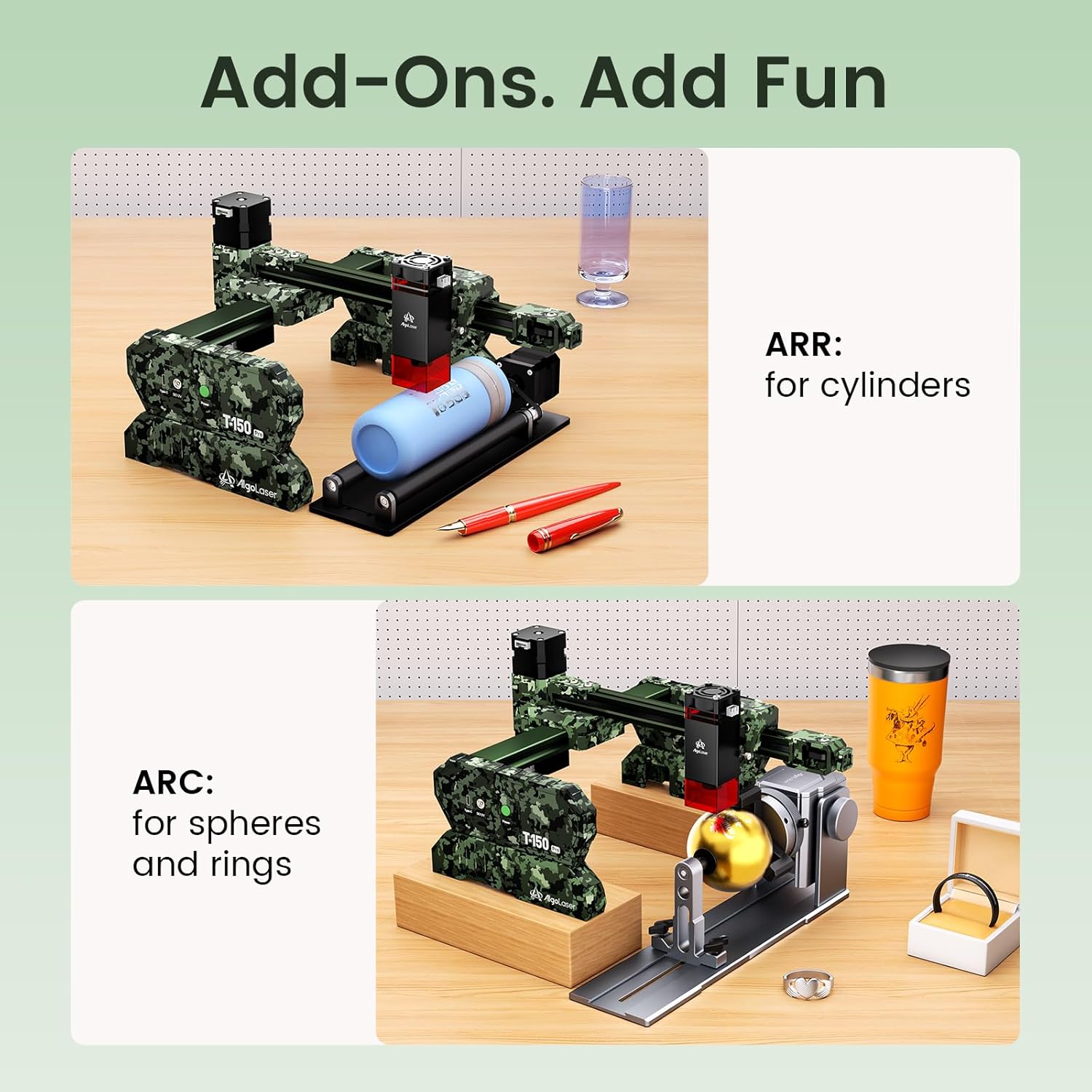
Image 6.1: Optional accessories for specialized engraving tasks.
6.5 Video Demonstrasi Operasi
Video 6.1: A demonstration of the AlgoLaser T150 Pro 3W Laser Engraver Machine in operation, showcasing the engraving process on a material.
7. Penyelenggaraan
Regular maintenance ensures the longevity and optimal performance of your AlgoLaser T150 Pro.
- Membersihkan Lensa: Periodically clean the laser lens with a specialized lens cleaning solution and a lint-free cloth. A dirty lens can reduce laser power and engraving quality.
- Membersihkan Mesin: Keep the engraving area and the machine's exterior free from dust, debris, and material residue. Use a soft brush or compressed air.
- Pelinciran: Check the guide rails and moving parts for smooth operation. Apply a small amount of appropriate lubricant if necessary, following manufacturer recommendations.
- Kemas kini Firmware: Check the official AlgoLaser website for any available firmware updates to ensure your machine has the latest features and bug fixes.
- Storan: When not in use, store the engraver in a clean, dry environment, away from direct sunlight and extreme temperatures.
8. Penyelesaian masalah
This section addresses common issues you might encounter with your AlgoLaser T150 Pro.
- Mesin Tidak Dihidupkan:
- Periksa sama ada penyesuai kuasa disambungkan dengan selamat pada mesin dan soket kuasa yang berfungsi.
- Ensure the power switch on the machine is in the 'ON' position.
- Laser Tidak Menyala/Output Lemah:
- Verify that the laser module is correctly installed and connected.
- Check the laser focus. Recalibrate using the 2mm gauge block.
- Ensure laser power settings in the software are appropriate for the material.
- Clean the laser lens for any obstructions or dirt.
- Engraving Quality is Poor/Inconsistent:
- Re-check laser focus.
- Ensure the material is flat and securely placed on the platform.
- Adjust engraving speed and power settings. Too fast or too slow, or incorrect power, can affect quality.
- Check for any loose belts or mechanical components that might cause vibrations.
- Software Not Connecting to Machine:
- Ensure the USB cable is properly connected to both the machine and the computer.
- Restart both the software and the machine.
- Check device manager (Windows) or system information (macOS) to see if the USB device is recognized. Reinstall USB drivers if necessary.
- Cuba port USB atau kabel lain.
- Machine Stops Mid-Engraving:
- Check for any error messages in the software.
- Ensure the machine is on a stable surface; the tilt detection feature may have activated if the machine was bumped.
- Verify that the USB connection is stable and not interrupted.
If you encounter issues not covered here, please refer to the support section for assistance.
9. Spesifikasi Teknikal
| Ciri | Spesifikasi |
|---|---|
| Nombor Model | T150 Pro |
| Kuasa Laser | 3W (3000mW) |
| Kelas Laser | Class 1 (IEC 60825-1 / FDA 21 CFR 1040.10) |
| Kawasan Ukiran | 150mm x 150mm (5.91"P x 5.91"L) |
| Kelajuan Ukiran Maksimum | 8000 mm/min |
| Mod Operasi | Automatik |
| Ketersambungan | USB |
| Keserasian Perisian | LightBurn, LaserGRBL, Mobile Apps |
| Ciri Keselamatan | Tilt Detection (20 degrees) |
| Dimensi Produk (Anggaran) | 360mm (14.17 in) L x 305mm (12.01 in) W x 143mm (5.63 in) H |
| UPC | 671891151166 |

Image 9.1: Physical dimensions of the AlgoLaser T150 Pro.
10. Waranti dan Sokongan
Your AlgoLaser T150 Pro comes with a commitment to quality and customer satisfaction.
10.1 Perlindungan Waranti
Produk dilindungi oleh a Waranti 1 tahun dari tarikh pembelian. Waranti ini meliputi kecacatan pembuatan dan kerosakan di bawah penggunaan biasa. Ia tidak meliputi kerosakan yang disebabkan oleh salah guna, kemalangan, pengubahsuaian tanpa kebenaran atau kegagalan untuk mematuhi arahan dalam manual ini.
10.2 Sokongan Pelanggan
For any questions, technical assistance, or warranty claims, please contact our dedicated customer service team. We offer Perkhidmatan pelanggan 24/7 to provide quick solutions and setup instructions.
- Maklumat Hubungan: Please refer to the contact details provided on the product packaging or the official AlgoLaser webtapak.
- When contacting support, please have your product model number (T150 Pro) and purchase information ready.