1. Pengenalan
Thank you for choosing the Qubo T-106 Tablet. This manual provides essential information for setting up, operating, maintaining, and troubleshooting your device. Please read it carefully before using your tablet to ensure optimal performance and safety.
The Qubo T-106 is a versatile 10.1-inch tablet featuring an Octacore processor, Android 12 operating system, 6GB RAM, and 128GB internal storage. It supports 4G connectivity, Wi-Fi, and Bluetooth 5, making it suitable for various tasks from entertainment to productivity.
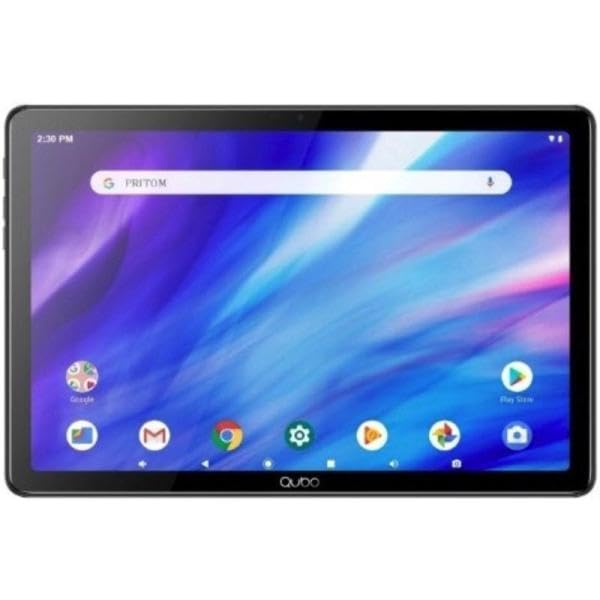
Imej 1.1: Depan view of the Qubo T-106 Tablet, showcasing paparan 10.1 incinya.
2. Maklumat Keselamatan
To prevent damage to your device or injury to yourself and others, please observe the following safety precautions:
- Jangan dedahkan tablet kepada suhu yang melampau, cahaya matahari langsung atau kelembapan yang tinggi.
- Elakkan daripada menjatuhkan atau meletakkan tablet kepada kesan yang kuat.
- Use only Qubo-approved chargers and accessories.
- Jangan cuba membuka atau membaiki tablet sendiri. Rujuk kepada kakitangan perkhidmatan yang berkelayakan.
- Jauhkan tablet daripada air dan cecair lain.
- Buang tablet dan baterinya secara bertanggungjawab mengikut peraturan tempatan.
3. Apa yang ada di dalam Kotak
Upon unpacking your Qubo T-106 Tablet, please ensure all items are present:
- Qubo T-106 Tablet
- Manual Arahan (dokumen ini)
- USB-C Cable or Connector
If any items are missing or damaged, please contact your retailer or Qubo customer support.
4. Persediaan
4.1 Mengecas Tablet
Before first use, fully charge your tablet. Connect the provided USB-C cable to the tablet's USB-C port and the other end to a compatible power adapter (not always included) or a computer's USB port.
- Penunjuk pengecasan akan menyala.
- Pengecasan penuh biasanya mengambil masa 3-4 jam.
4.2 Menghidupkan/Mematikan
- Untuk Menghidupkan: Press and hold the Power button (usually located on the side or top edge) until the Qubo logo appears on the screen.
- Untuk Mematikan: Tekan dan tahan butang Kuasa sehingga menu pilihan kuasa muncul. Pilih "Matikan kuasa" dan sahkan.
- Untuk Mulakan Semula: Daripada menu pilihan kuasa, pilih "Mulakan Semula" dan sahkan.
4.3 Wizard Persediaan Awal
The first time you power on your tablet, an on-screen setup wizard will guide you through:
- Pemilihan bahasa
- Sambungan rangkaian Wi-Fi
- Google account sign-in or creation
- Tetapan tarikh dan masa
- Security settings (PIN, pattern, password)
4.4 Inserting SIM/MicroSD Card (Optional)
If your model supports 4G connectivity or expandable storage, locate the SIM/MicroSD card tray on the side of the tablet. Use the provided ejector tool to open the tray. Insert the Nano-SIM card and/or MicroSD card (up to 128GB, check specifications for exact maximum) into the designated slots with the gold contacts facing down. Gently push the tray back into the tablet.
5. Mengendalikan Tablet Anda
5.1 Navigasi Asas
- Sentuh: Ketik ikon untuk membuka apl atau memilih item.
- Sentuh & Tahan: Press and hold an item to access contextual menus or move icons.
- Leret: Seret jari anda merentasi skrin untuk menatal halaman atau senarai.
- Cubit: Gunakan dua jari untuk mengezum masuk atau keluar pada imej dan web muka surat.
5.2 Menyambung ke Wi-Fi
- Pergi ke tetapan > Rangkaian & internet > Wi-Fi.
- Togol Wi-Fi On.
- Pilih rangkaian yang anda inginkan daripada senarai.
- Masukkan kata laluan jika digesa dan ketik Sambung.
5.3 Using 4G Data (if applicable)
Ensure a valid SIM card is inserted. Go to tetapan > Rangkaian & internet > Rangkaian mudah alih. Dayakan Data mudah alih. You may need to configure APN settings provided by your mobile carrier.
5.4 Operasi Kamera
Buka apl Kamera daripada skrin utama atau laci apl.
- Ketik butang pengatup untuk mengambil foto.
- Tap the video icon to switch to video recording.
- Use the switch icon to toggle between the front (5MP) and rear (8MP) cameras.
6. Penyelenggaraan
6.1 Membersihkan Tablet
Use a soft, lint-free cloth to clean the screen and body of the tablet. Do not use liquid cleaners, aerosols, or abrasive materials, as these can damage the screen or finish.
6.2 Kemas Kini Perisian
Periodically check for software updates to ensure your tablet has the latest features and security patches. Go to tetapan > Sistem > Kemas kini sistem.
6.3 Penjagaan Bateri
- Elakkan menyahcas sepenuhnya bateri dengan kerap.
- Jangan biarkan tablet dicas untuk tempoh yang lama selepas ia dicas sepenuhnya.
- Store the tablet in a cool, dry place if not used for a long time, with the battery charged to about 50%.
7. Penyelesaian masalah
| Masalah | Penyelesaian yang Mungkin |
|---|---|
| Tablet tidak dihidupkan. | Pastikan bateri dicas. Sambungkan pengecas dan tunggu beberapa minit sebelum cuba menghidupkan semula. Jika tidak bertindak balas, lakukan mulakan semula paksa dengan menahan butang kuasa selama 10-15 saat. |
| Tidak dapat menyambung ke Wi-Fi. | Check if Wi-Fi is enabled in settings. Ensure you have the correct password. Restart your Wi-Fi router and the tablet. Try connecting to a different Wi-Fi network to isolate the issue. |
| Aplikasi ranap atau beku. | Tutup dan buka semula apl. Kosongkan cache dan data apl masuk tetapan > Apl. Update the app to the latest version. If the problem persists, uninstall and reinstall the app. |
| Prestasi perlahan. | Tutup apl yang tidak digunakan. Kosongkan cache dan sementara files. Free up storage space by deleting unnecessary files or apps. Restart the tablet. Consider a factory reset as a last resort (back up your data first). |
| Bateri cepat habis. | Reduce screen brightness. Disable Wi-Fi, Bluetooth, GPS, and 4G when not in use. Close background apps. Check battery usage in tetapan > Bateri untuk mengenal pasti apl yang haus kuasa. |
8. Spesifikasi
| Ciri | Perincian |
|---|---|
| Model | Qubo T-106 (T106 128GB) |
| Paparan | 10.1 inches IPS, 1280x800 resolution |
| Pemproses | MT8788 Octacore, 3.4 GHz (max speed) |
| Sistem Operasi | Android 12 |
| RAM | 6GB |
| Storan Dalaman | 128GB |
| Storan Boleh Dikembangkan | MicroSD (capacity not specified, typically up to 128GB or 256GB) |
| Kamera Belakang | 8 Megapixels (Autofocus) |
| Kamera Depan | 5 Megapixels (Fixed Focus) |
| Ketersambungan | 4G (B1/B3/B7/B8/B20), Wi-Fi 802.11n (2.4G/5G), Bluetooth 5, FM, GPS, GLONASS, A-GPS |
| Bateri | 6000 mAh Lithium-ion, 12 hours average battery life |
| Port Pengecasan | USB-C |
| Dimensi | 15 x 15 x 20 cm |
| Berat badan | 1.1 kg |
9. Waranti dan Sokongan
9.1 Maklumat Waranti
The Qubo T-106 Tablet comes with a jaminan tiga tahun terhadap kecacatan pembuatan dari tarikh pembelian. Waranti ini meliputi kecacatan bahan dan mutu kerja di bawah penggunaan biasa. Ia tidak meliputi kerosakan yang disebabkan oleh salah guna, kemalangan, pengubahsuaian tanpa kebenaran atau haus dan lusuh biasa.
Sila simpan bukti pembelian anda untuk tuntutan waranti.
9.2 Sokongan Pelanggan
For technical assistance, warranty claims, or further inquiries, please contact Qubo customer support through your retailer or visit the official Qubo weblaman web untuk maklumat hubungan.
Note: Contact information may vary by region. Please refer to your product packaging or the Qubo official webtapak untuk mendapatkan butiran sokongan yang paling terkini.