
1. Produk Lebihview
The TECKNET TK-MS072 is a versatile 3-device dual-mode wireless mouse designed for enhanced productivity and comfort. It offers seamless connectivity via a USB-A receiver or Bluetooth 5.0/3.0, allowing users to switch between up to three devices with ease. Key features include a silent click design, ergonomic shape for all-day comfort, and adjustable DPI settings up to 4800 for precise control. The mouse is rechargeable via USB-C and boasts a long-lasting battery life.
2. Apa yang ada di dalam Kotak
- TECKNET TK-MS072 Rechargeable Mouse
- Kabel Pengecas USB-A ke C
- USB-A Receiver (typically stored inside the mouse)
3. Ciri-ciri Utama
- Kesambungan Dwi Mod: Connects to up to 3 devices via 2.4G USB-A receiver or Bluetooth 5.0/3.0.
- Reka bentuk ergonomik: Contoured shape with supportive thumb rest for comfortable, all-day use.
- Bateri boleh dicas semula: Built-in 800mAh battery provides weeks of power on a single charge, with USB-C charging.
- Klik Senyap: Noise-reducing buttons for quiet operation in any environment.
- DPI boleh laras: 6 customizable DPI levels (800/1200/1600/2400/3200/4800) for precise cursor control.
- Keserasian Luas: Supports Windows, macOS, Linux, Chrome OS, and Android. Note: Side buttons are not supported on macOS.
- Fungsi Auto-Tidur: Automatically enters sleep mode to conserve power when not in use.
4. Panduan Persediaan
4.1 Komponen Tetikus
Familiarize yourself with the mouse components before setup.

Imej: Diagram illustrating the various buttons and ports on the TECKNET TK-MS072 mouse, including the left/right buttons, scroll wheel, mode indicator, forward/backward buttons, DPI switch, Type-C charging port, mode switch/BT pairing button, On/Off switch, and USB-A receiver slot.
4.2 Menghidupkan dan Mematikan
Locate the On/Off switch on the bottom of the mouse. Slide it to the "ON" position to power on the mouse. Slide it to "OFF" to power off.
4.3 Connecting via USB-A Receiver (2.4G Mode)
- Remove the USB-A receiver from its storage slot on the bottom of the mouse.
- Pasangkan penerima USB-A ke port USB-A yang tersedia pada komputer anda.
- Hidupkan tetikus.
- Press the Mode Switch/BT Pairing Button on the bottom of the mouse until the red light (Mode 1) is active. The mouse should connect automatically.

Imej: A visual guide demonstrating how to connect the mouse using the USB-A receiver. The image shows the receiver inserted into a laptop and the mouse indicating 2.4G mode (red light).
4.4 Connecting via Bluetooth (BT 5.0/3.0 Mode)
The mouse supports two Bluetooth channels (BT1 and BT2) for connecting to different devices.
- Hidupkan tetikus.
- Press the Mode Switch/BT Pairing Button on the bottom of the mouse to select either BT1 (green light) or BT2 (blue light).
- Untuk berpasangan: Long-press the Mode Switch/BT Pairing Button for 3-5 seconds until the selected Bluetooth indicator light (green or blue) starts blinking rapidly. This indicates the mouse is in pairing mode.
- On your device (laptop, tablet, smartphone), go to Bluetooth settings and search for new devices.
- Select "TK-MS072" or a similar name from the list of available devices to pair. Once connected, the blinking light will become solid.

Imej: A visual representation of the mouse connecting to a tablet and a laptop via Bluetooth, highlighting the multi-device connection capability.

Imej: A visual guide demonstrating the quick connection process for the mouse, showing the mode indicator, USB mode connection, and Bluetooth pairing for BT1 and BT2.
Video: This video demonstrates the TECKNET 3-Device Silent Wireless Rechargeable Mouse, showcasinciri-ciri dan pilihan ketersambungannya.
5. Arahan Operasi
5.1 Bertukar Antara Peranti
To switch between connected devices, simply press the Mode Switch/BT Pairing Button on the bottom of the mouse. The corresponding indicator light (red for 2.4G, green for BT1, blue for BT2) will illuminate to show the active connection.
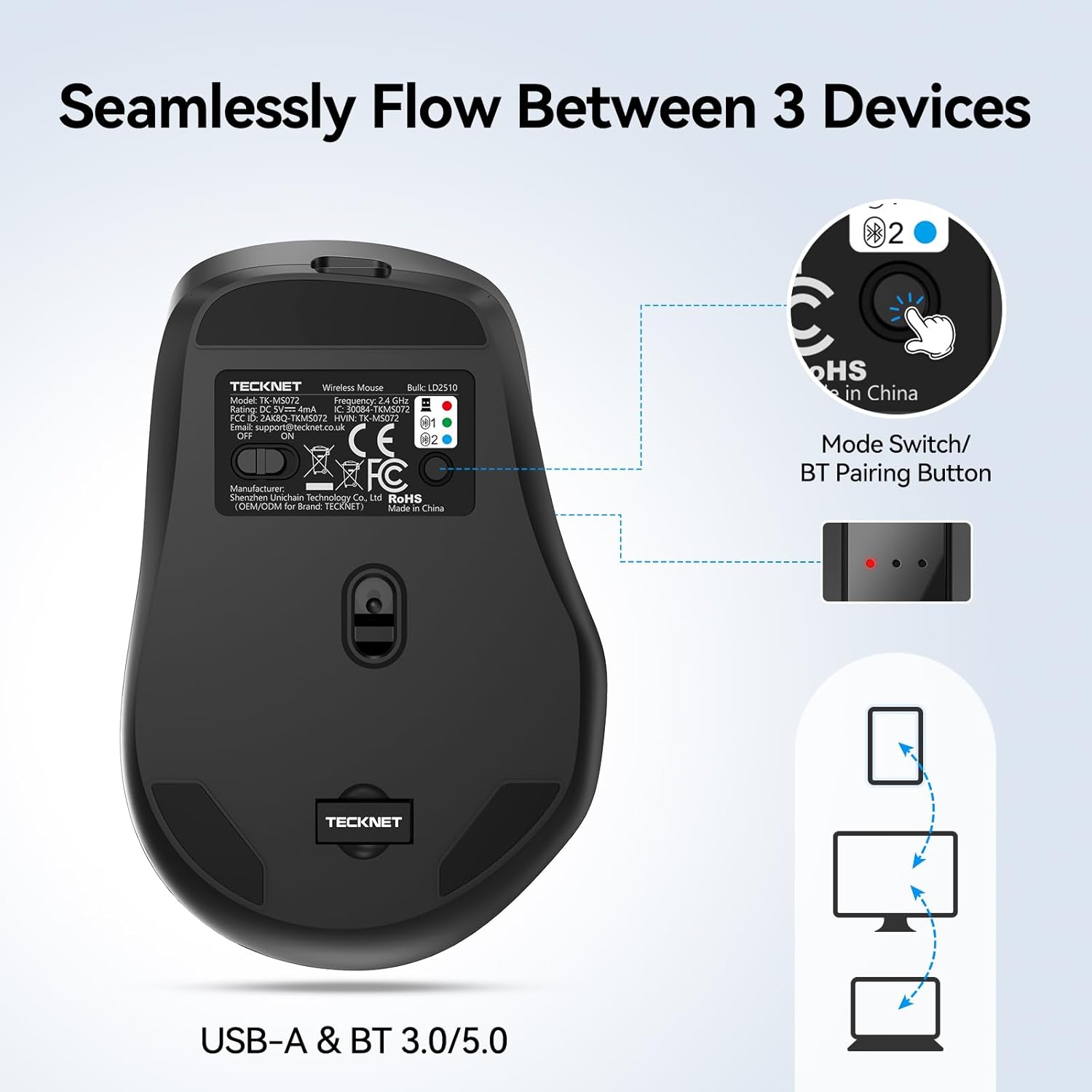
Imej: The underside of the TECKNET mouse, highlighting the mode switch button and LED indicators for 2.4G (red), BT1 (green), and BT2 (blue) connections.
5.2 Melaraskan Kepekaan DPI
The mouse features 6 adjustable DPI levels: 800, 1200, 1600, 2400, 3200, and 4800. Press the DPI Switch Button (located near the scroll wheel) to cycle through these settings. Each press will change the cursor speed, allowing you to find the optimal sensitivity for your tasks.

Imej: The TECKNET mouse with an overlay indicating the 6 adjustable DPI levels (800-4800) and the button to switch between them, demonstrating precision control.
5.3 Fungsi Klik Senyap
The mouse is designed with noise-reducing buttons to provide a silent clicking experience. This feature is ideal for quiet environments such as offices, libraries, or late-night use, ensuring minimal disturbance.

Imej: A woman using the TECKNET mouse on a laptop in a quiet setting, with a sleeping child in the background, illustrating the silent click feature.
5.4 Keselesaan Ergonomik
The contoured arc and supportive thumb rest are engineered to fit naturally in your palm, reducing strain and providing comfort during extended periods of use. This design promotes a relaxed hand position.

Imej: A hand comfortably gripping the ergonomic TECKNET mouse, demonstrating its design for all-day comfort and reduced strain.
5.5 Keserasian Permukaan
The optical sensor of the mouse is designed to work effectively on various surfaces, including leather, fabric, wood, paper, and resin, without requiring a mouse pad.

Imej: The TECKNET mouse positioned on a desk, with icons indicating its compatibility with various surfaces like leather, fabric, wood, paper, and resin.
6. Penyelenggaraan
6.1 Mengecas Tetikus
The mouse is equipped with an 800mAh rechargeable battery. Use the provided USB-A to C charging cable to charge the mouse. Connect the USB-C end to the mouse's charging port and the USB-A end to a power source (e.g., computer USB port, USB wall adapter). A full charge typically takes 2-3 hours and can provide power for weeks of typical use (approximately 120 days based on 2 hours/day usage).

Imej: The TECKNET mouse connected to a USB-C charging cable, illustrating its rechargeable nature and 800mAh battery capacity.
6.2 Pembersihan
Untuk membersihkan tetikus, lap permukaannya dengan lembut, damp kain. Elakkan menggunakan bahan kimia yang keras atau bahan kasar, kerana ini boleh merosakkan kemasan. Pastikan tiada cecair memasuki komponen dalaman.
6.3 Penyimpanan
When not in use for extended periods, turn off the mouse to conserve battery life. Store the USB-A receiver in its designated slot on the bottom of the mouse to prevent loss.
7. Penyelesaian masalah
| Masalah | Penyelesaian |
|---|---|
| Mouse not responding (2.4G mode) |
|
| Tetikus tidak bersambung melalui Bluetooth |
|
| Pergerakan kursor tidak menentu atau perlahan |
|
| Side buttons not working on macOS | This is a known compatibility limitation. Side buttons are not supported on macOS. |
8. Spesifikasi Produk
| Ciri | Perincian |
|---|---|
| Jenama | TEKNET |
| Nombor Model | TK-MS072 |
| warna | Hitam |
| Teknologi Ketersambungan | Bluetooth (5.0/3.0), 2.4G USB-A |
| Ciri Khas | Ergonomic Design, Rechargeable, Silent Click, Wireless |
| Teknologi Pengesanan Pergerakan | Optik |
| Kuantiti Butang | 6 |
| Orientasi Tangan | Betul |
| Peranti Serasi | Komputer Peribadi, Telefon Pintar, Tablet |
| Sistem Operasi | Windows, macOS, Linux, Chrome OS, Android |
| Purata Hayat Bateri | 4 weeks (approx. 120 days at 2 hours/day) |
| Sumber Kuasa | Boleh dicas semula |
| Mouse Maximum Sensitivity | 4800 Dots per Inch (DPI) |
| Tahap DPI | 800/1200/1600/2400/3200/4800 |
| Minimum Required OS Version | ChromeOS 137, Mac OS 14 Sonoma, Windows 11 |
9. Waranti dan Sokongan
TECKNET provides a Waranti 36 bulan for this product (registration may be required). If you encounter any problems during product use, please contact TECKNET's professional customer service team for assistance.
For support, please refer to the contact information provided with your product packaging or visit the official TECKNET webtapak.