
WolfLawS X3
WolfLawS X3 Wireless Gaming Headset User Manual
Model: X3
pengenalan
Thank you for choosing the WolfLawS X3 Wireless Gaming Headset. This manual provides detailed instructions for setting up, operating, maintaining, and troubleshooting your new headset. Please read this manual carefully before use to ensure optimal performance and longevity of your device.
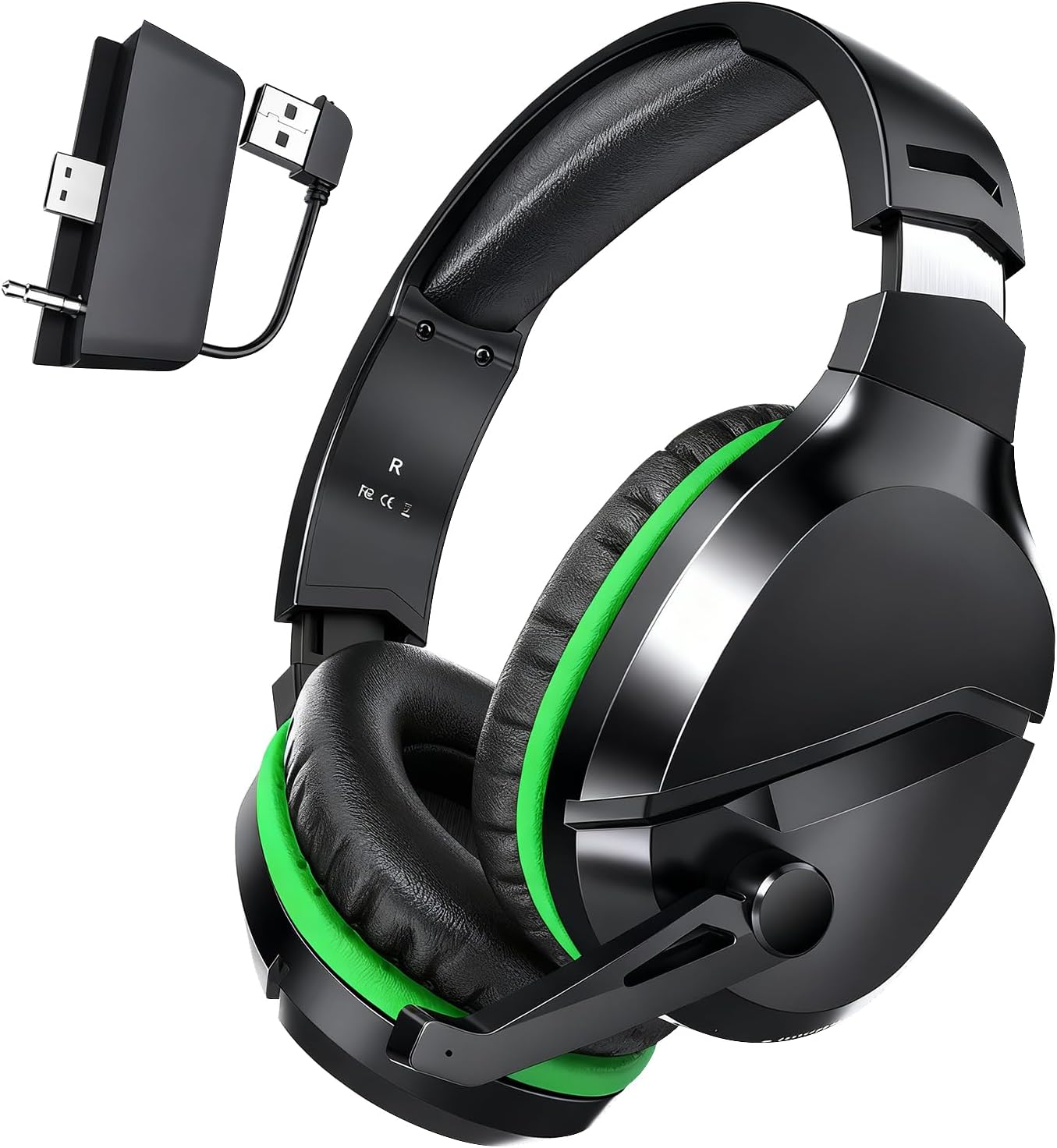
Image: The WolfLawS X3 Wireless Gaming Headset, featuring a sleek black design with vibrant green accents on the earcups and headband.
Apa yang ada dalam Kotak
Your WolfLawS X3 Wireless Gaming Headset package includes the following items:
- WolfLawS X3 Wireless Gaming Headset
- 2.4GHz Wireless Transmitter (Dongle)
- Kabel Pengecas USB-A ke USB-C
- Manual Pengguna

Image: All components included with the WolfLawS X3 headset: the headset itself, a small black 2.4GHz transmitter, a USB-C charging cable, and the user manual.
Ciri-ciri Produk
- Kesambungan Dwi Mod: Seamlessly switch between 2.4GHz wireless for gaming and Bluetooth 5.0 for mobile devices.
- Masa Main Dilanjutkan: Up to 50+ hours of battery life on a single 2.5-hour charge.
- Latensi Rendah: Less than 20ms audio latency for real-time sound synchronization.
- Audio Imersif: 50mm dynamic drivers with 3D Surround Sound for enhanced gaming audio.
- Mikrofon Pembatal Bunyi: Flexible microphone with noise reduction for clear communication.
- Reka Bentuk Keselesaan: Breathable air protein ear cushions and an adjustable headband for prolonged comfort.
- Kawalan Intuitif: On-ear volume wheel, mic mute button, and mode switch for easy adjustments.
Video: Video ini memberikan gambaran ringkasview of the X3 Wireless Gaming Headset, highlighting its key features such as multi-platform compatibility, 3D surround sound, and long battery life.
Arahan Persediaan
Connecting to Xbox Series X|S / Xbox One (2.4GHz Wireless)
- Ensure your Xbox controller is an official Xbox Series X|S or Xbox One controller.
- Insert the 2.4GHz wireless transmitter (dongle) into the USB port of your Xbox console.
- Power on the headset by holding the Power Button for 3 seconds.
- Press and hold the Mode Switch button on the headset for 2 seconds to switch to 2.4GHz mode (white LED indicator).
- The headset will automatically pair with the transmitter. A solid white LED on the headset indicates a successful connection.
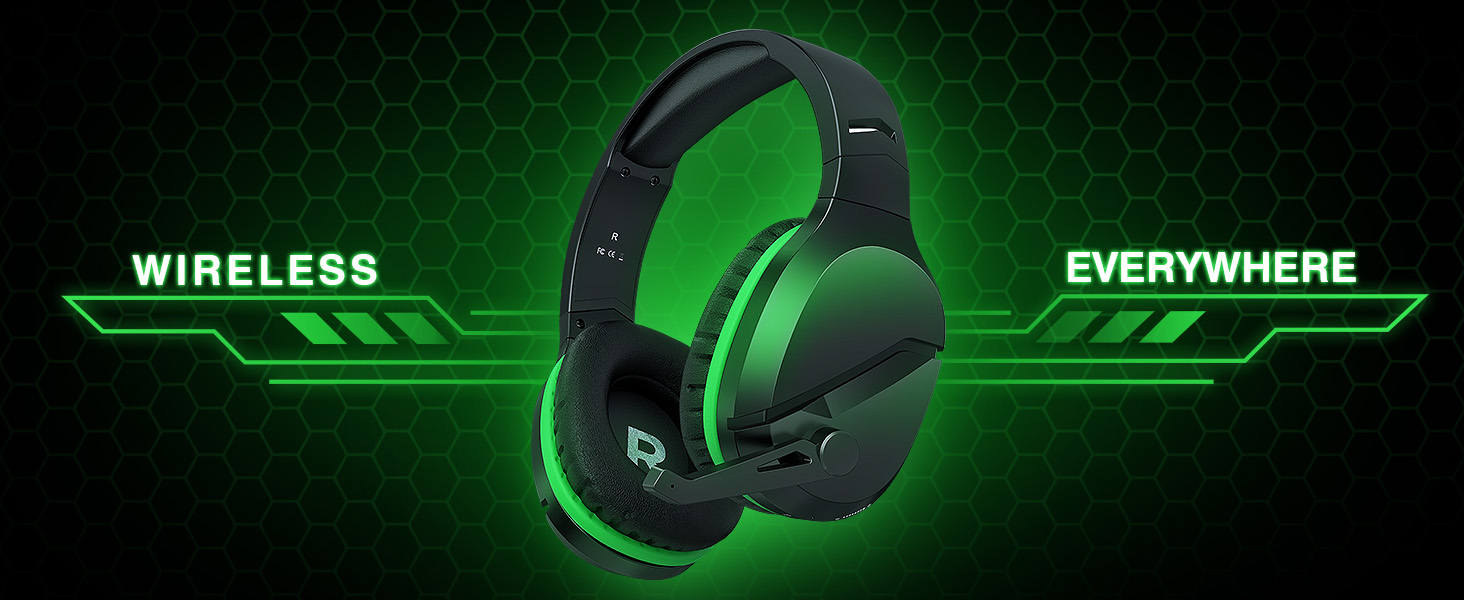
Image: A visual guide illustrating the multi-connection capabilities of the headset, showing how to connect via 2.4GHz USB dongle to various devices and via Bluetooth mode.
Connecting to PS5 / PC / Mac / Switch (2.4GHz Wireless)
- Insert the 2.4GHz wireless transmitter (dongle) into an available USB port on your PS5, PC, Mac, or Switch dock.
- Power on the headset by holding the Power Button for 3 seconds.
- Press and hold the Mode Switch button on the headset for 2 seconds to switch to 2.4GHz mode (white LED indicator).
- The headset will automatically pair with the transmitter. A solid white LED on the headset indicates a successful connection.
Connecting to Mobile / Mac / Switch (Bluetooth 5.0)
- Power on the headset by holding the Power Button for 3 seconds.
- Press and hold the Mode Switch button on the headset for 2 seconds to switch to Bluetooth mode (blue LED indicator). The blue LED will flash rapidly, indicating pairing mode.
- On your mobile device, Mac, or Switch, go to Bluetooth settings and select "WolfLawS X3" from the list of available devices.
- A solid blue LED on the headset indicates a successful connection.

Image: The 2.4GHz wireless transmitter dongle, which can be separated into a USB-A plug and a 3.5mm jack for versatile connectivity.
Video: This video demonstrates the setup process for the X3 Wireless Xbox Headset, including unboxing, connecting the dongle to the Xbox controller, and initial pairing.
Arahan Operasi
Kawalan Alat dengar
- Butang Kuasa: Tekan dan tahan selama 3 saat untuk menghidupkan/mematikan kuasa.
- Butang Suis Mod: Press and hold for 2 seconds to switch between 2.4GHz (white LED) and Bluetooth (blue LED) modes.
- Roda Kelantangan: Scroll up (+) to increase volume, scroll down (-) to decrease volume.
- Mic On/Off Button: Tekan untuk meredam/menyahredam mikrofon.
- Mikrofon Fleksibel: The microphone can be folded up when not in use for convenience.

Imej: A terperinci view of the on-ear controls, including the mic on/off button, 2.4GHz/Bluetooth mode switch, power button, volume wheel, and Type-C charging port.
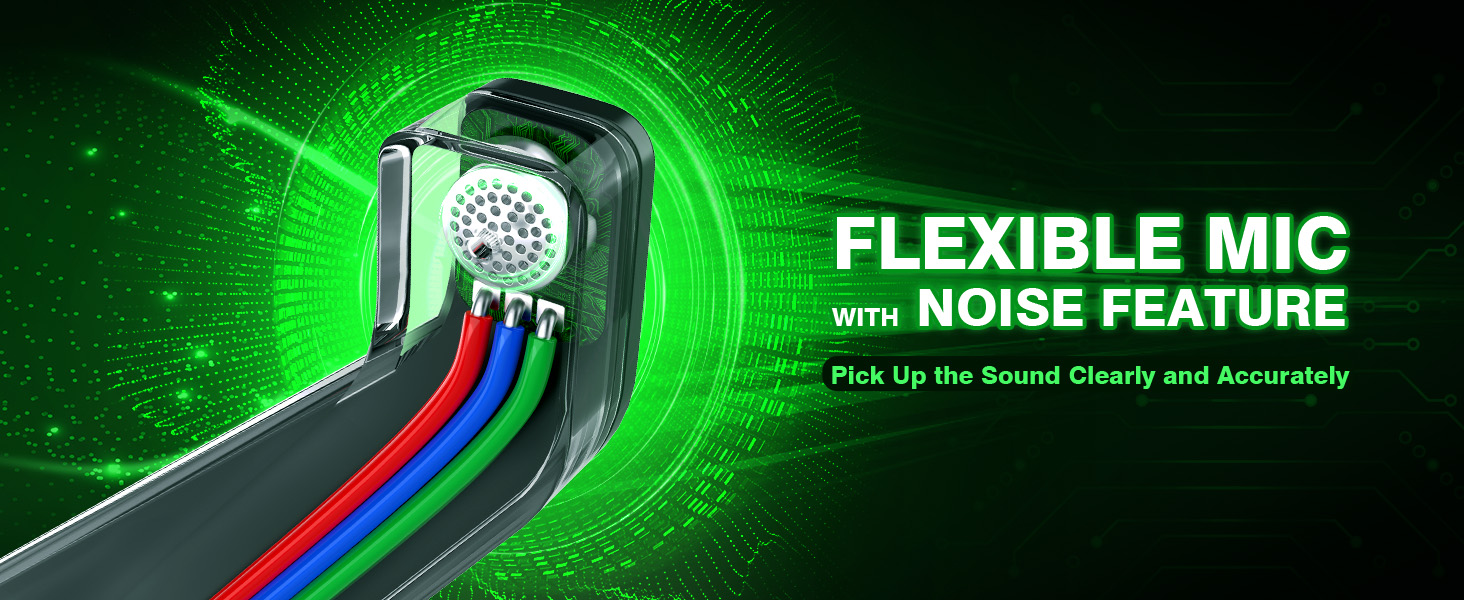
Image: A close-up of the flexible microphone, emphasizing its noise-cancelling feature for clear voice pickup.
Mengecas
To charge your WolfLawS X3 headset:
- Connect the USB-C end of the charging cable to the headset's USB-C port.
- Connect the USB-A end of the charging cable to a compatible USB power source (e.g., computer, wall adapter).
- Penunjuk LED pada set kepala akan menunjukkan status pengecasan.
- A full charge takes approximately 2.5 hours and provides over 50 hours of playtime.
Penyelenggaraan
- Bersihkan set kepala dengan kerap menggunakan kain lembut dan kering.
- Elakkan daripada mendedahkan alat dengar kepada suhu, kelembapan atau cahaya matahari langsung yang melampau.
- Do not attempt to disassemble or modify the headset, as this will void the warranty.
- Store the headset in a cool, dry place when not in use. The earcups can swivel flat for easier storage.
Menyelesaikan masalah
No Sound from Microphone / Microphone Sound Too Low
- Ensure the headset is in the correct mode (2.4GHz or Bluetooth) for your device.
- Check the mic mute button on the headset to ensure the microphone is not muted.
- For Xbox consoles, confirm the microphone settings: Go to Audio & music settings, ensure Mikrofon alat dengar is ON, and adjust Headset chat mixer to balance game sound and chat sound.
- Make sure the microphone is properly plugged into its port on the headset.
Echo from the Microphone
- Matikan Pemantauan mikrofon mode in your Xbox console settings (Audio & music).
Bunyi Berlebihan / Statik
- When using the 2.4GHz transmitter with an Xbox controller, ensure the transmitter is fully inserted into the controller's 3.5mm jack until it snaps securely. A loose connection can cause electrical noise.
- Ensure the headset is not too far from the connected device or transmitter, as this can cause signal interference.
Headset Volume Too Low
- Adjust the volume wheel on the headset to increase the volume.
- For Xbox consoles, check the Kelantangan Alat dengar masuk Audio & music and ensure it is set to maximum. The default volume is often 80%.
Video: This troubleshooting guide addresses common issues such as microphone connectivity, echo, and low volume, providing step-by-step solutions within the Xbox console settings.
Spesifikasi
| Ciri | Spesifikasi |
|---|---|
| Jenama | WolfLawS |
| Nama Model | X3 |
| warna | Hitam dan Hijau |
| Penempatan Telinga | Atas Telinga |
| Teknologi Ketersambungan | Tanpa Wayar (2.4GHz, Bluetooth 5.0) |
| Saiz Pemacu Audio | Pemacu Dinamik 50mm |
| Julat Kekerapan | 20 Hz - 20,000 Hz |
| Impedans | 160 ohm |
| Latensi Audio | Less than 20 Milliseconds |
| Kapasiti Bateri | 1000 mAh |
| Masa Pengecasan Bateri | 2.5 Jam |
| Purata Hayat Bateri | 50+ Jam |
| Kawalan Bunyi | Pembatalan Bunyi Aktif (Mikrofon) |
| Peranti Serasi | Xbox Series X|S, Xbox One, PS5, PS4, PC, Mac, Switch |
Waranti dan Sokongan
The WolfLawS X3 Wireless Gaming Headset comes with a Waranti 2 tahun from the date of purchase. This warranty covers manufacturing defects and ensures your product is free from material and workmanship flaws under normal use.
For technical support, warranty claims, or any questions regarding your headset, please refer to the contact information provided in the included User Manual or visit the official WolfLawS webtapak.
Ask a question about this manual
Ask about setup, troubleshooting, compatibility, parts, safety, or missing instructions. Manuals+ will review the question and use this page’s manual context to help answer it.