
pengenalan
Welcome to the user manual for your new DOOGEE Tab A9 Wi-Fi Tablet. This guide provides essential information to help you set up, operate, maintain, and troubleshoot your device. Please read this manual thoroughly to ensure optimal performance and longevity of your tablet.
Kandungan Pakej
Sahkan bahawa semua item terdapat dalam pakej anda:
- Tablet DOOGEE Tab A9
- Kabel Jenis-C USB
- Pengecas
- Manual Pengguna
- (Optional accessories, depending on package edition: Stylus Pen, Reinforced Case, Bluetooth Mouse, Leather Protective Cover, Bluetooth Keyboard)
Persediaan
1. Pengecasan Awal
Before first use, fully charge your tablet. Connect the USB Type-C cable to the tablet's charging port and the other end to the provided charger. Plug the charger into a power outlet. The charging indicator will show the charging status.
2. Menghidupkan/Mematikan
- Untuk Menghidupkan: Press and hold the Power button until the DOOGEE logo appears on the screen.
- Untuk Mematikan: Press and hold the Power button until a power-off menu appears. Select "Power off" to shut down the device.
- Untuk Mulakan Semula: From the power-off menu, select "Restart" to reboot the device.
3. Wizard Persediaan Awal
Sebaik sahaja dihidupkan buat kali pertama, tablet akan membimbing anda melalui proses persediaan awal. Ikuti arahan pada skrin untuk:
- Pilih bahasa anda.
- Sambung ke rangkaian Wi-Fi.
- Terima terma dan syarat.
- Log masuk dengan akaun Google anda atau buat yang baharu.
- Sediakan kunci skrin (PIN, corak, kata laluan).

Imej: Depan dan belakang view of the DOOGEE Tab A9 tablet, illustrating its design and camera placement.
Arahan Operasi
1. Navigasi Asas
- Sentuh: Ketik ikon atau pilihan untuk memilihnya.
- Leret: Seret jari anda merentasi skrin untuk menatal halaman atau kandungan.
- Cubit-untuk-Zum: Letakkan dua jari pada skrin dan renggangkannya untuk mengezum masuk, atau cubit bersama untuk mengezum keluar.
- Skrin Utama: Tap the Home button (usually a circle or house icon) to return to the main screen.
- Belakang: Tap the Back button (usually a left arrow) to return to the previous screen.
- Apl Terbaharu: Tap the Recent Apps button (usually a square or three vertical lines) to view dan bertukar antara aplikasi yang digunakan baru-baru ini.
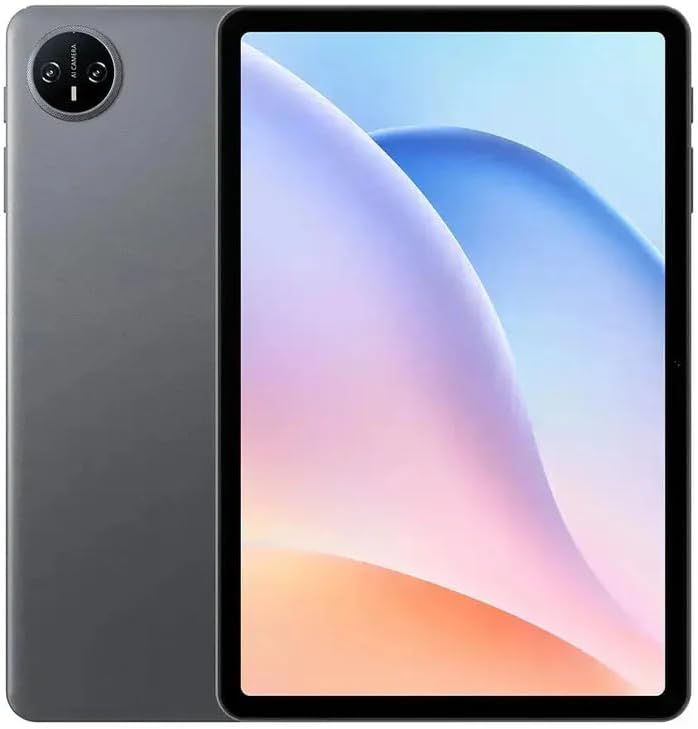
Imej: Depan view of the DOOGEE Tab A9 tablet with its display active, showing the user interface.
2. Kesambungan Wi-Fi
Untuk menyambung ke rangkaian Wi-Fi:
- Pergi ke tetapan > Rangkaian & internet > Wi-Fi.
- Togol Wi-Fi On.
- Pilih rangkaian yang anda inginkan daripada senarai.
- Masukkan kata laluan jika digesa dan ketik Sambung.
3. Berpasangan Bluetooth
Untuk berpasangan dengan peranti Bluetooth:
- Pergi ke tetapan > Peranti yang disambungkan > Bluetooth.
- Togol Bluetooth On.
- Ensure the other Bluetooth device is in pairing mode.
- Pilih peranti daripada senarai peranti yang tersedia dan ikuti sebarang arahan pada skrin untuk menyelesaikan pemasangan.
4. Penggunaan Kamera
The tablet features a 5MP front camera and an 8MP rear camera.
- Buka Kamera permohonan.
- Ketik butang pengatup untuk mengambil foto.
- Beralih antara kamera hadapan dan belakang menggunakan ikon suis kamera.
- Pilih mod video untuk merakam video.
5. Ciri Paparan

Image: Visual representation of the DOOGEE Tab A9's 10.1-inch IPS HD display, highlighting its 1280x800 resolution, 80.2% screen-to-body ratio, and 16.7 million screen colors.
The DOOGEE Tab A9 features a 10.1-inch IPS HD display with a resolution of 1280x800 pixels, offering a wide field of view and vibrant colors. The screen-to-body ratio is approximately 80.2%, providing an immersive viewpengalaman dalam.
6. Pengurusan Bateri

Image: Infographic detailing the DOOGEE Tab A9's 6580mAh battery capacity and its estimated usage times for Wi-Fi standby, music playback, video watching, and web melayari.
The tablet is equipped with a 6580mAh battery. To optimize battery life:
- Laraskan kecerahan skrin.
- Tutup aplikasi yang tidak digunakan.
- Matikan Wi-Fi atau Bluetooth apabila tidak digunakan.
- Use power-saving modes available in Android settings.
Penyelenggaraan
1. Pembersihan
- Gunakan kain lembut dan tidak berbulu untuk membersihkan skrin dan badan tablet.
- Elakkan menggunakan bahan kimia yang keras, pembersih yang melelas, atau semburan aerosol.
- Untuk calitan degil, sedikit dampen kain dengan air atau penyelesaian pembersihan khusus skrin.
2. Penyimpanan
- Simpan tablet di tempat yang sejuk dan kering jauh dari cahaya matahari langsung dan suhu yang melampau.
- If storing for an extended period, ensure the battery is charged to about 50% to prevent deep discharge.
3. Kemas Kini Perisian
Semak dan pasang kemas kini perisian secara kerap untuk memastikan tablet anda mempunyai ciri terkini, tampung keselamatan dan peningkatan prestasi. Pergi ke tetapan > Sistem > Kemas kini sistem.
Menyelesaikan masalah
| Isu | Penyelesaian yang Mungkin |
|---|---|
| Tablet tidak dihidupkan | Ensure the battery is charged. Connect the charger and try again. If unresponsive, press and hold the Power button for 10-15 seconds to force a restart. |
| Tidak dapat menyambung ke Wi-Fi | Check if Wi-Fi is enabled in settings. Restart your router and tablet. Verify the Wi-Fi password. |
| Applications are crashing or freezing | Close and reopen the application. Clear the app's cache (Settings > Apps > [App Name] > Storage & cache). Restart the tablet. |
| Prestasi perlahan | Tutup apl yang tidak digunakan. Kosongkan cache dan sementara files. Check for system updates. Consider a factory reset if issues persist (backup data first). |
| Skrin sentuh tidak bertindak balas | Restart the tablet. Ensure the screen is clean and free of debris. If a screen protector is installed, ensure it is properly applied. |
Spesifikasi
| Ciri | Perincian |
|---|---|
| Nama Model | DOOGEE Tab A9 |
| Sistem Operasi | Android 15 |
| Pemproses | Unisoc T310 Octa-Core (1x Cortex-A75 @2.0GHz, 3x Cortex-A55 @1.8GHz) |
| GPU | Lengan Mali G52 |
| RAM | 3GB LPDDR3 |
| Storan Dalaman (ROM) | 64GB eMMC |
| Storan Boleh Dikembangkan | Menyokong Kad TF sehingga 2TB |
| Saiz Paparan | 10.1 inci |
| Jenis Paparan | IPS HD LCD |
| Resolusi Paparan | 1280 x 800 piksel |
| Nisbah Skrin kepada Badan | 80.2% |
| Kamera Depan | 5MP |
| Kamera Belakang | 8MP dengan Flash |
| Rakaman Video | FHD 1080p @ 30fps |
| Wi-Fi | 802.11 a / b / g / n / ac (2.4GHz / 5GHz) |
| Bluetooth | Bluetooth 5.0 |
| Rangkaian Selular | Not supported (Wi-Fi only model) |
| Kapasiti Bateri | 6580 mAh (38.38 Wj) |
| Mengecas | 10W Max Charging Current, USB Type-C |
| Bicu Audio | Bicu Fon Kepala 3.5mm |
| Penderia | Accelerometer |
| Dimensi | 242.5 × 160.9 × 9.7 mm (approx. 25L x 18W x 1.5T cm) |
| Berat badan | 512 grams (approx. 500 grams) |
| warna | Kelabu |
Waranti dan Sokongan
Maklumat Waranti
Your DOOGEE Tab A9 tablet comes with a limited one-year manufacturer's warranty from the date of purchase. This warranty covers defects in materials and workmanship under normal use. It does not cover damage caused by accidents, misuse, unauthorized repairs, or normal wear and tear. Please retain your proof of purchase for warranty claims.
Sokongan Pelanggan
For technical assistance, warranty claims, or further inquiries, please contact DOOGEE customer support through their official website or the retailer where you purchased the device. Have your model number (Tab A9) and proof of purchase ready when contacting support.