
1. Pengenalan
This manual provides essential information for setting up, operating, and maintaining your Zwide i3 CPU N305 2-in-1 Tablet Laptop. Please read this guide thoroughly before using the device to ensure optimal performance and longevity. Keep this manual for future reference.
2. Produk Lebihview
2.1 Ciri-ciri Utama
- Reka bentuk 2-dalam-1 serba boleh: Operates as a laptop or tablet with a 360-degree rotatable 8-inch touchscreen.
- Sistem pengendalian: Pre-installed with Windows 11 Pro for a comprehensive computing experience.
- CPU Berprestasi Tinggi: Equipped with an upgraded Intel N305 CPU (8 cores, 8 threads, up to 3.8GHz) for enhanced multi-tasking and performance.
- Ample Memori & Penyimpanan: Features 16GB LPDDR5 RAM and a 1TB SSD for efficient operation and storage. Storage is expandable up to 1TB via TF card.
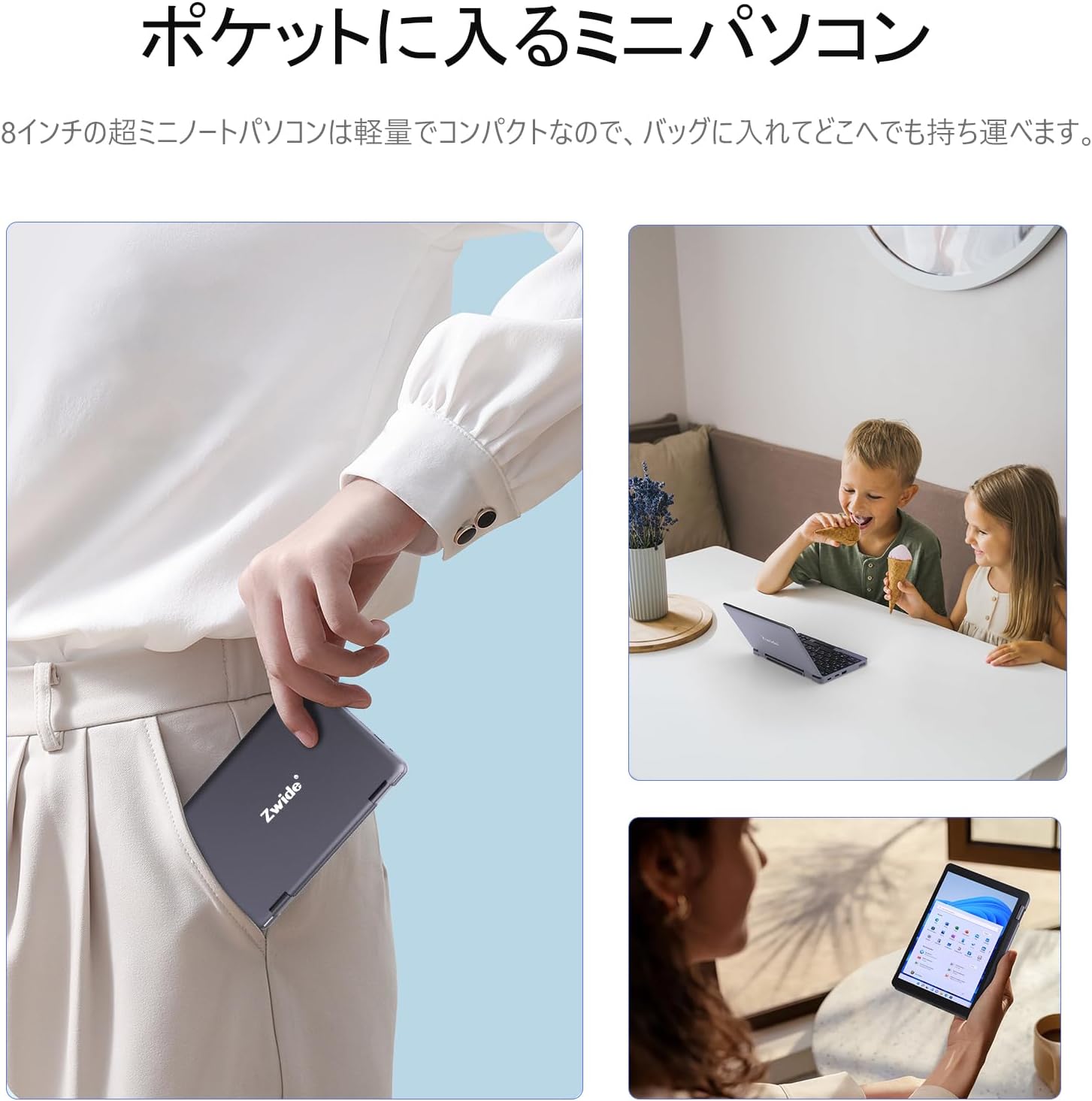
- Padat & Mudah Alih: Ultra-compact size (20 x 13 x 1.8 cm) and lightweight design for easy portability.
- Secure Login: Integrated fingerprint authentication on the power button for quick and secure access.
- Paparan Resolusi Tinggi: 8.4-inch HD display with 1920x1200 FHD resolution for clear visuals.
- Ketersambungan: Supports Bluetooth 5.2 for efficient wireless connections and Wi-Fi.
- Japanese Keyboard: Features a Japanese keyboard layout for localized input.
2.2 Susun Atur dan Port Peranti
Familiarize yourself with the physical components and connection ports of your Zwide 2-in-1 Tablet Laptop.
Imej: Sisi view of the Zwide 2-in-1 Tablet Laptop highlighting its various ports.
- Port USB 3.0: For connecting USB devices such as external storage, mice, or keyboards.
- Mini HD Port: Untuk menyambung ke paparan luaran atau projektor.
- Slot Kad TF: For expanding storage with a TF (microSD) card.
- Jack fon kepala: Untuk menyambungkan fon kepala atau pembesar suara luaran.
- Port Pengecasan: Untuk menyambungkan penyesuai kuasa bagi mengecas peranti.
- Port LAN: Untuk sambungan rangkaian berwayar.
- Thunderbolt Port (Type-C): Untuk pemindahan data berkelajuan tinggi, output video dan penghantaran kuasa.
3. Persediaan
3.1 Pengecasan Awal
Before first use, fully charge your Zwide 2-in-1 Tablet Laptop. Connect the provided power adapter to the charging port and plug it into a power outlet. The charging indicator light will show the charging status.
3.2 Menghidupkan/Mematikan
- Untuk Menghidupkan: Press and hold the power button for a few seconds until the screen lights up.
- Untuk Mematikan: Go to the Start Menu in Windows, select Power, and then choose Shut down. Alternatively, press and hold the power button for approximately 10 seconds to force a shutdown (use only when necessary).
3.3 Persediaan Windows Awal
Upon first power-on, you will be guided through the Windows 11 Pro setup process. Follow the on-screen instructions to configure language, region, network settings, and user accounts.
3.4 Menyambung Peranti
You can connect various peripherals to your device:
- Peranti USB: Plug USB mice, external keyboards, or storage devices into the USB 3.0 ports.
- Paparan luaran: Use a Mini HD cable to connect to an external monitor or TV.
- Kad TF: Insert a TF card into the designated slot for additional storage.
4. Arahan Operasi
4.1 2-in-1 Modes
Your device supports multiple modes thanks to its 360-degree hinge:
- Mod Komputer Riba: Standard notebook configuration for typing and productivity.
- Mod Tablet: Fold the keyboard back completely for a full tablet experience with touchscreen interaction.
- Mod Khemah: Stand the device in an inverted 'V' shape for media consumption or presentations.
- Mod Berdiri: Position the keyboard face down to use the screen as a display stand.

Image: Zwide 2-in-1 Tablet Laptop in traditional laptop mode.

Image: Zwide 2-in-1 Tablet Laptop converted to tablet mode.
4.2 Touchscreen and Keyboard Usage
- Skrin sentuh: Use multi-touch gestures for navigation, zooming, and interaction in tablet mode or when the screen is accessible.
- papan kekunci: The integrated Japanese keyboard features a backlight for use in low-light conditions. A trackpoint is also available for precise cursor control.
4.3 Fingerprint Login
To set up fingerprint authentication, navigate to Windows Settings > Accounts > Sign-in options. Follow the instructions to register your fingerprint. Once set up, you can securely log in by touching the power button with your registered finger.
4.4 Kesambungan Wayarles
- Wi-Fi: To connect to a Wi-Fi network, click the Wi-Fi icon in the taskbar, select your desired network, and enter the password if prompted.
- Bluetooth: To pair Bluetooth devices, go to Windows Settings > Devices > Bluetooth & other devices. Ensure Bluetooth is enabled on both your laptop and the device you wish to pair.
4.5 External Display Output
Connect an external display to the Mini HD port or Thunderbolt (Type-C) port. Once connected, press the Windows key + P to open the project menu and select your preferred display mode (e.g., Duplicate, Extend, Second screen only).
5. Penyelenggaraan
5.1 Membersihkan Peranti
- Gunakan kain lembut dan tidak berbulu untuk membersihkan skrin dan permukaan luar.
- Untuk tanda degil, sedikit dampbersihkan kain dengan air atau pencuci yang selamat untuk skrin.
- Elakkan menggunakan bahan kimia yang keras, bahan pelelas atau pelarut.
5.2 Penjagaan Bateri
- Untuk memanjangkan hayat bateri, elakkan daripada menyahcas sepenuhnya bateri dengan kerap.
- Simpan peranti di tempat yang sejuk dan kering apabila tidak digunakan untuk tempoh yang lama.
- Jangan dedahkan peranti kepada suhu yang melampau.
5.3 Kemas Kini Perisian
Regularly check for and install Windows updates to ensure your system has the latest security patches and performance improvements. Go to Settings > Windows Update.
5.4 Pengurusan Storan
Bersihkan secara berkala yang tidak perlu files and applications to maintain optimal performance. Utilize cloud storage or external drives for large files to free up internal SSD space.
6. Penyelesaian masalah
If you encounter issues with your Zwide 2-in-1 Tablet Laptop, refer to the following common solutions:
| Masalah | Penyelesaian yang Mungkin |
|---|---|
| Peranti tidak dihidupkan | Ensure the device is charged. Connect the power adapter and try again. If unresponsive, perform a hard reset by holding the power button for 10-15 seconds. |
| Skrin kosong atau berkelip-kelip | Restart the device. Check external display connections if applicable. Adjust display settings in Windows. |
| Wi-Fi or Bluetooth not connecting | Ensure Wi-Fi/Bluetooth is enabled in Windows settings. Restart the device and your router/Bluetooth device. Update network drivers. |
| Prestasi perlahan | Tutup aplikasi yang tidak diperlukan. Periksa proses latar belakang. Pastikan ruang storan kosong yang mencukupi. Jalankan imbasan sistem untuk perisian hasad. |
| Penderia cap jari tidak berfungsi | Ensure your finger is clean and dry. Re-register your fingerprint in Windows settings. |
If the problem persists, please contact Zwide customer support for further assistance.
7. Spesifikasi
| Ciri | Perincian |
|---|---|
| Jenama | Zwide |
| Nama Model | NA08H |
| Saiz Skrin | 8 inci |
| warna | Kelabu |
| Kapasiti Cakera Keras | 1 TB (SSD) |
| Model CPU | Intel N305 |
| Kelajuan CPU | Sehingga 3.8 GHz |
| Saiz RAM yang Dipasang | 16 GB (LPDDR5) |
| Sistem Operasi | Windows 11 Pro |
| Kad Grafik | Integrated (Intel UHD Graphics) |
| Versi Bluetooth | 5.2 |
| Resolusi Paparan | 1920x1200 pixels (FHD) |
| Jenis Paparan | LCD |
| Max Display Brightness | 350 cd/m² |
| Jenis Wayarles | Wi-Fi |
| Dimensi Item (LxWxH) | 20 x 13 x 2 cm |
| Faktor Bentuk | Boleh tukar |
| Webcam | Depan |
| Penerangan Papan Kekunci | Backlit, Japanese Layout |
| Kaedah Kawalan | Touch, Trackpoint |
| Tahun Model | 2025 |
| Komponen yang Disertakan | papan kekunci |
8. Video Produk Rasmi
8.1 Zwide 8-inch Mini Notebook PC Overview
Video: This video demonstrates the compact size, 360-degree rotation, and various usage modes of the Zwide 8-inch mini notebook PC, including tablet and laptop configurations, touch screen interaction, and port usage.
8.2 Zwide Pocket Handheld Mini Laptop Portability
Video: This video showcases the Zwide mini laptop's portability, demonstrating how it fits into a pocket and its use in various on-the-go scenarios.
8.3 Zwide 2-in-1 Tablet 8-inch Mini PC Functionality
Video: This video illustrates the 2-in-1 tablet functionality of an 8-inch mini PC, demonstrating its versatility and touch screen capabilities. Note: This video features an N100 CPU model, while the product is N305.
9. Waranti dan Sokongan
9.1 Maklumat Waranti
Your Zwide 2-in-1 Tablet Laptop comes with a 1-year domestic warranty in Japan. Waranti ini meliputi kecacatan pembuatan dan kerosakan perkakasan di bawah penggunaan biasa. Sila simpan bukti pembelian anda untuk tuntutan waranti.
9.2 Sokongan Pelanggan
For technical assistance, warranty claims, or any other inquiries, please contact Zwide customer support through the official website or your retailer. Provide your model number (NA08H) and a detailed description of the issue for faster service.