1. Pengenalan
The IVANKY 13-in-1 Docking Station is designed to expand the connectivity and storage capabilities of your Mac mini M4 or M4 Pro. This dock integrates seamlessly with your Mac mini, providing a wide array of ports and an M.2 NVMe SSD enclosure to enhance your workflow and productivity.
This manual provides detailed instructions for setting up, operating, and maintaining your IVANKY docking station, along with troubleshooting tips and product specifications.
2. Ciri-ciri Produk
- Kesambungan 13-dalam-1: Features a comprehensive selection of ports including HDMI, USB-A, USB-C, SD/TF card readers, and dual audio ports.
- Pemindahan Data Berkelajuan Tinggi: Equipped with 10 Gbps USB-A and USB-C ports, and upgraded SD/TF 4.0 card readers for rapid data transfer.
- M.2 NVMe SSD Enclosure: Supports M.2 NVMe and SATA SSDs up to 8TB, offering 10Gbps transfer speeds for expanded storage. Compatible with 2230/2242/2260/2280 form factors.
- Output HDMI 4K@120Hz: Delivers crisp 4K resolution at a 120Hz refresh rate for smooth visual experiences, ideal for professionals and creators. Supports dual displays when connected to the Mac mini's Thunderbolt port.
- Sufficient Power Supply: Includes a 20W PD power adapter to ensure stable power delivery, especially when connecting multiple high-power devices.
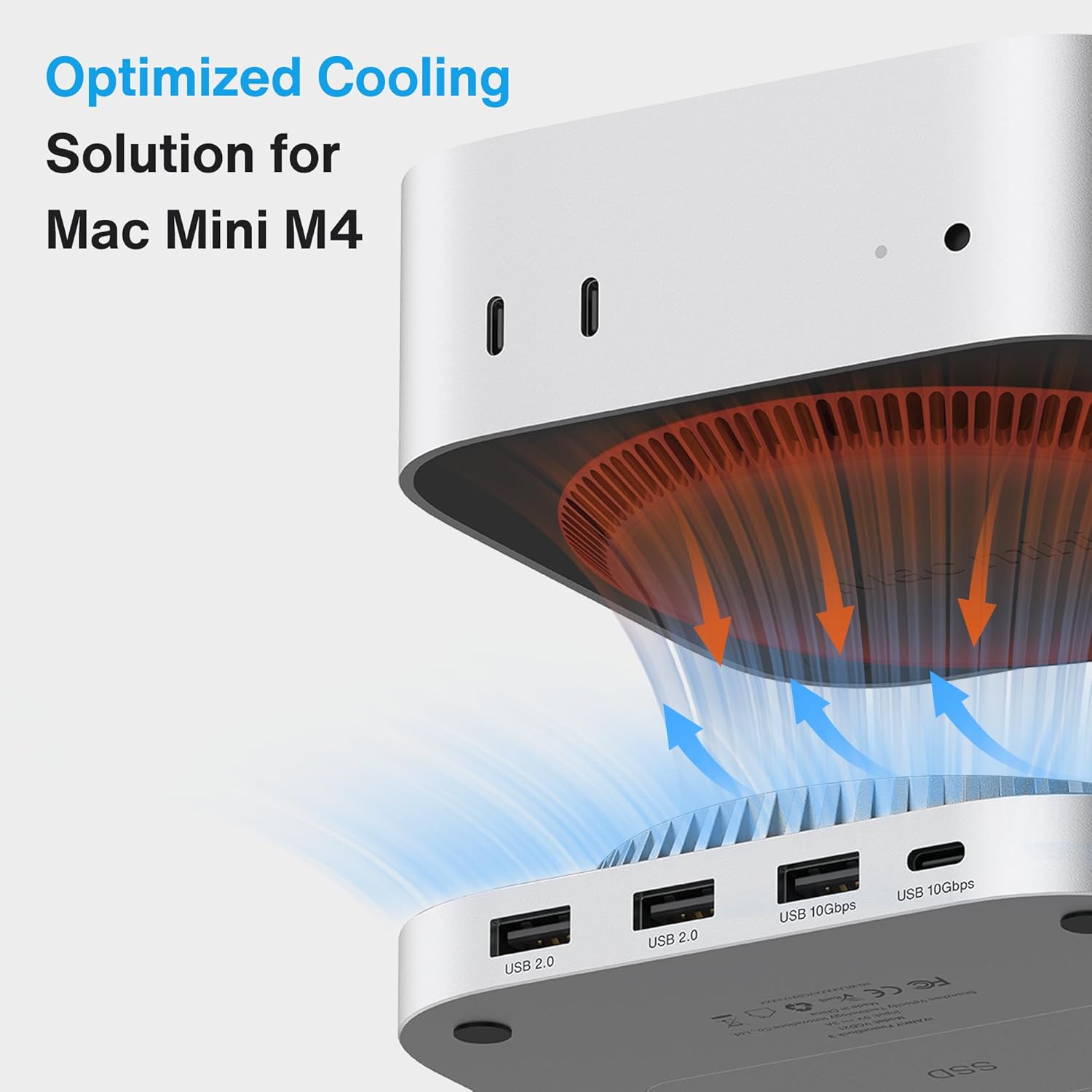
- Sistem Penyejukan Dioptimumkan: Features a top-vent design and slight elevation to facilitate airflow, protecting the Mac mini's bottom fan and ensuring reliable performance.
3. Kandungan Pakej
Sahkan bahawa semua item terdapat dalam pakej anda:
- 1 x IVANKY 13-in-1 Docking Station (FusionDock)
- Penyesuai Kuasa 1 x 20W
- Kabel USB-C 1 x 25cm
- 1 x Pemutar skru
- Screws for SSD installation
Note: SSD is not included with this product.
4. Arahan Persediaan
4.1. SSD Installation
To expand your storage, follow these steps to install an M.2 SSD:
- Carefully turn the docking station upside down.
- Locate the SSD cover on the bottom of the dock. Use the provided screwdriver to remove the screw securing the cover.
- Remove the SSD cover.
- Insert your M.2 NVMe or SATA SSD into the slot. Ensure it is fully seated.
- Selamatkan SSD dengan skru yang disediakan.
- Replace the SSD cover and secure it with its screw.

4.2. Menyambungkan Dok ke Mac mini
Follow these steps to connect your Mac mini to the docking station:
- Connect the 20W power adapter to the provided 1m USB-C cable.
- Connect the other end of the USB-C cable to the 'PD IN' port on the docking station.
- Palamkan penyesuai kuasa ke dalam soket dinding.
- Place your Mac mini M4 or M4 Pro directly on top of the IVANKY docking station. The dock is designed to fit perfectly underneath the Mac mini.
- Use the provided 25cm USB-C cable to connect the Mac mini's Thunderbolt port to the 'Mac mini' port on the docking station. This establishes the primary connection for data and display.

4.3. Video Pemasangan Pantas
5. Arahan Operasi
5.1. Penggunaan Pelabuhan
The docking station provides the following ports:
- HDMI (4K@120Hz): Connect an external monitor for high-resolution video output.
- USB-A 10Gbps (x2): For high-speed peripherals like external hard drives.
- USB-C 10Gbps (x2): For high-speed USB-C devices.
- USB-A 2.0 (x3): For standard peripherals such as keyboards, mice, and printers.
- Pembaca Kad SD/TF 4.0: For fast access to SD and microSD cards.
- Dual Audio Ports: For connecting headphones, microphones, or speakers.
- PD IN (20W): Sambungkan penyesuai kuasa yang disertakan untuk operasi yang stabil.
- USB-C Host (Mac mini): Connects to your Mac mini's Thunderbolt port.
5.2. Sambungan Paparan
Connect your monitor to the HDMI port on the docking station. For dual display setups, connect the dock's HDMI port to your Mac mini's Thunderbolt port. This configuration allows for extended display functionality at 4K@120Hz, providing a smooth visual experience for various tasks.

5.3. Pemindahan Data
Utilize the 10Gbps USB-A and USB-C ports for transferring large files quickly to and from high-performance drives. The SD/TF 4.0 card readers also offer enhanced speeds for memory cards. The integrated M.2 SSD enclosure provides 10Gbps data transfer for installed SSDs.

5.4. Bekalan Kuasa
The included 20W PD power adapter is crucial for maintaining power stability, especially when multiple high-power devices (e.g., external hard drives, charging peripherals) are connected to the dock. Always use the matching cable and adapter to prevent power-related issues.
6. Penyelenggaraan
To ensure the longevity and optimal performance of your IVANKY docking station:
- Pembersihan: Gunakan kain lembut dan kering untuk membersihkan bahagian luar peranti. Elakkan pembersih cecair atau bahan kasar.
- Pengudaraan: Ensure the top-vent design is not obstructed to allow for proper airflow and cooling. The slight elevation of the dock helps safeguard the Mac mini's bottom fan.
- Storan: Simpan peranti di tempat yang sejuk dan kering apabila tidak digunakan.
- Pengurusan Kabel: Pastikan kabel teratur dan bebas daripada kekusutan atau lenturan yang berlebihan untuk mengelakkan kerosakan.
7. Penyelesaian masalah
- No Power/Device Not Recognized: Ensure the 20W PD power adapter is correctly connected to the dock and a power outlet. Verify the 25cm USB-C cable is securely connected between the Mac mini and the dock.
- SSD Tidak Dikesan: Check that the M.2 SSD is properly installed and secured within the enclosure. Ensure the SSD is compatible (NVMe or SATA M.2). Try re-seating the SSD.
- Isu Paparan (Tiada Isyarat/Penyelesaian Salah): Confirm the HDMI cable is securely connected to both the dock and the monitor. Ensure the Mac mini's display settings are configured correctly for the external monitor. If using dual displays, ensure the dock's HDMI is connected to the Mac mini's Thunderbolt port.
- Terlalu panas: While the dock has an optimized cooling system, ensure it is placed on a flat, stable surface with adequate ventilation. Avoid placing it in enclosed spaces. If an SSD is installed, prolonged heavy use can generate heat; ensure the SSD is properly seated and the cover is secured.
- Pemindahan Data Lambat: Ensure you are using the 10Gbps USB-A/C ports for high-speed devices. Check that your connected devices and cables support the advertised speeds.
8. Spesifikasi
| Ciri | Spesifikasi |
|---|---|
| Nombor Model | VCD21 |
| Jumlah Pelabuhan | 13 |
| Output HDMI | 1 x 4K@120Hz |
| Port USB-A | 2 x 10Gbps, 3 x 5Gbps (USB 2.0) |
| Port USB-C | 2 x 10Gbps |
| Pembaca Kad SD/TF | 1 x SD/TF 4.0 (312MB/s) |
| Port Audio | 2 (3.5 mm) |
| Pagar SSD | M.2 NVMe/SATA (up to 8TB, 10Gbps) |
| Penghantaran Kuasa | 20W PD Power Adapter included |
| Peranti Serasi | Mac mini M4, Mac mini M4 Pro |
| Dimensi | 7.6 x 6.93 x 2.2 inci |
| Berat Barang | 1.39 paun |
9. Waranti dan Sokongan
IVANKY offers a 24-month warranty for this product, along with responsive customer service. Should you experience any issues with your product, we provide free returns or replacements to ensure your complete satisfaction.
For technical support or warranty claims, please contact us:
- e-mel: support@ivanky.com
- Customer service response time is typically within 24 hours.
- Sokongan teknikal seumur hidup disediakan.