
1. Pengenalan dan Lebihview
This manual provides essential information for setting up, operating, maintaining, and troubleshooting your ACEMAGIC AX16 16.0-inch laptop. Please read this guide thoroughly to ensure optimal performance and longevity of your device.
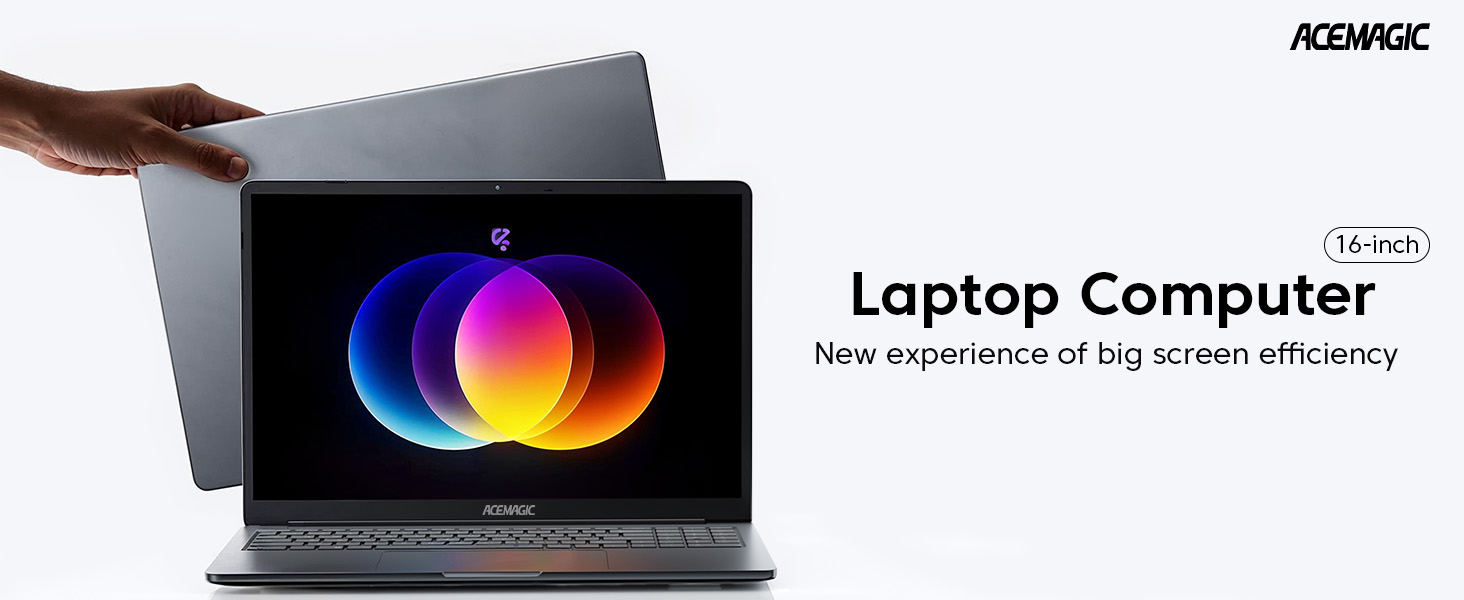
Figure 1: ACEMAGIC AX16 Laptop Overview
Ciri-ciri Utama:
- Prestasi Cekap: Equipped with an Intel 12th Gen Alder Lake Quad-Core processor (up to 3.6GHz) for robust multitasking.
- Powerful Configuration: Features 16GB DDR4 RAM and a 512GB M.2 SSD, expandable up to 2TB.
- Paparan FHD 16.0 inci: Immersive 1920x1200 resolution with thin bezels for enhanced viewing.
- Hayat Bateri yang Panjang: 38Wh battery provides up to 8 hours of usage.
- Antara Muka Kaya: Includes USB 3.2, Type-C, HDMI, 3.5mm headphone jack, and SD card socket.
2. Panduan Persediaan
2.1 Membuka Kotak dan Pemeriksaan Awal
Carefully remove the laptop and all accessories from the packaging. Verify that all components are present: laptop, power adapter, and documentation. Inspect the laptop for any physical damage.
2.2 Menyambungkan Penyesuai Kuasa
Connect the power adapter to the DC-IN port on the side of the laptop and then plug it into a power outlet. It is recommended to fully charge the battery before the first use.

Rajah 2: Sisi view of the ACEMAGIC AX16 laptop, showing the DC-IN port and other connections.
2.3 But Pertama dan Persediaan Sistem Pengendalian
- Tekan butang kuasa yang terletak pada papan kekunci untuk menghidupkan komputer riba.
- Follow the on-screen instructions to complete the initial Windows setup, including language selection, region, network connection, and user account creation.
- Ensure you connect to a stable Wi-Fi network during setup to download necessary updates.
3. Arahan Operasi
3.1 Mod Hidup/Mati dan Tidur
- Hidupkan kuasa: Tekan butang kuasa.
- Matikan: Click the Start menu, then Power > Shut down.
- Mod tidur: Click the Start menu, then Power > Sleep, or close the laptop lid.
3.2 Papan Kekunci dan Pad Sentuh
The laptop features a full QWERTY keyboard with a numeric keypad for enhanced typing efficiency. The integrated touchpad supports multi-touch gestures for navigation.

Figure 3: The ACEMAGIC AX16 laptop display, showcasing keupayaan visualnya.
3.3 Menyambung ke Rangkaian dan Peranti
- Wi-Fi: Click the network icon in the taskbar, select your desired network, and enter the password.
- Bluetooth: Go to Settings > Devices > Bluetooth & other devices to pair with Bluetooth peripherals.
- External Display (HDMI): Connect an HDMI cable from the laptop's HDMI port to an external monitor or TV. Press
Windows key + Pto configure display settings. - Peranti USB: Insert USB devices into the available USB 3.2 ports.
- Peranti Jenis-C: Use the Type-C port for compatible devices.
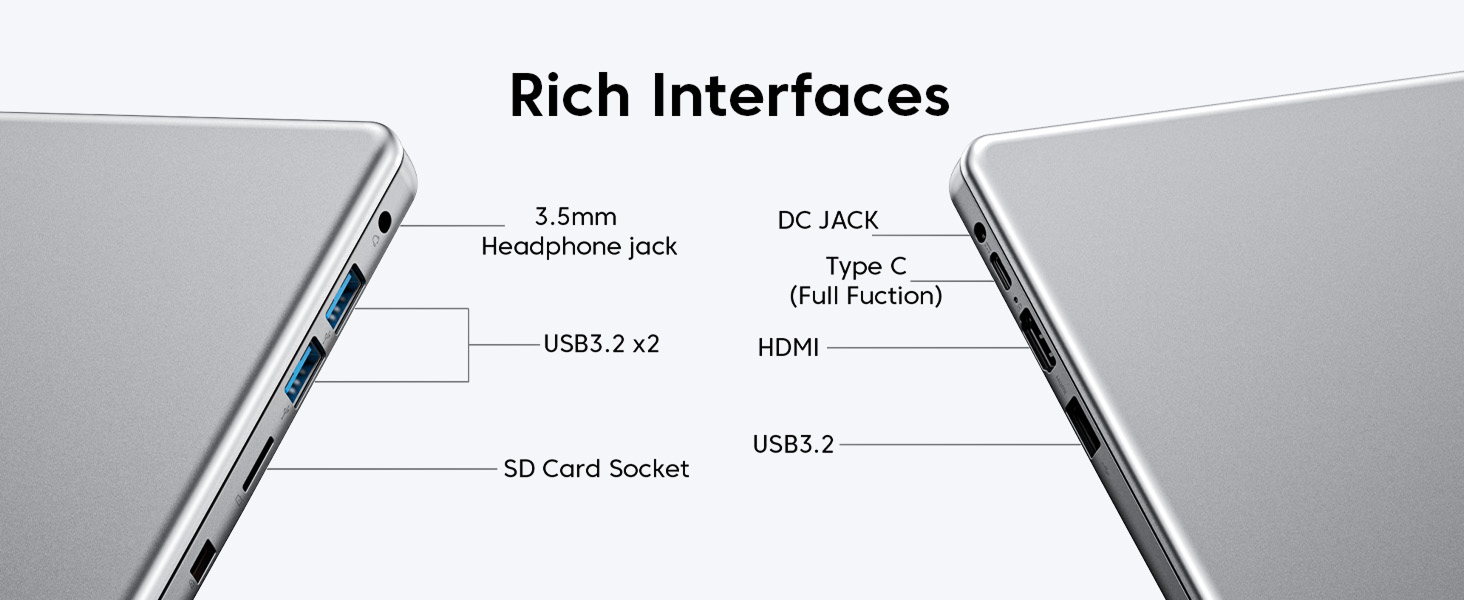
Rajah 4: Terperinci view of the ACEMAGIC AX16 laptop's various ports and interfaces.
4. Penyelenggaraan
4.1 Membersihkan Komputer Riba
- Gunakan kain yang lembut dan tidak berbulu dampened with a small amount of water or screen cleaner for the display.
- Untuk papan kekunci dan casis, gunakan kain lembut. Elakkan bahan kimia yang keras.
- Periodically use compressed air to clear dust from vents to ensure efficient cooling.
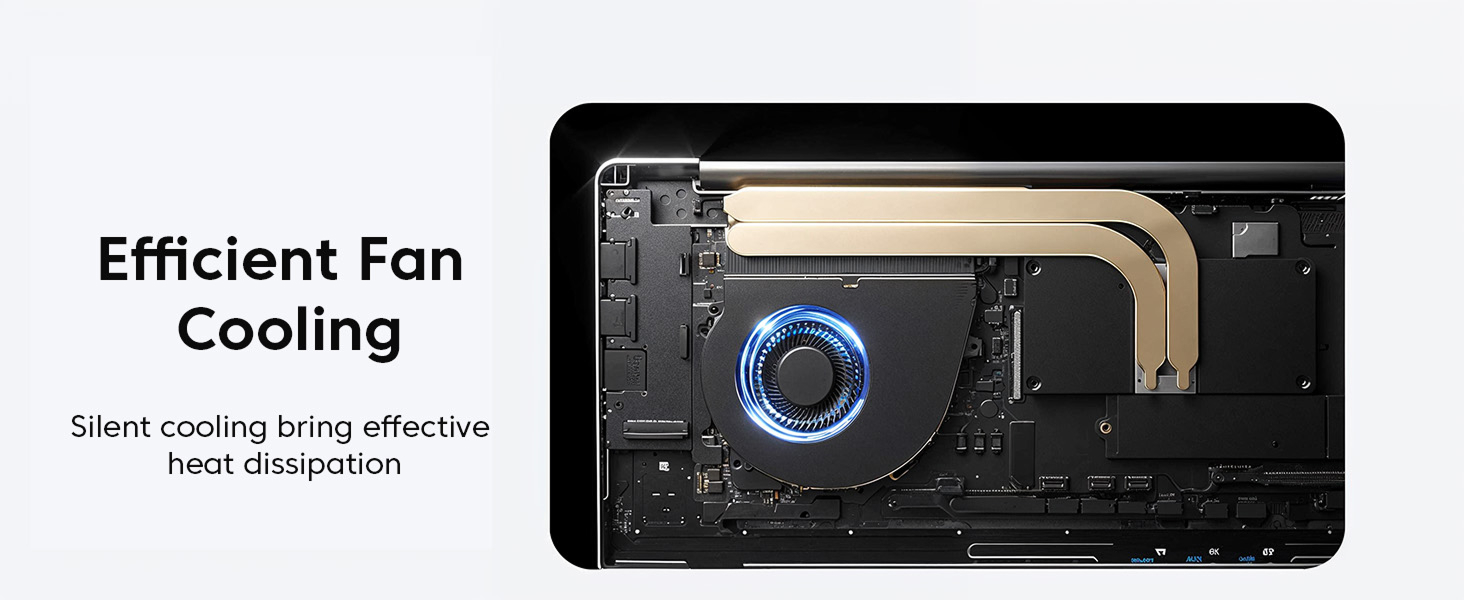
Gambar 5: Dalaman view of the laptop's efficient fan cooling system.
4.2 Penjagaan Bateri
- Elakkan menyahcas sepenuhnya bateri dengan kerap.
- Simpan komputer riba di tempat yang sejuk dan kering jika tidak digunakan untuk tempoh yang lama.
- Jangan dedahkan bateri kepada suhu yang melampau.
4.3 Kemas Kini Perisian dan Pengurusan Storan
- Semak dan pasang kemas kini Windows secara kerap untuk memastikan kestabilan dan keselamatan sistem.
- Bersihkan secara berkala yang tidak perlu files and applications to free up storage space.
- The 512GB M.2 SSD can be replaced with a maximum SSD of 2TB for increased storage capacity.
5. Penyelesaian masalah
5.1 Isu dan Penyelesaian Biasa
- Komputer riba tidak dihidupkan:
Ensure the power adapter is securely connected and the power outlet is functional. Try a different outlet. If the battery is completely drained, it may take a few minutes to respond after plugging in. - Tiada sambungan Wi-Fi:
Check if Wi-Fi is enabled in Windows settings. Restart your router and the laptop. Verify your Wi-Fi password. - Isu paparan (tiada imej, berkelip-kelip):
Ensure the laptop lid is fully open. If using an external monitor, check the cable connection and display settings (Windows key + P). Restart the laptop. - Prestasi perlahan:
Close unnecessary applications. Check Task Manager for processes consuming high CPU or RAM. Ensure Windows is updated. Consider running a disk cleanup. - Pad sentuh tidak bertindak balas:
Ensure the touchpad is not disabled (check function keys, e.g., Fn + F10). Restart the laptop.
For persistent issues or problems not listed here, please refer to the Warranty and Support section.
6. Spesifikasi
Below are the detailed technical specifications for the ACEMAGIC AX16 laptop:
| Ciri | Spesifikasi |
|---|---|
| Jenama | ACEMAGIK |
| Nama Model | AX16 |
| Saiz Skrin | 16 Inci |
| Resolusi | 1920 x 1200 piksel |
| Jenama Pemproses | Intel |
| CPU Model Number | i7-1260P (12th Gen Alder Lake Quad-Core) |
| Kelajuan CPU | 1.7 GHz (sehingga 3.6 GHz Turbo) |
| Saiz Terpasang Memori RAM | 16 GB DDR4 SDRAM |
| Saiz Cakera Keras | SSD M.2 NVMe 512 GB |
| Sistem Operasi | Windows 10 Home |
| Penerangan Kad Grafik | Grafik Intel UHD Bersepadu |
| Teknologi Ketersambungan | Wi-Fi (802.11ac), Bluetooth, HDMI, USB-A, Type-C |
| Jumlah Port USB | 3 |
| Kandungan Tenaga Bateri | Jam 38 Watt |
| Berat Barang | 2.56 Kilogram |
| Dimensi (P x L x T) | 14.25" x 9.9" x 0.7" |
| Input Antara Muka Manusia | Touch Pad, Numeric Keypad |
7. Waranti dan Sokongan
ACEMAGIC provides comprehensive support for your AX16 laptop.
7.1 Maklumat Waranti
Your ACEMAGIC AX16 laptop comes with a 12-month repair warranty dari tarikh pembelian. Waranti ini meliputi kecacatan pembuatan dan kerosakan perkakasan di bawah penggunaan biasa. Sila simpan bukti pembelian anda untuk tuntutan waranti.
7.2 Sokongan Teknikal
Unlimited technical support is available for all customers. If you encounter any issues or have questions regarding your laptop, please do not hesitate to reach out to ACEMAGIC customer service.
For assistance, please visit the official ACEMAGIC website or contact their support team through the contact information provided with your product packaging.