
1. Pengenalan
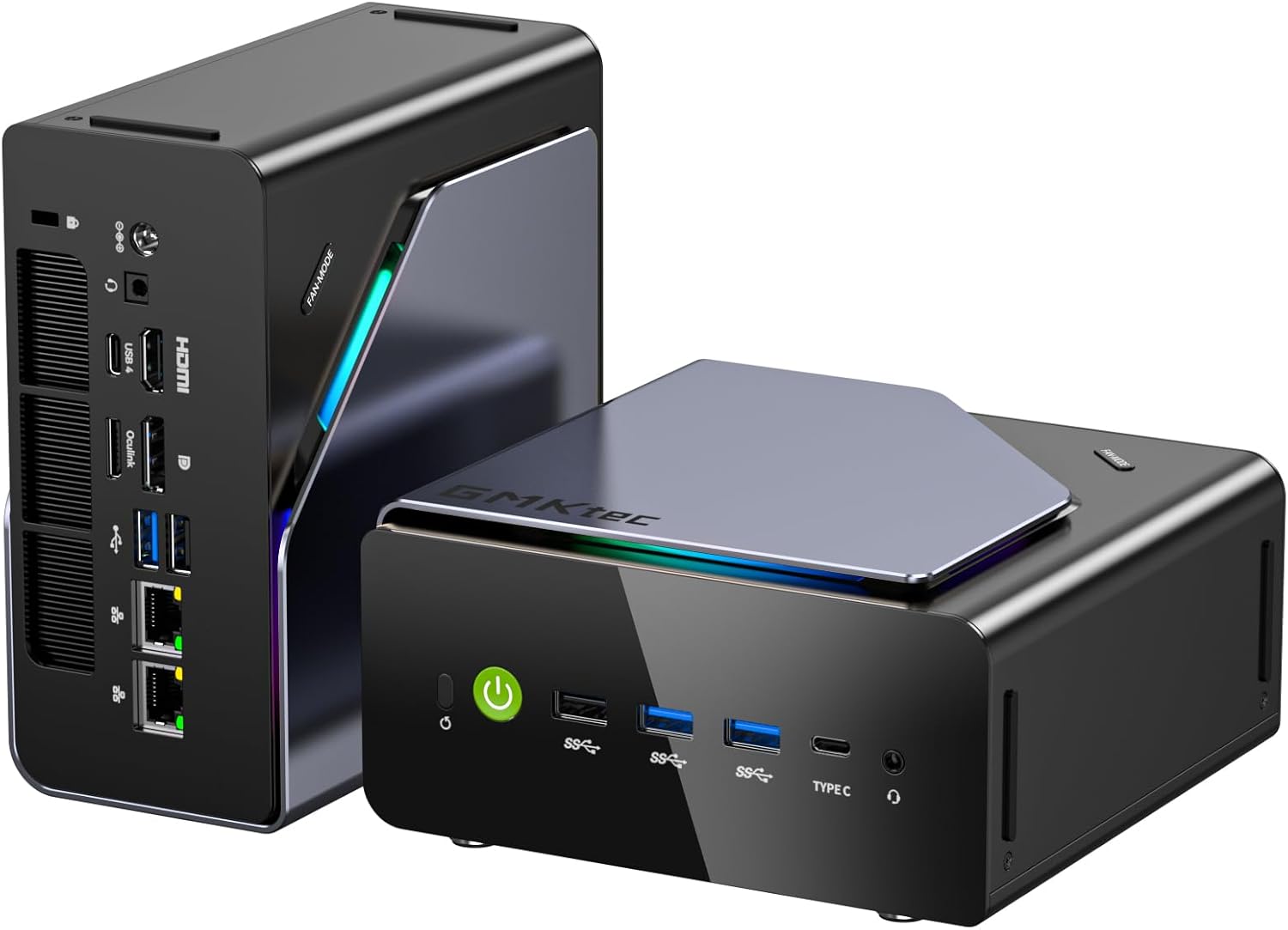
This manual provides essential information for setting up, operating, maintaining, and troubleshooting your GMKtec K12 Gaming Mini PC. The K12 Mini PC is a compact desktop computer featuring an AMD Ryzen 7 H 255 processor, Radeon 780M graphics, 32GB DDR5 RAM, and a 512GB PCIe 4.0 SSD. It is designed for gaming, video editing, and multitasking, offering robust performance in a small form factor.
2. Kandungan Pakej
Sahkan bahawa semua item yang disenaraikan di bawah disertakan dalam pakej anda:
- GMKtec Nucbox K12 AMD Ryzen 7 H 255 Mini PC Computer
- Bekalan Kuasa & Kabel
- Kabel HDMI
- Manual Pengguna (dokumen ini)
- Lekapkan VESA dengan Skru

3. Panduan Persediaan
Follow these steps to set up your GMKtec K12 Mini PC:
- Buka bungkusan PC Mini: Carefully remove the GMKtec K12 Mini PC and all accessories from the packaging.
- Sambung ke Paparan: Connect your monitor or TV to the Mini PC using the provided HDMI cable or a DisplayPort cable. The Mini PC supports HDMI 2.1 (8K@60Hz), DisplayPort 1.4 (4K@60Hz), and USB Type-C for display output.
- Sambung Peranti: Connect your keyboard, mouse, and other USB devices to the available USB ports. The Mini PC features USB 4.0, USB 3.2 Gen2, and USB 2.0 ports.
- Sambungkan ke Rangkaian: For wired internet, connect an Ethernet cable to one of the two 2.5GbE LAN ports. For wireless internet, the Mini PC supports Wi-Fi 6E.
- Sambungkan Kuasa: Sambungkan penyesuai kuasa ke port DC IN pada Mini PC, kemudian palamkan kabel kuasa ke salur keluar elektrik.
- Hidupkan kuasa: Press the power button located on the front of the Mini PC. The system will boot up. Windows 11 Pro is pre-installed.

4. Arahan Operasi
4.1 Hidupkan/Mati Kuasa
- Hidupkan kuasa: Tekan butang kuasa pada panel hadapan.
- Matikan: From the operating system, select 'Shut down'. Alternatively, press and hold the power button for 5 seconds to force a shutdown (use only when necessary).
4.2 Mod Prestasi
The K12 Mini PC offers three performance modes to optimize power consumption and noise levels:
- Quiet Mode (35W TDP): Ideal for light tasks, offering reduced fan noise (32-35dB) and lower power consumption. CPU temperature typically around 50°C.
- Mod Seimbang (TDP 54W): Suitable for everyday use and moderate workloads, balancing performance and acoustics. CPU temperature typically around 65°C, with noise levels of 36-37dB.
- Mod Prestasi (TDP 70W): Maximizes performance for demanding applications and gaming. CPU temperature typically around 75°C, with noise levels of 39-40dB.

4.3 Persediaan Berbilang Paparan
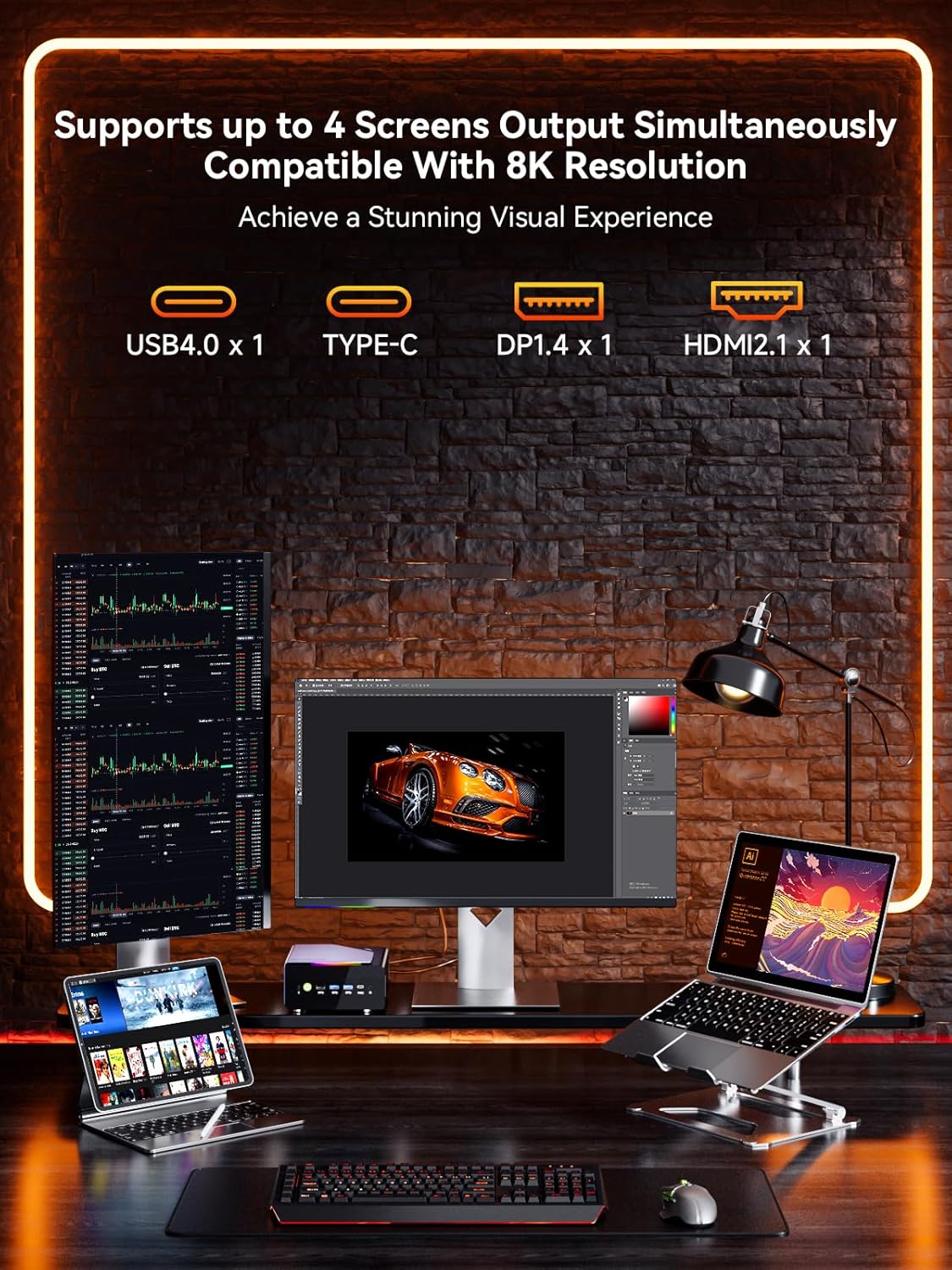
The K12 Mini PC supports up to four screens simultaneously with resolutions up to 8K. Connect your displays using a combination of the following ports:
- 1x HDMI 2.1 (up to 8K@60Hz)
- 1x DisplayPort 1.4 (up to 4K@60Hz)
- 1x USB Type-C (supports PD3.0/DP1.4/DATA)
- 1x USB4.0

4.4 Oculink Port Usage
The Oculink port on the rear interface provides higher bandwidth capabilities (PCIe x4 speeds) for external graphics card (eGPU) setups, resulting in better frame rates and lower latency compared to Thunderbolt. This is beneficial for gamers and content creators requiring enhanced graphical performance.
Nota Penting: The Oculink interface does not support hot-plugging. Ensure the Mini PC is powered off before connecting or disconnecting any device from the Oculink port to prevent damage.
5. Penyelenggaraan
5.1 Sistem Penyejukan
The K12 Mini PC is equipped with dual cooling fans (a turbo CPU fan and a DDR5/SSD cooling fan) and advanced heatpipes to ensure efficient heat dissipation. The 360° airflow design maintains optimal operating temperatures even under heavy loads. Regular cleaning of dust from the vents is recommended to maintain cooling efficiency.

5.2 Storan dan Pengembangan RAM
The K12 Mini PC offers flexible upgrade options:
- SSD: Features three M.2 2280 expansion slots, each capable of supporting up to 8TB, for a maximum total storage of 24TB.
- RAM: Equipped with dual SO-DIMM DDR5 5600MHz memory slots, supporting up to 128GB total RAM (64GB per slot).
For upgrades, ensure the Mini PC is powered off and disconnected from the power source. Consult a professional if you are unsure about the upgrade process.
6. Penyelesaian masalah
If you encounter issues with your GMKtec K12 Mini PC, consider the following basic troubleshooting steps:
- Tiada Kuasa: Ensure the power adapter is securely connected to both the Mini PC and a working electrical outlet. Try a different outlet.
- Tiada Paparan: Verify that the HDMI or DisplayPort cable is securely connected to both the Mini PC and the monitor. Ensure the monitor is powered on and set to the correct input source.
- Periferi Tidak Berfungsi: Check USB connections. Try connecting the peripheral to a different USB port. Ensure drivers are installed if required.
- Sistem Tidak Responsif: Press and hold the power button for 5 seconds to force a shutdown, then restart the Mini PC.
- Terlalu panas: Ensure the Mini PC's vents are not obstructed. Clean any dust accumulation.
For persistent issues, refer to the GMKtec support webtapak atau hubungi perkhidmatan pelanggan.
7. Spesifikasi
| Ciri | Spesifikasi |
|---|---|
| Pemproses | AMD Ryzen 7 H 255 (up to 4.9 GHz, 8 Cores, 16 Threads) |
| Grafik | AMD Radeon 780M (Integrated, up to 2600 MHz) |
| RAM | 32GB DDR5 5600MT/S (Dual Channel, Max. 128GB) |
| Penyimpanan | 512GB PCIe 4.0 M.2 2280 SSD (3x M.2 2280 slots, Max. 24TB) |
| Sistem Operasi | Windows 11 Pro |
| Output Video | 1x HDMI 2.1 (8K@60Hz), 1x DisplayPort 1.4 (4K@60Hz), 1x USB Type-C (DP1.4), 1x USB4.0 |
| Port USB | 1x USB4.0, 2x USB 3.2 Gen2, 2x USB 2.0, 1x USB Type-C |
| Rangkaian | Dual 2.5GbE LAN, Wi-Fi 6E, Bluetooth 5.2 |
| Pelabuhan Khas | 1x Oculink (PCIe Gen4x4) |
| Audio | 3.5mm Audio Jack (CTIA) |
| Sistem Penyejukan | Dual Cooling Fans with RGB Lighting |
| Dimensi (LxWxH) | 7 x 7 x 5 inci |
| Berat badan | 4.77 paun |
| warna | Gunmetal Hitam |
8. Waranti dan Sokongan
GMKtec menyediakan Waranti terhad 1 tahun for the K12 Mini PC, effective from the date of purchase. This warranty covers defects arising from design and workmanship. For any issues or inquiries, GMKtec has a professional after-sales team available to assist you.
For further assistance, please visit the official GMKtec webtapak atau hubungi sokongan pelanggan mereka secara langsung.