
pengenalan
This manual provides instructions for the setup, operation, and maintenance of your HyperX Cloud Alpha 2 Wireless Gaming Headset. Please read this manual thoroughly before using the product to ensure proper functionality and to maximize your user experience.

Image: HyperX Cloud Alpha 2 Wireless Gaming Headset with its RGB Base Station, showcasing pakej produk yang lengkap.
Apa yang ada dalam Kotak
- Alat dengar permainan tanpa wayar
- Stesen Pangkalan
- Mikrofon boleh tanggal
- Kabel USB-C ke USB-C
- Penyesuai USB-C ke USB-A
- 3.5 mm Headset Audio Cable
- Panduan Mula Pantas
Persediaan
1. Mengecas Alat Dengar
Before initial use, fully charge the headset. Connect the headset to a power source using the provided USB-C to USB-C cable or USB-C to USB-A adapter. A full charge can provide up to 250 hours of battery life in 2.4GHz mode or 125 hours with simultaneous connection.

Image: A visual representation highlighting the headset's battery life capability of up to 250 hours on a single charge.
2. Menghubungkan Stesen Pangkalan
Connect the RGB Base Station to your PC or console using the appropriate USB cable. The base station acts as a central hub for audio control and connectivity.

Image: A hand interacting with the RGB Base Station, demonstrating its function as an audio control hub.
3. Software Installation (HyperX NGENUITY)
For full customization and optimal performance, download and install the HyperX NGENUITY software from the official HyperX website. This software allows for equalization adjustments, audio controls, and lighting customization for the RGB Base Station.
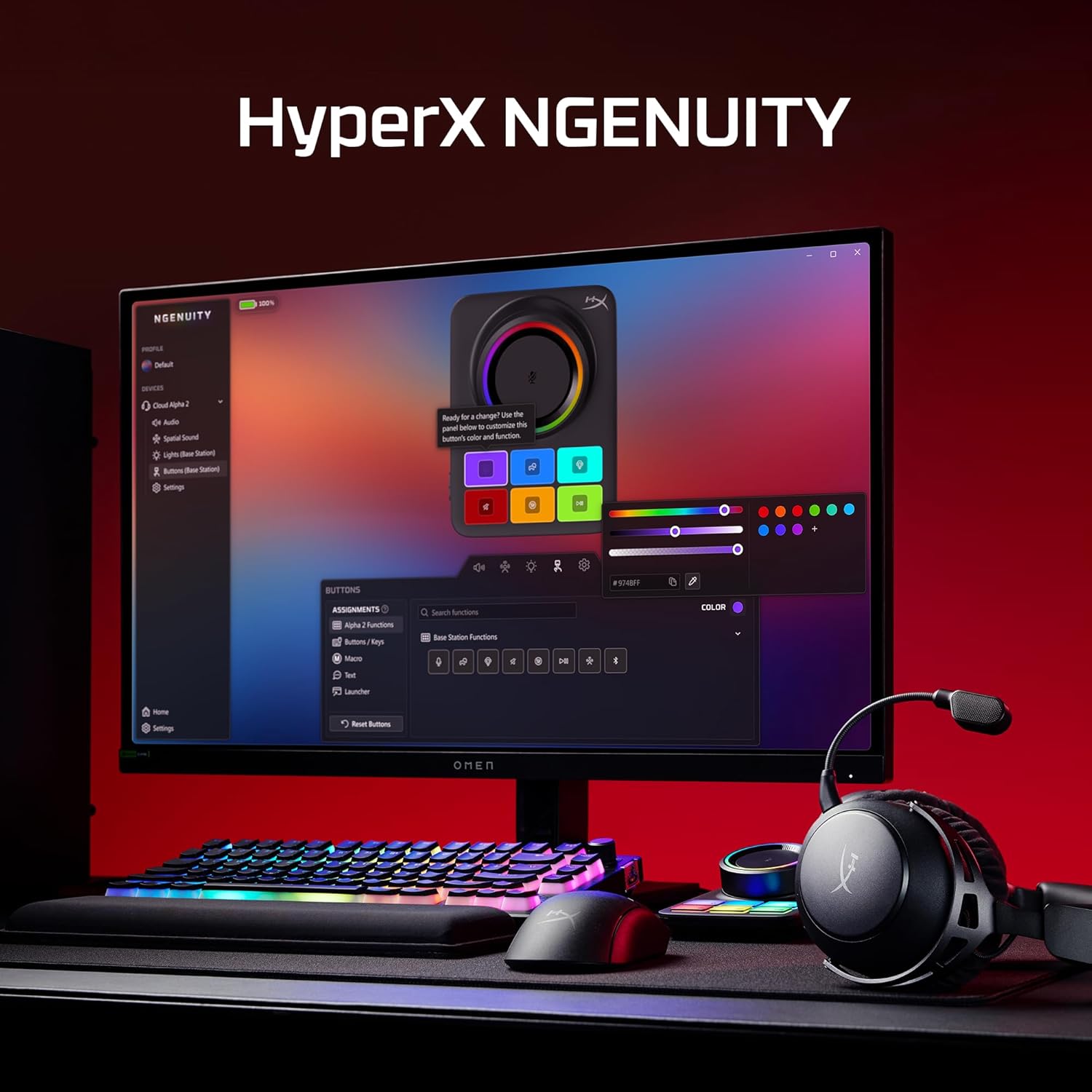
Image: A computer screen displaying the HyperX NGENUITY software, illustrating its interface for customizing headset and base station settings.
4. Memasang Mikrofon
Insert the detachable boom microphone into the designated port on the headset. Ensure it is securely connected for clear voice communication.

Imej: A terperinci view of the detachable 10mm boom microphone, highlighting its position on the headset.
Arahan Operasi
Mod Kesambungan
- Wayarles 2.4GHz: Connects to PC, PS5, PS4, Nintendo Switch, Mac via the Base Station for low-latency audio.
- Bluetooth: Connects to mobile devices for audio and calls.
- Sambungan Serentak: The headset supports simultaneous 2.4GHz and Bluetooth connections, allowing you to listen to audio from two sources concurrently.
- 3.5mm Wired: Use the included 3.5mm headset audio cable for wired connection to devices like Xbox.

Image: A user demonstrating the headset's ability to maintain simultaneous 2.4GHz and Bluetooth connections.

Image: Icons illustrating the headset's compatibility across multiple platforms including PC, PlayStation, Nintendo Switch, Mac, mobile devices, and Xbox via 3.5mm connection.
Kawalan Alat dengar
- Roda Kelantangan: Melaraskan tahap output audio.
- Butang Bisukan: Toggles microphone mute. An LED indicator on the boom mic shows mute status.
- Butang pelbagai fungsi: Mengawal main balik media dan pengurusan panggilan.
- Wireless Mode Switch: Selects between 2.4GHz and Bluetooth modes.

Imej: A terperinci view of the headset's onboard controls, including the volume wheel, mute button, multifunction button, and wireless mode switch.
Ciri Audio
The headset features 53mm dual-chamber drivers designed to provide clear audio with distinct bass and treble frequencies. Spatial audio can be enabled and customized through the HyperX NGENUITY software for an immersive sound experience.

Image: A visual representation of the headset's 53mm dual-chamber drivers in action, emphasizing sound clarity.
Penyelenggaraan
Pembersihan
- Use a soft, dry cloth to clean the headset and base station.
- Untuk pad telinga, lap perlahan-lahan dengan sedikitamp kain jika perlu, dan biarkan kering sepenuhnya sebelum digunakan.
- Elakkan menggunakan bahan kimia yang keras atau bahan yang melelas.
Penyimpanan
Store the headset in a cool, dry place away from direct sunlight and extreme temperatures. When not in use, the headset's 90° rotating earcups allow for flat storage.

Image: The headset positioned to highlight its comfortable design and flexible earcups, suitable for storage.
Penjagaan Bateri
To prolong battery life, avoid fully discharging the headset frequently. Charge the headset regularly, even if not in constant use.
Menyelesaikan masalah
Tiada Audio / Kelantangan Rendah
- Ensure the headset is powered on and connected to the correct source (2.4GHz, Bluetooth, or 3.5mm).
- Periksa roda kelantangan pada set kepala dan kelantangan sistem pada peranti anda.
- Sahkan bahawa peranti output audio yang betul dipilih dalam tetapan bunyi sistem pengendalian anda.
- For 2.4GHz connection, ensure the Base Station is properly connected and recognized by your system.
Mikrofon Tidak Berfungsi
- Ensure the detachable boom microphone is securely inserted into the headset.
- Check if the microphone mute button on the headset is disengaged (LED indicator off).
- Sahkan bahawa peranti input mikrofon yang betul dipilih dalam tetapan bunyi dan aplikasi komunikasi sistem pengendalian anda.
- If using the internal microphone, ensure the boom mic is detached.
Isu Ketersambungan
- 2.4GHz: Ensure the Base Station is within range and free from interference. Try reconnecting the headset to the Base Station.
- Bluetooth: Ensure Bluetooth is enabled on your device and the headset is in pairing mode. Remove previous pairings and attempt to pair again.
- Umum: Mulakan semula kedua-dua alat dengar dan peranti yang disambungkan.
Software (NGENUITY) Issues
- Ensure you have the latest version of HyperX NGENUITY installed.
- Check for firmware updates for both the headset and the Base Station within the NGENUITY software.
- If the software is not recognizing the device, try restarting the application or your computer.
Spesifikasi
| Ciri | Perincian |
|---|---|
| Nama Model | HyperX Cloud Alpha 2 - Wireless Gaming Headset |
| Nombor Model | AJ5C7AA |
| Teknologi Ketersambungan | 2.4 GHz Wireless, Bluetooth 5.2, 3.5 mm Jack |
| Julat Tanpa Wayar | 20 Meter (Bluetooth) |
| Pemandu | 53mm Dual-Chamber |
| Respons Kekerapan | 20 Hz |
| Impedans | 64 Ohm |
| Hayat Bateri | Up to 250 hours (2.4GHz mode) |
| Mikrofon | Detachable 10mm Boom Mic, Internal Mics |
| bahan | Stainless steel, aluminum forks |
| Berat Barang | 345 Gram (12.2 auns) |
| Dimensi (LxWxH) | 7.24 x 3.6 x 8.11 inci |
| Keserasian Platform | PC, PS5, PS4, Nintendo Switch, Mac, Mobile, Xbox (wired) |
Maklumat Waranti
For detailed warranty information regarding your HyperX Cloud Alpha 2 Wireless Gaming Headset, please refer to the official HyperX webtapak atau kad jaminan yang disertakan dengan produk anda. Terma dan syarat jaminan mungkin berbeza mengikut rantau.
Sokongan
If you require further assistance or have questions not covered in this manual, please visit the official HyperX support website for FAQs, drivers, and contact information. You can also find additional resources and community forums there.
Official HyperX Webtapak: www.hyperx.com/support