
1. Pengenalan
This manual provides detailed instructions for the setup, operation, maintenance, and troubleshooting of your Jectse WiFi 6 4G/5G CPE LTE Router. Please read this manual carefully before using the device to ensure optimal performance and safety.
Ciri-ciri Utama:
- Prestasi Tinggi: Connects up to 32 devices simultaneously, covering an area of approximately 300 square meters. Ideal for home or small office environments.
- Comprehensive 4G LTE Support: Compatible with a wide range of 4G LTE bands including FDD (B1, 3, 5, 7, 8, 20), TDD (B38, 40, 41), and WCDMA (B1, 5, 8), ensuring stable connectivity across various network providers.
- 6 Antenna Design: Equipped with six antennas for enhanced signal coverage and faster network speeds, providing a stable and consistent internet experience.
- Fast Internet Speeds: Achieves 4G download speeds up to 150 Mbps, upload speeds up to 50 Mbps, and wireless transfer rates up to 300 Mbps for smooth streaming, gaming, and browsing.
- Persediaan Mudah: Simply insert a standard SIM card to convert 4G LTE into a WiFi hotspot, allowing multiple devices to connect without complex installations.
2. Kandungan Pakej
Sila semak pakej untuk item berikut:
- Jectse WiFi 6 4G/5G CPE LTE Router
- Penyesuai Kuasa
- Kabel Ethernet
- Manual Pengguna (dokumen ini)

Image: Package contents including the router, power adapter, and Ethernet cable.
3. Produk Lebihview
Depan dan Atas View:
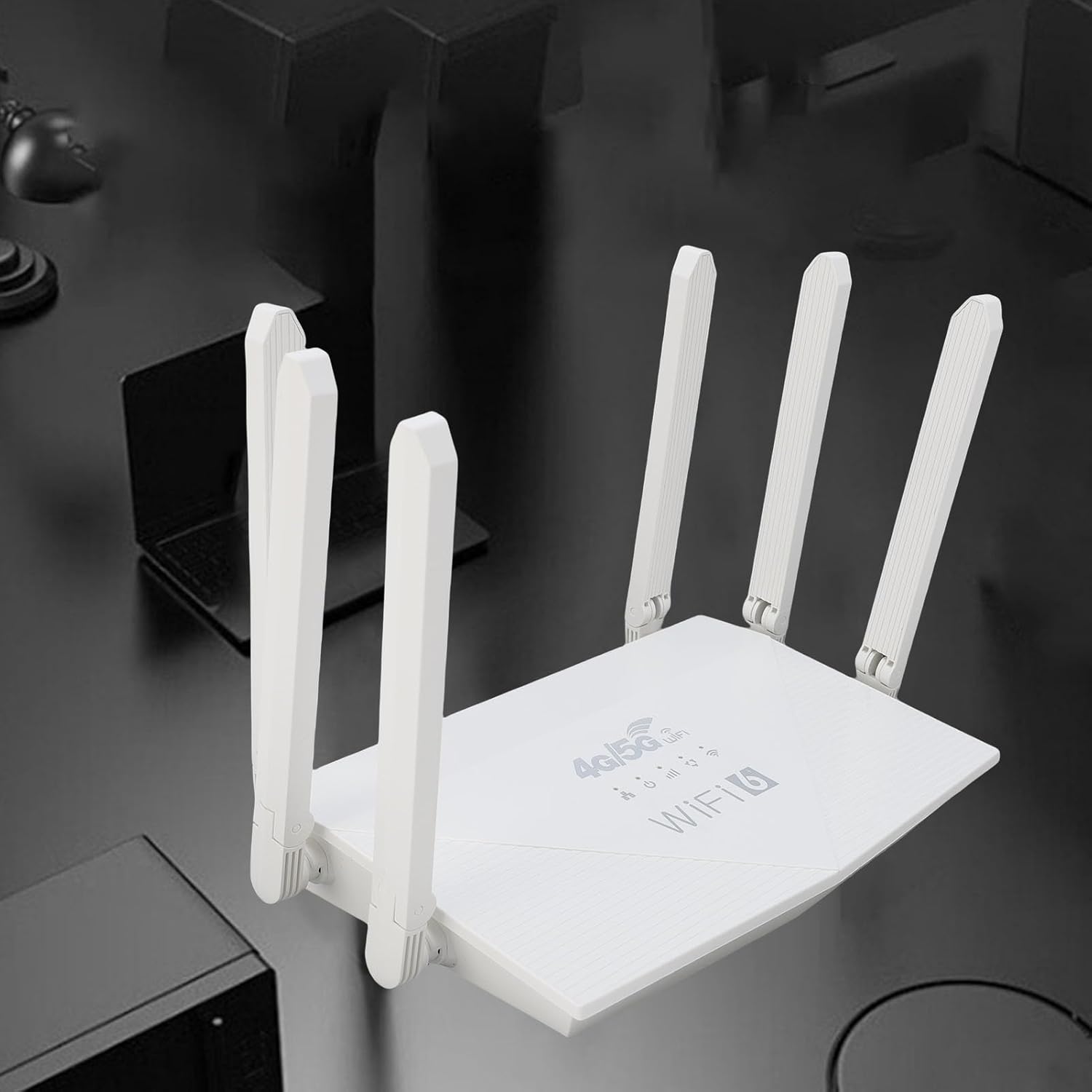
Imej: Atas view of the router, showing the '4G/5G LTE WiFi 6' branding and six external antennas.
Panel Belakang dan Port:

Imej: Belakang view of the router, displaying the various ports and antenna connections.
- Butang Tetapkan Semula: Digunakan untuk memulihkan tetapan kilang.
- Pelabuhan Jenis-C: For power input (if applicable, check power adapter type).
- Pelabuhan Kuasa: Input kuasa DC.
- Slot Kad SIM: For inserting a standard 4G/5G SIM card.
- ETH1-ETH4 Ports: Four Ethernet LAN ports for wired connections.

Image: Close-up of the reset button, Type-C port, power port, and SIM card slot.

Image: Close-up of the four Ethernet LAN ports (ETH1, ETH2, ETH3, ETH4).
Bottom Label:
The bottom label contains important information such as the default WiFi name, WiFi key, IP address, and login credentials.

Image: Bottom label of the router with essential network details.
4. Arahan Persediaan
- Masukkan Kad SIM: Locate the SIM card slot on the rear panel. Gently insert a standard-sized 4G/5G SIM card until it clicks into place. Ensure the SIM card is correctly oriented.
- Sambungkan Kuasa: Connect the provided power adapter to the router's power port and then plug the adapter into a power outlet.
- Hidupkan kuasa: The router will automatically power on. Wait for the indicator lights to stabilize, which typically takes a few minutes.
- Sambungkan Peranti:
- Sambungan Wayarles: On your device (smartphone, tablet, laptop), search for available Wi-Fi networks. Select the network name (SSID) found on the router's bottom label. Enter the default Wi-Fi key (password) also found on the label.
- Sambungan Berwayar: Connect one end of the Ethernet cable to any of the ETH1-ETH4 ports on the router and the other end to the Ethernet port on your computer or other wired device.
- Akses Web Antara muka (Pilihan): Buka a web browser and enter the default IP address (e.g., 192.168.0.1) found on the bottom label. Use the default username and password (e.g., admin/admin) to log in and configure advanced settings.
5. Arahan Operasi
Menyambung ke Rangkaian:
Once the router is powered on and the SIM card is active, your devices can connect to the internet:
- Wi-Fi: Use the SSID and password printed on the router's bottom label to connect your wireless devices.
- Ethernet: Connect devices directly to the ETH ports for a stable wired connection.
Mengurus Tetapan Penghala:
To customize your network, such as changing the Wi-Fi name or password, or configuring advanced features:
- Pastikan peranti anda disambungkan ke penghala (melalui Wi-Fi atau Ethernet).
- Buka a web browser and enter the router's IP address (e.g., 192.168.0.1).
- Log in using the username and password from the bottom label.
- Navigate through the interface to adjust settings as needed.
6. Penyelenggaraan
- Pembersihan: Pastikan penghala bersih dan bebas daripada habuk. Gunakan kain lembut dan kering. Jangan gunakan pembersih cecair.
- Pengudaraan: Pastikan penghala diletakkan di kawasan yang mempunyai pengudaraan yang baik untuk mengelakkan terlalu panas. Jangan tutup lubang pengudaraan.
- Kemas kini Firmware: Periksa pengeluar secara berkala website for firmware updates. Keeping your router's firmware up-to-date can improve performance and security.
- Memulakan semula: Jika anda mengalami masalah rangkaian, cuba mulakan semula penghala dengan mencabut plag penyesuai kuasa, tunggu selama 10 saat, dan kemudian pasangkannya semula.
7. Penyelesaian masalah
Tiada sambungan internet:
- Periksa sama ada kad SIM dimasukkan dengan betul dan aktif.
- Verify that the router's indicator lights are stable.
- Mulakan semula penghala dan peranti anda yang disambungkan.
- Pastikan kad SIM anda mempunyai pelan data yang aktif.
- Akses penghala web interface to check the network status and APN settings.
Kelajuan Internet yang perlahan:
- Ensure the router is placed in an open area, away from obstructions and interference sources.
- Kurangkan bilangan peranti yang disambungkan atau aktiviti intensif lebar jalur.
- Check your 4G/5G signal strength in the router's web antara muka.
- Contact your mobile network provider to inquire about network congestion or data plan limits.
Tidak Dapat Mengakses Tetapan Penghala:
- Pastikan peranti anda disambungkan ke rangkaian penghala.
- Verify you are entering the correct IP address (e.g., 192.168.0.1) in your browser.
- Confirm the username and password are correct (check the bottom label).
- Cuba yang berbeza web pelayar web atau kosongkan cache pelayar web anda.
- If all else fails, perform a factory reset by pressing the reset button for 5-10 seconds (note: this will erase all custom settings).
8. Spesifikasi
| Ciri | Penerangan |
|---|---|
| Jenama | Jectse |
| Nombor Model | Jectse7yitc28aer |
| warna | putih |
| Sistem Operasi | RouterOS |
| Teknologi Ketersambungan | LTE, Wi-Fi |
| Ciri Khas | Integrated firewall, full 4G LTE support, fast internet speeds |
| Peranti Serasi | Smartphone, tablet, computer |
| Kelas Band Kekerapan | Single-band |
| Standard Komunikasi Tanpa Wayar | 802.11b, 802.11g, 802.11n |
| Penggunaan yang Disyorkan | Home, Professional |
| Kelajuan Muat Turun 4G | Sehingga 150 Mbps |
| Kelajuan Muat Naik 4G | Sehingga 50 Mbps |
| Wireless Transfer Rate | Sehingga 300 Mbps |
| Peranti Bersambung Maks | 32 |
| Kawasan Liputan | 300㎡ |
| Jalur LTE yang disokong | FDD (B1, 3, 5, 7, 8, 20), TDD (B38, 40, 41), WCDMA (B1, 5, 8) |
| Antena | 6 Antena Luaran |
9. Waranti dan Sokongan
Maklumat Waranti:
This Jectse router comes with a Waranti pengilang selama 2 tahun. Sila simpan bukti pembelian anda untuk tuntutan waranti. Waranti melindungi kecacatan pada bahan dan mutu kerja di bawah penggunaan biasa.
Sokongan Pelanggan:
If you encounter any issues or have questions not covered in this manual, please contact Jectse customer support or your retailer for assistance. You may find contact information on the product packaging or the official Jectse webtapak.