
1. Pengenalan
Thank you for choosing the Darmoshark M5PRO Mini Wireless Gaming Mouse. This manual provides detailed instructions for setting up, operating, and maintaining your new gaming mouse. The M5PRO features a tri-mode connection (2.4G wireless, Bluetooth, wired), a high-precision PAW3950 optical sensor, and a lightweight design for optimal performance.
2. Produk Lebihview
The Darmoshark M5PRO is designed for competitive gaming, offering versatile connectivity and advanced sensor technology. Its ergonomic shape is ideal for finger grip players, providing responsive control and comfort during extended use.

Image: Darmoshark M5PRO Mini Wireless Gaming Mouse in various colors, highlighting its design.
Ciri-ciri Utama:
- Kesambungan Tri-Mod: Seamlessly switch between 2.4G wireless, Bluetooth 5.0, and wired USB connections.
- PAW3950 Penderia Optik: Provides up to 30000 DPI, 750 IPS tracking speed, and 50G acceleration for precise and responsive tracking.
- 8KHz Polling Rate: Experience ultra-low latency with an 8KHz polling rate in 2.4G wireless mode, ensuring rapid response times.
- Reka Bentuk Ultra Ringan: Weighing approximately 38 grams, the mouse reduces hand fatigue during long gaming sessions.
- 5 Butang Boleh Aturcara: Customize button functions via the dedicated software.
- Bateri Litium Terbina dalam: High-capacity rechargeable battery for extended wireless usage.
- Keserasian Luas: Compatible with Windows and Apple Mac operating systems.
3. Kandungan Pakej
Sila semak pakej untuk item berikut:
- Darmoshark M5PRO Mini Wireless Gaming Mouse
- Penerima Tanpa Wayar 2.4G (Dongle USB)
- USB-C to USB-A Cable (for charging and wired connection)
- Manual Pengguna (dokumen ini)
- Grip Tape (optional accessory, if included)
4. Persediaan dan Ketersambungan
4.1. Mod Berwayar
- Connect the USB-C end of the provided cable to the mouse.
- Sambungkan hujung kabel USB-A ke port USB yang tersedia pada komputer anda.
- Tetikus akan bertukar secara automatik ke mod berwayar dan mula mengecas.
4.2. 2.4G Wireless Mode (with 8KHz Receiver)
- Cari penerima wayarles 2.4G (dongle USB) dalam pakej.
- Pasangkan penerima wayarles 2.4G ke port USB yang tersedia pada komputer anda.
- On the bottom of the mouse, locate the tri-mode switching key. Switch it to the 2.4G wireless icon (usually indicated by a small antenna or 'G' symbol).
- The mouse should automatically connect. If not, press and hold the pairing button (if available, refer to the diagram) on the mouse until the indicator light flashes, then release.

Image: M5PRO mouse with its 8KHz wireless receiver for 2.4G connectivity.
4.3. Mod Bluetooth
- On the bottom of the mouse, switch the tri-mode switching key to the Bluetooth icon.
- The mouse's indicator light will start flashing, indicating it is in pairing mode.
- Pada komputer atau peranti anda, buka tetapan Bluetooth.
- Cari untuk new devices and select "Darmoshark M5PRO" from the list.
- Ikuti mana-mana gesaan pada skrin untuk melengkapkan proses berpasangan.
5. Mengendalikan Tetikus
5.1. Fungsi Butang
The M5PRO mouse features 5 programmable buttons and a scroll wheel.
- Klik Kiri: Klik utama standard.
- Klik kanan: Klik kedua standard.
- Track Roller Key (Scroll Wheel): Scrolls up/down, and acts as a middle click button.
- DPI Adjustment Key: Kitaran melalui tahap DPI pratetap.
- Butang ke hadapan: Default function for navigating forward in web pelayar atau file penjelajah.
- Butang Backspace: Default function for navigating backward in web pelayar atau file penjelajah.

Imej: Meletup view of the M5PRO mouse showing internal components and button layout.
5.2. Pelarasan DPI
Press the DPI Adjustment Key (located on the underside of the mouse, refer to the product diagram) to cycle through different DPI sensitivity levels. The default DPI settings can be customized using the Darmoshark software.
5.3. Mengecas Tetikus
When the battery is low, the mouse's indicator light will typically flash red. Connect the mouse to your computer using the provided USB-C cable to charge it. The indicator light will show charging status and turn off or change color when fully charged.
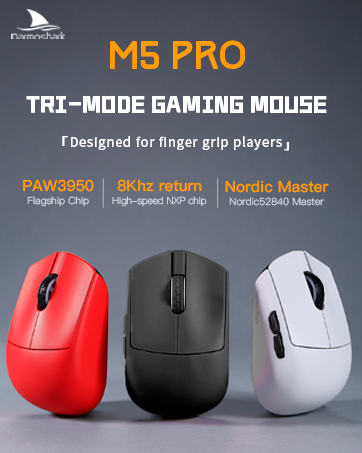
Image: Darmoshark M5PRO mouse charging via USB-C cable, highlighting its built-in lithium battery.
6. Software Customization
To unlock the full potential of your Darmoshark M5PRO mouse, download and install the official Darmoshark driver software from the manufacturer's weblaman web. Perisian ini membolehkan anda:
- Customize DPI settings and create multiple profiles.
- Program button functions and macros.
- Adjust polling rate.
- Manage power settings and battery life.
- Kemas kini perisian tegar.

Image: Darmoshark proprietary driver software interface for mouse customization.
7. Spesifikasi
| Model | M5PRO |
| Sensor | PAW3950 Penderia Optik |
| DPI | Sehingga 30000 DPI |
| Kelajuan Penjejakan | 750IPS |
| Pecutan | 50G |
| Kadar Mengundi | 8KHz (2.4G Wireless), 1KHz (Wired/Bluetooth) |
| Ketersambungan | Tanpa Wayar 2.4G, Bluetooth 5.0, Berwayar USB-C |
| Butang | 5 Butang Boleh Aturcara |
| Berat badan | lebih kurang 38g |
| Dimensi (L x W x H) | 91.7 mm x 57.4 mm x 35.7 mm |
| Bateri | Bateri Litium Terbina dalam (300mAh) |
| Keserasian | Windows, Apple Mac |
Image: Product parameter diagram with mouse dimensions.
8. Penyelenggaraan
- Pembersihan: Gunakan kain lembut dan kering untuk membersihkan tetikus. Elakkan menggunakan bahan kimia yang keras atau bahan yang melelas.
- Storan: Simpan tetikus di tempat yang sejuk dan kering jauh dari cahaya matahari langsung dan suhu yang melampau.
- Penjagaan Bateri: Untuk memanjangkan hayat bateri, elakkan tetikus daripada dinyahcas sepenuhnya dengan kerap. Caskannya apabila penunjuk bateri rendah muncul.
9. Penyelesaian masalah
9.1. Tetikus Tidak Membalas
- Mod Berwayar: Pastikan kabel USB disambungkan dengan selamat pada tetikus dan komputer. Cuba port USB yang lain.
- Mod Wayarles 2.4G: Ensure the 2.4G receiver is plugged in and the mouse is switched to 2.4G mode. Try re-pairing the mouse with the receiver. Ensure the mouse battery is charged.
- Mod Bluetooth: Ensure Bluetooth is enabled on your device and the mouse is in Bluetooth pairing mode. Try re-pairing the mouse in your device's Bluetooth settings. Ensure the mouse battery is charged.
9.2. Cursor Movement is Erratic or Inaccurate
- Bersihkan penderia optik di bahagian bawah tetikus dengan kain lembut dan kering.
- Pastikan anda menggunakan tetikus pada permukaan yang sesuai (cth, pad tetikus). Elakkan permukaan yang sangat reflektif atau lutsinar.
- Adjust the DPI settings using the DPI Adjustment Key or the software.
- Check for any software conflicts or outdated drivers. Update mouse drivers if necessary.
9.3. Wireless Connection Issues
- Reduce the distance between the mouse and the receiver/device.
- Avoid placing the receiver near other wireless devices or sources of interference (e.g., Wi-Fi routers, cordless phones).
- Pastikan tetikus dicas sepenuhnya.
10. Video Produk Rasmi
Watch the official product video for a visual guide on the Darmoshark M5PRO Mini Wireless Gaming Mouse.
Video: Tamatview of the Darmoshark M5PRO Wireless Gaming Mouse, showcasing its design and features in various colors.
11. Waranti dan Sokongan
For warranty information and technical support, please refer to the warranty card included with your product or visit the official Darmoshark webtapak.
Pengeluar: Darmoshark
Webtapak: Darmoshark Official Store