
Tenda A23
Tenda AX1500 WiFi 6 Range Extender (Model A23) User Manual
Model: A23 | Jenama: Tenda
1. Panduan Persediaan
This section provides instructions for setting up your Tenda AX1500 WiFi 6 Range Extender. The extender supports both Wireless Extension and Access Point (AP) modes.
1.1 Kandungan Pakej
- 1 x Tenda WiFi Extender Body
- 1 x Manual Arahan
1.2 Extender Placement
Optimal placement is crucial for effective signal extension. The extender should be placed halfway between your main router and the Wi-Fi dead zone.

Imej: Diagram illustrating correct and incorrect placement of the extender. Correct placement is halfway between the router and the Wi-Fi dead zone, resulting in a good signal and fast speed. Incorrect placement too close or too far leads to poor signal or too much overlap.
1.3 Menghidupkan
Plug the extender into a wall socket. The system will start up when the indicator blinks green.

Imej: The Tenda AX1500 WiFi 6 Range Extender plugged into a standard wall outlet.
1.4 Wireless Extension Setup (App Method)
For a quick and easy setup, use the Tenda WiFi App.
- Download the Tenda WiFi App by scanning the QR code or visiting http://download.cloud.tenda.com.cn/down/app.
- Connect your smartphone to the extender's default Wi-Fi network (e.g., Tenda_EXT).
- Open the Tenda WiFi App. The app should detect the unconfigured extender. Tap 'Configure'.
- Pilih rangkaian Wi-Fi yang ingin anda panjangkan dan masukkan kata laluannya.
- Set the Wi-Fi information for the extender (Wi-Fi name, password). If no changes are needed, tap 'Next'.
- Once the extension is completed, the extender's indicator will turn solid green.
Video: APP Installation Guide. This video demonstrates the step-by-step process of setting up the Tenda AX1500 WiFi 6 Range Extender using the mobile application for wireless extension.
1.5 Wireless Extension Setup (Web UI Method)
Alternatively, you can set up the extender using a web pelayar.
- Connect your computer or smartphone to the extender's default Wi-Fi network (e.g., Tenda_EXT).
- Buka a web browser and navigate to the extender's web UI (usually re.tenda.cn).
- Follow the on-screen instructions to select your home router's Wi-Fi network and enter its password.
- Configure the extender's Wi-Fi name and password.
- Confirm settings to complete the extension. The indicator will turn solid green upon successful setup.
Video: Web Installation Guide. This video provides a detailed walkthrough of configuring the Tenda AX1500 WiFi 6 Range Extender via its web user interface for wireless extension.
1.6 Access Point (AP) Mode Setup
AP Mode is suitable for rooms with existing Ethernet cables, providing a new Wi-Fi network from a wired connection.
- Connect an Ethernet cable from your router's LAN port (or a wall Ethernet port) to the Gigabit Ethernet port on the Tenda extender.
- Plug the extender into a wall socket.
- Connect your smartphone or PC to the extender's default Wi-Fi network (e.g., Tenda_EXT).
- Open the Tenda WiFi App or a web browser (re.tenda.cn) and follow the instructions to set up the extender in AP mode.
- Set the desired Wi-Fi name and password for the new AP network.
- The indicator will turn solid green when the AP mode is successfully configured and providing internet access.

Imej: Illustration of the Gigabit Ethernet Port on the extender, demonstrating its use for wired connections and AP mode.
2. Arahan Operasi
2.1 Connecting to the Extended Network
After successful setup, your Tenda AX1500 extender will broadcast a new Wi-Fi network. The default name will be your original Wi-Fi name with '_EXT' appended (e.g., MyHomeWiFi_EXT). Connect your Wi-Fi enabled devices (smartphones, laptops, smart TVs, game consoles) to this new network using the same password as your main router's Wi-Fi.
2.2 Memahami Penunjuk LED
The LED indicator on the extender provides important status information:
- Hijau Pepejal: Good connection, optimal placement.
- Kuning Pepejal: Fair connection, consider adjusting placement.
- Merah Pepejal: Poor connection or too far from the router. Relocate the extender closer to the router.
- Hijau Berkelip: Sistem bermula.

Imej: Visual guide to the LED Signal Indicator, explaining what each color (green, yellow, red) signifies regarding signal strength and placement.
2.3 Ciri Lanjutan
- Dual-Band Bridging: The extender automatically selects the most stable band (2.4GHz or 5GHz) to extend, ensuring network stability.
- MU-MIMO & OFDMA: These technologies reduce network congestion, allowing for reliable performance with 30+ connected devices simultaneously.
- Port Ethernet Gigabit: Use this port to connect wired devices like smart TVs, PCs, or gaming consoles for faster, more stable connections. It also enables AP mode functionality.
- WPS Easy Setup: For compatible routers, press the WPS button on both the router and the extender for quick, one-click setup.
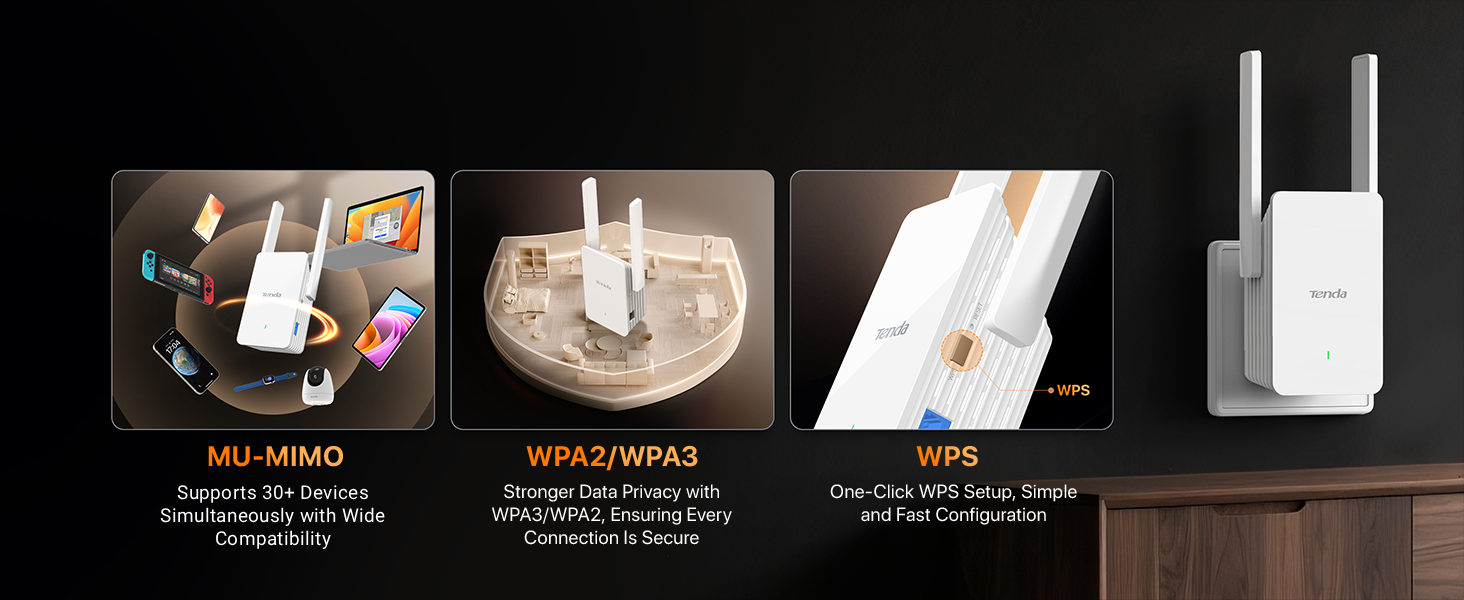
Imej: Features of the Tenda AX1500 Extender, including MU-MIMO for multiple devices, WPA2/WPA3 for stronger data privacy, and WPS for one-click setup.
3. Penyelenggaraan
To ensure optimal performance and longevity of your Tenda AX1500 WiFi 6 Range Extender, follow these maintenance guidelines:
- Jaga kebersihan: Regularly wipe the device with a soft, dry cloth to prevent dust accumulation, which can affect performance and thermal efficiency.
- Pengudaraan yang Betul: Ensure the extender is placed in an area with adequate airflow. Avoid covering ventilation openings.
- Kemas kini Firmware: Semak Tenda website or the Tenda WiFi App periodically for firmware updates. Keeping the firmware updated ensures the best performance and security.
- Elakkan Keadaan Melampau: Jangan dedahkan peranti kepada suhu yang melampau, kelembapan atau cahaya matahari langsung.
4. Penyelesaian masalah
If you encounter issues with your Tenda AX1500 WiFi 6 Range Extender, refer to the following common troubleshooting steps:
- Tiada Akses Internet Selepas Persediaan:
- Check the extender's LED indicator. If it's red, the extender is too far from the router. Relocate it closer until the LED turns green.
- Sahkan bahawa penghala utama anda mempunyai akses internet.
- Pastikan anda memasukkan kata laluan Wi-Fi yang betul untuk penghala utama anda semasa persediaan.
- Weak Signal or Slow Speed:
- Adjust the extender's position. The LED indicator should be solid green for optimal performance.
- Ensure there are no major obstructions (thick walls, metal objects) between the router and the extender, or between the extender and your devices.
- Note that extenders improve coverage, not directly increase internet speed.
- Tidak Boleh Akses Web UI or App:
- Ensure your device is connected to the extender's Wi-Fi network (e.g., Tenda_EXT).
- Try restarting the extender and your device.
- If using a smartphone, disable mobile data traffic before accessing the web UI.
- Forgot Extender's Wi-Fi Password:
- You can reset the extender to factory default settings by pressing and holding the reset button for about 8-10 seconds. After resetting, you will need to set it up again.
5. Spesifikasi
| Ciri | Perincian |
|---|---|
| Jenama | Tenda |
| Nombor Model | A23 |
| Standard Komunikasi Tanpa Wayar | 802.11a/b/g/n/ac, 802.11ax (WiFi 6) |
| Kadar Pemindahan Data | Up to 1500 Megabits Per Second (300Mbps on 2.4GHz + 1201Mbps on 5GHz) |
| Kelas Band Kekerapan | Dwi-Jalur (2.4GHz, 5GHz) |
| Ciri Khas | Light Indicator, Lightweight, Mountable, MU-MIMO, OFDMA, Efficient Thermal Design |
| Peranti Serasi | Desktop, Game Console, Laptop, Router, Smart Television |
| Jenis Penyambung | RJ45 (Gigabit Ethernet Port) |
| Berat Barang | 100 Gram |
| Dimensi Item (D x W x H) | 1.87"D x 2.83"W x 4.84"H |
| UPC | 885397278214 |
6. Maklumat Waranti
The Tenda AX1500 WiFi 6 Range Extender (Model A23) comes with a Waranti 3 Tahun. Please retain your proof of purchase for warranty claims. For detailed warranty terms and conditions, refer to the official Tenda webtapak atau hubungi sokongan pelanggan.
7. Sokongan Pelanggan
For technical assistance, troubleshooting, or any product-related inquiries, please contact Tenda Customer Support:
- e-mel: support.usa@tenda.cn (Isnin hingga Jumaat)
- telefon: +1 800-570-5892
- Webtapak: Untuk maklumat lanjut dan sumber, lawati www.tendacn.com.

Imej: Tenda customer support details, including email and phone number.
Ask a question about this manual
Ask about setup, troubleshooting, compatibility, parts, safety, or missing instructions. Manuals+ will review the question and use this page’s manual context to help answer it.